Outlook | Windows | Classic Outlook for Windows | For business
Using classic Outlook for Windows in business environments

This browser is no longer supported.
Upgrade to Microsoft Edge to take advantage of the latest features, security updates, and technical support.
' cx='32' cy='32' r='32' /%3E%3Ctext x='50%25' y='55%25' dominant-baseline='middle' text-anchor='middle' fill='%23FFF' %3EJ%3C/text%3E%3C/svg%3E)
I'm working in an environment where we need to purge duplicate emails, and all of the tools we've tested have not worked. We're falling back to the mailbox cleanup built in to the Outlook, but we're trying to offload the work from users so we can do it in the background for them.
To that end, we've granted an admin account full access to user mailboxes. However we can only see the root inbox, none of the subfolders. Checking the data file / folder size menu only reports the size of the root inbox folder. Additionally, the Clean up options are grayed out, and hovering over them brings back a message that "This command is currently disabled. This feature is not available because you are running in online mode and connected to Microsoft Exchange Server 2007 or earlier".
This is a fresh installation of Outlook, and the mailboxes are on Office 365. The behavior is the same for cached or online mode. The mailbox is also set to download shared folders when in cached exchange mode.
Using classic Outlook for Windows in business environments
The administration and maintenance of Microsoft Exchange Server to ensure secure, reliable, and efficient email and collaboration services across an organization.
' cx='32' cy='32' r='32' /%3E%3Ctext x='50%25' y='55%25' dominant-baseline='middle' text-anchor='middle' fill='%23FFF' %3EYS%3C/text%3E%3C/svg%3E)
Hi @Jon ,
However we can only see the root inbox, none of the subfolders.
Please run the command below and check the InheritanceType parameter granted for your admin account:
Get-MailboxPermission -Identity <MailboxIdentity> -User <DelegateIdentity> | fl
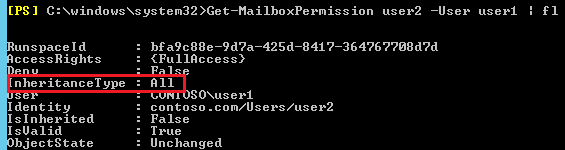
If it is NOT set to All, then you may need to remove and then re-add the permissions using:
Add-MailboxPermission -Identity <MailboxIdentity> -User <DelegateIdentity> -AccessRights FullAccess -InheritanceType All [-AutoMapping $false]
Reference: Add-MailboxPermission
Additionally, the Clean up options are grayed out, and hovering over them brings back a message that...
Is the user's mailbox added via automapping? If this is the case, then it could be an expected behavior and I can reproduce it in my lab:
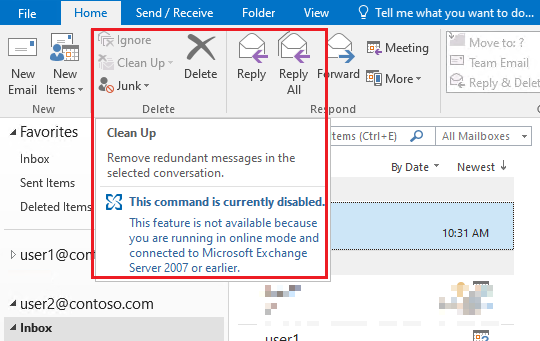
Based on my research and test, please disable the automapping(-AutoMapping $false) and then add the shared account as a separate mailbox(cached mode) instead via File > Add Account. Since the admin account has been granted the full access permission, he can just enter the user mailbox's email address when adding the account, and then when prompted for credentials, type his own's username and password. I've tested by adding a shared account as a secondary mailbox and it worked in my side.
For the detailed steps, you can refer to: Adding an additional or shared mailbox from the same Exchange organization to Outlook
Please Note: Since the web site is not hosted by Microsoft, the link may change without notice. Microsoft does not guarantee the accuracy of this information.
Or you can check the steps provided in the Answer of this thread to add the shared account in a new profile.
Hopefully you can find it helpful. Should there is anything unclear, just feel free to let me know.
If an Answer is helpful, please click "Accept Answer" and upvote it.
Note: Please follow the steps in our documentation to enable e-mail notifications if you want to receive the related email notification for this thread.
Hi @Jon ,
I am writing to see if there is any progress on the issue. Any update would be appreciated. Thanks!
If an Answer is helpful, please click "Accept Answer" and upvote it.
Note: Please follow the steps in our documentation to enable e-mail notifications if you want to receive the related email notification for this thread.