Note
Access to this page requires authorization. You can try signing in or changing directories.
Access to this page requires authorization. You can try changing directories.
Connect FinOps hubs to your billing accounts and subscriptions by configuring Cost Management exports manually or granting FinOps hubs access to manage exports for you.
FinOps hubs use Cost Management exports to import cost data for the billing accounts and subscriptions you want to monitor. You can configure multiple billing accounts, subscriptions, and even data from other cloud providers within a single FinOps hub instance. You can either configure Cost Management exports manually or grant FinOps hubs access to manage exports for you.
Multi-scope and multi-cloud capabilities
FinOps hubs are designed to handle multiple scopes and even data from multiple cloud providers:
- Multiple Azure scopes: You can configure a single FinOps hub to monitor multiple EA billing accounts, MCA billing profiles, subscriptions, and resource groups simultaneously.
- Cross-cloud support: FinOps hubs support the FinOps Open Cost and Usage Specification (FOCUS), which enables ingestion of cost data from other cloud providers like AWS, Google Cloud, and others.
- Extensible platform: The open architecture allows you to extend FinOps hubs to ingest custom data sources beyond standard cloud billing data.
Tip
When configuring multiple scopes, ensure each scope has a unique directory path in your exports to avoid data conflicts. See the Settings.json scope examples section for detailed configuration guidance.
Warning
Avoid configuring overlapping export scopes as this leads to duplicate cost data. For example, if you configure both a billing account-level export and a subscription-level export for the same subscription, costs for that subscription will be duplicated in your hub. Always ensure your export scopes are mutually exclusive.
Prerequisites
Before you begin, you must have:
This walkthrough will trigger the following indirect costs:
- Cost Management exports do not have a direct cost, but push data to storage, which does incur cost for the number of GB stored.
- When exports complete, Data Factory pipelines start to process the data, which incurs cost for the time the pipelines are running.
Find your billing account and scope IDs
Before configuring exports, you need to identify the billing account and scope IDs you want to monitor. The specific ID format depends on your billing account type.
Enterprise Agreement (EA) accounts
For EA accounts, you need your enrollment number (billing account ID):
- Sign in to the Azure portal.
- Search for and select Cost Management + Billing.
- Select Billing scopes from the left menu.
- Select your billing account.
- On the Properties page, copy the Billing account ID (enrollment number).
- Use this format for billing account scope:
/providers/Microsoft.Billing/billingAccounts/{enrollment-number} - For departments, append the department ID:
/providers/Microsoft.Billing/billingAccounts/{enrollment-number}/departments/{department-id}
- Use this format for billing account scope:
Microsoft Customer Agreement (MCA) accounts
For MCA accounts, you should set up exports using the billing profile, not the billing account. You need your billing profile ID:
- Sign in to the Azure portal.
- Search for and select Cost Management + Billing.
- Select Billing scopes from the left menu.
- Select your billing account, then select the billing profile you want to monitor.
- On the billing profile Properties page, copy the Billing profile ID.
- Use this format:
/providers/Microsoft.Billing/billingAccounts/{billing-account-id}/billingProfiles/{billing-profile-id}
- Use this format:
Important
For MCA contracts, always use the billing profile scope for exports, not the billing account scope. Certain datasets (price sheets, reservation recommendations, and reservation details) are only available at the billing profile level.
Subscriptions and resource groups
For subscriptions and resource groups:
- Sign in to the Azure portal.
- Search for and select Subscriptions.
- Select the subscription you want to monitor.
- On the Overview page, copy the Subscription ID.
- For subscription scope:
/subscriptions/{subscription-id} - For resource group scope:
/subscriptions/{subscription-id}/resourceGroups/{resource-group-name}
- For subscription scope:
For more information about finding your billing account and scope information, see View all your billing accounts in Azure portal.
About Cost Management exports
Cost Management provides the following 5 types of exports:
- Cost and usage details (FOCUS)
- Exports all costs using the FOCUS version of the cost and usage details file as they're defined in the FinOps Open Cost and Usage Specification (FOCUS) project.
- Maps to the Costs folder in the ingestion container.
- Price sheet
- Exports prices for your Azure services.
- Maps to the Prices folder in the ingestion container.
- Reservation details
- Exports reservation details for Azure services, including used and unused reservation hours.
- Maps to the CommitmentDiscountUsage folder in the ingestion container.
- Reservation recommendations
- Exports all of the reservation recommendation details for savings. The savings are calculated in addition to your negotiated, or discounted, if applicable, prices.
- Maps to the Recommendations folder in the ingestion container.
- Reservation transactions
- Exports reservation transaction for the Azure reservations bought.
- Maps to the Transactions folder in the ingestion container.
FinOps hubs support the following dataset types, versions, and API versions:
- FocusCost: 1.0r2, 1.0, 1.0-preview(v1)
- PriceSheet: 2023-05-01
- ReservationDetails: 2023-03-01
- ReservationRecommendations: 2023-05-01
- ReservationTransactions: 2023-05-01
- API versions: 2023-07-01-preview
For the most seamless experience, we recommend allowing FinOps hubs to manage exports for you. This option requires the least effort to maintain over time. Please note that Cost Management does not support managed exports for Microsoft Customer Agreement billing accounts or billing profiles.
Configure exports manually
If you can't grant permissions for your scope, you can create Cost Management exports manually to accomplish the same goal.
Determine the scope for your data export.
- For information about finding your billing account and scope IDs, see Find your billing account and scope IDs.
- We recommend exporting from either an EA billing account or MCA billing profile scope to access additional datasets, including price sheets and reservation recommendations.
- Price sheet exports are required to populate missing prices and costs.
- Reservation recommendation exports are used on the Rate optimization Reservation recommendations page.
Important
Microsoft Customer Agreement (MCA) scope requirements
For MCA contracts, certain datasets are only available at the billing profile level, not at the billing account level:
- Price sheet data
- Reservation recommendations
- Reservation details
You must use the billing profile scope (
/providers/Microsoft.Billing/billingAccounts/###/billingProfiles/###) for these exports. This is a Cost Management limitation.- We recommend creating daily exports for each export type supported at your chosen billing scope:
- Enterprise Agreement billing account: FocusCosts, Pricesheet, ReservationTransactions, ReservationDetails, ReservationRecommendations
- Microsoft Customer Agreement billing profile: FocusCosts, Pricesheet, ReservationTransactions, ReservationDetails, ReservationRecommendations
- Subscription: FocusCosts
Create a new FOCUS cost export using the following settings:
- Type of data =
Cost and usage details (FOCUS)¹ - Dataset version =
1.0or1.0r2² - Frequency =
Daily export of month-to-date costs³ - Storage account = (Use subscription/resource deployed with your hub)
- Container =
msexports - Format =
Parquet(when available) - Compression Type =
Snappy(when available) - Directory = (Specify a unique path for this scope⁵)
- EA billing account:
billingAccounts/{enrollment-number} - MCA billing profile:
billingProfiles/{billing-profile-id} - Subscription:
subscriptions/{subscription-id} - Resource group:
subscriptions/{subscription-id}/resourceGroups/{rg-name}
- EA billing account:
- File partitioning = On
- Overwrite data = Off⁴
- Type of data =
Create another export with the same settings except set Frequency to
Monthly export of last month's costs.Create exports for any other data you would like to include in your reports.
- Supported datasets and versions:
- Price sheet
2023-05-01- Required to populate missing prices/costs and calculate savings when using Azure Data Explorer.
- Reservation details
2023-03-01 - Reservation recommendations
2023-05-01- Virtual machine reservation recommendations are required on the Reservation recommendations page of the Rate optimization report. If you do not create an export, the page will be empty.
- Reservation transactions
2023-05-01
- Price sheet
- Supported formats: Parquet (preferred) or CSV
- Supported compression: Snappy (preferred), GZip, or uncompressed
- Supported datasets and versions:
To initialize the dataset, run your exports.
- Exports can take up to a day to show up after first created.
- Use the Run now command at the top of the Cost Management Exports page.
- Your data should be available within 15 minutes or so, depending on how large your account is.
- If you want to backfill data, open the export details and select the Export selected dates command to export one month at a time or use the Start-FinOpsCostExport PowerShell command to export a larger date range with either the
-Backfillparameter or specific start and end dates.
Repeat steps 1-5 for each additional scope you want to monitor (multiple billing accounts, subscriptions, etc.).
Important
Configuring multiple scopes: When setting up multiple scopes, ensure each has a unique directory path to prevent data conflicts. You can monitor multiple EA billing accounts, MCA billing profiles, subscriptions, and resource groups within a single FinOps hub instance.
¹ FinOps hubs 0.2 and later requires FOCUS cost data. As of July 2024, the option to export FOCUS cost data is only accessible from the central Cost Management experience in the Azure portal. If you don't see this option, search for or navigate to Cost Management Exports.
² The only difference in FOCUS 1.0r2 compared to 1.0 is the inclusion of seconds in date columns. If seconds are not required for the system you are ingested data into, there is no need to change existing 1.0 exports to leverage 1.0r2.
³ Configuring a daily export starts in the current month.
⁴ While most settings are required, overwriting is optional. We recommend not overwriting files so you can monitor your ingestion pipeline using the Data ingestion report. If you don't plan to use that report, enable overwriting.
⁵ Export paths can be any value but must be unique per scope. We recommended using a path that identifies the source scope, for example, subscription or billing account. If two scopes share the same path, there could be ingestion errors.
Configure managed exports
Managed exports allow FinOps hubs to set up and maintain Cost Management exports for you. To enable managed exports, you must grant Azure Data Factory access to read data across each scope you want to monitor.
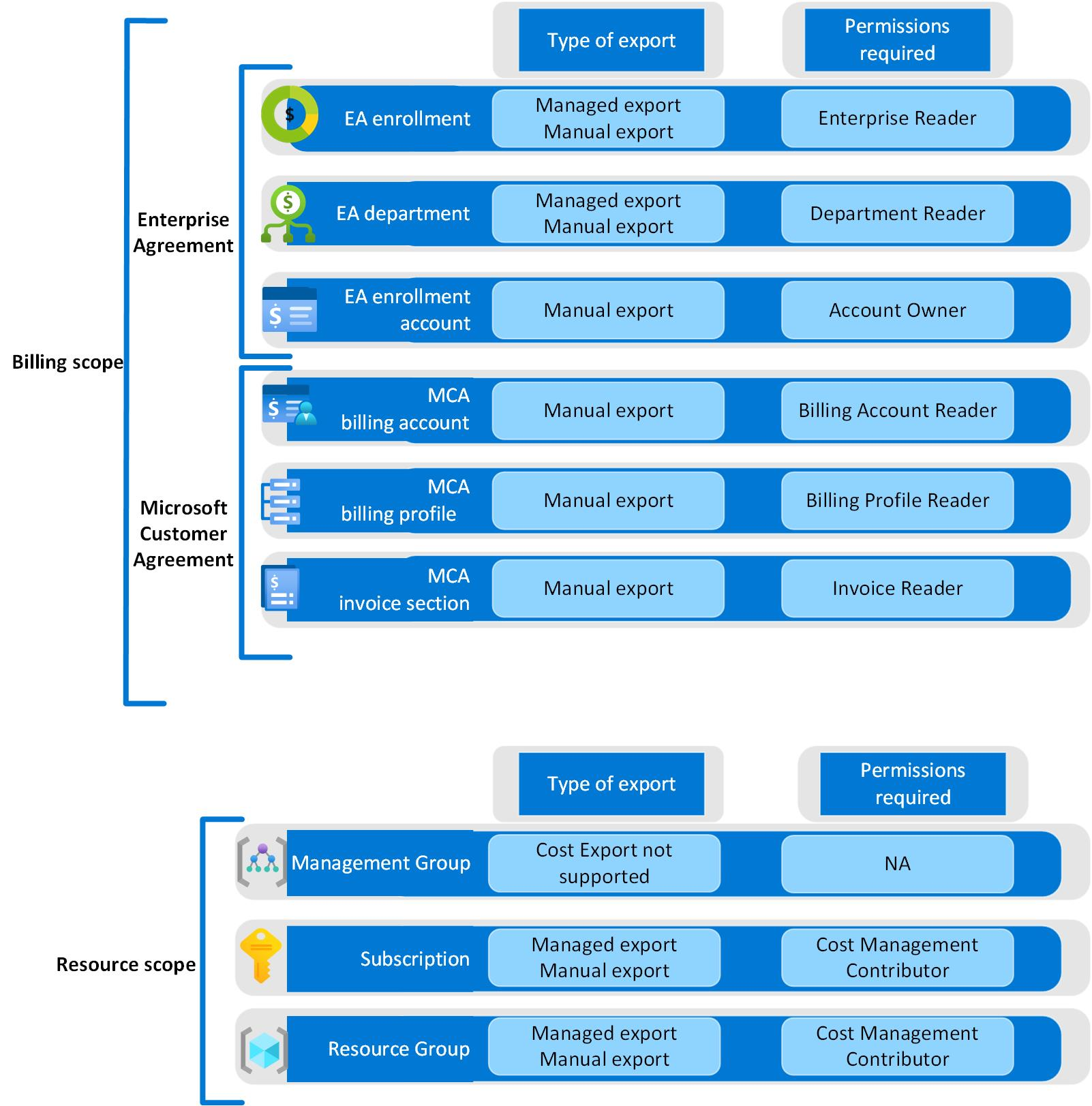
Note
Managed exports are only available in FinOps hubs 0.4 and later.
Managed exports use a managed identity (MI) to configure the exports automatically. To set it up, use the following steps:
Grant access to Azure Data Factory.
- From the FinOps hub resource group, navigate to Deployments > hub > Outputs, and make note of the values for managedIdentityId and managedIdentityTenantId. You'll use them in the next step.
- Use the following guides to assign access to each scope you want to monitor:
- EA enrollments – Assign enrollment reader role permission.
- EA departments – Assign department reader role permission.
- Subscriptions and resource groups – Assign Azure roles using the Azure portal.
Add the desired scopes.
- From the FinOps hub resource group, open the storage account and navigate to Storage browser > Blob containers > config.
- Select the settings.json file, then select ⋯ > View/edit to open the file.
- Update the scopes property to include the scopes you want to monitor. For more information, see Settings.json scope examples.
- Select the Save command to save your changes. FinOps hubs should process the change within a few minutes and data should be available within 30 minutes or so, depending on the size of your account.
Important
Do not add duplicate or overlapping scopes as this will lead to duplication of data.
Backfill historical data.
As soon as you configure a new scope, FinOps hubs will start to monitor current and future costs. To backfill historical data, you have several options:
Option 1: Using config_RunBackfillJob pipeline
Use the config_RunBackfillJob pipeline to process historical data after it's been exported. For more information about running Azure Data Factory pipelines, see Azure Data Factory pipelines.
To run the pipeline from the Azure portal:
- From the FinOps hub resource group, open the Data Factory instance, select Launch Studio, and navigate to Author > Pipelines > config_RunBackfillJob.
- Select Debug in the command bar to run the pipeline. The total run time varies depending on the retention period and number of scopes you're monitoring.
To run the pipeline from PowerShell:
Get-AzDataFactoryV2 `
  -ResourceGroupName "{hub-resource-group}" `
  -ErrorAction SilentlyContinue `
| ForEach-Object {
    Invoke-AzDataFactoryV2Pipeline `
      -ResourceGroupName $_.ResourceGroupName `
      -DataFactoryName $_.DataFactoryName `
      -PipelineName 'config_RunBackfillJob'
}
Option 2: Using Cost Management exports
You can backfill multiple months of data directly using the Cost Management UI. Learn more about exports in the Cost Management exports documentation.
- Open the Azure portal and navigate to Cost Management > Exports.
- Select the managed export created by your FinOps hub.
- Select Export selected dates from the top menu.
- Select the date range you want to backfill (you can specify multiple months at once).
- Select Run to start the export.
Option 3: Using Start-FinOpsCostExport PowerShell command
The most efficient approach for backfilling large date ranges is to use the Start-FinOpsCostExport PowerShell command. For information about working with Cost Management via PowerShell, see Cost Management cmdlets.
# Backfill the previous 12 months for a specific export
Start-FinOpsCostExport -Name 'ftk-monthly-costdetails' `
  -Scope '/providers/Microsoft.Billing/billingAccounts/1234567/departments/56789' `
  -Backfill 12

# Or specify a specific date range
Start-FinOpsCostExport -Name 'ftk-monthly-costdetails' `
  -Scope '/providers/Microsoft.Billing/billingAccounts/1234567/departments/56789' `
  -StartDate '2023-01-01' -EndDate '2023-12-31'
This command handles exporting data for multiple months at once and handles any API throttling issues that might occur.
Settings.json scope examples
EA billing account
"scopes": [
  {
    "scope": "/providers/Microsoft.Billing/billingAccounts/1234567"
  }
]
EA department
"scopes": [
  {
    "scope": "/providers/Microsoft.Billing/billingAccounts/1234567/departments/56789"
  }
]
Subscription
"scopes": [
  {
    "scope": "/subscriptions/aaaa0a0a-bb1b-cc2c-dd3d-eeeeee4e4e4e"
  }
]
Multiple subscriptions
"scopes": [
  {
    "scope": "/subscriptions/aaaa0a0a-bb1b-cc2c-dd3d-eeeeee4e4e4e"
  },
  {
    "scope": "/subscriptions/bbbb1b1b-cc2c-dd3d-ee4e-ffffff5f5f5f"
  }
]
Multiple EA billing accounts
"scopes": [
  {
    "scope": "/providers/Microsoft.Billing/billingAccounts/1234567"
  },
  {
    "scope": "/providers/Microsoft.Billing/billingAccounts/7654321"
  }
]
Mixed scopes (EA billing account and subscriptions)
"scopes": [
  {
    "scope": "/providers/Microsoft.Billing/billingAccounts/1234567"
  },
  {
    "scope": "/subscriptions/aaaa0a0a-bb1b-cc2c-dd3d-eeeeee4e4e4e"
  },
  {
    "scope": "/subscriptions/bbbb1b1b-cc2c-dd3d-ee4e-ffffff5f5f5f"
  }
]
Resource group
"scopes": [
  {
    "scope": "/subscriptions/aaaa0a0a-bb1b-cc2c-dd3d-eeeeee4e4e4e/resourceGroups/ftk-finops-hub"
  }
]
Configure exports via PowerShell
If it's the first time you're using the FinOps toolkit PowerShell module, refer to the PowerShell deployment guide to install the module.
Install the FinOps toolkit PowerShell module.
Import-Module -Name FinOpsToolkitCreate the export and run it now to backfill up to 12 months of data.
New-FinOpsCostExport -Name 'ftk-FinOpsHub-costs' `
  -Scope "{scope-id}" `
  -StorageAccountId "{storage-resource-id}" `
  -Backfill 12 `
  -Execute
Give feedback
Let us know how we're doing with a quick review. We use these reviews to improve and expand FinOps tools and resources.
If you're looking for something specific, vote for an existing or create a new idea. Share ideas with others to get more votes. We focus on ideas with the most votes.