Note
Access to this page requires authorization. You can try signing in or changing directories.
Access to this page requires authorization. You can try changing directories.
When automatic attack disruption triggers in Microsoft Defender XDR, you can view the risk details and containment status of compromised assets on the incident page. The page provides the full attack story and the current status of associated assets.
Review the incident graph
Microsoft Defender XDR automatic attack disruption is built into the incident view. Review the incident graph to get the entire attack story and assess the attack disruption impact and status.
The incident page includes the following information:
- Disrupted incidents include a tag for
Attack Disruptionand the specific threat type identified (for example, ransomware). If you subscribe to incident email notifications, these tags also appear in the emails. - A highlighted notification below the incident title indicating that the incident was disrupted.
- Suspended users and contained devices appear with a label indicating their status.
To release a user account or a device from containment, select the contained asset and select release from containment for a device or enable user for a user account.
Note
Before undoing an action, assess the risk and complete your investigation. Releasing a contained asset prematurely could allow an attacker to resume activity.
Review the attack disruption summary card
When automatic attack disruption takes action during an incident, a dedicated summary card appears on the incident page. The summary card gives you a fast overview of the disruption actions taken. It also displays historical data related to disruption in the context of the incident, meaning the data is aggregated from the first alert of the incident until present time.
To review the summary card:
In the Microsoft Defender portal, go to Incidents & alerts > Incidents.
Select an incident that has the Attack Disruption tag.
On the incident page, locate the attack disruption summary card on the right side of the page. The card provides:
- A summary of the automatic actions taken as part of this incident.
- View activities — navigates to the Activities tab where you can see all automated actions.
- View related assets — lists the assets (endpoints, accounts, mailboxes, applications) where automated actions were applied.
Track the actions in the Action center
The Action center (https://security.microsoft.com/action-center) brings together remediation and response actions across your devices, email and collaboration content, and identities. Actions listed include remediation actions that were taken automatically or manually. You can view automatic attack disruption actions in the Action center.
You can release the contained assets, for example, enable a blocked user account or release a device from containment, from the action details pane. You can release the contained assets after you mitigate the risk and complete the investigation of an incident. For more information, see Action center.
Track the action status in the Activities tab (Preview)
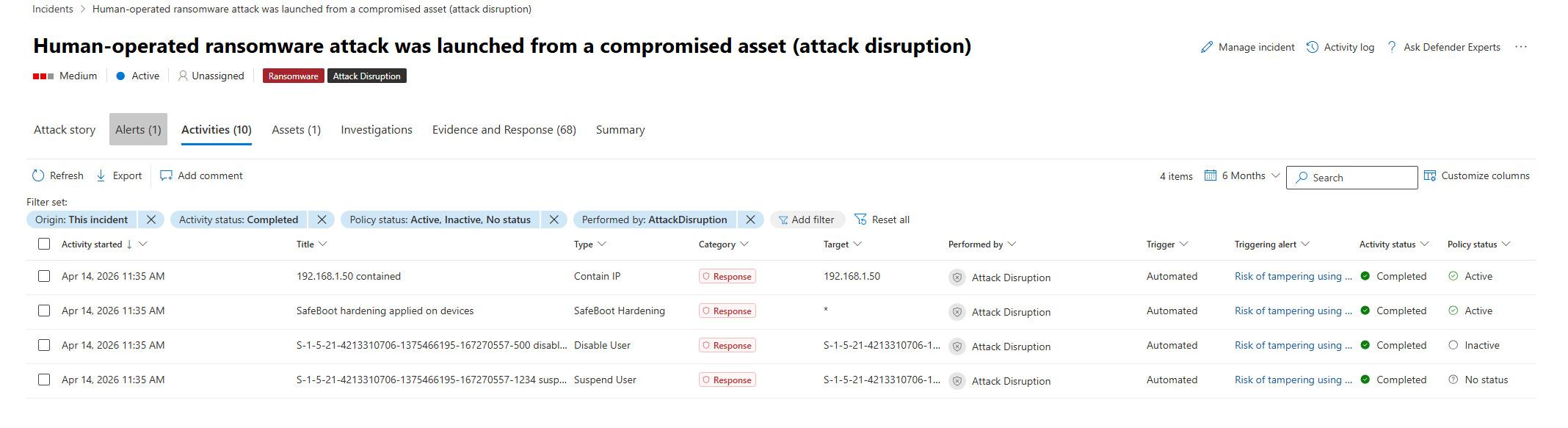
The Activities tab in the Incident page shows details related to a specific incident, including the date and time the activity started, the triggering alert, and more.
The Policy status column (Preview) in the activities list provides a stateful list of actions and policies taken within incidents. You can see the current status of all relevant actions and policies in your environment. This feature addresses the challenge of tracking ongoing and expired actions, especially in large environments with many incidents.
To view all automatic attack disruption and predictive shielding actions taken as part of an incident:
In the incident's Activities tab, add the following filters:
- Select 30 Days > Custom range, and select the relevant timeframe for the actions you want to investigate.
- Select Performed by and select AttackDisruption. This filter also includes predictive shielding actions.
- Select Activity status and select Completed. This status shows you the current policy status for actions that are completed, filtering out partial or in-progress actions.
- Policy status: Select Active, Inactive, and No status (all options except Not applicable).
Review the listed activities. The Policy status column shows the current status of the policy for each activity. For example, a user was contained in the specified timeframe, but the policy is currently inactive. This status means that the user is no longer contained.
Tip
Predictive shielding actions also appear when you filter by AttackDisruption in the Performed by filter. While attack disruption responds to an active attack by containing compromised assets, predictive shielding anticipates potential attack progression and applies protective measures preemptively. For a list of supported predictive shielding actions and more information on managing them, see the following articles:
The following policy statuses are available:
- Active: The policy is currently active and enforced.
- Inactive: The policy was previously applied but is no longer active. For example, a user was contained but is now released.
- Not applicable: The policy status doesn't apply to the action. For example, the policy status doesn't apply to an uncontain action, because uncontain actions aren't policies but rather the reversal of a previous action.
- No status: The policy status couldn't be retrieved for various reasons. For example, the action is still in progress and the final status isn't yet determined.
This view provides unique data on the activity and policy status in the selected timeframe. This data goes beyond Action center views, which log past actions but don't reflect current status.
Track the actions in advanced hunting
Use specific queries in advanced hunting to track device containment, user containment, and user account disable actions.
Containment-related events in advanced hunting
Containment in Microsoft Defender for Endpoint prevents further threat actor activity by blocking communication from contained entities. In advanced hunting, the DeviceEvents table logs block actions that result from containment, not the initial containment action itself:
Device-derived block actions - These events indicate activity (such as network communication) that was blocked because the device was contained.
DeviceEvents
| where ActionType contains "ContainedDevice"
User-derived block actions - These events indicate activity (such as sign-in or resource access attempts) that was blocked because the user was contained.
DeviceEvents
| where ActionType contains "ContainedUser"
Hunt for disable user account actions
Attack disruption uses the remediation action capability of Microsoft Defender for Identity to disable accounts. By default, Microsoft Defender for Identity uses the LocalSystem account of the domain controller for all remediation actions.
The following query looks for events where a domain controller disabled user accounts. This query also returns user accounts disabled by automatic attack disruption by manually triggering account disable in Microsoft Defender XDR:
let AllDomainControllers =
DeviceNetworkEvents
| where TimeGenerated > ago(7d)
| where LocalPort == 88
| where LocalIPType == "FourToSixMapping"
| extend DCDevicename = tostring(split(DeviceName,".")[0])
| distinct DCDevicename;
IdentityDirectoryEvents
| where TimeGenerated > ago(90d)
| where ActionType == "Account disabled"
| where Application == "Active Directory"
| extend ACTOR_DEVICE = tolower(tostring(AdditionalFields.["ACTOR.DEVICE"]))
| where isnotempty( ACTOR_DEVICE)
| where ACTOR_DEVICE in (AllDomainControllers)
| project TimeGenerated, TargetAccountUpn, ACTOR_DEVICE
The preceding query was adapted from a Microsoft Defender for Identity - Attack Disruption query.
Query the DisruptionAndResponseEvents table
For a broader, organization-wide view of all attack disruption actions, use the DisruptionAndResponseEvents table in Advanced Hunting. This table provides a unified view of the same automatic actions visible in the Activities tab, but across your entire organization rather than a single incident.
DisruptionAndResponseEvents
| where Timestamp > ago(30d)
| project Timestamp, ActionType, AttackDisruptionCategory, DeviceName, AccountUpn, RemoteIP
| order by Timestamp desc
To scope the query to a specific incident, add a filter for the incident ID:
DisruptionAndResponseEvents
| where Timestamp > ago(30d)
| where IncidentId == <incident-id>
| project Timestamp, ActionType, AttackDisruptionCategory, DeviceName, AccountUpn
| order by Timestamp desc
For more information about the DisruptionAndResponseEvents table schema, see DisruptionAndResponseEvents table.
Related content
- Exclude assets from automated response actions
- Predictive shielding in Microsoft Defender
- Manage predictive shielding in Microsoft Defender
- DisruptionAndResponseEvents table
- Get email notifications for response actions
Tip
Do you want to learn more? Engage with the Microsoft Security community in our Tech Community: Microsoft Defender XDR Tech Community.