Note
Access to this page requires authorization. You can try signing in or changing directories.
Access to this page requires authorization. You can try changing directories.
Applies to:
You might encounter issues when setting up or using the Microsoft Defender Experts app in Microsoft Teams. Use the following guidance to diagnose and resolve them.
App policy permissions
Note
Some screenshots use Defender Experts for XDR as an example. Unless otherwise noted, the Teams app setup and troubleshooting steps are the same for Defender Experts for Hunting.
The Microsoft Defender Experts app is available for Microsoft Teams by default. However, some environments might have limitations that block the app's installation because of app policy permissions in Teams. Learn how to check Teams app permissions policies.
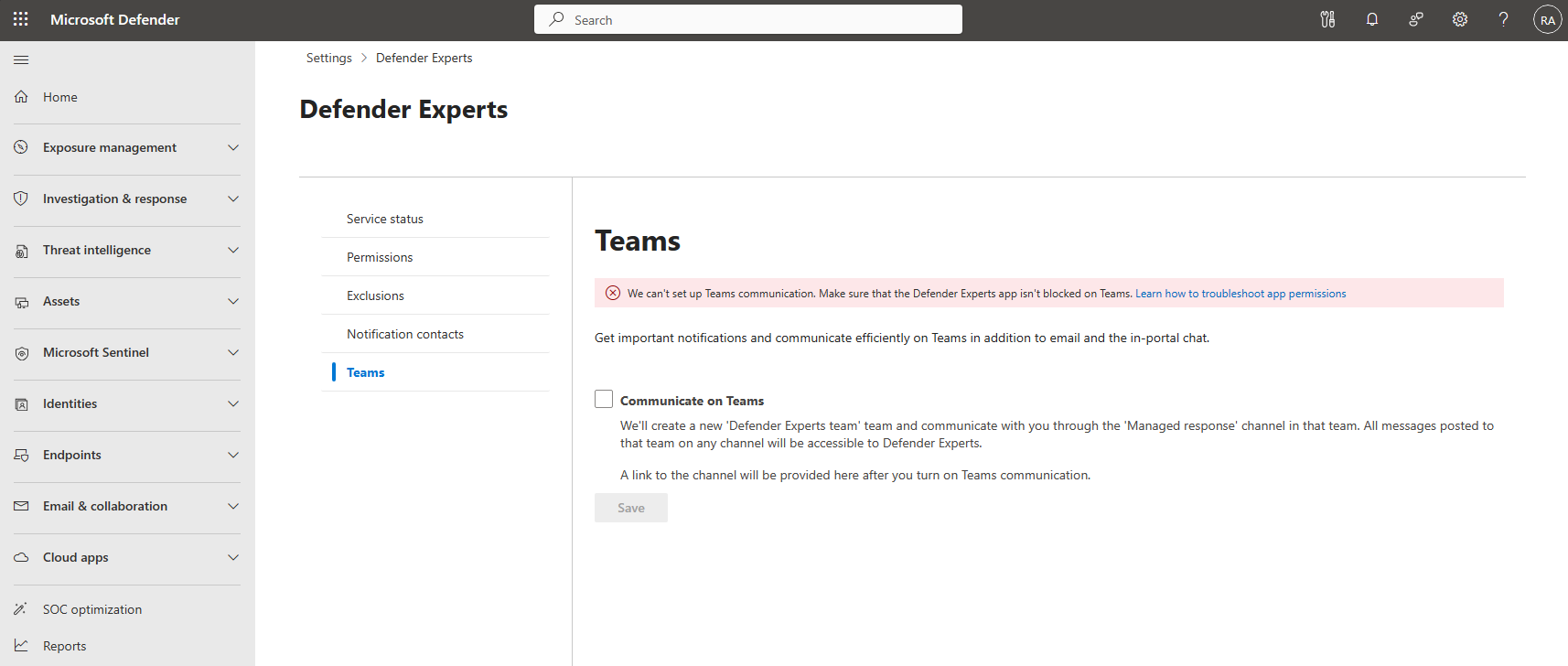
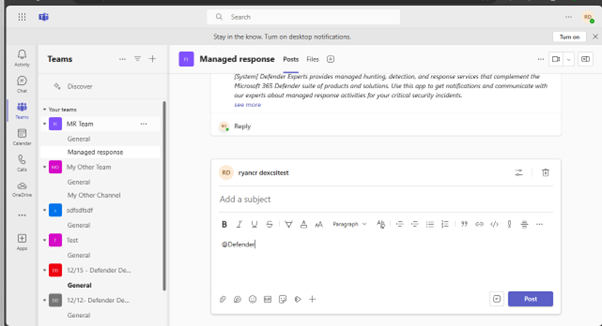
When you join the Defender Experts Teams channel, you can mention or tag the Defender Experts bot in the channel by typing @Defender Experts. If the bot doesn't show up in the list of suggestions, Teams permissions policies might prevent the app from functioning. To learn more, see communicating with Defender Experts for XDR.
The following screenshot is an example of the missing bot:
Check the Teams app permission policies
To verify if the Teams permission policies are preventing the Defender Experts app from working, follow these steps.
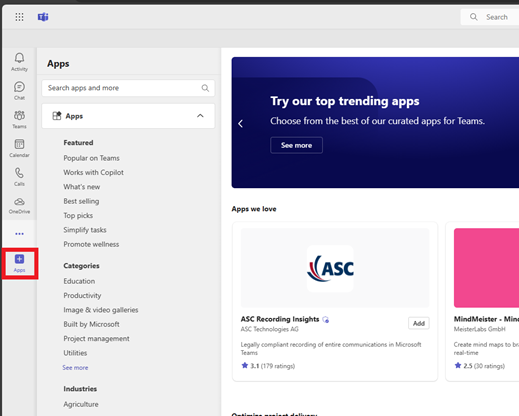
In Microsoft Teams, select Apps on the Teams workspace.
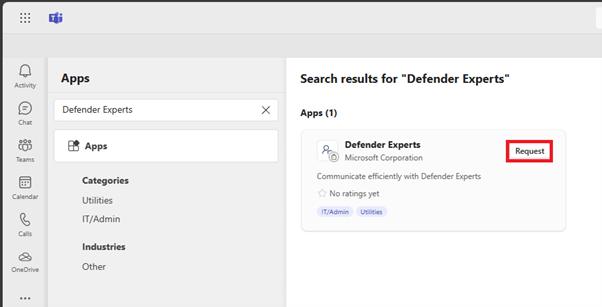
Type Defender Experts in the search pane to see the Defender Experts app.
Select Request to request the Defender Experts service.
If you already have the Teams app installed and you encounter a policy issue, follow these steps:
- Go to the Manage apps page for the Defender Experts app, and then go to the User requests tab. Learn more about Manage app - Microsoft Teams admin center.
If you see the following notification, the Teams app permission policies prevent you from using the Defender Experts app:
This app is blocked in app permission policies. To approve a user's app request, review the app permission policies assigned to them and allow the app in any policies where it's blocked.
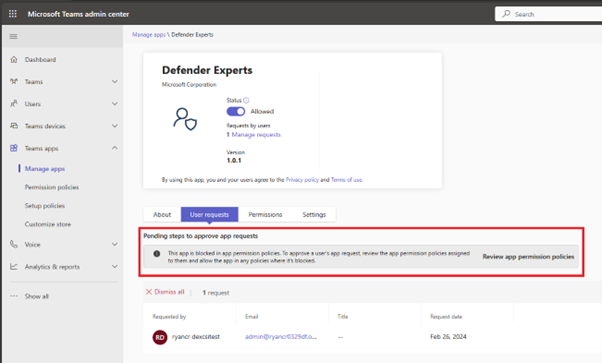
Fix the Teams app permission policies
To fix the Teams app permission policy that stops the Defender Experts app from running, use one of the following options:
- Change the policy that blocks the Defender Experts app from running
- Add a new policy that lets the Defender Experts app run
Change the policy that blocks the Defender Experts app from running
To change the policy that blocks the Defender Experts app, follow these steps:
Go to the App permission policies page. For more information, see App permission policies - Microsoft Teams admin center.
Check each policy to see if Microsoft apps is set to Allow specific apps and block all others.
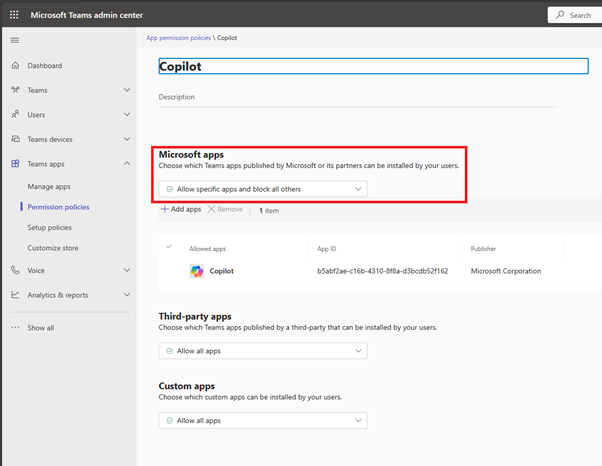
Select Add apps. On the panel, look for Defender Experts, and select Allow.
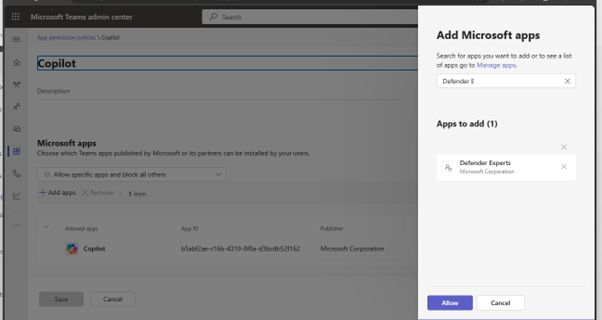
The change takes effect within 24 hours.
Add a new policy that lets the Defender Experts app run
To add a new app permission policy, follow these steps:
Go to the App permission policies page and then select Add.
In the panel, search for and select Defender Experts, and then select Allow.
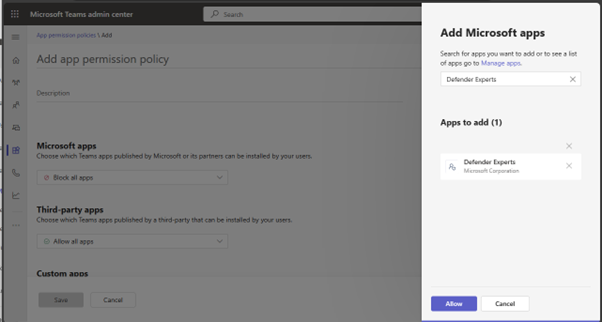
Complete the rest of the fields as needed, and then select Save. If this policy is for a group of users, make sure that all the members in the channel are assigned to the policy. The change takes effect within 24 hours.
Teams channel unavailable
You can't receive updates or chat with Defender Experts if the Managed Response channel is archived or deleted. To learn more, see how to archive or restore a deleted channel.
If the Teams app is deleted, you can reconfigure it again in the Defender portal by going to Settings > Defender Experts > Teams.
Disabled Unified Group creation
Teams channel creation might fail if Microsoft 365 Unified Group creation is disabled in your organization.
The Defender Experts teams onboarding flow requires the creation of Microsoft 365 Unified Group during Teams provisioning on-behalf-of user performing the onboarding. If Unified group creation (EnableGroupCreation) is disabled in the tenant, the Teams team can't be created.
To verify your organization’s group settings, use one of the following options:
- Using Graph Explorer: Use List group settings Graph API to review Microsoft 365 Group settings and determine whether the
EnableGroupCreationsetting is set tofalse. - Using PowerShell: Use the Microsoft Graph PowerShell module to view and update your tenant configurations and allow the onboarding user to create Unified Groups before retrying setup.