Note
Access to this page requires authorization. You can try signing in or changing directories.
Access to this page requires authorization. You can try changing directories.
When you start a client, such as connecting to Business Central in a browser, a connection is established with the Business Central Server instance, and a corresponding session is added on Business Central Server.
Business Central Server includes timeout settings that determine when a session closes because of inactivity over the client connection, lost client connection, or closing of the client. To help you configure the timeout settings, this document provides an overview of how the session timeouts work and answers some basic questions about session behavior.
Session timeout settings overview
This section provides an overview of the settings that are available in Business Central to control when a Business Central Server session for a Business Central client connection times out and closes. Some of the settings are set on Business Central Server and others are set for the Business Central Web client. Learn more about using these settings in this article.
Business Central Server timeout settings
The following table describes the session timeout settings that are used by Business Central Server.
| Setting | Description | Remarks |
|---|---|---|
ClientServicesIdleClientTimeout |
The interval of time that a Business Central client connection can remain inactive before the session is closed. | Learn more in Configuring How Long a Session Remains Open When the Client Connection is Inactive. |
ClientServicesReconnectPeriod |
The amount of time during which a client can reconnect to an existing session on Business Central Server before a session closes. | NOTE: Applies to Business Central 2022 (v20) and earlier only. Learn more in Configuring How Long a Session Remains Open after the Client Connection is Lost. |
These settings are available in the CustomSettings.config file of Business Central Server. Learn more about this file in Configuring Business Central Server.
Business Central Web client timeout settings
The following table describes the session timeout settings that are used by the Business Central Web client.
| Setting | Description | Remarks |
|---|---|---|
SessionTimeout |
Specifies the amount of time that session remains open when there's no activity over the connection from the Business Central Web client to Business Central Server. | Learn more in Configuring How Long a Session Remains Open When the Client Connection is Inactive. |
This setting is available in the navsettings.json configuration file of the Business Central Web Server. Learn more about this file in Configuring web server.
Configure how long a session remains open when the client connection is inactive
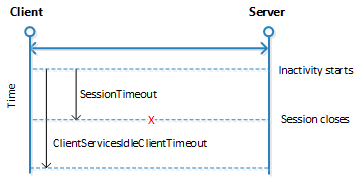
Inactivity on a connection is when the Business Central client isn't sending messages to Business Central Server. There are two settings that control when a Web client session closes because of inactivity on a connection:
ClientServicesIdleClientTimeoutsetting on Business Central Server.SessionTimeoutsetting on the Business Central Web Server.
The session closes according to the setting that has the shortest time period. By default, the ClientServicesIdleClientTimeout setting is set to MaxValue, which means no time limit, and the SessionTimeout setting is 00:20:00 (20 minutes). This means that when client connection is inactive, a session will close after 20 minutes. The following figure illustrates the timeout behavior:
To change these settings, use the Business Central Administration Shell:
Run the Business Central Administration Shell as an administrator.
To set
ClientServicesIdleClientTimeout, run the Set-NAVServerConfiguration as follows:Set-NAVServerConfiguration -ServerInstance [BC server instance] -KeyName ClientServicesIdleClientTimeout -KeyValue [timespan]- Replace
[BC server instance]with your Business Central Server instance name, likeBC270 - Replace
[timespan]with the time period for timeout in the form hh:mm:ss (hours:minutes:seconds), like00:10:00for 10 minutes.
- Replace
To set
SessionTimout, run the Set-NAVWebServerConfiguration as follows:Set-NAVWebServerInstanceConfiguration -WebServerInstance [BC web server instance] -KeyName SessionTimeout -KeyValue [timespan]- Replace
[BC web server instance]with your Business Central Web Server instance name, likeBCWeb - Replace
[timespan]with the time period for timeout in the form hh:mm:ss (hours:minutes:seconds), like00:30:00for 30 minutes.
Learn more in Configuring Business Central Web Server instances.
- Replace
Configure how long a session remains open after the client connection is lost
APPLIES TO: Business Central 2022 release wave (v20) and earlier only. In later versions, sessions terminate instantly when the client loses connection to the server and you can't change behavior.
Occasionally, a Business Central client can lose the network connection to Business Central Server. You can use ClientServicesReconnectPeriodsetting on Business Central Server to control how long a session remains open after the connection is lost to allow time for the client to reconnect to the session.
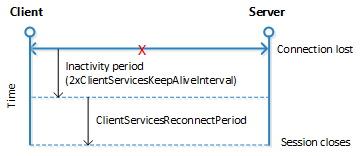
The time a session remains open actually depends on two settings: ClientServicesKeepAliveInterval and ClientServicesReconnectPeriod. The ClientServicesKeepAliveInterval setting is used to specify an initial inactivity period. The initial inactivity period is equal to two times the ClientServicesKeepAliveInterval setting value. After this initial inactivity period, the session remains open for the time period that is specified ClientServicesReconnectPeriodsetting. By default, the ClientServicesKeepAliveInterval setting is 120 seconds (2 minutes) and the ClientServicesReconnectPeriodsetting is 10 minutes. This means that Business Central Server waits approximately 14 minutes for the client to reconnect before closing the session.
The following figure illustrates the reconnect session timeout behavior.
The process that occurs when a client doesn't reconnect to the session is explained as follows:
The connection is lost and the initial inactivity period starts (default is 4 minutes).
After the initial inactivity period, the service channel enters a faulted state.
When the service channel is in the faulted state, Business Central Server considers the session with the client as orphaned and waits for it to reconnect.
If the client doesn't reconnect within the time period that the
ClientServicesReconnectPeriodsetting (default is 10 minutes) specifies, then Business Central Server closes the session.The session is then removed from the Active Session table in the Business Central.
FAQ
This section answers some typical questions about session timeout.
What happens to the session if the client loses the connection to Business Central Server?
In Business Central 2022 release wave 2 (v21) and later, the session closes immediately. In earlier version, it takes approximately 14 minutes for the Business Central Server to close the current session by default. The time it takes to close the session is in part determined by the ClientServicesReconnectPeriodsetting on Business Central Server plus an initial 10-minute inactivity period. For more information, see Configuring How Long a Session Remains Open after the Client Connection is Lost.
What happens if the session is still active when Business Central Server tries to close it?
- The server stops any executing threads when the next statement is to be executed. The current call stack is aborted so any uncommitted transactions will be rolled back.
- The server cancels any callbacks to the client (similar to waiting for the response to a Confirm dialog).
- The session is closed and removed from the Active Session table.