Note
Access to this page requires authorization. You can try signing in or changing directories.
Access to this page requires authorization. You can try changing directories.
Note
Community interest groups have now moved from Yammer to Microsoft Viva Engage. To join a Viva Engage community and take part in the latest discussions, fill out the Request access to Finance and Operations Viva Engage Community form and choose the community you want to join.
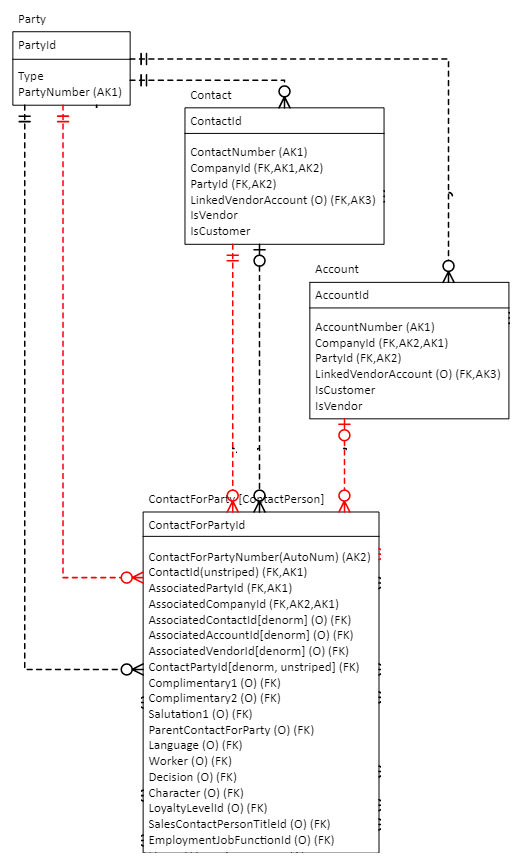
The Dual-write application orchestration solution version 2.0.999.0 and later includes data model changes to party and global address book for the Account and Contact tables. The changes introduce many-to-many relationships that support advanced business scenarios. Portal web roles, including the customer portal, don't support these changes. These web roles are either shipped out-of-the-box or existed in your environment before you installed dual-write. To make the web roles work as expected, you need to create new web roles by using the new data model.
In summary, the way the tables interact has changed, but the table permissions in the customer portal didn't change. This article explains how to create new web roles that work with the new advanced data model.
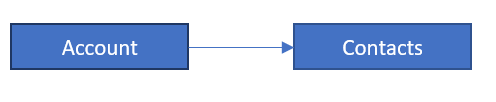
This diagram shows the table relationship without the party and global address book data model:
This diagram shows the table relationship with the party and global address book data model:
Create new table permissions
To create these new table permissions, follow these steps:
Sign in to Power Apps, and go to your apps.
Select your Portal Management app.
In the side bar, select Security > Table permissions.
You must create three new permissions:
- Contact to Party table connection
- Party to Account table connection
- Account to Order table connection
Create and save a new permission for the Contact to Party connection, setting these parameters:
- Name: Party to Account table connection** (or your choice)
- Table Name: msdyn_contactforparty
- Website: Customer Portal
- Scope: Contact
- Privileges: Select all
- Web roles: Authenticated Users, Customer Representative (or your choice)
Create and save a new permission for the Party to Account connection, setting these parameters:
- Name: Party to Account Connection (or your choice)
- Table Name: account
- Website: Customer Portal
- Scope: Parent
- Privileges: Select all
- Parent Table Permission: Contact to Party Connection
Create and save a new permission for the Account to Order connection, setting these parameters:
- Name: Account to Order Connection (or your choice)
- Table Name: salesorder
- Website: Customer Portal
- Scope: Parent
- Privileges: Select all
- Parent Table Permission: Party to Account Connection