Note
Access to this page requires authorization. You can try signing in or changing directories.
Access to this page requires authorization. You can try changing directories.
Note
Community interest groups have now moved from Yammer to Microsoft Viva Engage. To join a Viva Engage community and take part in the latest discussions, fill out the Request access to Finance and Operations Viva Engage Community form and choose the community you want to join.
When you plan and set up your chart of accounts, consider how the various components work together when you post a document or journal. These components include account structures, advanced rules, and balancing and fixed dimensions. This article explains what each component is and how the components work together.
Chart of accounts and financial dimension components
A rich, rule-based system defines valid combinations of main accounts and financial dimension values. This section gives a brief overview of the functionality of each component and explains where you can find the component.
Account structures
You need an account structure when you set up your ledger. You must define and activate at least one account structure, and you must assign it to the ledger. The account structure must include the main account. You can define the order of segments that works best for the business. After you define the main account, the system can determine the account structure that is used. By putting the main account first or near the front of a structure, you can help limit the values and also help the system apply the last known valid value as a default value. You can include up to 10 additional financial dimensions in the account structure. The account structure defines which dimension values are valid in combination with other values. It also defines whether you must enter dimension values.
Advanced rules
Advanced rules are an optional component when you set up the chart of accounts. You can add as many advanced rules as you want to an account structure. Use advanced rules to handle scenarios where you must track extra financial dimensions when specific criteria are met. For example, if you use a Travel expense account, you might want to track extra information, such as the event that the employee is traveling for. If there are multiple advanced rules, the system applies them in alphabetical order, based on the names of the rules. The segments that a rule adds can be applied only after the segments of the account structure.
Balancing dimension
You can optionally define a balancing financial dimension. On the Ledger page, you can define the financial dimension that should be balanced. Then, whenever you post transactions to that financial dimension, the system automatically creates and posts entries to make the financial dimension balanced.
Default and fixed financial dimensions on the main account
Default dimensions come from various places, such as master records (for example, customer or vendor records), document headers, and the main account. This article focuses on default dimensions on the main account by legal entity. You can define whether a main account has a Not fixed or Fixed value for each financial dimension that is used across all account structures for the ledger. If a financial dimension is Not fixed, it uses a default value, but you can overwrite that value. This behavior applies to all default values in the system, even default values that come from master records. If you set a financial dimension to a Fixed value, the system always applies that value, regardless of whether it came from somewhere as a default value or the user entered it.
Note
A related concept is derived dimensions. Derived dimensions let the value of one financial dimension automatically set the values of other dimensions, based on rules that you define. By default, derived values are applied only when the target dimensions are blank, but you can enable the Replace existing dimension values with derived values option to overwrite values that are already populated. For more information, see Derived dimensions.
Order in which the system applies default dimensions during posting
You might have questions about the order that the various components run in. It's very important that you understand the order that the system applies default dimensions, because this behavior affects the approach that you take to set up.
Note
This information applies only to the application of default dimensions in the application. If you import data by using Microsoft Excel or the Data Management Framework, the behavior differs.
Example 1
Account structure
| Main account | Business unit | Department | Cost center |
|---|---|---|---|
| All values are allowed | All values are allowed | All values are allowed | All values are allowed |
Main account
| Main account | Name | Legal entity | Department |
|---|---|---|---|
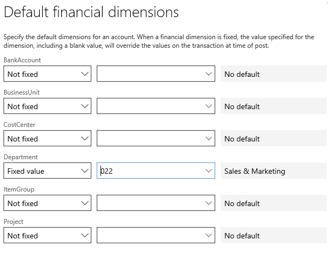
| 401100 | Product Sales | USMF | Fixed – 022 Sales and Marketing department |
The following illustration shows the fixed default dimension that is set on main account 401100.
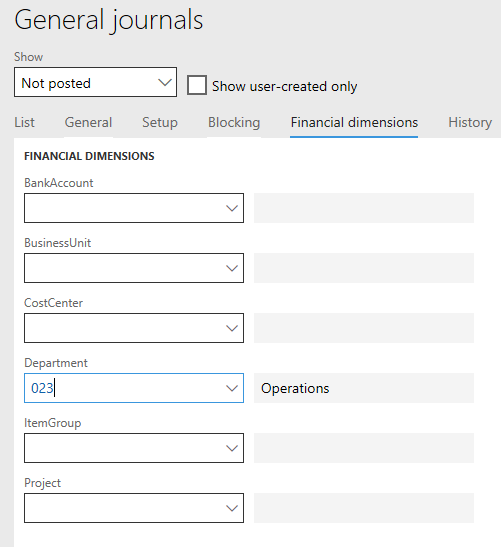
For this basic example, you enter a general journal where the Department dimension is set to use the default value 023 (Operations). You enter and post a ledger account. The following illustration shows the default financial dimension on the general ledger header.
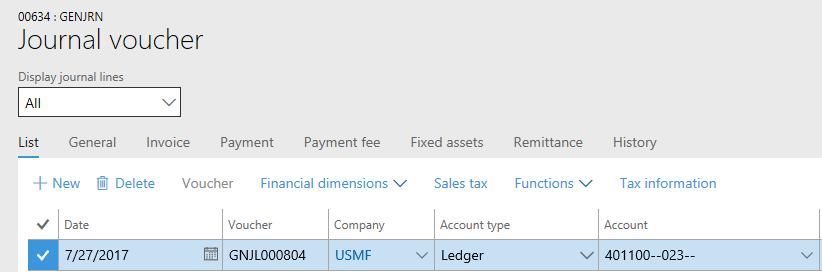
The default dimension on the journal header causes department 023 to be applied by default on the sales account line. The following illustration shows the general journal line, where the 023 default dimension value from the header is applied.
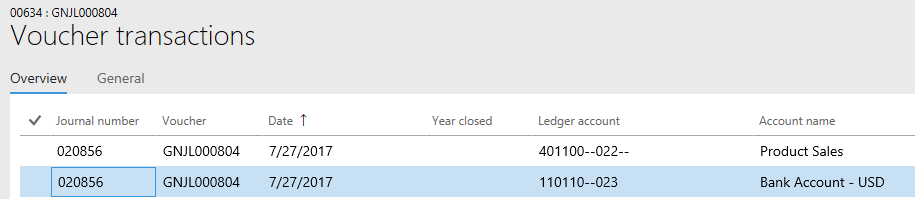
However, when you post the line, the fixed dimension is applied, and the line is posted to department 022. The following illustration shows the posted voucher, where the fixed dimension is applied for the sales account.
Example 2
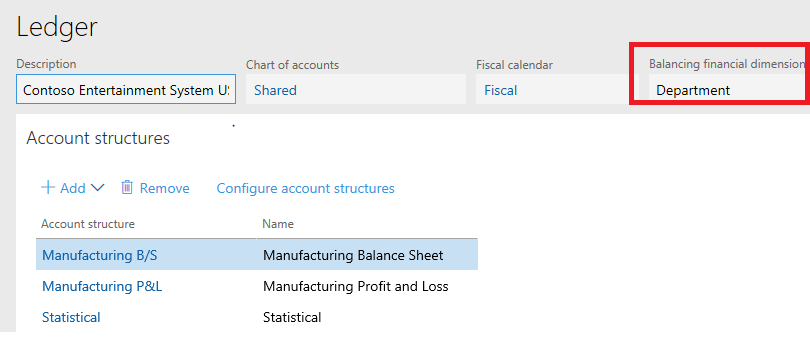
This example uses the same setup as the first example. However, you add a second component and use the Department dimension as a balancing dimension. In the following illustration, Department is the balancing financial dimension for the USMF ledger.
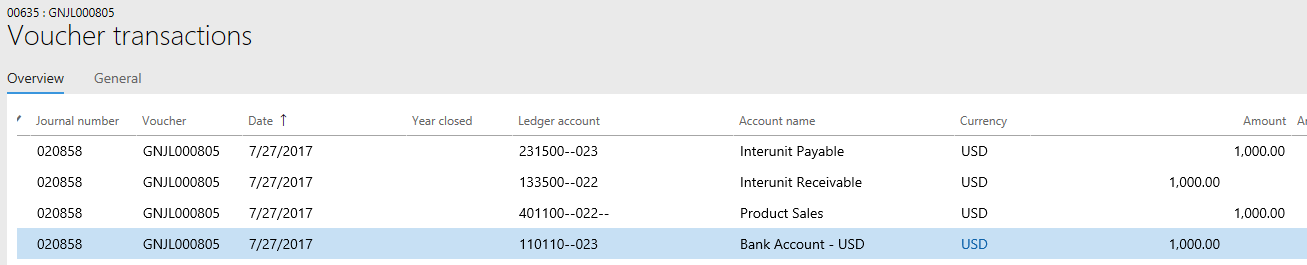
When you use the same journal header setup and post the same transaction, the fixed dimension is applied first. Then the balancing logic is applied to help guarantee that every department has a balanced entry. The following illustration shows voucher transactions that include the balancing entry after the fixed dimension is applied.
Example 3
In this example, you add an advanced rule. The advanced rule specifies that if sales account 401100 and department 022 (Sales and Marketing) are used, the system should track an additional segment that is named Customer.
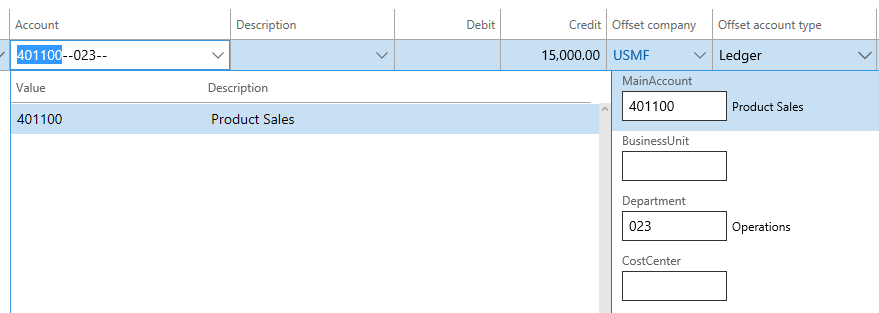
This example is important because of the order. The account structure is determined after the main account is entered. If you refer to the account structure setup, the system can determine that the main account, business unit, department, and cost center are relevant. At this point, the advanced rule isn't triggered, because fixed dimensions aren't applied until default dimensions are applied for the journal voucher during posting. In the following illustration, the Customer segment isn't present, because the criteria for the advanced rule aren't met.
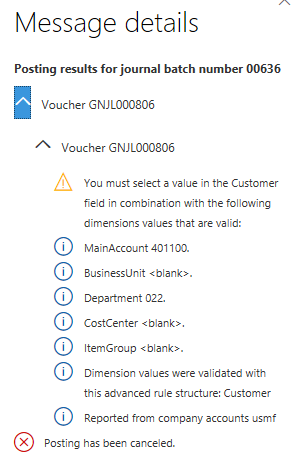
The posting isn't successful, because the fixed dimension was applied at the end of the process. Dimension validation determines that the Customer segment is required if the main account is 401100 and the department is 022. Posting can't occur because of the validation error. The following illustration shows the message that appears after dimension validation determines that Customer is a required segment.
In this example, you must overwrite the default value so that the advanced rule is triggered and you can enter the Customer segment. However, this solution isn't always possible, and some users aren't even aware of the posting rules. Therefore, it's important that you understand the order that default dimensions are applied in when you set up your chart of accounts.
To achieve what you want in this example, you can change the configuration in several ways. For example, you can create a new account structure for sales accounts and include the Customer segment in the structure. You can also add more rows in an existing account structure, and specify the main account and valid department values. Then, in the additional customer structure, you might find it useful to have a separate account structure of sales accounts where the Customer segment is present.
Additional resources
Some of the following resources refer to an earlier version. However, much of the information about the application of default dimensions and many of the concepts are the same in the earlier version, so the references are still valid.
Balanced journals for interunit accounting
Planning your chart of accounts in AX 2012 blog – This link goes to part one of a seven-part series.