Note
Access to this page requires authorization. You can try signing in or changing directories.
Access to this page requires authorization. You can try changing directories.
You can manage customer conversations through incoming and outgoing text messages as part of your sales outreach.
Prerequisites
Before you start using the inbound text message feature, verify that the following prerequisites are met:
The text message feature is enabled with the callback URL configured in your SMS provider settings to receive incoming (replies) messages. For more information about the callback URL, see step 4 in Set up the SMS provider in Dynamics 365 Sales.
Contact your administrator to enable the In-app notifications option in Power Apps portal for your organization. Also, verify that you have the necessary permissions to view the in-app notifications. For more information, see Enable the in-app notification feature.
You must have the Salesperson privileges to receive incoming messages. If you have insufficient privileges, the in-app notification center notifies you about the same. Contact your administrator to get sufficient privileges to use the text message feature. For more information, see Salesperson permissions for the SMS feature.
How incoming text messages are routed
The system attaches incoming messages (replies) to a record with the phone number that sent the outbound message. If the same phone number is associated with multiple records, the system routes incoming messages to the record in the following priority order:
- The record that contains the most recent conversation between the seller and the customer.
- The record owned by a seller to whom the incoming message is addressed.
- The record owned by a seller who belongs to the team owning the phone number.
- The record entity type in the following order:
- Contact
- Account
- Opportunity
- Lead
- The active record receives the message over the inactive record.
- The record that's updated most recently.
Important
When you receive messages from a number associated with a record, make sure the number is in one of these fields—mobilephone, telephone1, or telephone2. If the phone number is in any other field, text messages aren't linked to that record. Instead, the system creates a new lead and links incoming messages to that lead.
Open text message conversations
You can view conversations only if you or your team is assigned the outbound phone number or record. To view the conversations, use one of the following options:
Activities grid:
Go to the Activities grid and select Conversation > My text messages from the view selector.
A list of conversations that are related to you is displayed.
Double-click a conversation.
The conversation pane opens on the right side of the page.
Record:
Open a record (account, contact, lead, or opportunity).
Select the message icon corresponding to a phone number (Business Phone or Mobile Phone),
Note
For opportunity records, open the Activity tab and then double-click a conversation that you want to view.
The conversation pane opens on the right side of the page.
Notification center:
Open your sales app and, on the navigation bar, select the bell icon.
The in-app notifications are displayed.
Select the notification.
The conversation pane opens on the right side of the page.
Sales accelerator workspace:
Open the text message step from the Up next widget or the work list item. More information: Send a text message to customers
Move conversations to a different record
The inbound text messages connect to the record that has the most recent conversation between the seller and the customer. If the conversation relates to a different record, you can move the conversation to that record. You can also move a conversation from one record type to another. For example, if the conversation related to a contact record is associated with an account record, you can move the conversation to the contact record.
From the conversation window, select the conversations.

Select Change.
Use the lookup field and select the record to which you want to move the conversation.
The conversation moves to the selected record. To verify, go to the target record and open the conversation pane.
Understand the conversation pane
The conversation pane is where you, as a seller, interact with your customer. Through the conversation pane, you can complete the following tasks:
- Send and receive text messages.
- Choose templates to send personalized messages.
- Choose a phone number to send a message.
- View the history of the conversation related to the record.
The following image is an example of the conversation pane.
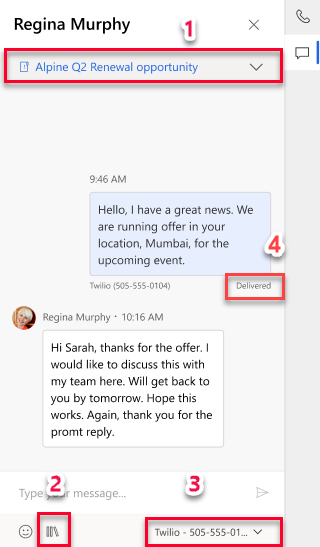
Related conversation to the selected phone number: This option is available only for contact and opportunity records. When you open a contact, the drop-down list displays opportunities that are related to this contact. You can choose an option from the list to view the history and manage conversations related to that record.
Manage templates: Choose templates to send personalized messages to customers. Also, you can choose to create templates if any of the existing templates don't meet your requirements. For more information, see Personalize text messages through templates.
Choose phone numbers: When multiple phone numbers are assigned to you or your team, you can choose a number from which you want to send and receive the message. Similarly, you can choose a phone number to send a message to the customer. For more information, see Set up the SMS provider in Dynamics 365 Sales.
Delivery report: The delivery report of the text message is displayed below the message. It's displayed only if the SMS provider supports it. For more information, see Configure SMS provider.
If the message is undelivered, hover over the delivery message to view the reason for the failure. Take appropriate action to resolve the failure. For example, if the message is sent to an invalid number, the reason for the failure is displayed as InvalidSendingParameters. To resolve the failure, ensure that the number is valid and is in the international telephone numbering plan (E.164 format).
Related information
Engage with customers through text messages
Send a text message to customers