Note
Access to this page requires authorization. You can try signing in or changing directories.
Access to this page requires authorization. You can try changing directories.
This article is for IT pros and Teams Administrators who want to build custom historical reports outside of Power BI for Teams Phone Agents, Auto Attendants, and Call Queues,
Planning and licensing review
Planning
- Overview of Teams Phone Agent, Auto Attendant, and Call Queue
- Authorized users
- Nesting call flows
- Reporting considerations
Licensing
Overview
The Voice Applications Analytics Collector (VAAC) service enables accessing all the Teams Phone Agent, Auto Attendant, and Call Queue historical data with any tool that supports connecting to HTTP endpoints.
There are three steps:
- Authentication
- Constructing a valid query
- Reading the result
Step 1 - Authentication
An access token must be retrieved and then submitted with all subsequent requests.
Authentication URL:
https://login.microsoftonline.com/{{tenantID}}/oauth2/token
Replace {{tenantID}} with your tenant ID.
The body of the request must contain the following:
| Field name | Value |
|---|---|
| client_id | |
| scope | user_impersonation |
| userName | The Teams username |
| password | The Teams password for the username |
| grant_type | password |
| resource | https://api.interfaces.records.teams.microsoft.com |
Step 2 - Contructing a valid query
A valid query consists of several attributes in a JSON object:
{
   "Filters":[
      {
         "DataModelName":"Date",
         "Value":"2022-04-01",
         "Operand":4
      },
      {
         "DataModelName":"Date",
         "Value":"2022-04-30",
         "Operand":6
      }
   ],
   "Dimensions":[
      {
         "DataModelName":"AutoAttendantIdentity"
      },
      {
         "DataModelName":"AutoAttendantDirectorySearchMethod"
      }
   ],
   "Measurements":[
      {
         "DataModelName":"PSTNTotalMinutes"
      },
      {
         "DataModelName":"TotalCallCount"
      }
   ],
   "Parameters":{
      "UserAgent":"VAAC Custom Query"
   },
   "LimitResultRowsCount":100000
}
Required fields
Filters: used to filter data returned by VAAC - any dimension where
Filter SupportisYcan be filtered on- DataModelName should be one of the supported dimensions
- Value should be in the correct format (datetime, string, number, etc.)
- Operands:
- 0 - Equals
- 1 - Not Equals
- 2 - Contains
- 3 - Begins With
- 4 - Greater Than
- 5 - Greater Than or Equal To
- 6 - Less Than
- 7 - Less Than or Equal To
- 8 - Does Not Contain
- 9 - Does Not Begin With
Dimensions:
- DataModelName should be one of the supported Common, Auto Attendant, or Call Queue dimensions.
Measurements:
- DataModelName should be one of the supported measurements.
Parameters: Currently only UserAgent is supported.
LimitResultRowsCount: the max count of rows returned by VAAC
Note
When you submit a query that searches by Date, and the search criteria include both date and time (ISO 8601 format), the time portion is ignored.
Important
Requests into the system are throttled based on the IP address making the call, the recognized tenant identity in the auth header, and the calling service in order to prevent a single client, tenant, or service from monopolizing the resources.
Compress the JSON query
The VAAC API only accepts GZip-compressed or Base64-encoded strings as input.
Find any website to compress the JSON blob using GZIP or Base64. For example:
GZIP output should look like this:
H4sIAAAAAAAACq2SQWsCMRCF7/6KkLNC3EoPe9u6FISuFbW9lB4GM9TQbEaSCSLif+9mV4uCBwXnMkze5L0vkH1PCCFfjWX0QeZfaWxqf+xJLIGhIo12CjXKPM0o+2cLn2BjEjKVZQM1Gqjhhfy+QQ9Oy3x0PDz0H5HypK6nPJ9SUv9uV2RpanTBkLvxiUVkKpjRaXA80ejY8E7eg3/hUBqPKya/WyD41bpCXpP+tzvjrBBC9NjA8o2ks8VyuiQGWxkXGcNdkO3FMVg7puj4GtAMfLPa/Y2Tk/wI6IufhjHl0xa9eJmIEsMv06Y16cLlm6kNzzFEy3Pahi4kH6pUvcMfrAhUU3oCAAA=
Base64 output should look like this:
ew==
IkZpbHRlcnMiOls=
ew==
IkRhdGFNb2RlbE5hbWUiOiJEYXRlIiw=
IlZhbHVlIjoiMjAyMi0wNC0wMSIs
Ik9wZXJhbmQiOjQ=
fSw=
ew==
IkRhdGFNb2RlbE5hbWUiOiJEYXRlIiw=
IlZhbHVlIjoiMjAyMi0wNC0zMCIs
Ik9wZXJhbmQiOjY=
fQ==
XSw=
IkRpbWVuc2lvbnMiOls=
ew==
IkRhdGFNb2RlbE5hbWUiOiJBdXRvQXR0ZW5kYW50SWRlbnRpdHki
fSw=
ew==
IkRhdGFNb2RlbE5hbWUiOiJBdXRvQXR0ZW5kYW50RGlyZWN0b3J5U2VhcmNoTWV0aG9kIg==
fQ==
XSw=
Ik1lYXN1cmVtZW50cyI6Ww==
ew==
IkRhdGFNb2RlbE5hbWUiOiJQU1ROVG90YWxNaW51dGVzIg==
fSw=
ew==
IkRhdGFNb2RlbE5hbWUiOiJUb3RhbENhbGxDb3VudCI=
fQ==
XSw=
IlBhcmFtZXRlcnMiOns=
IlVzZXJBZ2VudCI6IlBvd2VyIEJJIERlc2t0b3Ai
fSw=
IkxpbWl0UmVzdWx0Um93c0NvdW50IjoxMDAwMDA=
fQ==
URL-Encode the compressed JSON query
The GZIP or Base64 compressed JSON query must be URL encoded
GZIP URL encoded output looks like this:
H4sIAAAAAAAACq2SQWsCMRCF7%2F6KkLNC3EoPe9u6FISuFbW9lB4GM9TQbEaSCSLif%2B9mV4uCBwXnMkze5L0vkH1PCCFfjWX0QeZfaWxqf%2BxJLIGhIo12CjXKPM0o%2B2cLn2BjEjKVZQM1Gqjhhfy%2BQQ9Oy3x0PDz0H5HypK6nPJ9SUv9uV2RpanTBkLvxiUVkKpjRaXA80ejY8E7eg3%2FhUBqPKya%2FWyD41bpCXpP%2BtzvjrBBC9NjA8o2ks8VyuiQGWxkXGcNdkO3FMVg7puj4GtAMfLPa%2FY2Tk%2FwI6IufhjHl0xa9eJmIEsMv06Y16cLlm6kNzzFEy3Pahi4kH6pUvcMfrAhUU3oCAAA%3D
Base64 URL encoded output looks like this:
%0Aew%3D%3D%0AIkZpbHRlcnMiOls%3D%0Aew%3D%3D%0AIkRhdGFNb2RlbE5hbWUiOiJEYXRlIiw%3D%0AIlZhbHVlIjoiMjAyMi0wNC0wMSIs%0AIk9wZXJhbmQiOjQ%3D%0AfSw%3D%0Aew%3D%3D%0AIkRhdGFNb2RlbE5hbWUiOiJEYXRlIiw%3D%0AIlZhbHVlIjoiMjAyMi0wNC0zMCIs%0AIk9wZXJhbmQiOjY%3D%0AfQ%3D%3D%0AXSw%3D%0AIkRpbWVuc2lvbnMiOls%3D%0Aew%3D%3D%0AIkRhdGFNb2RlbE5hbWUiOiJBdXRvQXR0ZW5kYW50SWRlbnRpdHki%0AfSw%3D%0Aew%3D%3D%0AIkRhdGFNb2RlbE5hbWUiOiJBdXRvQXR0ZW5kYW50RGlyZWN0b3J5U2VhcmNoTWV0aG9kIg%3D%3D%0AfQ%3D%3D%0AXSw%3D%0AIk1lYXN1cmVtZW50cyI6Ww%3D%3D%0Aew%3D%3D%0AIkRhdGFNb2RlbE5hbWUiOiJQU1ROVG90YWxNaW51dGVzIg%3D%3D%0AfSw%3D%0Aew%3D%3D%0AIkRhdGFNb2RlbE5hbWUiOiJUb3RhbENhbGxDb3VudCI%3D%0AfQ%3D%3D%0AXSw%3D%0AIlBhcmFtZXRlcnMiOns%3D%0AIlVzZXJBZ2VudCI6IlBvd2VyIEJJIERlc2t0b3Ai%0AfSw%3D%0AIkxpbWl0UmVzdWx0Um93c0NvdW50IjoxMDAwMDA%3D%0AfQ%3D%3D
The final request URL will look similar to the following:
https://api.interfaces.records.teams.microsoft.com/Teams.VoiceAnalytics/getanalytics?query=H4sIAAAAAAAACq2SQWsCMRCF7%2F6KkLNC3EoPe9u6FISuFbW9lB4GM9TQbEaSCSLif%2B9mV4uCBwXnMkze5L0vkH1PCCFfjWX0QeZfaWxqf%2BxJLIGhIo12CjXKPM0o%2B2cLn2BjEjKVZQM1Gqjhhfy%2BQQ9Oy3x0PDz0H5HypK6nPJ9SUv9uV2RpanTBkLvxiUVkKpjRaXA80ejY8E7eg3%2FhUBqPKya%2FWyD41bpCXpP%2BtzvjrBBC9NjA8o2ks8VyuiQGWxkXGcNdkO3FMVg7puj4GtAMfLPa%2FY2Tk%2FwI6IufhjHl0xa9eJmIEsMv06Y16cLlm6kNzzFEy3Pahi4kH6pUvcMfrAhUU3oCAAA%3D
Step 3 - Reading the result
After you submit your input, there are a couple of possible results:
If the input is invalid, an error message with the actual reason is returned
If the input is valid, the result looks like this:
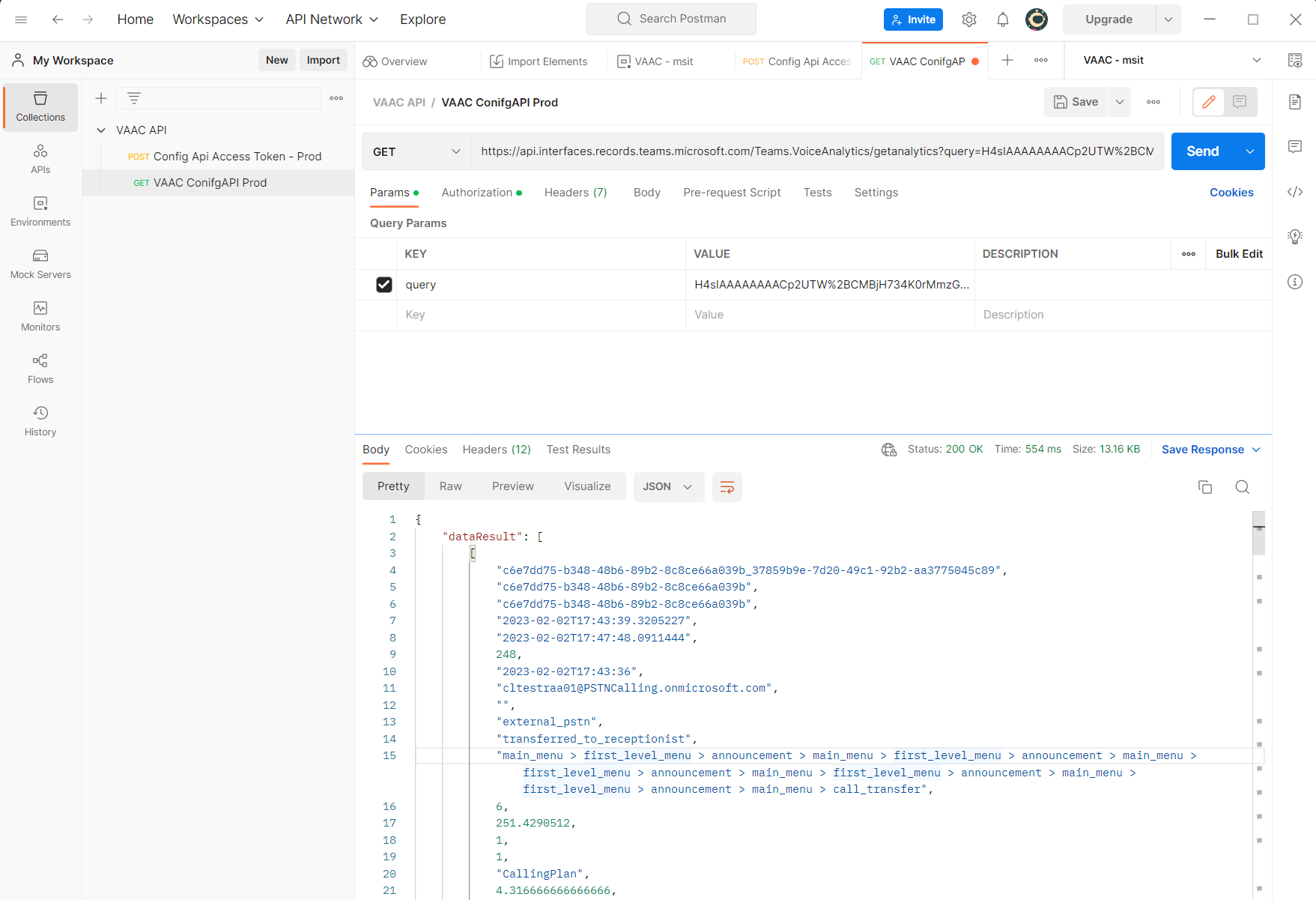
In this case, the data is in the "dataResult" field in the same order requested in the query dimension and measurements attributes.
Available dimensions and measurements
The following dimensions and measurements are available to be used.
Common dimensions
These dimensions are common to both Auto attendants and Call queues:
| Name (Type) | Possible Values | Filters Support | Description |
|---|---|---|---|
| ConferenceId (Text) |
GUID | Y | Call identifier |
| Date (DateTime) |
Y | Date of call (UTC) | |
| DialogId (Text) |
GUID | Y | Call identifier |
| DocumentId (Text) |
GUID | Y | Call identifier |
| Duration (Whole Number) |
Y | Duration of call, in seconds | |
| EndTime (DateTime) |
Y | Time call ended (UTC) | |
| FirstIsCaller (Boolean) |
Y | First and Second endpoint classification | |
| FirstUPN (Text) |
N | The user principal name (UPN) of the first endpoint's user | |
| FirstUserObjectId (Text) |
GUID | Y | Object Id of the FirstUPN |
| Hour (Text) |
Y | Hour call started (UTC) | |
| Minute (Text) |
Y | Minute call started (UTC) | |
| PSTNCallDuration (Whole Number) |
Y | Duration of the call | |
| PSTNCallType (Text) |
Y | ||
| External | Call is coming from outside the tenant | ||
| Internal | Call is coming from within the tenant | ||
| PSTNConnectivityType (Text) |
Y | ||
| CallingPlan | The call arrived on a Calling Plan number | ||
| DirectRouting | The call arrived on a Direct Routing number | ||
| TeamsPhoneMobile | The call arrived on a Teams Phone Mobile number | ||
| ACS Call | The call arrived from the web (Click2Call on report) | ||
| Second (Text) |
Y | Second call started (UTC) | |
| SecondUPN (Text) |
N | The user principal name (UPN) of the second endpoint's user | |
| SecondUserObjectId (Text) |
GUID | Y | Object Id of the SecondUPN |
| Timestamp (DateTime) |
Y | Time record was written (UTC) | |
| UserStartTimeUTC (DateTime) |
Y | Time call started (UTC) |
Auto attendant dimensions
| Name (Type) | Possible Values | Filters Support | Description |
|---|---|---|---|
| AutoAttendantCallFlow (Text) |
Y | Encapsulates the different states of Auto Attendant call | |
| abs_search | A dial-by-name search occurred | ||
| announcement | An announcement was played | ||
| automatic_menu | Default call routing | ||
| call_termination | Call was ended, see AutoAttendantCallResult | ||
| call_transfer | Call was transferred, see AutoAttendantCallResult | ||
| first_level_menu | Transition state - can be ignored | ||
| main_menu | Greeting message was played | ||
| speech_input_confirmation | Caller used voice input | ||
| user_selection | Caller used touch tone key entry | ||
| AutoAttendantCallResult (Text) |
Y | Final call result | |
| failed_to_establish_media | The media portion of the call couldn't be established | ||
| failover_to_operator | Call transferred to operator typically due to a system error | ||
| oaa_chain_too_long | Too many legs in the AA | ||
| oaa_session_too_long | AA session lasted too long | ||
| service_declined | AA didn't accept the call | ||
| service_terminated | AA configuration disconnects the call or call hung up | ||
| terminated_automatic_selection | AA configuration disconnects the calls | ||
| terminated_no_operator | All terminated due to error no operator defined | ||
| terminated_transfer_failed | Call terminated as transfer failed - typically to external number | ||
| transfer_in_progress | AA->AA transfer | ||
| transferred_to_operator | Call was transferred to operator | ||
| transferred_to_cq | Call was transferred to Call queue | ||
| transferred_to_receptionist | Same as transferred_to_operator | ||
| transferred_to_self | Call was returned to the start of the AA | ||
| transferred_to_shared_voicemail | Call was transferred to shared voicemail | ||
| transferred_to_user | Call was transferred to a user | ||
| unknown | An unknown condition occurred | ||
| user_terminated | Caller hung up | ||
| AutoAttendantCallerActionCounts (Whole Number) |
Y | The number of actions (touch tone key or voice entries) the caller performed | |
| AutoAttendantChainDurationInSecs (Real Number) |
Y | The number of seconds the call remained in this portion of the call flow | |
| AutoAttendantChainIndex (Whole Number) |
Y | ||
| AutoAttendantChainStartTime (DateTime) |
Y | The start time of this portion of the call flow | |
| AutoAttendantCount (Whole Number) |
Y | How many auto attendants the call transitioned through | |
| AutoAttendantDirectorySearchMethod (Text) |
Y | Directory search method | |
| abs_search_dtmf | Touch tone | ||
| abs_search_voice | Voice | ||
| AutoAttendantId (Text) |
Y | Auto Attendant GUID | |
| AutoAttendantIdentity (Text) |
N | Resource account URI the call arrived on | |
| AutoAttendantTransferAction (Text) |
Y | Call transfer target type | |
| AA | Transferred to an AA | ||
| CQ | Transferred to a CQ | ||
| external_pstn | Transferred to an external number | ||
| shared voicemail | Transferred to shared voicemail | ||
| Unknown | Unknown action | ||
| HasAA (Boolean) |
Y | Is AA involved in call |
Call queue dimensions
| Name (Type) | Possible Values | Filters Support | Description |
|---|---|---|---|
| CallQueueAgentCount (Whole Number) |
Y | Number of agents in Call queue | |
| CallQueueAgentOptInCount (Whole Number) |
Y | Number of agents opted-in to Call queue | |
| CallQueueCallResult (Text) |
Y | Call queue call final state | |
| agent_joined_conference | Call answered - conference mode CQ | ||
| callback_call_timed_out | Call back call timed out | ||
| declined | |||
| disconnected | |||
| error | |||
| failed | |||
| invalid | |||
| overflown | Overflow condition met | ||
| timed_out | Timeout condition met | ||
| no_agent | No Agent condition met | ||
| transferred_to_agent | Call answered - transfer mode CQ | ||
| transferred_to_callback_caller | Callback call answered by agent | ||
| CallQueueDurationSeconds (Real Number) |
Y | Call duration in the Call queue | |
| CallQueueFinalStateAction (Text) |
Y | Call queue final action | |
| disconnect | time_out calls | ||
| disconnect_with_busy | overflown calls | ||
| failed_to_accept_call | Call queue couldn't accept the call | ||
| forward | Call was forwarded to a Person in the organization or externally | ||
| shared_voicemail | Call was sent to shared voicemail | ||
| other | Some other condition occurred | ||
| voicemail | Call was sent to personal voicemail | ||
| CallQueueId (Text) |
Y | Call queue GUID | |
| CallQueueIdentity (Text) |
N | Resource account URI the call arrived on | |
| CallQueueTargetType (Text) |
Y | Call redirection target | |
| ApplicationEndpoint | Another voice applications | ||
| Mailbox | Shared voicemail | ||
| Other | Some other condition occurred | ||
| Phone | External transfer | ||
| User | User in the tenant | ||
| HasCQ (Boolean) |
Y | Is CQ involved in call | |
| TransferredFromCallQueueId (Text) |
Y | Call queue GUID call was transferred from | |
| TransferredFromCallQueueIdentity (Text) |
N | Resource account URI the call was transferred from |
Measurements
| Name (Type) | Possible Values | Description |
|---|---|---|
| AvgAutoAttendantChainDurationSeconds (Real Number) |
The average call duration within each portion of the auto attendant call flow | |
| AvgCallDuration (Real Number) |
The average call duration in seconds | |
| AvgCallQueueDurationSeconds (Real Number) |
The average call queue duration in seconds | |
| PSTNTotalMinutes (Real Number) |
Total call duration in minutes | |
| TotalAudioStreamDuration (Real Number) |
Total audio stream duration in minutes | |
| TotalCallCount (Whole Number) |
Total number of calls |
Example
Any application that can access RESTful web services can use the VAAC API to retrieve historical data. In the following example, Postman is used.
Preparation
Download and install Postman.
Download and expand the postman.zip file.
Import the folder
postmaninto Postman.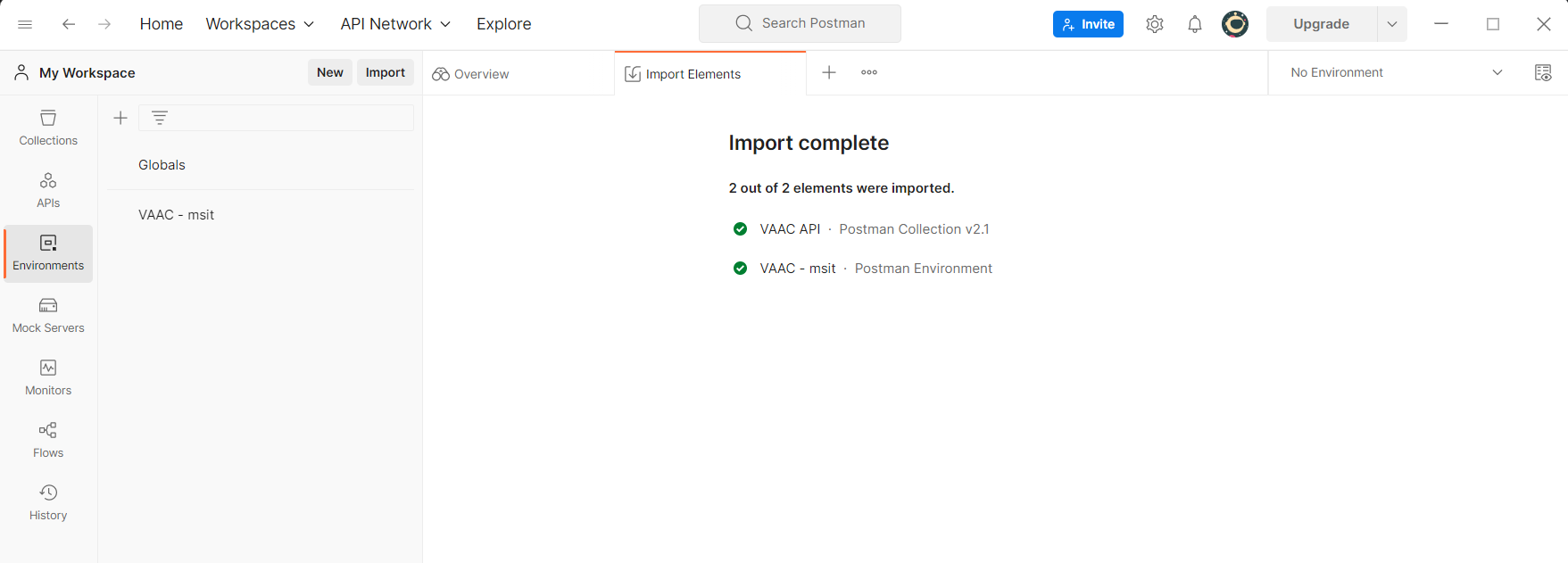
Accessing VAAC using Postman
Select VAAC - msit on the top right No Environment drop-down.
Select Environments on the left hand rail menu.
Select VAAC - msit under Globals.
Replace userName, password, and tenantId with the applicable credentials.
Select Reset All in the top right corner.
Select Save.
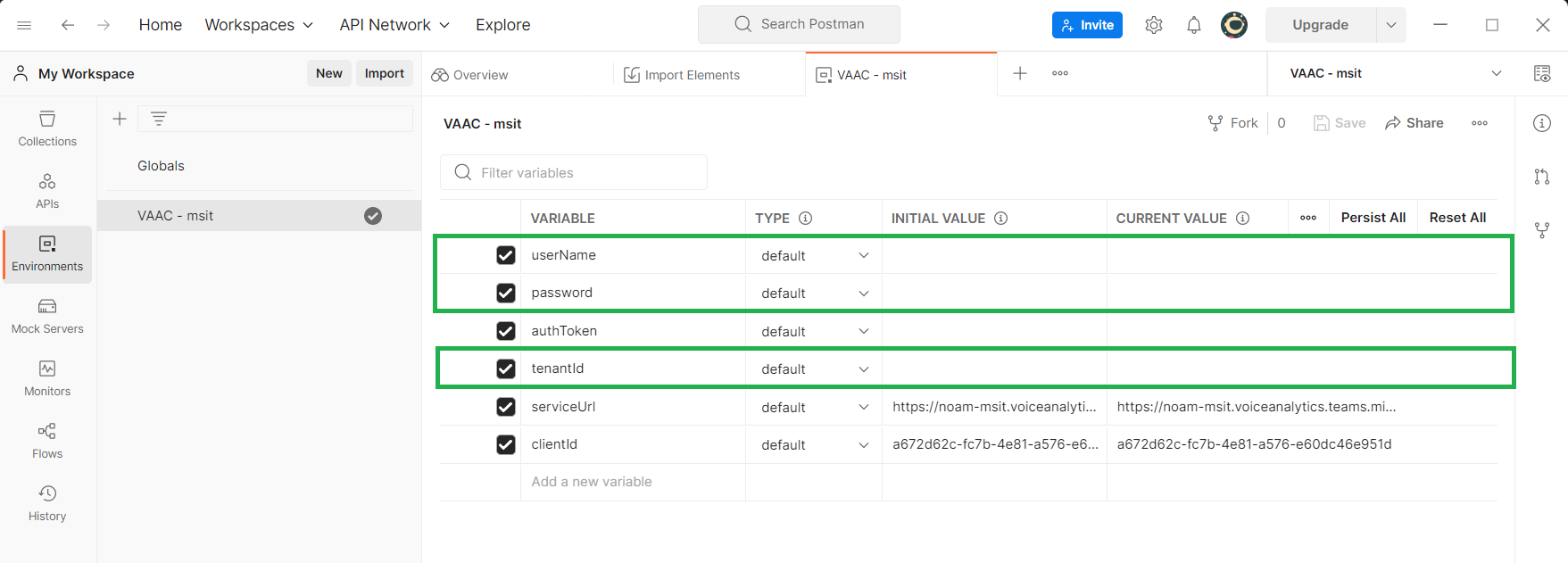
Select Collections on the left hand rail menu.
Select Config API Access Token - Prod and navigate to the Body tab.
Select Send.
An access token is returned.
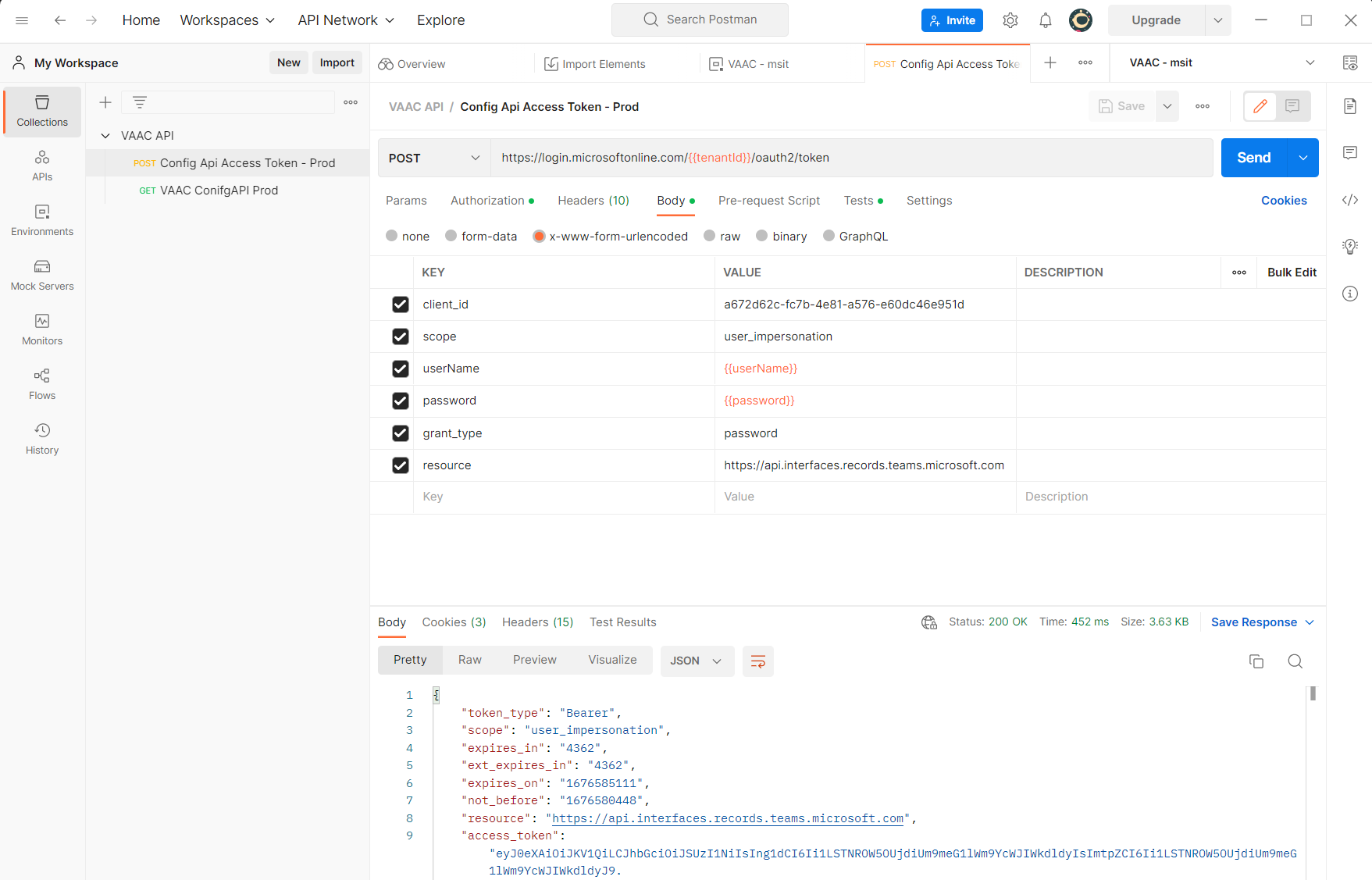
If an access token isn't returned, check your credentials to make they have sufficient permissions.
Select VAAC ConfigAPI Prod and navigate to the Params tab.
- Compress the query as outlined
- URL encode the compressed result as outlined
Fill in your query string.
Select Send.
