Note
Access to this page requires authorization. You can try signing in or changing directories.
Access to this page requires authorization. You can try changing directories.
Dataverse provides a flexible security model for many business scenarios. The model applies only to environments that have a Dataverse database. As an administrator, you manage users, verify their security configuration, and troubleshoot access issues.
Role-based security
Dataverse uses security roles to group privileges. Assign security roles directly to users or to Dataverse teams. Team members receive the privileges assigned to the team.
Security privileges are cumulative. A user receives the broadest access granted by all their roles and team memberships. For example, if one role grants organization-level read access to all contact records, another role can't hide a specific contact from the user.
Business units
Watch this video to understand business units in Dataverse:
Business units work with security roles to determine a user's access. They define security boundaries that help you manage users and data. Every Dataverse database has one root business unit.
Create child business units to divide users and data into smaller security boundaries. Every user in an environment belongs to a business unit. Your business unit structure can match your organizational hierarchy, but it doesn't have to.
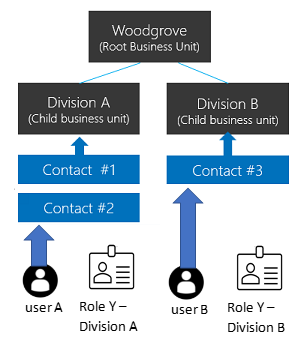
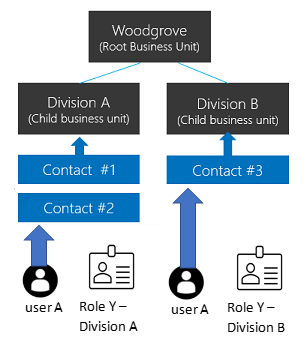
The following examples use three business units. Woodgrove is the root business unit and remains at the top of the hierarchy. Divisions A and B are child business units. Each division's users have different access needs.
Hierarchical data access structure
Use a hierarchical structure to separate users and data in a tree-like hierarchy.
Assign each user to one business unit and assign the user a security role from that business unit. By default, the user's business unit owns records that the user creates. The security role determines which records the user can access in that business unit.
In this example, user A belongs to Division A and has security role Y from Division A. User A can access Contact #1 and Contact #2. User B belongs to Division B, so user B can't access Division A's contacts but can access Contact #3.
Matrix data access structure (modernized business units)
Use a matrix structure to organize data in a tree-like hierarchy while allowing users to access data in multiple business units, regardless of the business unit they belong to.
Assign the user a security role from each business unit whose data they need to access. When the user creates a record, they can select the business unit that owns it.
In this example, user A can belong to any business unit, including the root business unit. Security role Y from Division A gives user A access to Contact #1 and Contact #2. Security role Y from Division B gives user A access to Contact #3.
Enable the matrix data access structure
Note
Before you enable this feature, publish all customizations so the feature applies to new tables. If an unpublished table doesn't work after you enable the feature, use the OrgDBOrgSettings tool for Microsoft Dynamics CRM to set RecomputeOwnershipAcrossBusinessUnits to true. This setting lets you set and update the Owning Business Unit column.
- Sign in to the Power Platform admin center as a Dynamics 365 admin or Microsoft Power Platform admin.
- In the navigation pane, select Manage.
- In the Manage pane, select Environments, and then select the environment.
- Select Settings > Product > Features.
- Turn on Record ownership across business units.
- Select Save.
After you turn on the feature, select a business unit when you assign a security role to a user. This option lets you assign roles from different business units to the user. To run model-driven apps, the user also needs a role from their own business unit that includes the required user settings privileges. The Basic User role shows which user settings privileges to enable.
You can make a user the record owner in any business unit if one of their security roles grants Read privilege for the record's table. The user doesn't need a security role from the record's owning business unit. For more information, see Record ownership in modernized business units.
Note
The EnableOwnershipAcrossBusinessUnits setting stores the state of this feature. You can also change the setting with the OrgDBOrgSettings tool for Microsoft Dynamics CRM.
Associate a business unit with a Microsoft Entra security group
Map business units to Microsoft Entra security groups to simplify user management and role assignment.
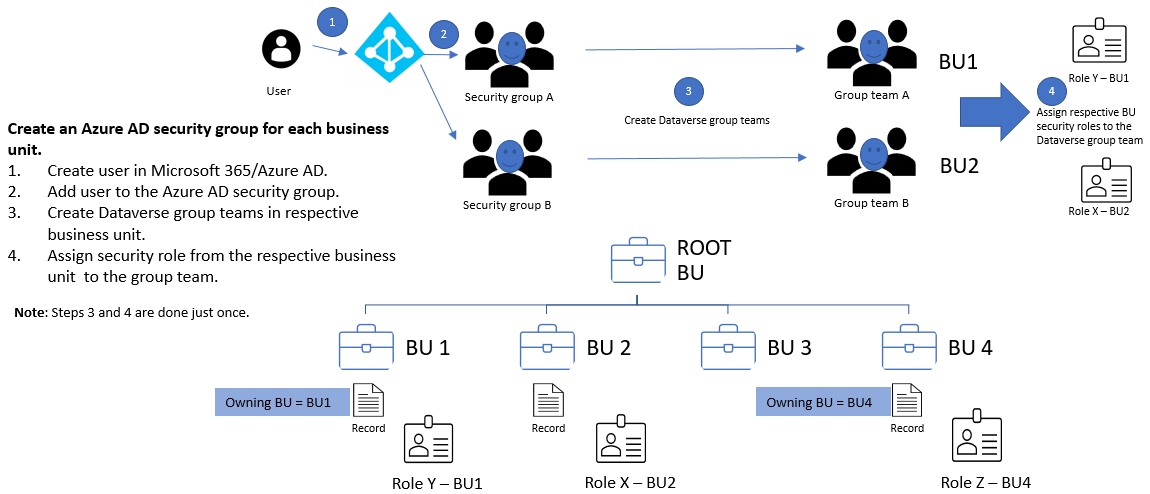
For each business unit:
- Create a Microsoft Entra security group.
- Create a Dataverse group team for the security group.
- Assign the business unit's security role to the Dataverse group team.
- Add users to the Microsoft Entra security group.
When a user first accesses the environment, Dataverse creates the user in the root business unit. The user and Dataverse group teams can remain in the root business unit. Their assigned security roles grant access to data in the corresponding business units.
For matrix data access, add users to the Microsoft Entra security group for each business unit they need to access.
Owning business unit
Each record has an Owning Business Unit column that identifies the business unit that owns the record. When a user creates a record, the column defaults to the user's business unit. You can change the value only when Record ownership across business units is on.
Note
Changing the owning business unit can cause cascading changes. For more information, see Use SDK for .NET to configure cascading behavior.
To let a user set the Owning Business Unit column, grant the user's security role local-level Append To privilege for the Business Unit table.
Add the column to:
- A form body or header.
- A view.
- A column mapping. If you use AutoMapEntity, include the column in the mapping.
Note
If a data synchronization job includes Owning Business Unit in its schema, the job fails with a foreign key constraint violation when the target environment doesn't contain the same value. Remove the column from the source schema, or change its source value to a business unit that exists in the target environment.
When you copy data to an external resource, such as Power BI, include Owning Business Unit only if the destination supports the column.
Table and record ownership
Dataverse supports two record ownership types:
- Organization owned: A privilege either applies to all records or doesn't apply.
- User or team owned: Most privileges support user, business unit, parent-child business unit, and organization access levels.
You select the ownership type when you create a table, and you can't change it later. For example, user-level Read access to the Contact table lets users read only the contact records that they own.
If user A belongs to Division A and has business unit-level Read access to the Contact table, user A can read Contact #1 and Contact #2 but not Contact #3.
When you configure a security role, select an access level for each privilege.
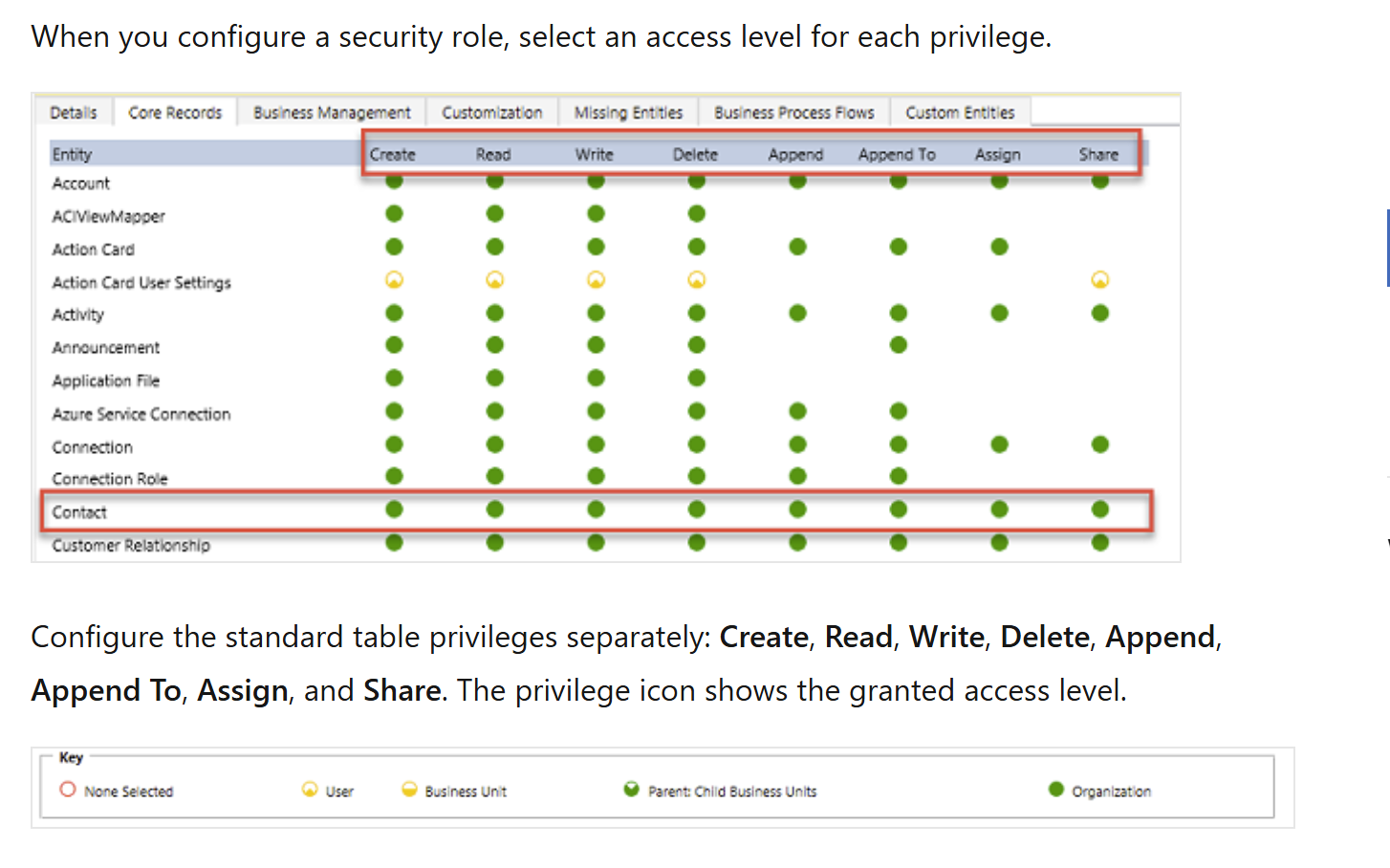
Configure the standard table privileges separately: Create, Read, Write, Delete, Append, Append To, Assign, and Share. The privilege icon shows the granted access level.
Filtered table record ownership (preview)
Preview features aren't meant for production use and may have restricted functionality. These features are available before an official release so that customers can get early access and provide feedback.
Filtered record ownership lets admins control access to Dataverse records with column-value filters. For example, grant access only to records where the City column equals Redmond. Users can create, read, update, and delete only records that match filters in their security roles.
Unlike traditional Dataverse tables, tables with filtered record ownership don't support record ownership, sharing, or assignment. Filter-based privileges control record access and provide granular row-level access without restricting tables, columns, or other model objects.
Note
Use filtered record ownership to grant row-level access to records that meet filter criteria. Apply filter-based privileges to filtered record ownership tables and existing user-owned or organization-owned tables. For existing tables, this approach retains the underlying ownership model.
Record ownership in modernized business units
With modernized business units, users can own records in any business unit. A user needs a security role from any business unit that grants Read privilege for the record's table. The user doesn't need a role from every business unit that contains a record they own.
If you enabled Record ownership across business units in a production environment during the preview period:
- Install the Organization Settings editor.
- Set RecomputeOwnershipAcrossBusinessUnits to
true. The system locks during recalculation, which can take up to five minutes. After recalculation, users can own records across business units without a separate security role from each business unit. Record owners can also assign records to users outside the record's owning business unit. - Set AlwaysMoveRecordToOwnerBusinessUnit to
false. Records then remain in their original owning business unit when ownership changes.
For nonproduction environments, set AlwaysMoveRecordToOwnerBusinessUnit to false.
Note
If you turn off Record ownership across business units or set RecomputeOwnershipAcrossBusinessUnits to false, you can't set or update the Owning Business Unit column. Dataverse also changes the owning business unit of each affected record to match the record owner's business unit.
Teams (including group teams)
Each team belongs to a business unit. Dataverse automatically creates a default team for every business unit and manages its membership. The default team always includes all users in the business unit. You can't manually add or remove its members. Dataverse updates membership when you associate or disassociate users with the business unit.
Dataverse provides two types of teams:
- Owner teams can own records. Every team member receives direct access to the team's records. A user can belong to multiple owner teams.
- Access teams provide access to shared records but don't own records or have security roles.
Record sharing
Share individual records with a user or team to handle exceptions that your ownership and business unit model doesn't cover. Use sharing only for exceptions because it performs less efficiently and can be harder to troubleshoot than role-based access. Sharing with a team is more efficient than sharing separately with each user.
Use an access team template to create an access team automatically and define its permissions for a record. You can also create access teams without a template and manage their members manually. Access teams don't own records and can't have security roles. Team members receive access because the record is shared with the team.
Record-level security in Dataverse
A user's record access combines all their security roles, business unit membership, team memberships, and shared records. Access is cumulative within a Dataverse database. Dataverse tracks access separately for each database, and the user must have an appropriate Dataverse license.
Column-level security in Dataverse
Use column-level security when record-level security doesn't provide enough control. Enable it for all custom columns and most system columns. Most system columns that contain personally identifiable information (PII) support column-level security. A system column's metadata indicates whether you can secure it.
Enable column-level security separately for each column. Then create a column security profile that grants Create, Update, and Read access to secured columns. Assign the profile to users or teams.
Column-level security doesn't grant access to a record. A user must already have record access before a column security profile can grant access to secured columns. Use column-level security only where needed because excessive use can reduce performance.
Manage security across multiple environments
Use Dataverse solutions to move security roles and column security profiles between environments. Create and manage business units and teams separately in each environment. You must also assign users to the appropriate security components in each environment.
Configure user security
After you create roles, teams, and business units, configure each user's access:
- Associate the user with a business unit. Dataverse uses the root business unit by default and adds the user to that business unit's default team.
- Assign the security roles the user needs.
- Add the user to the appropriate teams.
- If you use column-level security, assign a column security profile to the user or one of their teams.
A user's effective access combines directly assigned security roles with roles assigned through teams. Dataverse always grants the broadest permission from those roles. For a detailed walkthrough, see Configure environment security.
Coordinate major security changes with app makers and the administrators who manage user permissions before you deploy the changes.