Configure code scanning
You can configure how GitHub scans the code in your project for vulnerabilities and errors. When you choose your own configuration, you save time and decide the best frequency of code scanning for your project. In this unit, you'll learn the basics of code scanning configuration. You'll also learn how to configure the frequency of scans and schedule them to best fit your repository and development needs.
As we discussed in the previous units, you can run code scanning on GitHub, using GitHub Actions, or from your continuous integration (CI) system. Selecting the Advanced setup option on GitHub generates a customizable workflow file that you can then commit directly to your repository. You usually don't need to edit this workflow. However, if necessary, you can customize some of the settings.
For example, you can edit GitHub's CodeQL analysis workflow to specify the frequency of scans, the languages or directories to scan, and what CodeQL code scanning looks for in your code. You might also need to edit the CodeQL analysis workflow if you use a specific set of commands to compile your code. CodeQL analysis is just one type of code scanning you can perform in GitHub. The GitHub Marketplace contains several other code scanning workflows.
Switching from default to advanced code scanning setup
If you already have a repository set up to use code scanning using the default setup method, you can switch to using the Advanced setup in the settings. Navigate to the Code scanning section under Settings > Advanced Security, and then select the three dots overflow icon (...). In the drop-down, select Switch to advanced. Then, follow the prompts to disable CodeQL, and re-enable it with the advanced setup's generated workflow file.
Edit code-scanning workflow
GitHub saves workflow files in the .github/workflows directory of your repository. You can find a workflow you have added by searching for its file name. For example, by default, the workflow file for CodeQL code scanning is called codeql-analysis.yml.
Follow these steps to edit a workflow file:
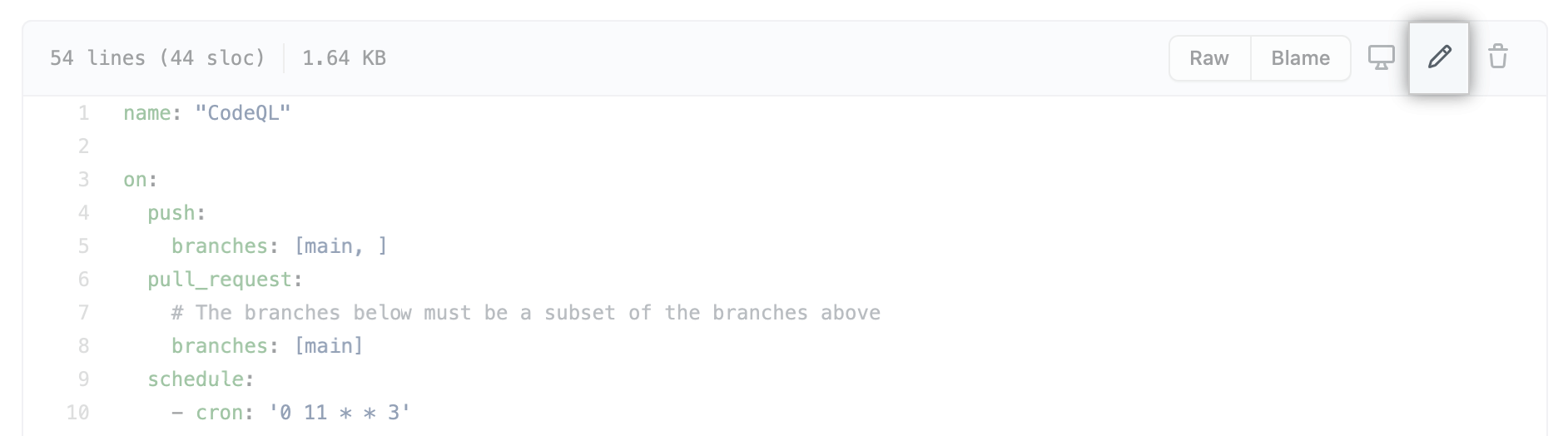
- To open the workflow editor, select the Edit icon in the upper-right corner of the file view.
Make your edits.
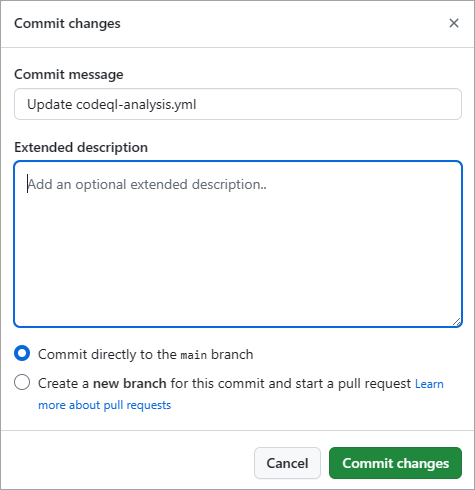
After you have edited the file, select Commit changes and complete the Commit changes form. You can choose to commit directly to the current branch, or create a new branch and start a pull request.
Review the following sections for some common code scanning configuration options.
Configure frequency
A common edit to the workflow file is to adjust the frequency with which code scanning occurs. You can configure the CodeQL analysis workflow to scan code on a schedule or when specific events occur in a repository. You can also edit the workflow file to scan code when someone pushes a change and whenever a pull request is created. Adjusting this frequency prevents developers from introducing new vulnerabilities and errors into the code. Scanning code on a schedule informs you about the latest vulnerabilities and errors that GitHub, security researchers, and the community discover. Even when developers aren't actively maintaining the repository.
Scan on push
By default, the CodeQL analysis workflow uses the on:push event to trigger a code scan on every push to the default branch of the repository and any protected branches. For code scanning to be triggered on a specified branch, the workflow must exist in that branch. If you scan on push, the results appear in the Security tab for your repository.
Additionally, when an on:push scan returns a result that can be mapped to an open pull request, these alerts automatically appear on a pull request in the same place as other pull request alerts. The alerts are identified by comparing the existing analysis of the head of the branch to the analysis for the target branch.
Scan on PR
The default CodeQL analysis workflow uses the pull_request event to trigger a code scan on pull requests targeted against the default branch. If a pull request is from a private fork, the pull_request event is only triggered if you've selected the "Run workflows from fork pull requests" option in the repository settings. If you scan pull requests, the results appear as alerts in a pull-request check.
If you use the pull_request trigger, configured to scan the pull request's merge commit rather than the head commit, it produces more efficient and accurate results than scanning the branch head on each push. However, if you use a CI/CD system that can't be configured to trigger on pull requests, you can still use the on:push trigger so that code scanning maps the results to open pull requests on the branch and adds the alerts as annotations on a pull request.
Define the severities causing pull request check failure
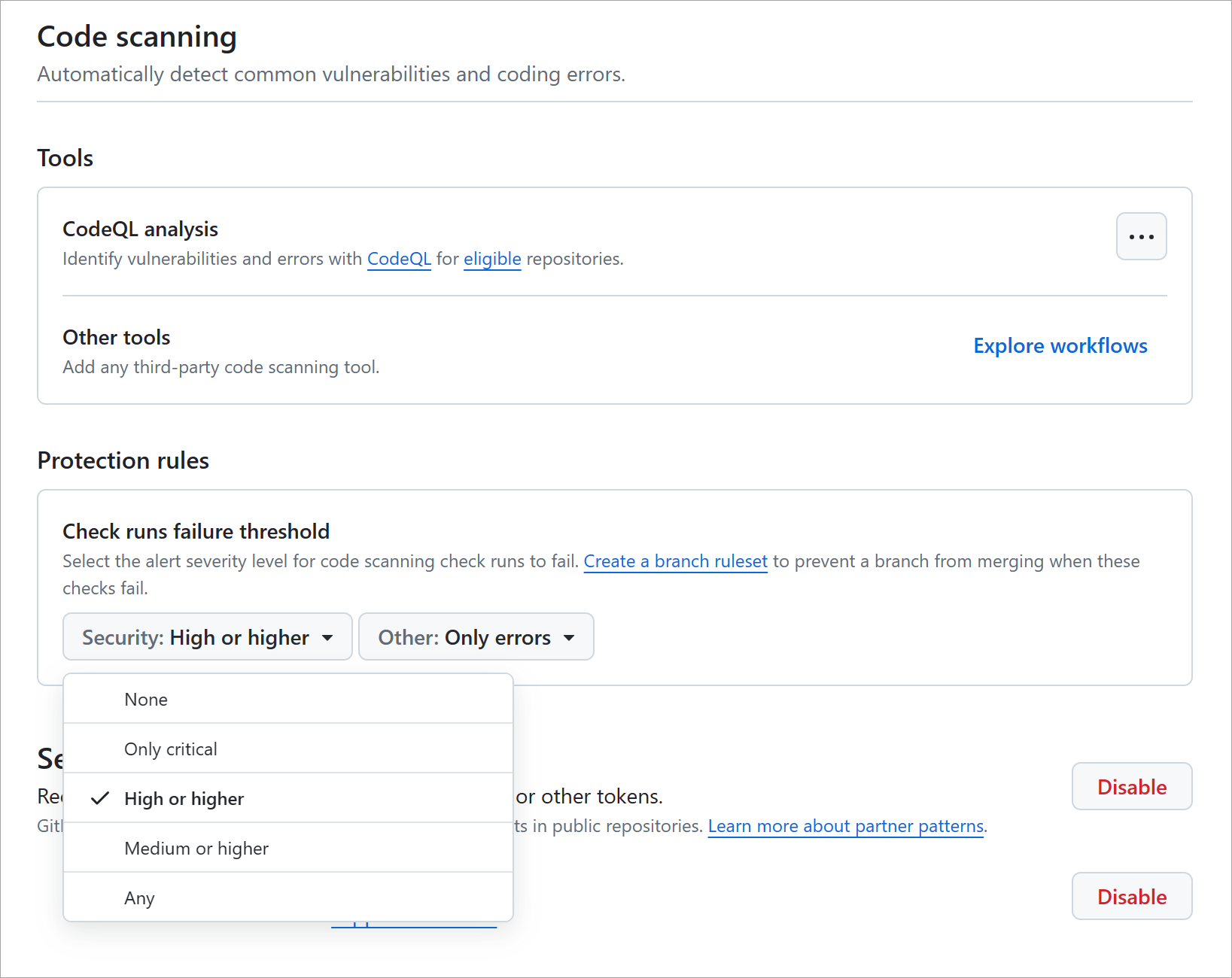
By default, only alerts with the severity level of Error or security severity level of Critical or High cause a pull-request check failure.
These failures do not block code scanning from running, but they can block merging depending on repository rules.You can view pull request failure details in the Code scanning alerts tab under Security.
You can configure which severity levels cause pull request check failures in repository settings, or through repository rulesets using the Require code scanning results rule. Both mechanisms work, but rulesets are the modern and preferred configuration method.
- On GitHub.com, navigate to the repository main page. Under your repository name, select Settings.

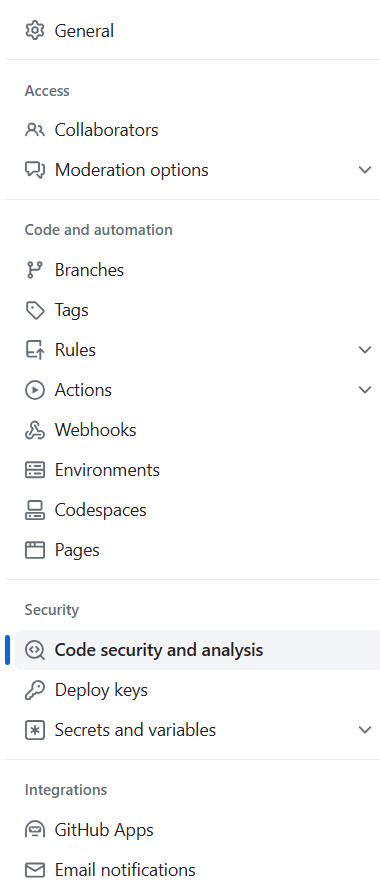
- In the left sidebar, select Advanced Security.
- In the Code scanning section under Protection rules, use the drop-down menu to select the severity level you would like to trigger a pull request check failure.
Triage and dismiss code scanning alerts responsibly
Fixing the code is the preferred way to resolve a code scanning alert. However, some alerts may not require a code change. For example, the alert may be a false positive, appear only in test code, or represent a risk the team has decided not to fix.
Dismiss alerts only after reviewing the alert details and confirming the reason. When you dismiss an alert, GitHub records the dismissal reason, removes the alert from the current alert count, moves it to the closed list, and prevents the same code from generating the same alert in future scans. The dismissal applies across all branches.
Choose the dismissal reason carefully because it becomes part of the security record for the repository. You can also add a dismissal comment to explain the decision. This comment is added to the alert timeline and can support future auditing, reporting, and compliance reviews.
Use comments to capture details such as:
Why the alert doesn't need a code change
Who reviewed the decision
Whether the decision is temporary or permanent
Any compensating controls or follow-up work
For stronger governance, organizations can use delegated alert dismissal to control who is allowed to dismiss code scanning alerts. This helps prevent developers from closing security findings without review and creates a more accountable triage process.
Avoid unnecessary scans of pull requests
You might want to avoid a code scan being triggered on specific pull requests targeted against the default branch, irrespective of which files have been changed. You can configure this setting by specifying on:pull_request:paths-ignore or on:pull_request:paths in the code-scanning workflow. For example, if the only changes in a pull request are to files with the file extensions .md or .txt you can use the following paths-ignore array.
on:

push:

branches: [main, protected]

pull_request:

branches: [main]

paths-ignore:

- '**/*.md'

- '**/*.txt'
Adjust scanning schedule
If you use the default CodeQL analysis workflow, the workflow scans the code in your repository once a week at a randomly generated day and time, in addition to the scans triggered by events. To adjust this schedule, edit the cron value in the workflow.
The following example shows a CodeQL analysis workflow for a repository with a default branch called main and one protected branch called protected:
on:

push:

branches: [main, protected]

pull_request:

branches: [main]

schedule:

- cron: '20 14 * * 1'
This workflow scans:
Every push to the default branch and the protected branch
Every pull request to the default branch
The default branch every Monday at 14:20 UTC
Use Copilot Autofix suggestions
GitHub Copilot Autofix helps developers resolve code scanning alerts by suggesting targeted code changes. Autofix uses information from the alert, the codebase, and the pull request to generate a potential fix. You don't need a separate GitHub Copilot subscription to use Copilot Autofix. It is available for public repositories on GitHub.com and for organization-owned repositories with GitHub Code Security enabled.
Autofix suggestions are not automatic fixes. They are proposed changes that must be reviewed, tested, and approved like any other code change.
When reviewing an Autofix suggestion:
Read the alert and understand the security issue.
Review the suggested code changes.
Confirm that the fix addresses the alert without changing intended behavior.
Run the project's tests and any required security checks.
Modify the suggestion if needed.
Commit the fix to the pull request.
Confirm that the code scanning alert is resolved after checks run again.
If an Autofix suggestion isn't appropriate, dismiss the suggestion rather than applying it. If the alert itself doesn't need to be fixed, dismiss the alert with the correct reason and a clear comment.