Windows 11 productivity features
Windows 11 has productivity features that make it easier for teachers, administrators, and older students to find what they need, multitask, and be productive during a packed school day.
The Start menu launches center screen and helps users locate frequently used apps and recent work at a glance.
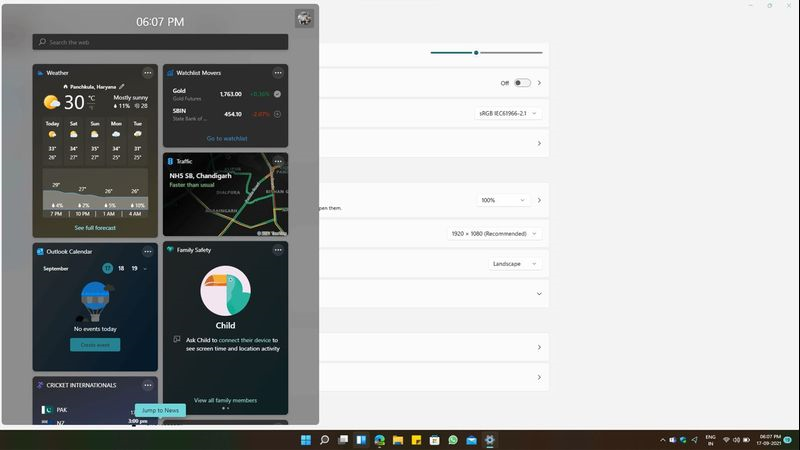
With quick access in the taskbar Widgets are customizable to users’ personal preferences. For example, teachers can get live updates on current events, the latest school schedule, family emails, and student assignments.
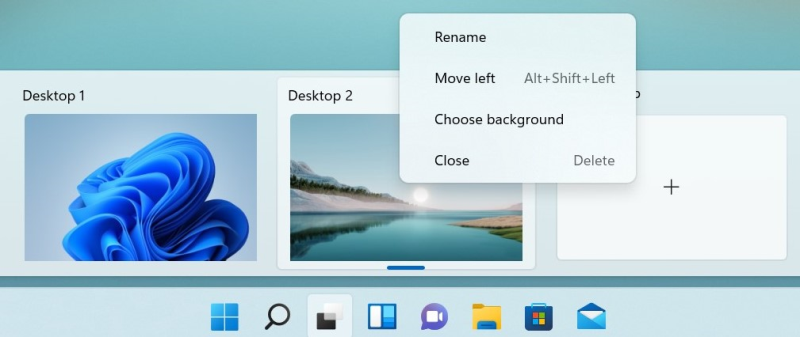
With Custom Desktops a user can hover over an icon in the taskbar to see multiple personalized desktops. A teacher can use one Desktop to finalize a lesson plan during recess, and then switch instantly to the other Desktop, and be ready for math, when students return.
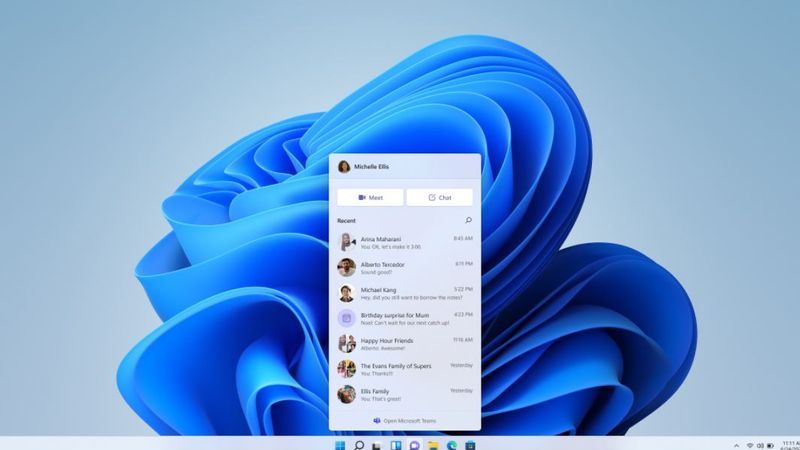
Teams and chat have fast access right on the taskbar and noise-canceling microphones and cameras reduce background distraction and noise. This helps students stay focused, especially in online situations.
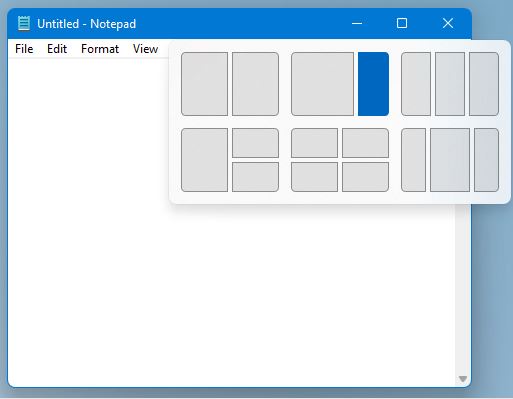
Snap layouts let educators group apps or web pages, to quickly organize their desktop with selected apps instead of navigating through multiple open tabs or documents. For example, consider grading papers. A teacher can have three windows open simultaneously for instant access: a student paper, the lesson rubric, and the app for entering grades. High school students might want quick access to a thesaurus, online research content, and a history essay in Word. This makes it easier for users to quickly find what they need and get to work!
Windows 11 prioritizes apps and windows in the foreground. That means apps in use run faster, while apps in the background take less memory. And the devices wake from sleep faster, so there’s minimal time lost waiting.