Note
Access to this page requires authorization. You can try signing in or changing directories.
Access to this page requires authorization. You can try changing directories.
Important
This feature is in Beta. To use it, a workspace admin must turn on Unity Gateway skills in Genie from the Previews page. See Manage Azure Databricks previews.
Unity Gateway Skills give you a central location to discover, publish, and govern agent skills across your organization. There are no copies to keep in sync, and anyone with access can discover what already exists instead of asking around.
On Azure Databricks, a skill is a first-class Unity Catalog securable (catalog.schema.skill), so you share it with people or groups using the same permissions, tags, and audit that protect your tables.
Unity Gateway Skills follow the SKILL.md specification format. Skills teach an agent how to do one task well, such as analyzing a table, following a runbook, or applying your team's SQL conventions.
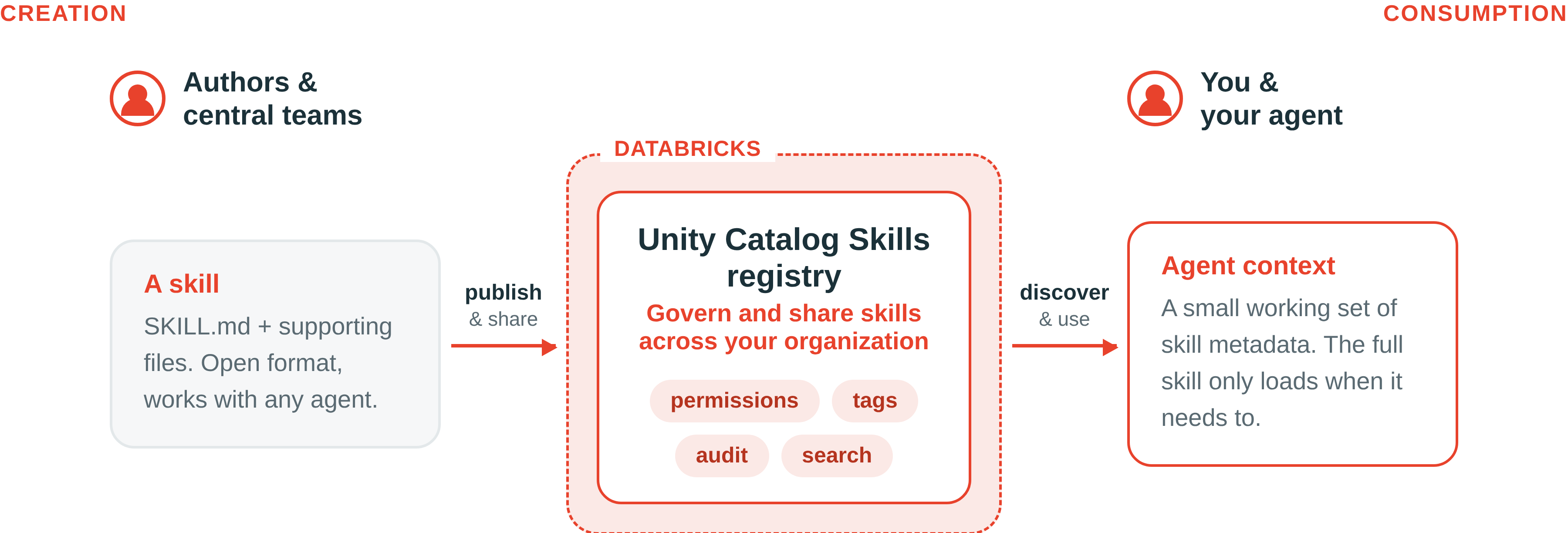
Authors and central teams write a SKILL.md file with supporting files and publish the skill to a registry in Unity Catalog. The registry applies permissions, tags, and audit logs and makes skills searchable. Your agent discovers skills you can access, keeps a small set of skill metadata in context, and loads the full skill when a task needs it.
| Task | Description |
|---|---|
| Discover and use Unity Gateway Skills | Connect your coding agent to Azure Databricks, then discover and use governed skills your team published. |
| Create and share Unity Gateway Skills | Develop a skill locally, publish it to Unity Catalog, and share it so any teammate's agent can use it. |
| Govern skills | Enable skills, set up a governed schema, and grant the privileges that control who can create, read, and share them. |
Access skills over MCP
The Azure Databricks Skills MCP server lets an agent discover and read skills in Unity Catalog. For supported coding agents, use the Unity Gateway CLI to connect to the skill registry.
To connect another MCP client directly, use https://<workspace-hostname>/ai-gateway/skills/?schema=<catalog>.<schema>. Replace the placeholders with your workspace hostname and schema, then authenticate to the workspace in your client. To include multiple schemas, repeat the schema parameter:
https://<workspace-hostname>/ai-gateway/skills/?schema=acme.sql_skills&schema=acme.analytics_skills
The selected schemas limit discovery. Unity Catalog permissions still control which skills the client can access.
The server supports the Skills MCP interface and the Skills over MCP extension at the same URL. Azure Databricks enables the extension through a managed rollout. Where it is enabled, requests that advertise the Skills capability use the extension. All other requests use the Skills MCP interface. For a custom client, include io.modelcontextprotocol/skills in params._meta["io.modelcontextprotocol/clientCapabilities"].extensions on each request.
Both interfaces let agents discover and read skills and return Databricks CLI instructions to manage them. The server does not run commands or upload files. You or your agent run the commands locally. See Create and share Unity Gateway Skills.