Note
Access to this page requires authorization. You can try signing in or changing directories.
Access to this page requires authorization. You can try changing directories.
This page introduces output tables, which are temporary read-only tables generated by a notebook run and shared to the notebook runner's Unity Catalog metastore. This article describes how to use a notebook to create output tables and how runners can read these output tables in their Unity Catalog metastore.
Overview of output tables
Output tables let you temporarily save the output of notebooks that are run in a clean room to an output catalog in your Unity Catalog metastore, where you can make the data available to members of your team who don't have the ability to run the notebooks themselves. You can also use Lakeflow Jobs to run notebooks and perform tasks on output tables. Combined with the Clean Room notebook task type and support for task values, output tables let you create complex workflows that depend on Clean room notebooks.
Output tables are read-only.
Only the specific principal (user, group, or service principal) who runs the notebook has default read access to the output table. There is no write access. A metastore admin can grant read access to other principals in their Azure Databricks account, using Unity Catalog privileges.
To make output available to all collaborators in the clean room instead, write to a shared output schema. See Share output with all collaborators.
Output tables are stored for 30 days in the central clean room's default storage location and shared to the runner's metastore using OpenSharing. If you want to keep an output table for more than 30 days, you must copy it to local storage.
Each notebook run creates a new schema in the output catalog. New runs cannot append an existing output table.
Note
Collaborators in Databricks on all three clouds—AWS, Azure, and Google Cloud—can share notebooks that create output tables and can read output tables that are generated when they run shared notebooks.
Create an output table
To create an output table, use the parameters cr_output_catalog and cr_output_schema in the three-part table namespace. Each run of the notebook produces a new schema.
In the following example, the notebook cell creates an output table called overlapping_users in the runner's output catalog that lists the users whose email address shows up in both the collaborator.advertiser.profiles and creator.publisher.profiles tables.
CREATE TABLE identifier(:cr_output_catalog || '.' || :cr_output_schema || '.overlapping_users') AS
SELECT collab_profiles.*
FROM collaborator.advertiser.profiles AS collab_profiles
JOIN creator.publisher.profiles AS creator_profiles
ON collab_profiles.email = creator_profiles.email
Share output with all collaborators
Important
This feature is in Public Preview.
By default, an output table is accessible only to the collaborator who runs the notebook, and only after the run completes successfully. With shared output, a notebook run can also write to a shared output schema that every collaborator can read immediately, even before the run finishes.
A single notebook run can write to both schemas:
- Use
cr_output_schemato write tables that only the runner can read. - Use
cr_shared_output_schemato write tables that all collaborators can read.
Before you begin
The creator must create a new clean room with Shared Output enabled. Shared output is set when the clean room is created and cannot be changed afterward. The clean room detail page shows Output Enabled when shared output is on.
Create the output catalog immediately after you create the clean room. See Before you begin. If you create the output catalog after a run, collaborators might not have the permissions they need on the shared output schema. The clean room owner must grant them the permissions afterward.
Write to the shared output schema
In a notebook, use the cr_shared_output_schema parameter in the three-part table namespace. The following example writes results that all collaborators can read:
CREATE TABLE identifier(:cr_output_catalog || '.' || :cr_shared_output_schema || '.audience_overlap') AS
SELECT creator_profiles.segment_id, COUNT(DISTINCT collab_profiles.email) AS overlap_count
FROM collaborator.advertiser.profiles AS collab_profiles
JOIN creator.publisher.profiles AS creator_profiles
ON collab_profiles.email = creator_profiles.email
GROUP BY creator_profiles.segment_id
Tables in the shared output schema are available to all collaborators as soon as they are created, even before the run finishes. Tables that you write to the runner-only cr_output_schema remain available only to the runner, and only after the run completes successfully.
For JAR analyses, Clean Rooms automatically injects the shared output schema as a --cr_shared_output_schema <value> parameter that your JAR can reference. See Run JAR workloads in Azure Databricks clean rooms.
The shared output schema is automatically deleted after 30 days.
Read an output table
Output tables appear in a shared catalog in the notebook runner's metastore. In the Catalog Explorer Catalog pane, they appear in the Shared catalogs list.
Reading an output table is like reading any other table in Unity Catalog. You must have SELECT on the table, USE CATALOG on the shared output catalog, and USE SCHEMA on the automatically-generated schema. The user who ran the notebook that created the table has these permissions by default.
Note
Deleting a clean room removes all output tables and historical data from the output catalog.
Before you begin
This section describes cloud, configuration, and compute requirements for reading output tables.
Shared output catalog requirement
Before you can read output tables, a user must create the catalog that holds them. You only need to do this once per clean room. The owner of the clean room has permission to read and manage the output catalog by default.
Permissions required: EXECUTE CLEAN ROOM TASK
- In your Azure Databricks workspace, click
 Catalog.
 - Click the Clean Rooms > button.
- Select the clean room from the list.
- In the right pane, under Output, click Create catalog.
- Enter an Output catalog name or accept the default, which is
<clean-room-name>_output.
The output catalog appears in the list of Shared catalogs in your Catalog Explorer Catalog pane. Each clean room that you participate in can have one shared output catalog in your metastore.
Compute requirements
Queries on output tables require serverless compute. See Connect to serverless compute.
Permissions required to read an output table
The user who ran the notebook that created the output table and the owner of the clean room have permission to read and manage the output table by default. All other users must have the following permissions granted to them:
SELECTon the tableUSE CATALOGon the output catalogUSE SCHEMAon the output schema
Run the notebook
To generate shared output tables in your output catalog, a user with access to the clean room must run the notebook. See Run notebooks in clean rooms. Each notebook run creates a new output schema and table.
Tip
You can use Lakeflow Jobs to run notebooks and perform tasks on output tables, enabling complex workflows. See Use Lakeflow Jobs to run clean room notebooks.
Find and view an output table
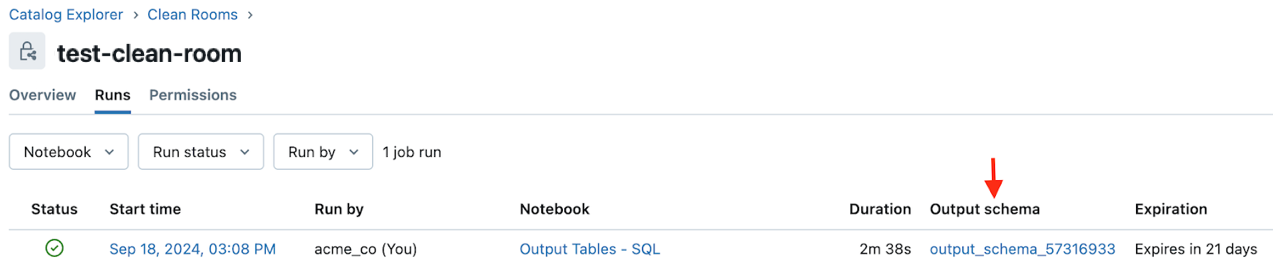
The user who runs the notebook that creates the output table can find a link to the output table on the notebook run history and run details pages in the Clean Rooms UI. In both cases, the link is in the Output schema field. See Monitor clean room notebook runs.
Run history:
Run details:
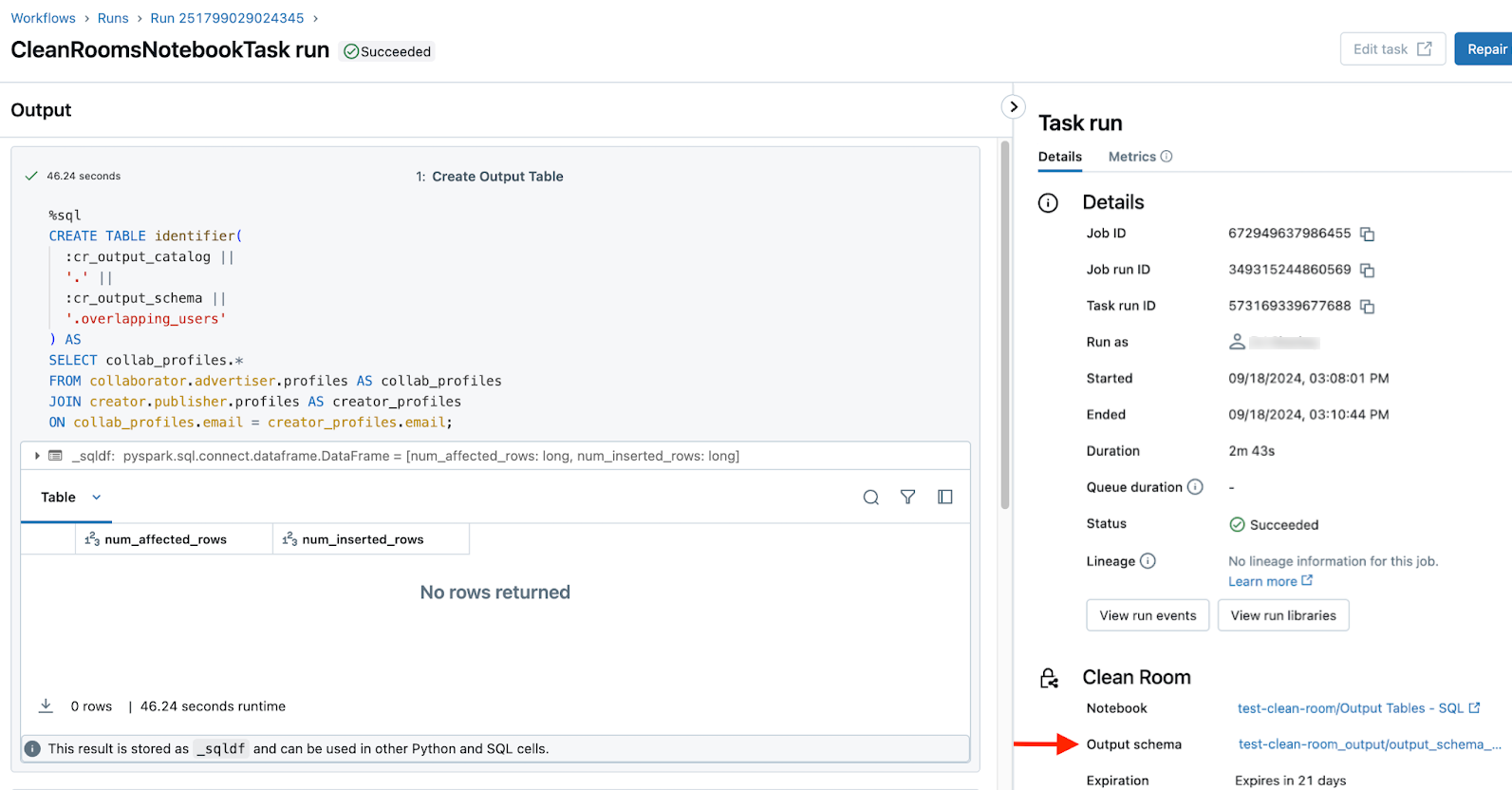
You can also find the output catalog in the list of Shared catalogs in your Catalog Explorer Catalog pane.
Limitations
In addition to the requirements listed in Overview of output tables and Before you begin, output tables have the following limitations:
- Output tables are only supported when the clean room was created after the output table feature was released.
- Only tables are supported. Volumes and views, for example, are not.
- You are limited in the number of output tables each notebook can support. See Resource limits.