Note
Access to this page requires authorization. You can try signing in or changing directories.
Access to this page requires authorization. You can try changing directories.
Add a Tableau or Power BI file to Genie Code and it builds an AI/BI dashboard that replicates your visualizations, connected to metric views that mirror the underlying business logic. When migration tooling detects relationships in the source file, it also creates the corresponding dashboard relationships in the new dashboard. You can import one file at a time or import multiple files in bulk.
Requirements
Import from External BI to AI/BI requires partner-powered AI features enabled for both the account and workspace. See Partner-powered AI features.
Import one file at a time
You can import a Tableau or Power BI file (.twb, .twbx, .tds, .tdsx, .pbit, or .tmdl) by uploading it directly into the Genie Code chat or by referencing a file stored in a Unity Catalog volume. From a Tableau workbook (.twb or .twbx) or a Power BI report template (.pbit), Genie Code creates a dashboard and metric views. From a Power BI .tmdl file, it creates metric views. A Tableau data source file (.tds or .tdsx) supplies the data model for a workbook that uses a published data source. For help exporting files, see Tableau export documentation or Power BI report templates.
Start from the dashboard list page
- Click
 Dashboards in the sidebar to open the dashboard list page.
 - Click the arrow next to Create dashboard, then select Import from Tableau or Import from Power BI.
- Attach your Tableau or Power BI file.
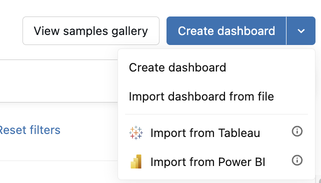
This creates a new AI/BI dashboard and opens Genie Code to build it from your file.
Prompt
Open Genie Code from full page Genie Code or from a draft AI/BI dashboard.
Ask Genie Code to import a Tableau or Power BI file, or type
/importBI. In a draft dashboard, you can also click Import from a BI tool in a new chat.Attach your file to the chat, or reference a file in a Unity Catalog volume by its path. For example:
/importBI @/Volumes/my_catalog/my_schema/my_volume/sales_workbook.twb
When you start from full page Genie Code, it opens a new draft AI/BI dashboard and continues the import there.
Note
Direct file uploads have a 100 MB size limit. For larger files, upload your file to a Unity Catalog volume first, then reference it by its path. You can also unzip a .twbx file and upload the extracted .twb file instead.
To import only the data model from a file, create a new, empty Unity Catalog metric view, open Genie Code, and type /importBI. See Use Genie Code to import a Tableau or Power BI file.
Import multiple files in bulk
To migrate more than one report at a time, ask Genie Code to import your Tableau or Power BI files in a single request. Genie Code starts a separate background run for each file, and each run creates its own AI/BI dashboard and metric views. Because the runs happen in the background, you can close the browser tab or keep working while they finish.
Upload your Tableau or Power BI files to a Unity Catalog volume. Bulk import doesn't support direct file uploads to the chat. If a Tableau workbook uses a published data source, export the data source file (
.tdsor.tdsx) and upload it with the workbook.Open Genie Code. You can start from full page Genie Code, from the dashboard list page, or from a draft AI/BI dashboard.
Ask Genie Code to import the files. Either list each file path or name the volume that contains them. For example:
Import all Tableau workbooks in /Volumes/main/bi_migration/tableau_files into AI/BI dashboards.You can also include instructions that apply to every file. For example, to migrate only the data models, ask Genie Code to create only the metric views.
Confirm the list of files that Genie Code finds. Genie Code automatically pairs each Tableau workbook (
.twbor.twbx) with its related data source files. If Genie Code can't tell which files belong together, it asks you.When prompted, enter the target Unity Catalog catalog and schema where Genie Code should create views, including metric views. Genie Code doesn't choose a default location for you.
Review the prompt and the list of files, then approve the bulk import to start the runs.
A bulk import can include between 2 and 100 files and supports the same file types as single-file import.
Track a bulk import
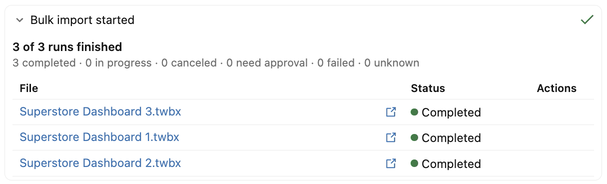
After the bulk import starts, a Bulk import started card in the chat shows how many runs have finished and how many are in each status, such as completed, in progress, needing approval, or failed.
From the card, you can:
- Click a file name to open the Genie Code conversation for that run in a new tab, where you can review and refine the result.
- Click Cancel run to stop a single run, or Cancel active runs to stop all runs that are still active. Canceling doesn't affect runs that already completed.
To check progress later, reopen the chat where you started the bulk import from  Chat history, then ask Genie Code for the bulk import status. See Work with multiple chats as tabs.
Promote metric views to Unity Catalog
The type of metric view that Genie Code creates for the measures and dimensions in your file depends on the source:
- Power BI: Genie Code creates Unity Catalog metric views, and reuses existing Unity Catalog metric views that already match your data model.
- Tableau: Genie Code creates local metric views scoped to the new dashboard, unless a matching Unity Catalog metric view already exists.
To override the default, tell Genie Code which type of metric view you want in your prompt. For example, ask Genie Code to create Unity Catalog metric views when you import a Tableau file.
Local metric views can be referenced only within the dashboard where they were created. Unity Catalog metric views are reusable across dashboards, Genie Agents, and notebooks, and get full Unity Catalog governance: access controls, lineage, and discoverability. Databricks recommends promoting local metric views to Unity Catalog after you finish iterating on them.
For instructions, see Export to a Unity Catalog metric view.
Best practices
Follow these practices to get the most accurate results when you migrate a BI file with Genie Code:
- Always provide a screenshot: Genie Code migrates best when it can validate layout and numbers against a high-quality reference image.
- Expect to work with the agent conversationally: Like any other agent, you can guide Genie Code and push back for better quality and accuracy.
- Promote finished data models to Unity Catalog: This lets future migrations that use the same or similar data models reuse your work. See Promote metric views to Unity Catalog.
- Keep the browser tab open during a single-file import: Don't close the tab or go to a different part of the workspace while Genie Code is running. This interrupts the migration agent and leaves an unfinished result. Bulk imports run in the background and don't require an open tab.