Note
Access to this page requires authorization. You can try signing in or changing directories.
Access to this page requires authorization. You can try changing directories.
Synced tables let you serve analytics-grade data from Unity Catalog through Lakebase Postgres. Unity Catalog tables sync into Postgres so applications can query lakehouse data directly with low latency. This process is commonly known as reverse extract, transform, and load (ETL). The lakehouse is optimized for analytics and enrichment, while Lakebase is designed for operational workloads that require fast lookup-style queries and full ACID transactions. Synced tables bridge the gap between analytical storage and operational systems by keeping your data ready to serve in real-time applications.
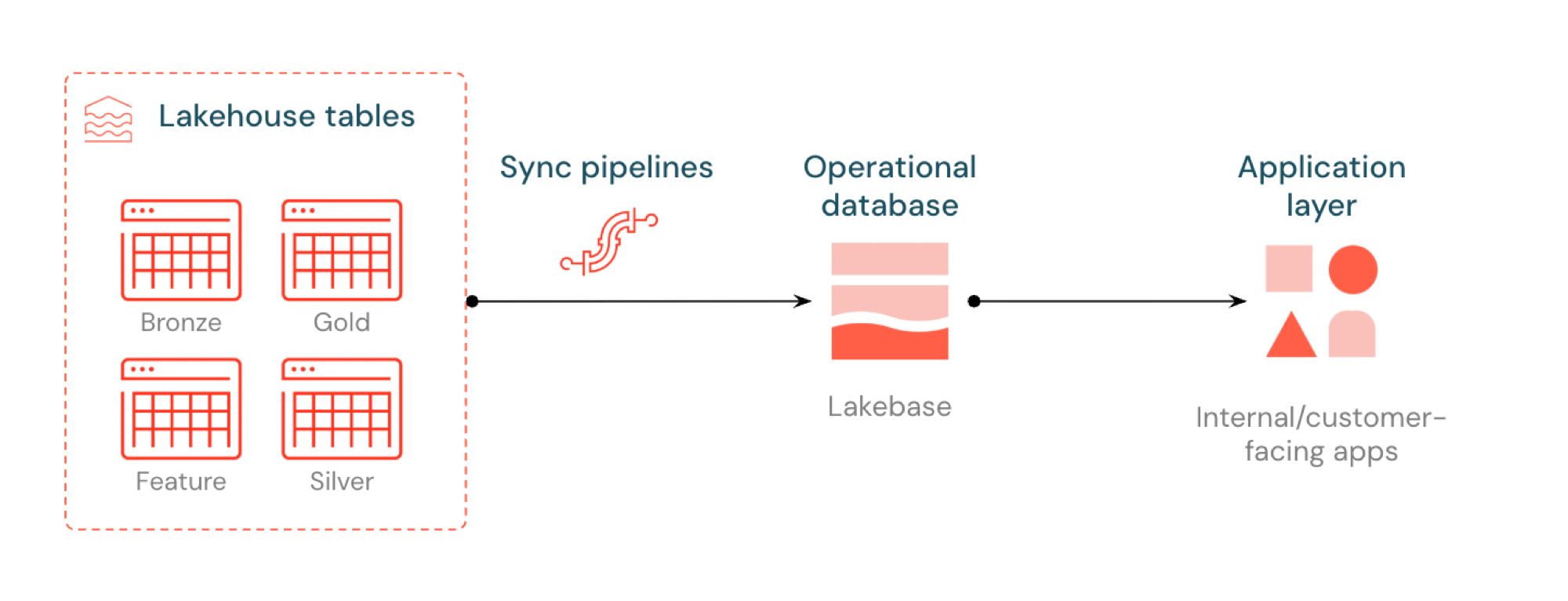
Example use cases
You can use synced tables for data-serving use cases such as:
- Personalization engines that serve fresh user profiles to Databricks Apps
- Applications that serve model predictions or feature values computed in the lakehouse
- Customer-facing dashboards that serve KPIs in real time
- Fraud detection services that serve risk scores for immediate action
- Support tools that serve enriched customer records from lakehouse data
Supported sources
Synced tables support the following Unity Catalog source types:
- Managed and external Delta tables
- Managed and external Iceberg tables
- Views and materialized views
How it works
Databricks synced tables create a managed copy of your Unity Catalog data in Lakebase. When you create a synced table, you get:
- A synced table in Unity Catalog that references the sync pipeline
- A Postgres table in Lakebase (read-only, queryable by your applications)
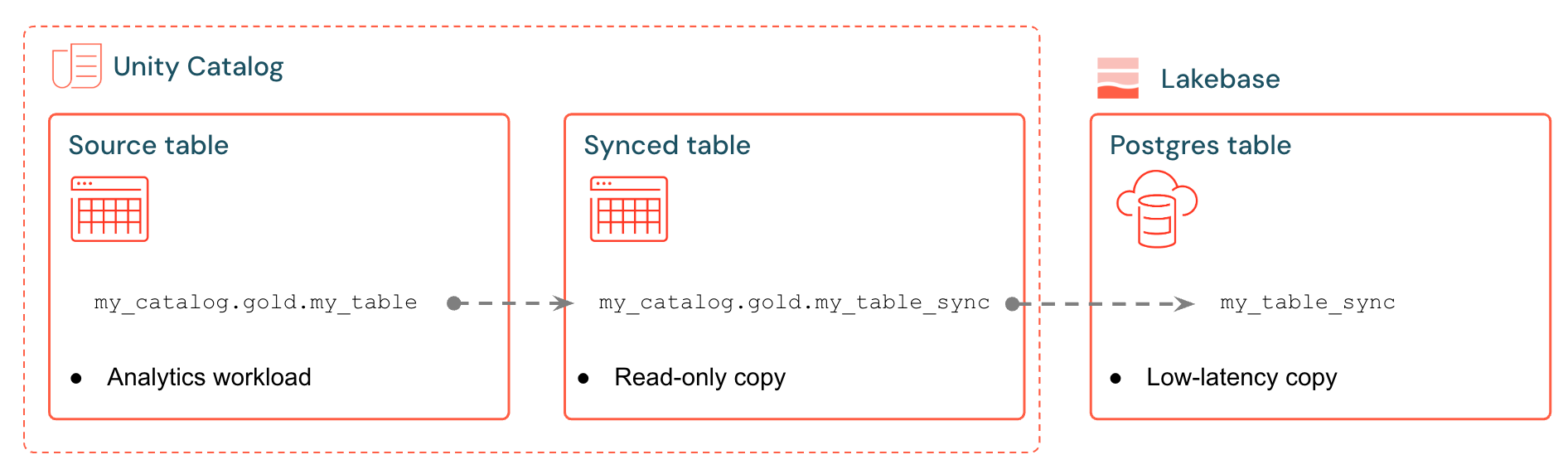
For example, you can sync gold tables, engineered features, or ML outputs from analytics.gold.user_profiles into a new synced table analytics.gold.user_profiles_synced. In Postgres, the Unity Catalog schema name becomes the Postgres schema name, so this appears as gold.user_profiles_synced:
SELECT * FROM gold.user_profiles_synced WHERE user_id = 12345;
Applications connect with standard Postgres drivers and query the synced data alongside their own operational state, handling inserts, updates, and deletes on their own tables in the same database.
Sync pipelines use managed Lakeflow pipelines to continuously update both the Unity Catalog synced table and the Postgres table with changes from the source table. Each sync can use up to 16 connections to your Lakebase database. Connection limits depend on compute size. See Compute specifications.
Warning
While it's possible to modify a synced table directly in Postgres, Azure Databricks strictly recommends running only read queries to protect data integrity with the source. For supported operations on synced tables, see Operations allowed on synced tables in Postgres.
Accelerated sync with LTAP Direct Writes
Important
LTAP Direct Writes is in Beta. Synced tables are generally available.
LTAP Direct Writes is an optional synced table setting that speeds up large loads. It's part of the LTAP architecture. It's off by default and you opt in per synced table by selecting LTAP Direct Writes under Synchronization settings in the Create synced table dialog. When enabled, it writes data directly into the storage layer backing your Lakebase branch instead of routing the bulk write through the live compute endpoint, so loads finish faster and don't add query load to the endpoint while they run.
What LTAP Direct Writes accelerates depends on the sync mode:
- All modes: The initial load. Every synced table starts by loading a full copy of the source, and that first load uses LTAP Direct Writes.
- Snapshot: Every subsequent sync, because Snapshot mode runs a full refresh each time.
- Triggered and Continuous: The initial load only. Later updates are applied incrementally through Change Data Feed, not as bulk loads.
Note
LTAP Direct Writes is supported on Lakebase projects running Postgres 16, 17, or 18. If you don't see the LTAP Direct Writes checkbox, a workspace admin must enable the LTAP Direct Writes preview from the Previews page. You select LTAP Direct Writes when you create a synced table, so you can't add it to an existing synced table. To use LTAP Direct Writes with an existing synced table, delete the synced table and create a new one.
Sync modes
Choose the right sync mode based on your application needs:
| Mode | Description | When to use | Performance |
|---|---|---|---|
| Snapshot | One-time copy of all data | Source changes >10% of rows per cycle | 10x more efficient if modifying >10% of source data |
| Triggered | Scheduled updates that run on demand or at intervals | Source rows change on a known cadence. Inserts, updates, and deletes are propagated each refresh. | Good cost/lag balance. Expensive if run <5min intervals |
| Continuous | Real-time streaming with seconds of latency | Changes must appear in Lakebase in near real time | Lowest lag, highest cost. Minimum 15-second intervals |
In the Create synced table dialog, Snapshot and Triggered are both On-demand sync modes, available under Advanced settings, while Continuous is a separate mode.
The source requirement depends on the sync mode:
- Snapshot copies all data on each sync, so the source only needs to support
SELECT *. - Triggered and Continuous apply row-level changes incrementally, so the source must provide a change data feed. Enable write-time change data feed on the source, or use Automatic change data feed. If a Triggered or Continuous source has no change data feed, the UI shows a warning with the exact
ALTER TABLEcommand to run.
Automatic change data feed computes row-level changes at read time instead of requiring write-time change data feed on the source. This lets more source types, including Apache Iceberg tables, sync in Triggered or Continuous mode. For the source types that automatic change data feed supports, see the automatic change data feed documentation.
Create a synced table
Prerequisites
You need:
- A Databricks workspace with Lakebase enabled.
- A Lakebase project (see Create a project).
- A Unity Catalog table to sync.
- Permissions to create synced tables. You need USE_SCHEMA and CREATE_TABLE on any schema you use. To grant these privileges, see Manage privileges in Unity Catalog.
For Triggered or Continuous modes, the source must provide a change data feed. Either enable legacy change data feed on an eligible Delta Lake source table, or use automatic change data feed for sources such as Apache Iceberg tables.
To enable write-time change data feed on a Delta source table, run:
ALTER TABLE your_catalog.your_schema.your_table
SET TBLPROPERTIES (delta.enableChangeDataFeed = true)
Before you create a synced table, review the following:
- Source: Supported source types are listed in Supported sources.
- Names and limits: Naming rules, connection usage, and per-source limits are listed in Capacity planning.
- Column types: Type mappings, unsupported types, and characters that cause sync failures are covered in Data types and compatibility.
- Creator identity: The identity that creates the synced table is granted access to it, and you can't reassign that access later. See Access for the user who creates a synced table.
UI
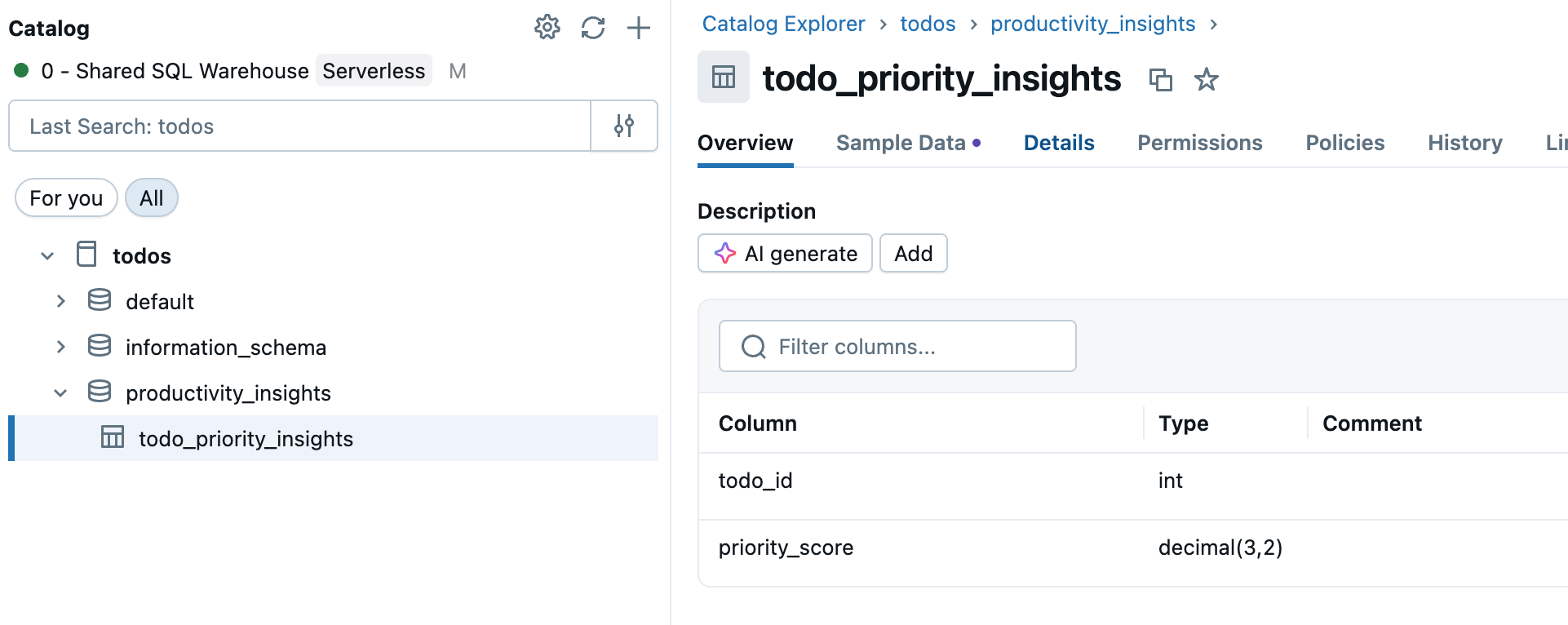
In Lakehouse, go to Catalog in the workspace sidebar and select the Unity Catalog table you want to sync.
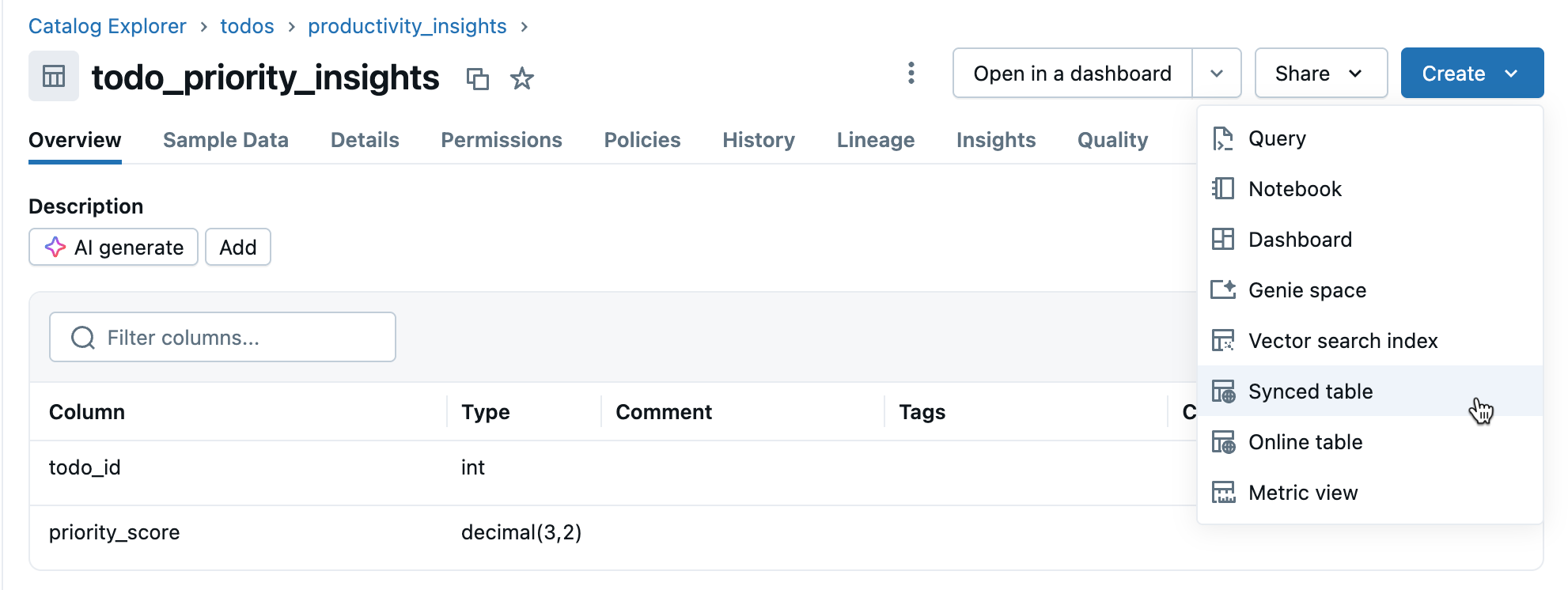
Click Create > Synced table from the table details view.
In the Create synced table dialog, configure the following sections, then click Create:
Destination
- Name: Select the catalog and schema for the synced table, then enter a table name. This creates both a Unity Catalog synced table and a Postgres table you can query. The catalog and schema lists only include Unity Catalog schemas where you have USE_SCHEMA and CREATE_TABLE privileges. If you don't see a schema you expect, confirm your permissions with your catalog admin.
- Lakebase Postgres Database: Set Database type to Autoscaling, then select your Project, Branch, and Postgres database.
Synchronization settings
- Sync mode: Select On-demand or Continuous. For On-demand, expand Advanced settings and choose Snapshot or Triggered. See sync modes for guidance.
- LTAP Direct Writes: (Optional) Select this checkbox to accelerate the initial load. This option is supported on Lakebase projects running Postgres 16, 17, or 18. If you don't see this checkbox, a workspace admin must enable the LTAP Direct Writes preview from the Previews page. See Accelerated sync with LTAP Direct Writes.
Pipeline settings
- Pipeline: Select Create new to create a pipeline for this synced table, or Use existing to reuse one.
- Serverless usage policy: (Optional) Select a serverless usage policy for the sync pipeline.
Schema
Primary key: Verify the primary key (usually auto-detected). Leave Unique selected if each primary key value is unique in the source. If primary key values can repeat, clear Unique and set a Timeseries Key. You can't change the primary key or timeseries key after you create the synced table.
Important
Columns in the primary key are not nullable in the synced table. Rows with nulls in primary key columns are excluded from the sync.
Timeseries Key: (Optional) When primary key values can repeat in the source, select a column to configure deduplication. The synced table then contains only the row with the latest timeseries key value for each primary key. For the failure mode without a timeseries key, see Duplicate keys.
- Customize column types: (Optional) Override how source columns map to Postgres types. If you map columns to
vectororhalfvec, install a vector extension in the destination database first. See Custom type mappings.
If you chose Triggered or Continuous and haven't enabled Change Data Feed yet, you'll see a warning with the exact command to run.
Monitor the synced table in Catalog. The Overview tab shows sync status, configuration, pipeline status, and last sync timestamp. Use Sync now for manual refresh.
CLI
databricks postgres create-synced-table my-catalog.sales.orders \
  --json '{
    "spec": {
      "source_table_full_name": "main.sales.orders",
      "branch": "projects/my-project/branches/production",
      "primary_key_columns": ["order_id"],
      "scheduling_policy": "SNAPSHOT",
      "postgres_database": "mydb",
      "create_database_objects_if_missing": true
    }
  }'
The SYNCED_TABLE_ID positional argument uses the format catalog.schema.table. In Postgres, the table {table} is created in schema {schema}, inside the database you set with postgres_database (here, mydb). The command waits for the operation to complete by default. For all available options, see databricks postgres create-synced-table.
To override default column type mappings, add type_overrides to spec. See Custom type mappings.
Python SDK
from databricks.sdk import WorkspaceClient
from databricks.sdk.service.postgres import (
    SyncedTable,
    SyncedTableSyncedTableSpec,
    SyncedTableSyncedTableSpecSyncedTableSchedulingPolicy,
)

w = WorkspaceClient()

synced_table = w.postgres.create_synced_table(
    synced_table=SyncedTable(spec=SyncedTableSyncedTableSpec(
        source_table_full_name="main.sales.orders",
        branch="projects/my-project/branches/production",
        primary_key_columns=["order_id"],
        scheduling_policy=SyncedTableSyncedTableSpecSyncedTableSchedulingPolicy.SNAPSHOT,
        postgres_database="mydb",
        create_database_objects_if_missing=True,
    )),
    synced_table_id="my-catalog.sales.orders",
).wait()

print(f"Synced table created: {synced_table.name}")
The synced_table_id uses the format catalog.schema.table and becomes the Unity Catalog synced table name. In Postgres, the table {table} is created in schema {schema}, inside the database you set with postgres_database (here, mydb).
Java SDK
import com.databricks.sdk.WorkspaceClient;
import com.databricks.sdk.service.postgres.*;
import java.util.List;

WorkspaceClient w = new WorkspaceClient();

SyncedTable syncedTable = w.postgres().createSyncedTable(
    new CreateSyncedTableRequest()
        .setSyncedTableId("my-catalog.sales.orders")
        .setSyncedTable(new SyncedTable()
            .setSpec(new SyncedTableSyncedTableSpec()
                .setSourceTableFullName("main.sales.orders")
                .setBranch("projects/my-project/branches/production")
                .setPrimaryKeyColumns(List.of("order_id"))
                .setSchedulingPolicy(SyncedTableSyncedTableSpecSyncedTableSchedulingPolicy.SNAPSHOT)
                .setPostgresDatabase("mydb")
                .setCreateDatabaseObjectsIfMissing(true))))
    .waitForCompletion();

System.out.println("Synced table created: " + syncedTable.getName());
curl
curl -X POST "https://your-workspace.cloud.databricks.com/api/2.0/postgres/synced_tables?synced_table_id=my-catalog.sales.orders" \
  -H "Authorization: Bearer ${DATABRICKS_TOKEN}" \
  -H "Content-Type: application/json" \
  -d '{
    "spec": {
      "source_table_full_name": "main.sales.orders",
      "branch": "projects/my-project/branches/production",
      "primary_key_columns": ["order_id"],
      "scheduling_policy": "SNAPSHOT",
      "postgres_database": "mydb",
      "create_database_objects_if_missing": true
    }
  }'
This returns a long-running operation. Poll the returned name field until done: true. See Long-running operations. For authentication setup, see Authentication.
Schedule or trigger subsequent syncs
The initial load runs automatically when you create a synced table. After that, how syncs run depends on the sync mode:
- Continuous mode streams changes as they happen. You don't need to trigger syncs.
- Snapshot and Triggered modes sync only when triggered. To run a sync manually, open the synced table in Catalog and click Sync now on the Overview tab. To run syncs automatically, add the synced table's pipeline to a job in Lakeflow Jobs as a Database Table Sync pipeline task, then configure the job with one of the following triggers:
- Trigger on source table updates: Best for Triggered mode.
- Trigger on a schedule: Best for Snapshot mode.
Trigger on source table updates
Fires the job when the source Unity Catalog table is updated. With Triggered mode, only new changes are applied incrementally, giving near-real-time freshness without the always-on cost of Continuous mode.
- In your workspace, click
 Jobs & Pipelines in the sidebar.
 - Click Create job or open an existing job.
- On the Tasks tab, click + Add another task type.
- Under Ingestion and Transformation, select Database Table Sync pipeline.
- In the Pipeline field, select the pipeline associated with your synced table.
- Under Schedules & Triggers, click Add trigger.
- Select Table update as the trigger type.
- Under Tables, select the source Unity Catalog table to monitor.
- Click Save.
Trigger on a schedule
Runs the sync at a fixed cadence. Well-suited for Snapshot mode, where a nightly or weekly full refresh is typically the most efficient pattern.
- In your workspace, click Jobs & Pipelines in the sidebar.
- Click Create job or open an existing job.
- On the Tasks tab, click + Add another task type.
- Under Ingestion and Transformation, select Database Table Sync pipeline.
- In the Pipeline field, select the pipeline associated with your synced table.
- Under Schedules & Triggers, click Add trigger.
- Select Scheduled as the trigger type.
- Set your cron schedule and timezone, then click Save.
Check sync status
To check the current state and last sync time of a synced table:
Note
During a sync, the pipeline performs all of its data processing while it reports the INITIALIZING event. A large sync can report INITIALIZING for the full run. This is expected and does not mean the pipeline is stuck.
UI
In Catalog, navigate to your synced table and select the Overview tab. It shows the current sync state, pipeline status, and last sync timestamp.
Python SDK
from databricks.sdk import WorkspaceClient

w = WorkspaceClient()

table = w.postgres.get_synced_table("synced_tables/my-catalog.sales.orders")
print(f"State: {table.status.detailed_state}")
print(f"Last sync: {table.status.last_sync_time}")
print(f"Message: {table.status.message}")
Java SDK
import com.databricks.sdk.WorkspaceClient;
import com.databricks.sdk.service.postgres.SyncedTable;

WorkspaceClient w = new WorkspaceClient();

SyncedTable table = w.postgres().getSyncedTable("synced_tables/my-catalog.sales.orders");
System.out.println("State: " + table.getStatus().getDetailedState());
System.out.println("Last sync: " + table.getStatus().getLastSyncTime());
System.out.println("Message: " + table.getStatus().getMessage());
curl
curl "https://your-workspace.cloud.databricks.com/api/2.0/postgres/synced_tables/my-catalog.sales.orders" \
  -H "Authorization: Bearer ${DATABRICKS_TOKEN}"
Data types and compatibility
Unity Catalog data types are mapped to Postgres types when creating synced tables. Complex types (ARRAY, MAP, STRUCT) are stored as JSONB in Postgres.
| Source column type | Postgres column type |
|---|---|
| BIGINT | BIGINT |
| BINARY | BYTEA |
| BOOLEAN | BOOLEAN |
| DATE | DATE |
| DECIMAL(p,s) | NUMERIC |
| DOUBLE | DOUBLE PRECISION |
| FLOAT | REAL |
| INT | INTEGER |
| INTERVAL | INTERVAL |
| SMALLINT | SMALLINT |
| STRING | TEXT |
| TIMESTAMP | TIMESTAMP WITH TIME ZONE |
| TIMESTAMP_NTZ | TIMESTAMP WITHOUT TIME ZONE |
| TINYINT | SMALLINT |
| ARRAY<elementType> | JSONB |
| MAP<keyType,valueType> | JSONB |
| STRUCT<fieldName:fieldType[, ...]> | JSONB |
Note
GEOGRAPHY, GEOMETRY, VARIANT, and OBJECT types are not supported.
Custom type mappings
When you create a synced table, you can override the default Delta-to-Postgres type mapping for specific columns with type_overrides.
Note
The vector and halfvec types require a vector extension in the destination database. Creating the synced table does not install extensions, so install one before you create the synced table. Use lakebase_vector, which adds ANN vector search through Lakebase Search and installs pgvector as a dependency:
CREATE EXTENSION IF NOT EXISTS lakebase_vector CASCADE;
To use the vector and halfvec types without Lakebase Search, install pgvector on its own with CREATE EXTENSION IF NOT EXISTS vector;. The varchar type requires no extension.
| Source column type | Postgres type | Size | Definition (pg_type) |
Example use case |
|---|---|---|---|---|
ARRAY<FLOAT>, ARRAY<DOUBLE> |
vector(n) |
Embedding dimension | PG_SPECIFIC_TYPE_VECTOR |
Store embeddings as a vector instead of JSONB, ready for similarity search with lakebase_vector |
ARRAY<FLOAT>, ARRAY<DOUBLE> |
halfvec(n) |
Embedding dimension | PG_SPECIFIC_TYPE_HALFVEC |
Half-precision embeddings at roughly half the storage of vector |
STRING |
varchar(n) |
Maximum length | PG_SPECIFIC_TYPE_VARCHAR |
Map to a length-bounded varchar instead of the default TEXT |
Note
size is required for every type in this table. Valid ranges are:
vectorandhalfvec: 1 to 16,000, the number of embedding dimensions.varchar: 1 to 10,485,760, the maximum character length.
Custom type mappings are configurable when you create a synced table. In the UI, use Customize column types under Schema in the Create synced table dialog. In the API, CLI, and Databricks SDKs, use type_overrides.
For a source table main.docs.chunks(id BIGINT, title STRING, embedding ARRAY<FLOAT>), the following maps title to varchar(256) and embedding to vector(1024) in Postgres:
databricks postgres create-synced-table main.docs.chunks_pg \
  --json '{
    "spec": {
      "source_table_full_name": "main.docs.chunks",
      "branch": "projects/my-project/branches/production",
      "primary_key_columns": ["id"],
      "scheduling_policy": "SNAPSHOT",
      "postgres_database": "mydb",
      "create_database_objects_if_missing": true,
      "type_overrides": [
        { "column_name": "title", "pg_type": "PG_SPECIFIC_TYPE_VARCHAR", "size": 256 },
        { "column_name": "embedding", "pg_type": "PG_SPECIFIC_TYPE_VECTOR", "size": 1024 }
      ]
    }
  }'
Without the override, title would be TEXT and embedding would be JSONB.
Handle invalid characters
Certain characters like null bytes (0x00) are allowed in Unity Catalog STRING, ARRAY, MAP, or STRUCT columns but not supported in Postgres TEXT or JSONB columns. This can cause sync failures with errors like:
ERROR: invalid byte sequence for encoding "UTF8": 0x00
ERROR: unsupported Unicode escape sequence DETAIL: \u0000 cannot be converted to text
- The first error occurs when a null byte appears in a top-level string column, which maps directly to Postgres
TEXT. - The second error occurs when a null byte appears in a string nested inside a complex type (
STRUCT,ARRAY, orMAP), which is serialized asJSONB. During serialization, all strings are cast to PostgresTEXT, where\u0000is disallowed.
Solutions:
Sanitize string fields: Remove unsupported characters before syncing. For null bytes in STRING columns:
SELECT REPLACE(column_name, CAST(CHAR(0) AS STRING), '') AS cleaned_column FROM your_tableConvert to BINARY: For STRING columns where preserving raw bytes is necessary, convert to BINARY type.
Capacity planning
When planning your synced tables implementation, consider these resource requirements:
- Connection usage: Each synced table uses up to 16 connections to your Lakebase database, which count toward the project's connection limit.
- Size quota: Total logical data across all synced tables counts toward the branch's database storage quota. Contact Databricks Support if you need a larger quota. Individual tables don't have a quota, but Databricks recommends not exceeding 1 TB for tables requiring refreshes.
- Full-refresh size: When triggering a full-refresh, the old version in Postgres is not deleted until the new sync completes. Both versions temporarily count toward the logical database size quota during the refresh.
- Tables per source: A single source table can have up to 20 synced tables.
- Naming requirements: Database, schema, and table names may only contain alphanumeric characters and underscores (
[A-Za-z0-9_]+). - Source identifier guidance: Avoid using uppercase letters or special characters in column or table names in the source Unity Catalog table. If you keep them, you must quote those identifiers when referencing them in Postgres.
- Schema evolution: Only additive schema changes (like adding columns) are supported for Triggered and Continuous modes.
- Changing the table definition: Updating a synced table's definition in place isn't supported through any interface (UI, SDKs, CLI, REST API, Terraform, or DABs). To change the primary key or timeseries key, or to make a non-additive schema change, delete the synced table and create a new one.
- Duplicate keys: If two rows have the same primary key in the source table, the sync pipeline fails unless you configure deduplication using a timeseries key.
- API idempotency: Synced table APIs are idempotent, so retry on transient errors to ensure timely operations.
- Update rate: For Lakebase the sync pipeline supports Continuous and Triggered writes at approximately 150 rows per second per Capacity Unit (CU) and Snapshot writes at up to 2,000 rows per second per CU.
Operations allowed on synced tables in Postgres
Azure Databricks recommends performing only the following operations in Postgres for synced tables to prevent accidental overwrites or data inconsistencies:
- Read-only queries
- Creating indexes
- Dropping the table (to free up space after removing the synced table from Unity Catalog)
While it's possible to modify synced tables in Postgres in other ways, it interferes with the synchronization pipeline.
Ownership and permissions
A synced table is owned by the internal databricks_writer_<dbid> role, not by the user who created it, because the sync pipeline manages it (see Postgres roles). Owner-only commands, such as configuring row-level security, can't be run directly on a synced table.
Note
This is an exception to the general Postgres rule, where objects you create yourself are owned by your Azure Databricks identity if its login exists as a role in Postgres. The pipeline creates synced tables on your behalf.
Access for the user who creates a synced table
When you create a synced table, your Azure Databricks identity is automatically granted access to use it. No databricks_superuser action is required. Your identity is granted the following privileges on the synced table:
| Object | Privileges | Purpose |
|---|---|---|
| Synced table | SELECT, DELETE, TRUNCATE |
Read or clear the table |
| Schema | USAGE, CREATE |
Use the schema and create objects such as indexes |
You aren't granted INSERT or UPDATE. The pipeline owns the table's data, so direct writes are overwritten on the next refresh. DELETE and TRUNCATE only clear the table. The next refresh repopulates the table from the source.
This access is derived from your Unity Catalog permissions on the synced table and is managed in Unity Catalog. To change it, update the user's Unity Catalog permissions. You can't REVOKE it from a Azure Databricks identity directly in Postgres.
Note
This access is tied to the identity that created the synced table. Changing the pipeline's Run as identity doesn't reassign it. To use a different owning identity, re-create the synced table under that identity.
Manage synced table access
After a synced table is created, the databricks_superuser can read a synced table from Postgres. The databricks_superuser has pg_read_all_data, which lets this role read from all tables. It also has the pg_write_all_data privilege, which lets this role write to all tables. This means that a databricks_superuser can also write to a synced table in Postgres. Lakebase supports this writing behavior in case you need to make urgent changes in your target table. However, Azure Databricks recommends making fixes in your source table instead.
The
databricks_superusercan also grant these privileges to other users:GRANT USAGE ON SCHEMA synced_table_schema TO user;GRANT SELECT ON synced_table_name TO user;The
databricks_superusercan revoke these privileges:REVOKE USAGE ON SCHEMA synced_table_schema FROM user;REVOKE {SELECT | INSERT | UPDATE | DELETE} ON synced_table_name FROM user;
Manage synced table operations
The databricks_superuser can manage which users are authorized to perform specific operations on a synced table. The supported operations for synced tables are:
CREATE INDEXALTER INDEXDROP INDEXDROP TABLE
All other DDL operations are denied for synced tables.
To grant these privileges to additional users, the databricks_superuser must first create an extension on databricks_auth:
CREATE EXTENSION IF NOT EXISTS databricks_auth;
Then the databricks_superuser can add a user to manage a synced table:
SELECT databricks_synced_table_add_manager('"synced_table_schema"."synced_table"'::regclass, '[user]');
The databricks_superuser can remove a user from managing a synced table:
SELECT databricks_synced_table_remove_manager('[table]', '[user]');
The databricks_superuser can view all managers:
SELECT * FROM databricks_synced_table_managers;
Delete a synced table
Deleting a synced table from Unity Catalog also drops the corresponding Postgres table.
UI
In Catalog, find your synced table, click the  menu, and select Delete.
Python SDK
from databricks.sdk import WorkspaceClient

w = WorkspaceClient()

w.postgres.delete_synced_table("synced_tables/my-catalog.sales.orders").wait()
Java SDK
import com.databricks.sdk.WorkspaceClient;

WorkspaceClient w = new WorkspaceClient();

w.postgres().deleteSyncedTable("synced_tables/my-catalog.sales.orders").waitForCompletion();
curl
curl -X DELETE "https://your-workspace.cloud.databricks.com/api/2.0/postgres/synced_tables/my-catalog.sales.orders" \
  -H "Authorization: Bearer ${DATABRICKS_TOKEN}"
Catalog integration
A synced table can appear in more than one catalog in Unity Catalog. This catalog duplication is expected when you create a synced table in a standard catalog and its destination Postgres database is also registered as a database catalog. In that case, the synced table appears under both catalogs.
Sync to systems outside Azure Databricks
For syncing data into non-Databricks systems, see Partner Connect reverse ETL solutions such as Census or Hightouch.
Additional resources
- Learn how to connect to your database
- Register a Lakebase database in Unity Catalog
- Learn about Unity Catalog