Note
Access to this page requires authorization. You can try signing in or changing directories.
Access to this page requires authorization. You can try changing directories.
Important
Items marked (preview) in this article are currently in public preview. This preview is provided without a service-level agreement, and we don't recommend it for production workloads. Certain features might not be supported or might have constrained capabilities. For more information, see Supplemental Terms of Use for Microsoft Azure Previews.
After your agent is in production, you can view metrics in two places: the monitoring dashboard for model-level and agent-level metrics (Build > Models or Agents > Monitor) and the control plane dashboard for a subscription-wide overview (Operate > Overview). Use Ask AI — the built-in chat assistant — to get a summary of your dashboard data and recommendations for next steps without leaving the Foundry portal.
This article explains how to use Ask AI with each dashboard to get summaries, insights, and recommended next steps.
Prerequisites
- A Foundry project with one or more published agents.
- Access to Ask AI (the chat assistant) in the Foundry portal.
Use Ask AI with your dashboard
You can use Ask AI from either dashboard to get a summary or ask free-form questions about your data.
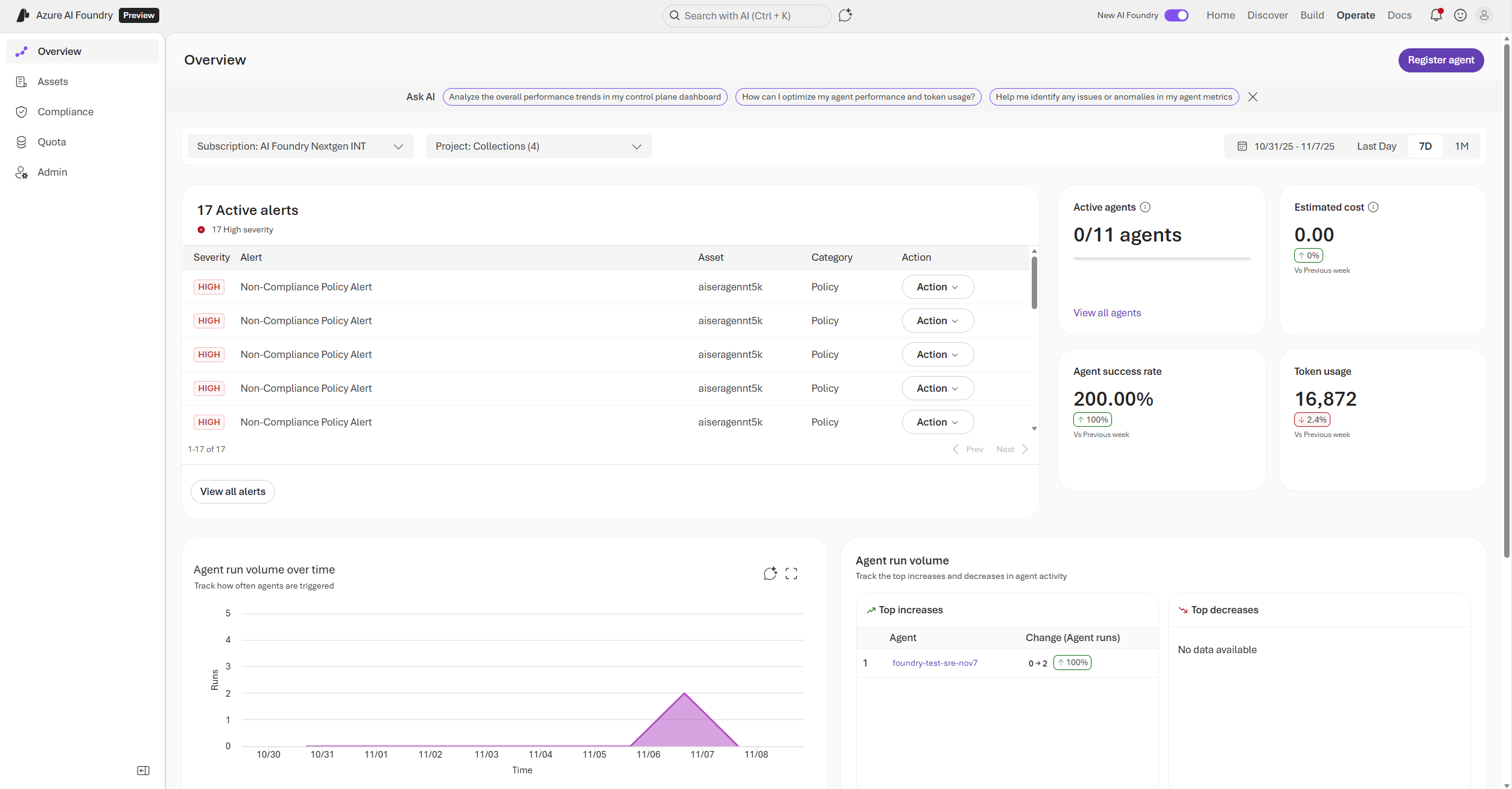
From the control plane dashboard (Operate > Overview):
- Go to Operate > Overview in the Foundry portal.
- Select one of the predefined prompts from the Ask AI banner at the top of the page. The question is passed to Ask AI automatically.
From the monitoring dashboard (Build > Models or Agents > Monitor):
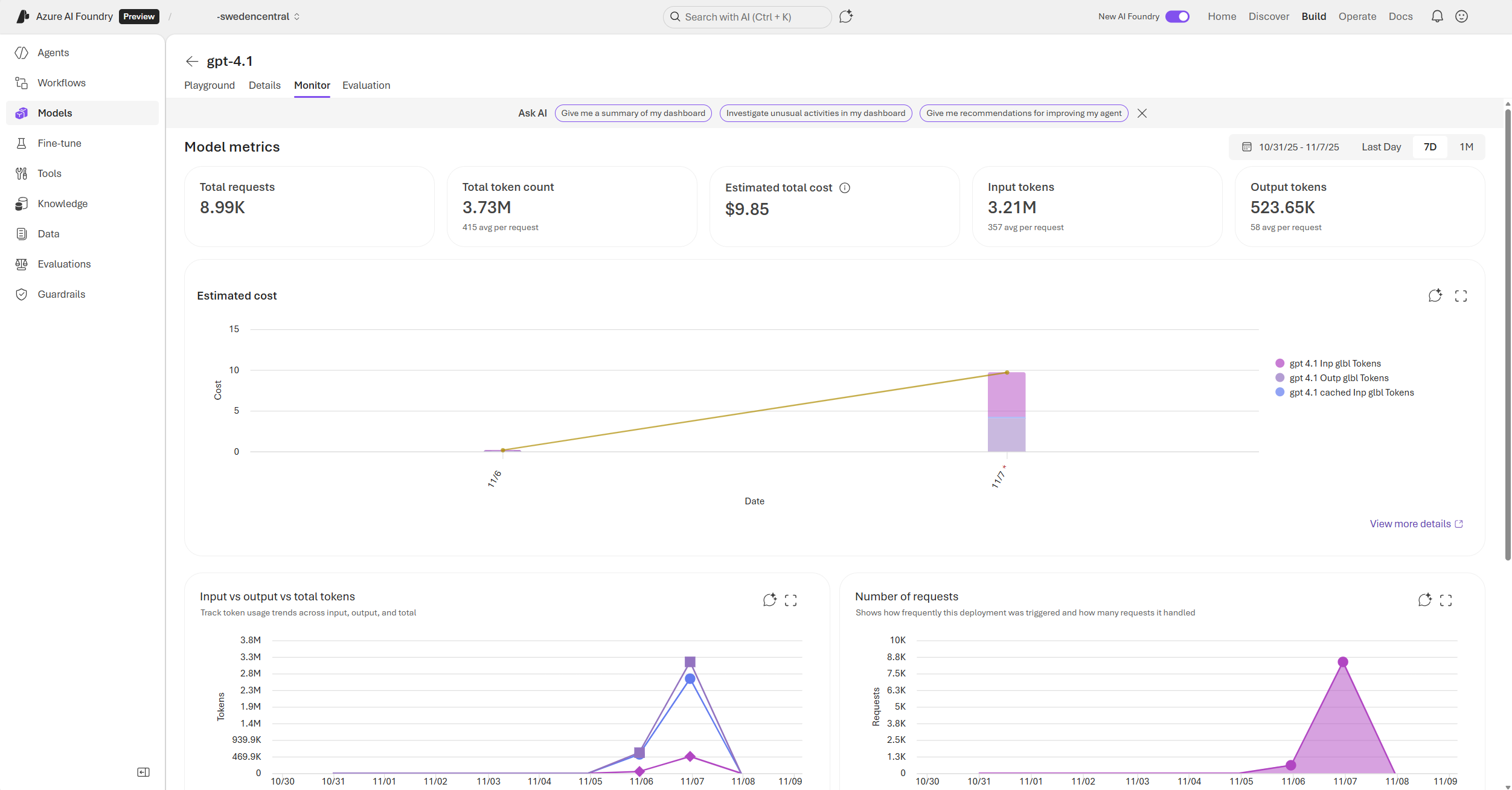
- Go to Build > Models (or Agents) > Monitor in the Foundry portal.
- Select the Ask AI icon at the top of the page to open the chat panel.
- Type a question or select a predefined prompt from the Ask AI banner. Example questions:
- "Give me a summary of the dashboard"
- "Analyze the performance trend of my dashboard"
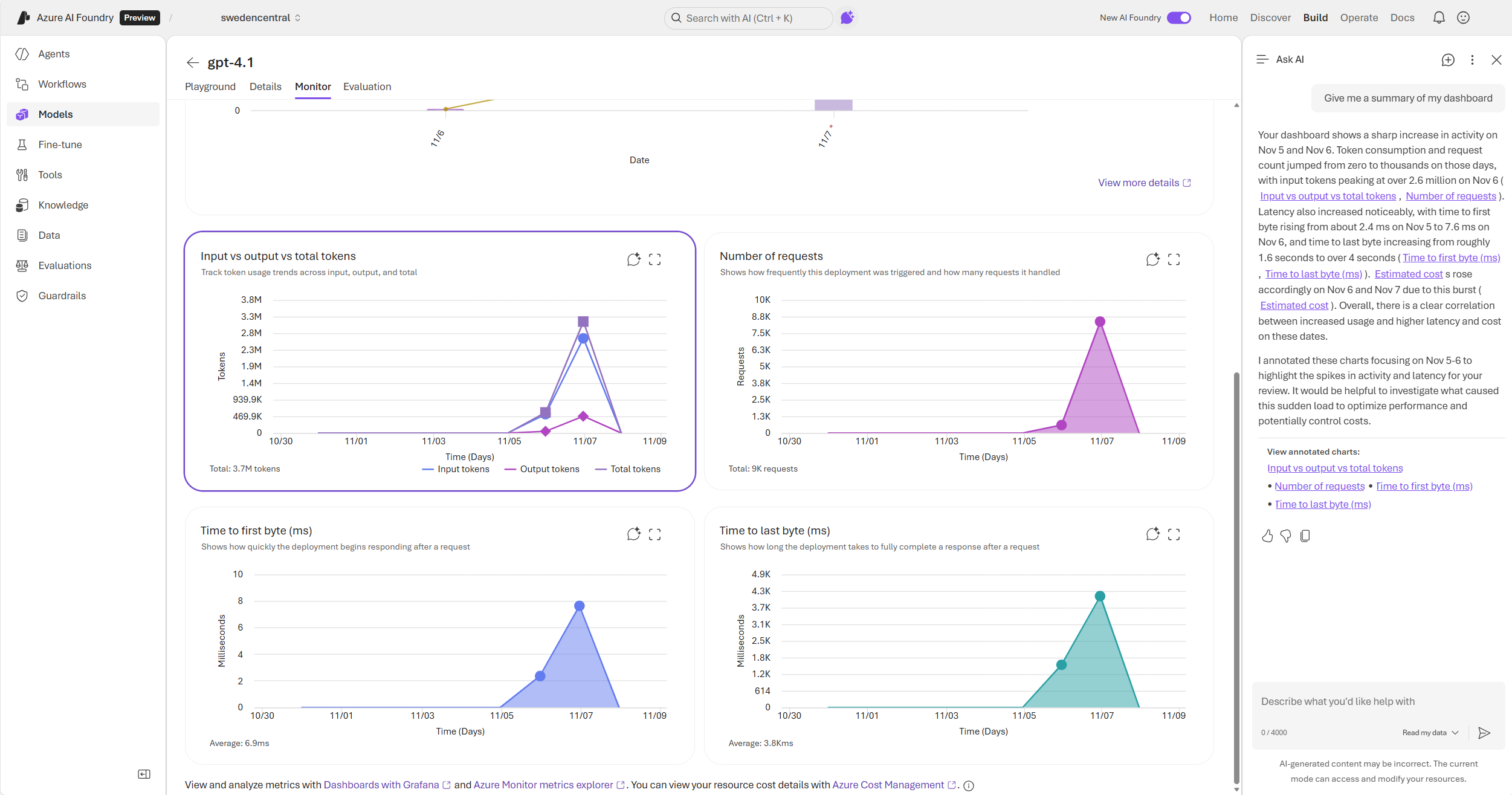
Ask AI provides highlights and abnormal behavior insights for the selected time period, with annotated links to the charts it references. Select an annotated link to scroll directly to that chart, which appears with a highlighted background.
Note
Ask AI analyzes data for the time range currently selected in the dashboard. Adjust the time range selector before asking for more targeted insights.
Get recommended next steps
Ask any free-form questions related to your dashboard to get recommended next steps. After Ask AI provides a summary, it also suggests specific actions based on the patterns it identifies. For example, Ask AI might suggest:
- "Investigate the cause of the latency increase on [the abnormal date] to ensure it isn't a recurring or growing issue."
- "Monitor whether future requests show similar latency patterns when usage increases."
- "Consider load testing or profiling to identify potential bottlenecks causing slower response times."
- "Optimize prompt and completion token usage to reduce load and costs as usage scales."
- "Monitor token consumption and request frequency trends for early signs of performance degradation."
Select any annotated chart link in the response to scroll directly to the relevant chart, with a highlighted background for easy identification.
Troubleshooting
| Symptom | Likely cause | Fix |
|---|---|---|
| Ask AI icon or banner isn't visible | New Foundry experience isn't enabled | In the Foundry portal banner, set the New Foundry toggle to on. |
| Predefined prompts don't appear on the Overview page | No agents are published in the project | Publish at least one agent and return to Operate > Overview. |
| Ask AI returns "No data available" | No data in the selected time range | Expand the time range selector in the dashboard and ask again. |
| Ask AI response doesn't reference specific charts | The question is too general | Ask a more specific question referencing a metric name (for example, "Analyze the latency trend"). |