Note
Access to this page requires authorization. You can try signing in or changing directories.
Access to this page requires authorization. You can try changing directories.
This article provides step-by-step instructions to restart the PostgreSQL engine hosted by an Azure Database for PostgreSQL flexible server.
Important
Restarting the PostgreSQL engine in an Azure Database for PostgreSQL flexible server doesn't restart the compute (virtual machine) that hosts it. It only restarts the database engine process.
Steps to restart PostgreSQL engine
Use the Azure portal:
Select your Azure Database for PostgreSQL flexible server.
In the resource menu, select Overview.
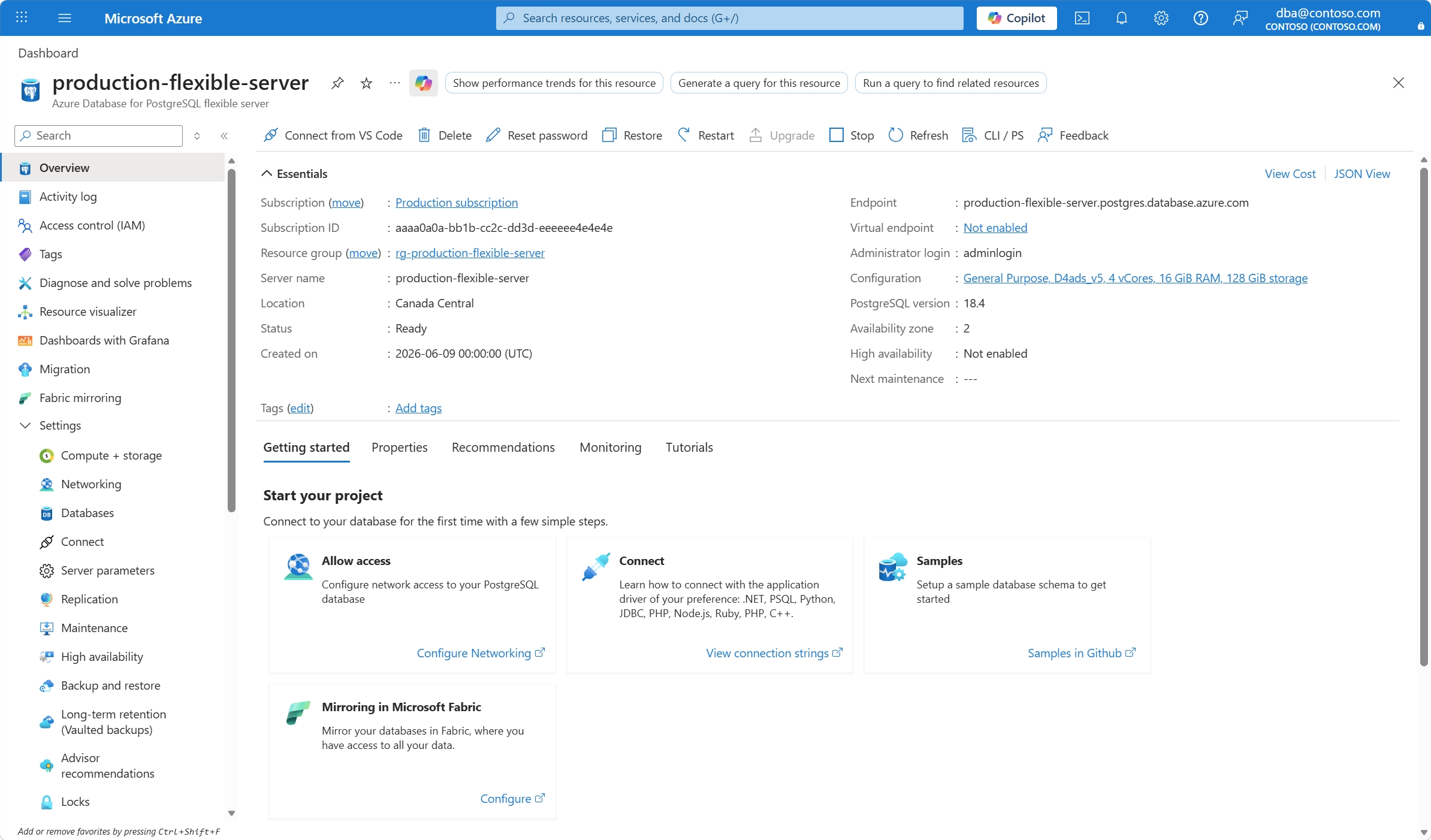
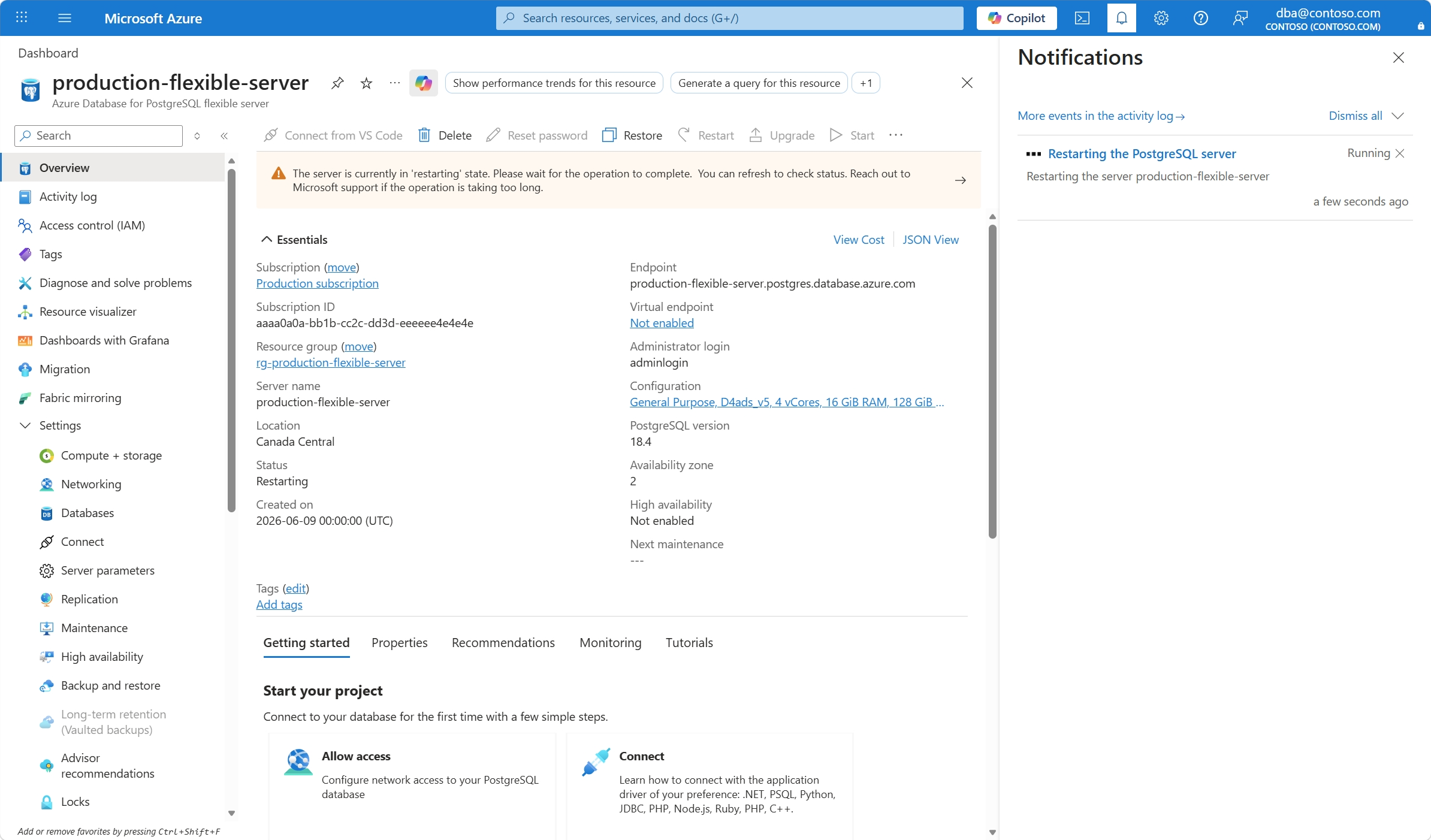
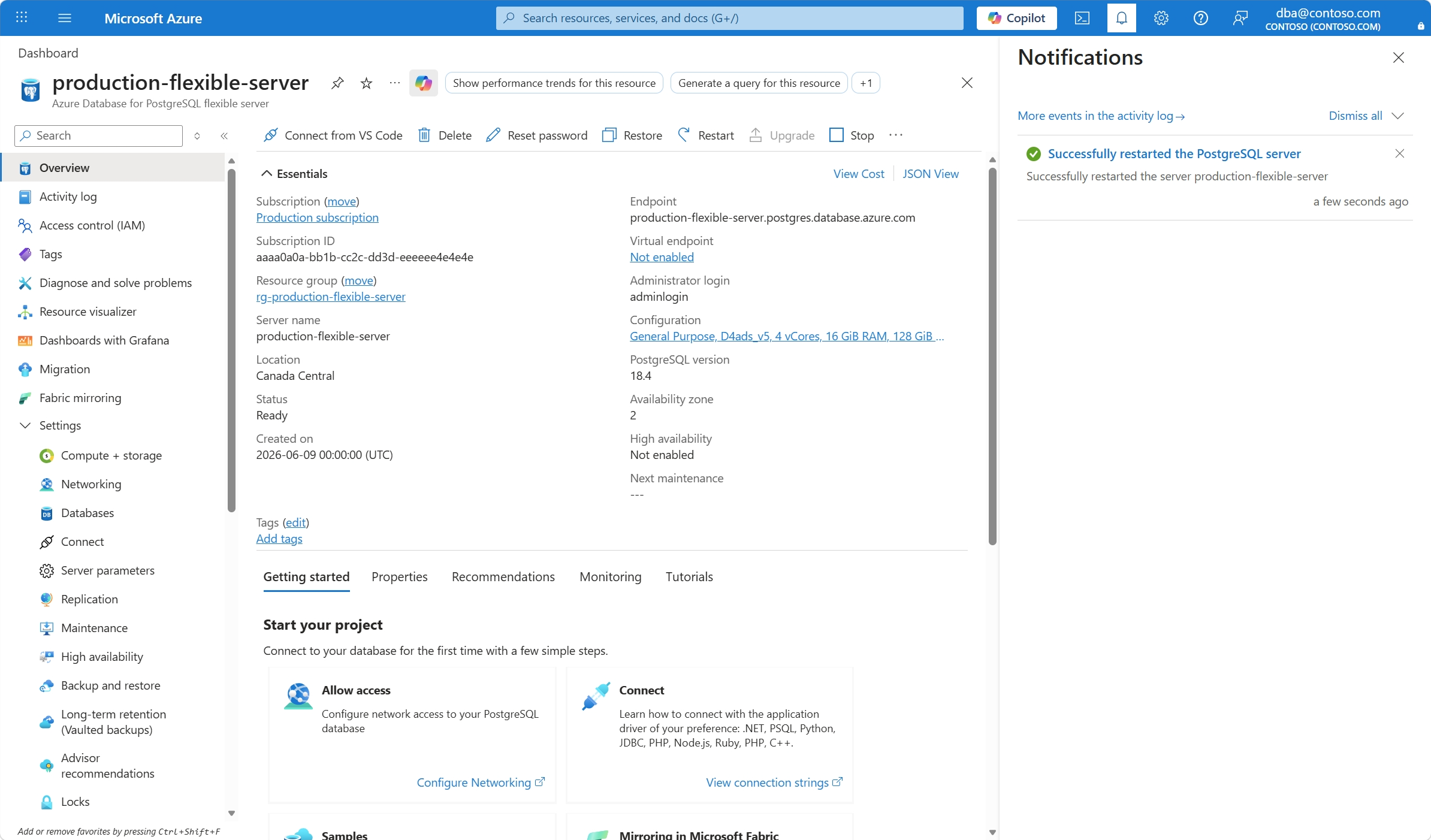
The server status must be Ready for the Restart button to appear on the toolbar.
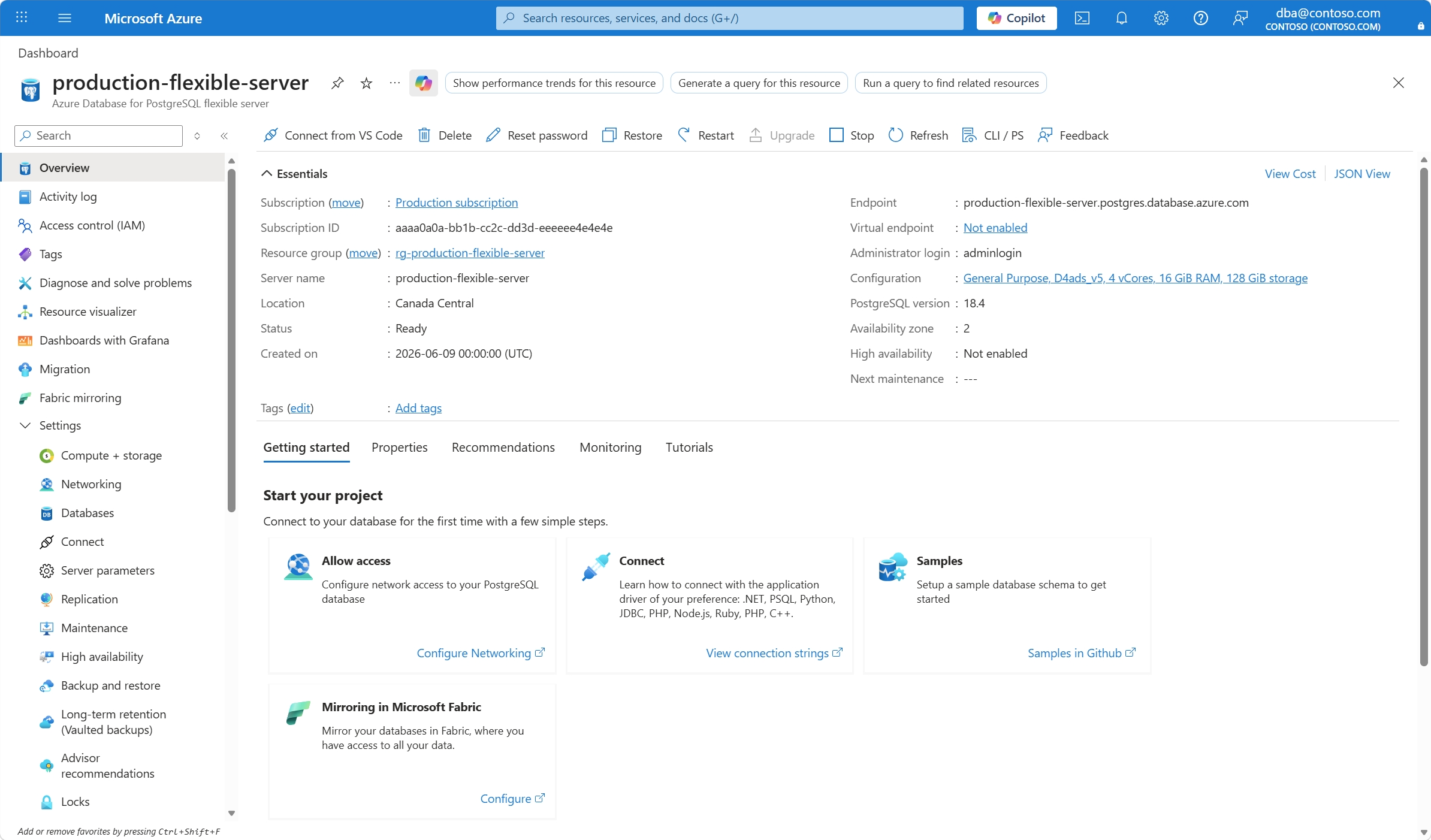
Select the Restart button.
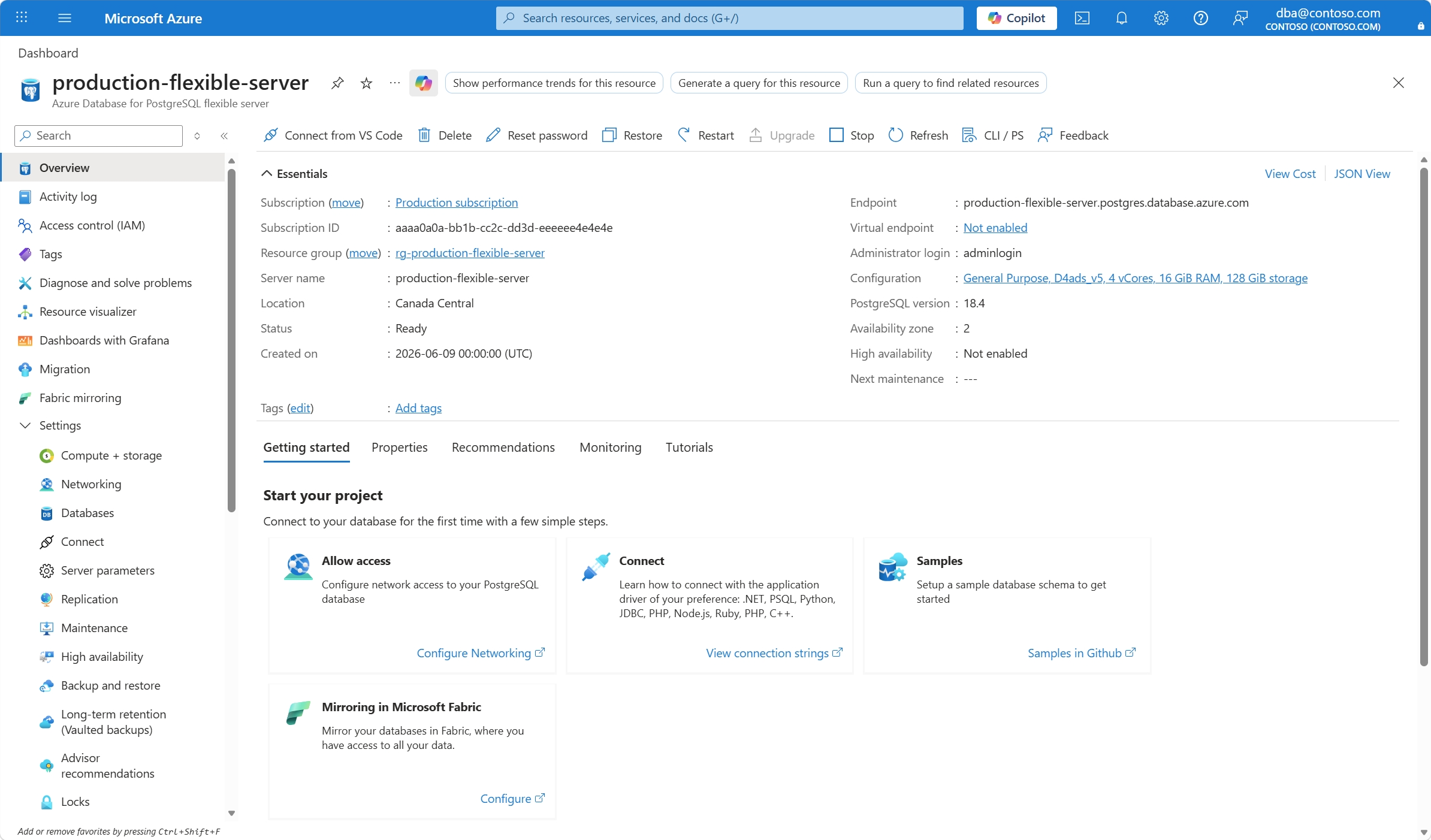
In the Restart server dialog, confirm or cancel your decision to restart the server.
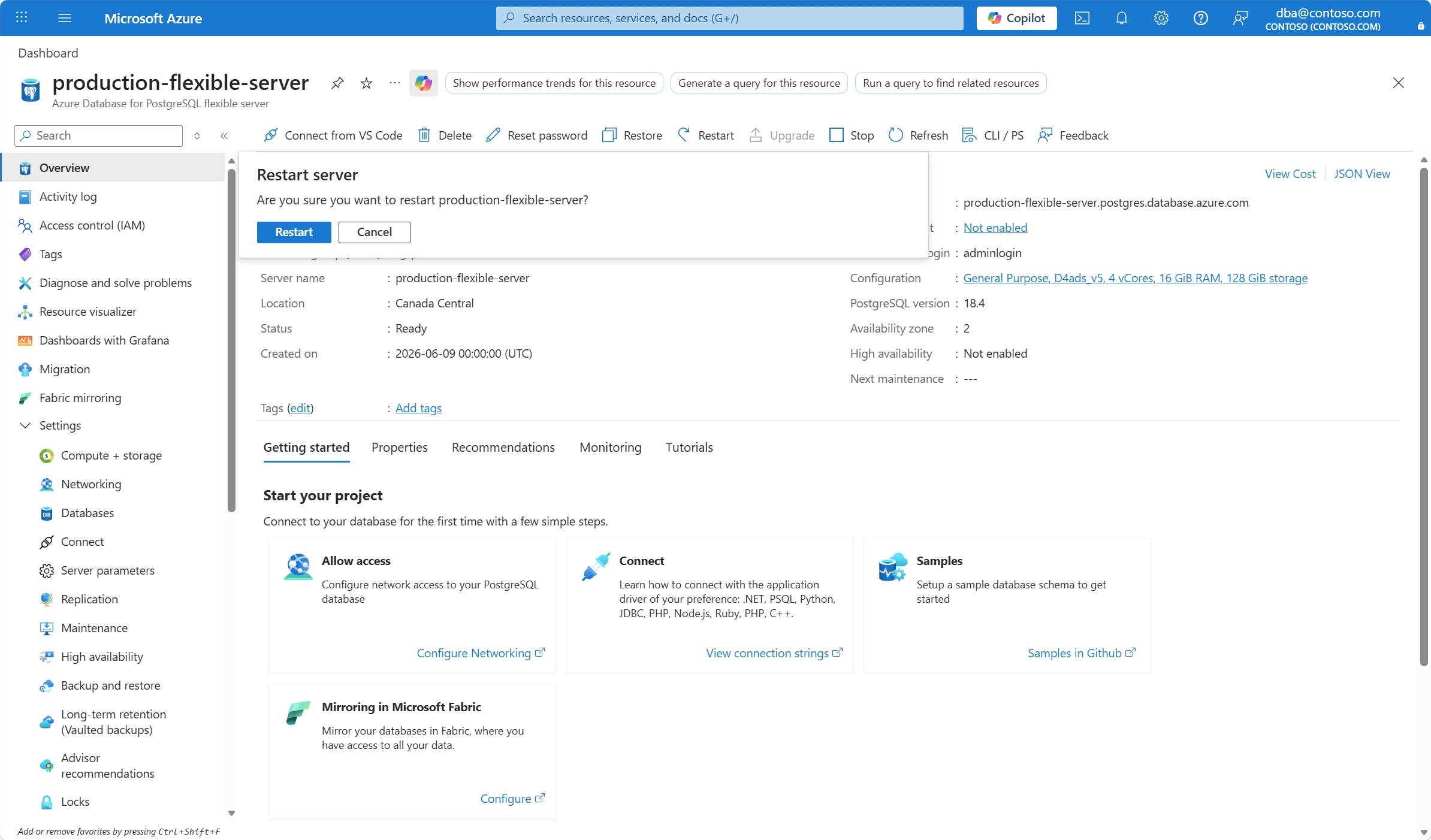
A notification informs you that the server is restarting. Also, the status of the server changes to Restarting.
When the process completes, a notification informs you that the server is restarted. Also, the status of the server changes to Ready.
Note
After the server restarts, all management operations are available for the Azure Database for PostgreSQL flexible server.