Note
Access to this page requires authorization. You can try signing in or changing directories.
Access to this page requires authorization. You can try changing directories.
Visual Studio includes C++ compilers, linkers, and other tools that you can use to create platform-specific versions of your apps. You can create versions that run on 32-bit, 64-bit, or ARM-based Windows operating systems. Other optional Visual Studio workloads let you use C++ tools to target other platforms, such as iOS, Android, and Linux. The default build architecture uses 32-bit, x86-hosted tools to build 32-bit, x86-native Windows code.
You probably have a 64-bit computer. When Visual Studio is installed on a 64-bit Windows operating system, other developer command prompt shortcuts for the 64-bit, x64-hosted native, and cross compilers are available. You can take advantage of the processor and memory space available to 64-bit code by using the 64-bit, x64-hosted toolset when you build code for x86, x64, or ARM processors.
Use a 64-bit hosted developer command prompt shortcut
To access these command prompts on Windows, on the Start menu, type x64 and then choose one of the x64 native or cross-tool developer command prompts.
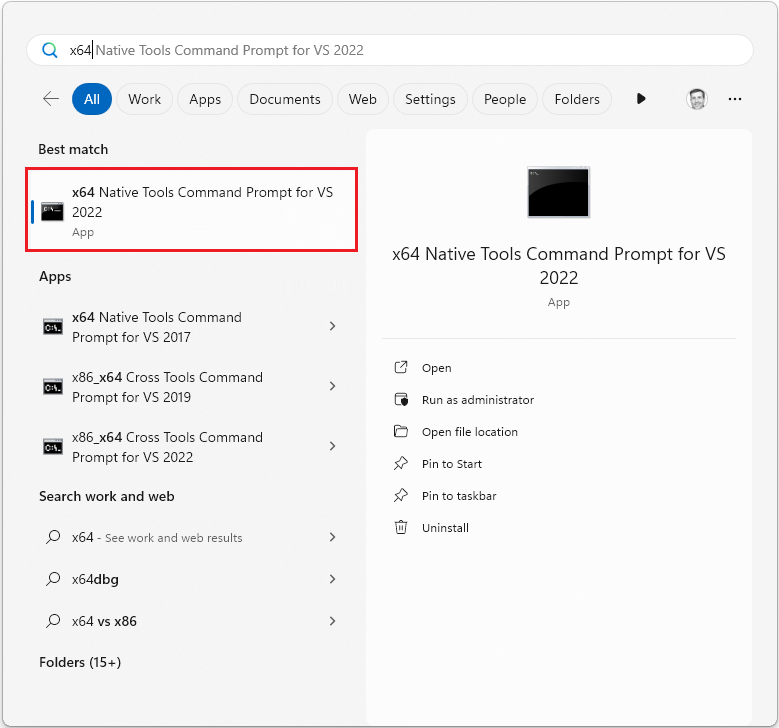
If you have different versions of Visual Studio installed, other versions of the prompt appear. Choose the prompt for the version of Visual Studio that you want to use.
On earlier versions of Windows, choose Start, expand All Programs, and then expand the folder for your version of Visual Studio. For older versions of Visual Studio, this folder is Visual Studio Tools. For more information, see Developer command prompt shortcuts.
Use vcvarsall.bat to set a 64-bit hosted build architecture
Any of the native or cross compiler tools build configurations can be used on the command line by running the vcvarsall.bat command file. This command file configures the path and environment variables that enable a particular build architecture in an existing command prompt window. For more information, see Developer command file locations.
Remarks
When you install a C++ workload in the Visual Studio installer, it always installs 32-bit, x86-hosted, native, and cross compiler tools to build x86 and x64 code. If you include the Universal Windows Platform workload, it also installs x86-hosted cross compiler tools to build ARM code.
If you install these workloads on a 64-bit, x64 processor, you also get 64-bit native and cross compiler tools to build x86, x64, and ARM code. The 32-bit and 64-bit tools generate identical code, but the 64-bit tools support more memory for precompiled header symbols and the Whole Program Optimization (/GL and /LTCG) options. If you run into memory limits when you use the 32-bit tools, try the 64-bit tools.
Note
For information about the specific tools that are included with each Visual Studio edition, see C++ Tools and Features in Visual Studio Editions.
For information about how to use the Visual Studio IDE to create 64-bit applications, see How to: Configure Visual Studio C++ Projects to Target 64-Bit, x64 Platforms.