Note
Access to this page requires authorization. You can try signing in or changing directories.
Access to this page requires authorization. You can try changing directories.
Activities are the building blocks that help you create end-to-end data workflows in Microsoft Fabric. Think of them as the tasks that move and transform your data to meet your business needs. You might use a copy activity to move data from SQL Server to Azure Blob Storage. Then you could add a Dataflow activity or Notebook activity to process and transform that data before loading it into Azure Synapse Analytics for reporting.
Tip
Learn how to visually author and navigate your pipelines on the canvas. To learn more, see Pipeline canvas.
Activities are grouped together in pipelines to accomplish specific goals. For example, you might create a pipeline that:
- Pulls in log data from different sources
- Cleans and organizes that data
- Runs analytics to find insights
Grouping your activities into a pipeline lets you manage all these steps as one unit instead of handling each activity separately. You can deploy and schedule the entire pipeline at once, to run whenever you need it.
Microsoft Fabric offers three types of activities:
- Data movement activities - Move data between systems
- Data transformation activities - Process and transform your data
- Control flow activities - Manage how your pipeline runs
Data movement activities
These activities help you move data from one place to another in your pipeline.
| Movement activity | Description |
|---|---|
| Copy data | You can copy data from any supported source to any supported destination. See the Connector overview to see what's available. |
| Copy job | Copy jobs are a simplified method for moving data quickly. |
If you need to choose between different data movement options, see the data movement decision guide article.
Data transformation activities
These activities help you process and transform your data. You can use them individually or chain them together with other activities.
For more information, see the data transformation activities article.
| Data transformation activity | Compute environment |
|---|---|
| Copy data | Compute manager by Microsoft Fabric |
| Dataflow Gen2 | Compute manager by Microsoft Fabric |
| Delete data | Compute manager by Microsoft Fabric |
| Fabric Notebook | Apache Spark clusters managed by Microsoft Fabric |
| HDInsight activity | Apache Spark clusters managed by Microsoft Fabric |
| Spark Job Definition | Apache Spark clusters managed by Microsoft Fabric |
| Stored Procedure | Azure SQL, Azure Synapse Analytics, or SQL Server |
| SQL script | Azure SQL, Azure Synapse Analytics, or SQL Server |
Control flow activities
These activities help you control how your pipeline runs:
| Control activity | Description |
|---|---|
| Append variable | Add a value to an existing array variable. |
| Approval activity | Pauses pipeline execution and requests an approve or reject decision from designated reviewers. |
| Azure Batch activity | Runs an Azure Batch script. |
| Azure Databricks activity | Runs an Azure Databricks job (Notebook, Jar, Python). |
| Azure Machine Learning activity | Runs an Azure Machine Learning job. |
| Deactivate activity | Deactivates another activity. |
| Fail | Cause pipeline execution to fail with a customized error message and error code. |
| Filter | Apply a filter expression to an input array. |
| ForEach | ForEach Activity defines a repeating control flow in your pipeline. This activity is used to iterate over a collection and executes specified activities in a loop. The loop implementation of this activity is similar to the Foreach looping structure in programming languages. |
| Functions activity | Executes an Azure Function. |
| Get metadata | GetMetadata activity can be used to retrieve metadata of any data in a Data Factory or Synapse pipeline. |
| If condition | The If Condition can be used to branch based on condition that evaluates to true or false. The If Condition activity provides the same functionality that an if statement provides in programming languages. It evaluates a set of activities when the condition evaluates to true and another set of activities when the condition evaluates to false. |
| Invoke pipeline | Execute Pipeline activity allows a Data Factory or Synapse pipeline to invoke another pipeline. |
| KQL activity | Executes a KQL script against a Kusto instance. |
| Lakehouse maintenance activity | Perform routine table maintenance on a Lakehouse from a Microsoft Fabric pipeline. |
| Lookup Activity | Lookup Activity can be used to read or look up a record/ table name/ value from any external source. This output can further be referenced by succeeding activities. |
| Refresh Materialized Lake View activity | Refreshes a materialized lake view in a Lakehouse to reflect the latest data. |
| Refresh SQL Endpoint activity | Refreshes a Lakehouse SQL endpoint to reflect the latest data. |
| Set Variable | Set the value of an existing variable. |
| Switch activity | Implements a switch expression that allows multiple subsequent activities for each potential result of the expression. |
| Teams activity | Posts a message in a Teams channel or group chat. |
| Until activity | Implements Do-Until loop that is similar to Do-Until looping structure in programming languages. It executes a set of activities in a loop until the condition associated with the activity evaluates to true. You can specify a timeout value for the until activity. |
| Wait activity | When you use a Wait activity in a pipeline, the pipeline waits for the specified time before continuing with execution of subsequent activities. |
| Web activity | Web Activity can be used to call a custom REST endpoint from a pipeline. |
| Webhook activity | Using the webhook activity, call an endpoint, and pass a callback URL. The pipeline run waits for the callback to be invoked before proceeding to the next activity. |
Adding activities to a pipeline with the Microsoft Fabric UI
Here's how to add and configure activities in your pipeline:
- Create a new pipeline in your workspace.
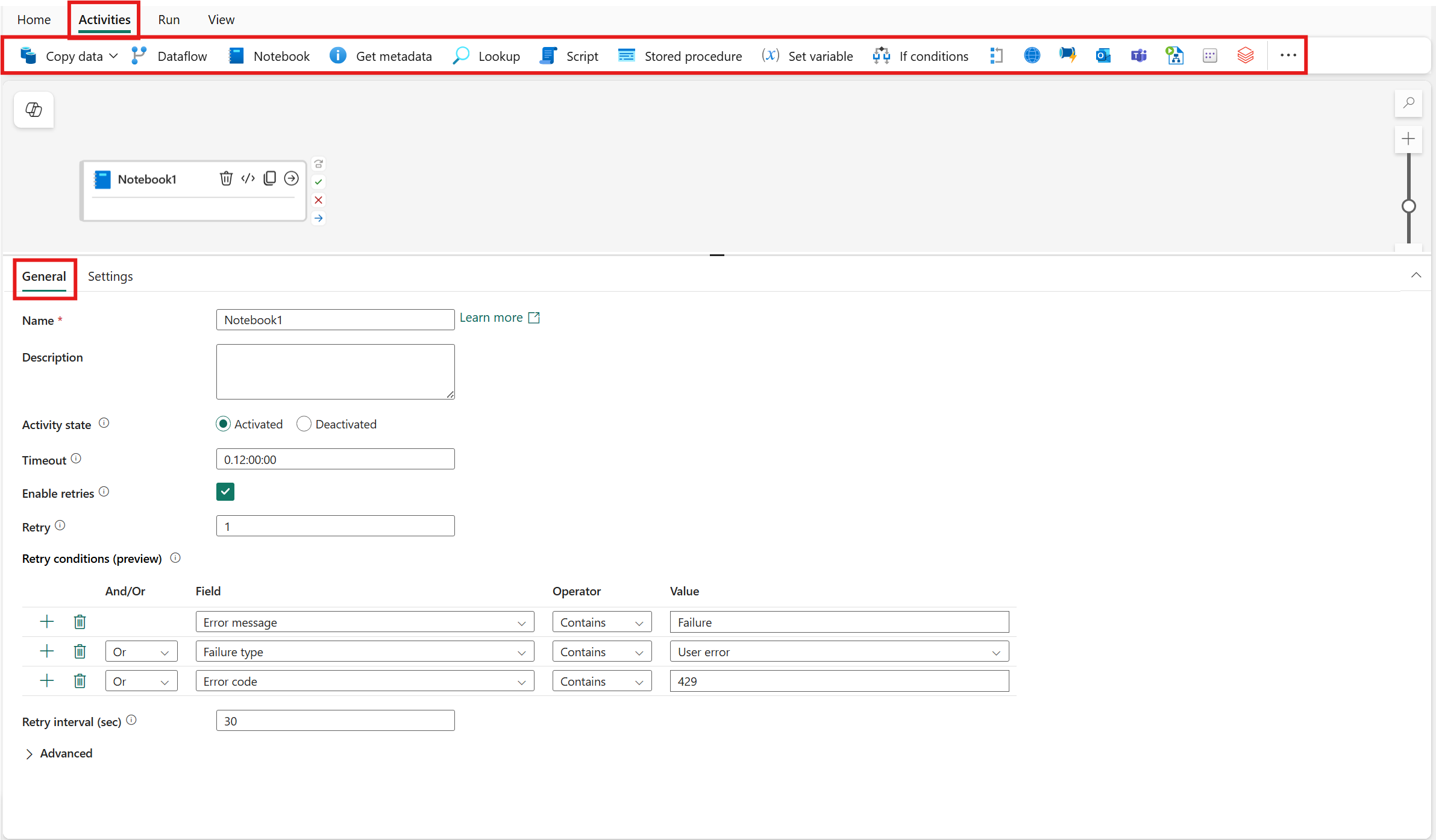
- Go to the Activities tab and browse through the available activities. Scroll right to see all options, then select an activity to add it to the pipeline editor.
- When you add an activity and select it on the canvas, you'll see its General settings in the properties pane below.
- Each activity has other configuration options on other tabs in the properties pane.
General settings
When you add a new activity to a pipeline and select it, you'll see its properties at the bottom of the screen. These include General, Settings, and sometimes other tabs.
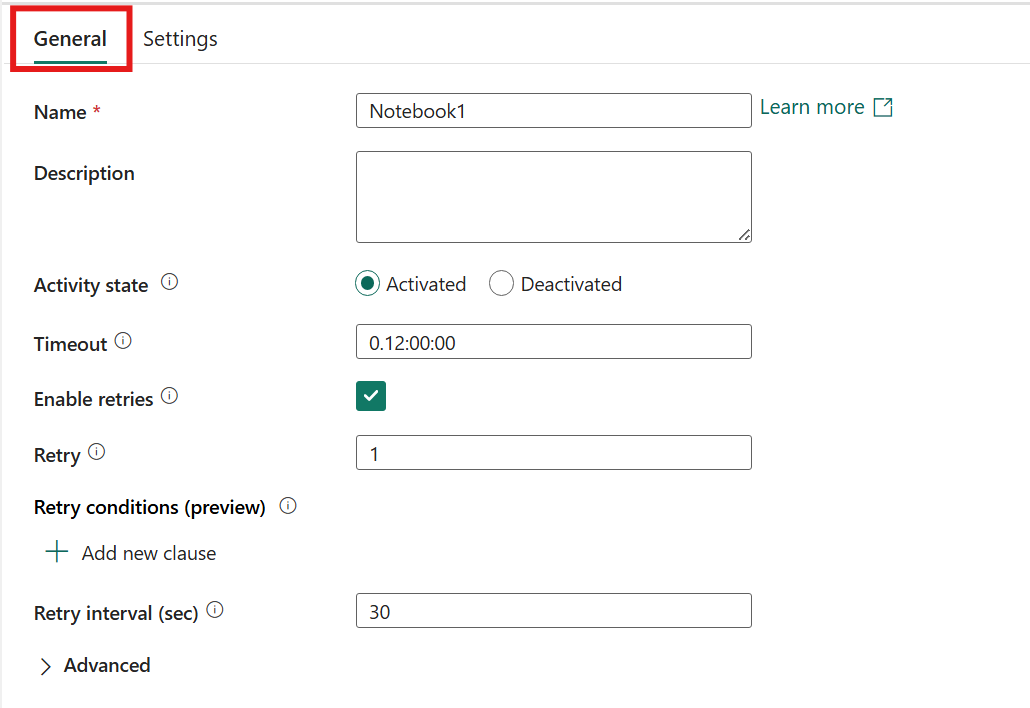
Every activity includes Name and Description fields in the general settings. Some activities also have these options:
| Setting | Description |
|---|---|
| Timeout | How long an activity can run before timing out. The default is 12 hours, and the maximum is seven days. Use the format D.HH:MM:SS. |
| Enable retries | When selected, the activity automatically retries if it fails. |
| Retry | How many times to retry if the activity fails. Defaults to 1. |
| Retry conditions (preview) | Configure specific error conditions that trigger a retry. |
| Retry interval (sec) | How many seconds to wait between retry attempts. The default is 30 seconds. |
| (Advanced properties) Secure output | When selected, activity output won't appear in logs. |
| (Advanced properties) Secure input | When selected, activity input won't appear in logs. |
Note
By default, you can have up to 120 activities per pipeline. This includes inner activities for containers.
Retry an activity
When an activity fails during pipeline execution, you can configure it to automatically retry before marking the run as failed. This feature is useful for handling transient errors like network timeouts, temporary service unavailability, or intermittent connection issues.
Configure retry settings
To set up retry behavior for an activity:
- Select the activity on the pipeline canvas.
- In the General tab of the properties pane, select the Enable retries checkbox to turn on retry functionality.
- Set the Retry field to the number of retry attempts. Enter a value between 1 and 1000. Default value is 1.
- Optionally, configure Retry conditions (preview) to control when retries occur based on specific error criteria.
- Set the Retry interval (sec) field to determine how many seconds to wait between retry attempts. The default is 30 seconds.
Configure retry conditions (preview)
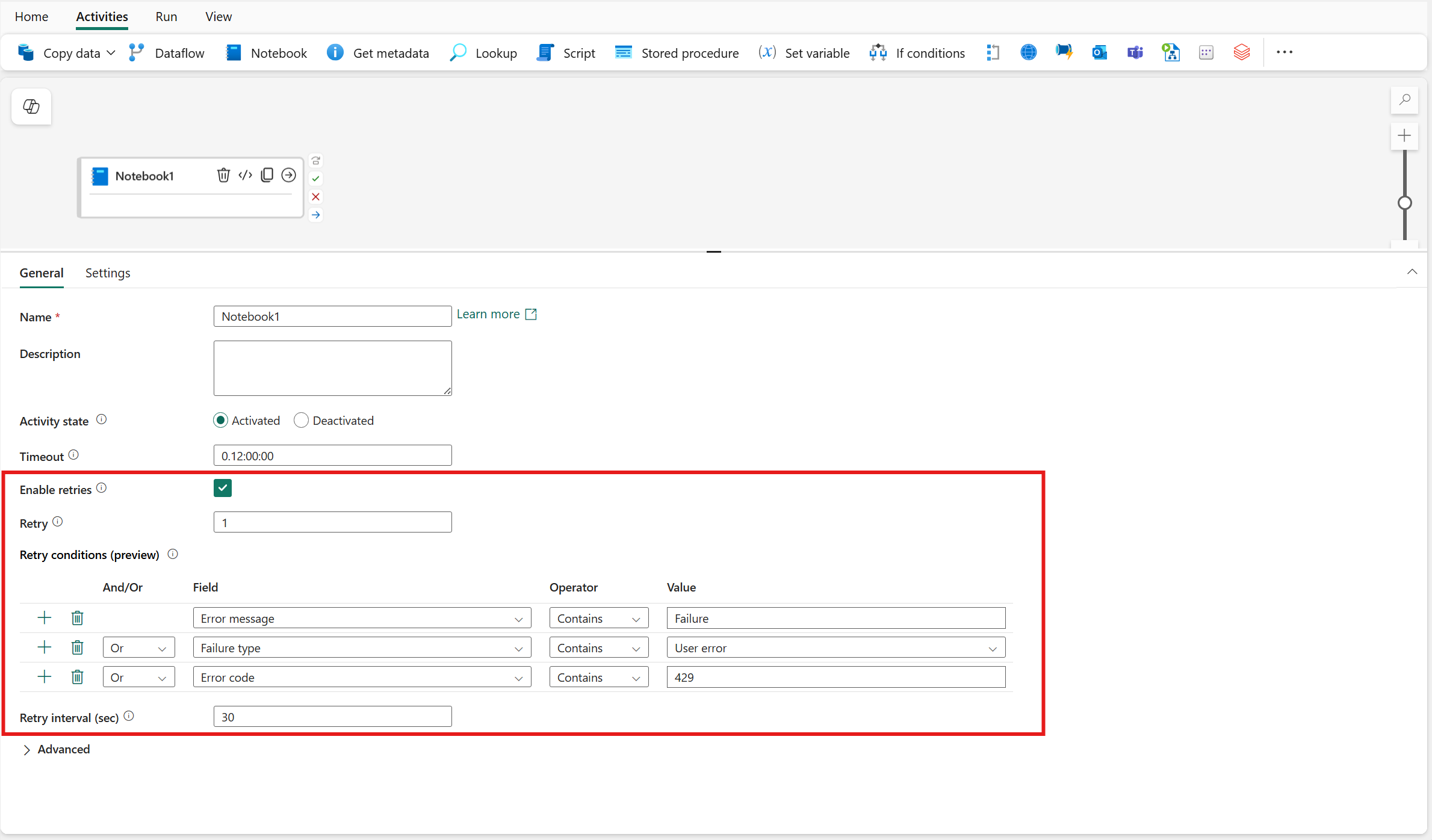
By default, an activity retries on any failure. Use Retry conditions to specify exactly which errors should trigger a retry. This helps you avoid wasting retries on errors that won't resolve, such as authentication failures.
To add a retry condition:
- In the Retry conditions (preview) section, select the + button to add a new condition row.
- Choose a Field to evaluate:
- Error message: The text content of the error message.
- Failure type: The category of failure (for example, User error, System error).
- Error code: The specific error code returned (for example, 429 for rate limiting).
- Select an Operator to define the match type (for example, Contains).
- Enter a Value to match against.
- Use the And/Or column to combine multiple conditions. Select And to require all conditions to match, or Or to retry when any condition matches.
For example, to retry only on rate limiting errors, add a condition with Field set to Error code, Operator set to Contains, and Value set to 429.
Important
The retry interval runs before the condition is evaluated. For example, if you set a 1-hour retry interval and the retry condition isn't met, the pipeline still waits the full hour before proceeding to the next activity or ending the pipeline run.
Tip
When no retry conditions are specified, the activity retries on all failures. Add conditions to be more selective about which errors trigger retries.
Known retry limitations
- Activity support: Conditional retries are supported for specific activity types, including Copy data, Notebook, Dataflow, and Stored procedure activities.
- Error properties: Retry conditions can match on error code, error message, and failure type. Not all connector-specific error fields are available for matching.
Deactivate an activity
You can deactivate one or more activities from a pipeline to skip them during validation and pipeline runs. This feature improves pipeline developer efficiency, letting you comment out part of the pipeline without deleting it from the canvas. You can reactivate activities at a later time.
Deactivate activities
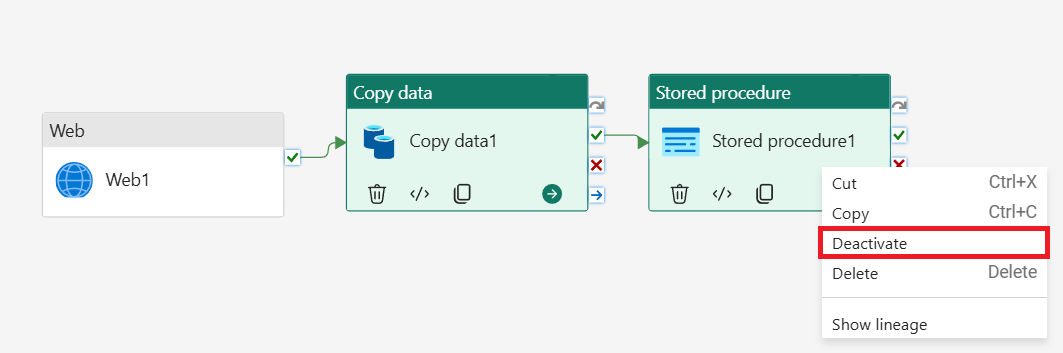
There are two ways to deactivate an activity: deactivate a single activity from its General tab, or deactivate multiple activities with right click.
Save the changes to deactivate the activities during the next scheduled pipeline run.
Deactivate a single activity
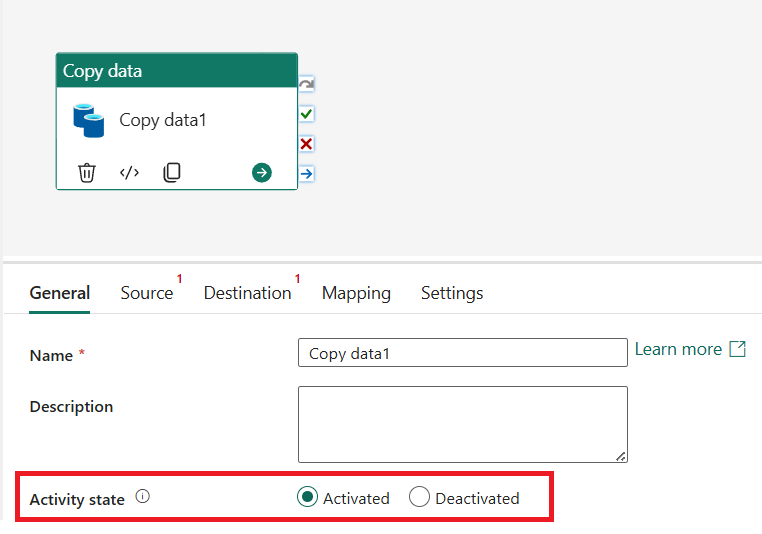
- Select the activity you want to deactivate
- Under General tab, select Deactivated for Activity state
- Pick a state for Mark activity as. Choose from Succeeded, Failed or Skipped
Deactivate multiple activities
- Press down Ctrl key to multi-select. Using your mouse, left click on all activities you want to deactivate
- Right click to bring up the drop down menu
- Select Deactivate to deactivate them all
- To fine tune the settings for Mark activity as, go to General tab of the activity, and make appropriate changes
Reactivate activities
To reactivate the activities, choose Activated for the Activity State, and they revert back to their previous behaviors, as expected.
Inactive activity behaviors
An inactive activity behaves differently in a pipeline.
On canvas, the inactive activity is grayed out, with Inactive sign placed next to the activity type
On canvas, a status sign (Succeeded, Failed or Skipped) is placed on the box, to visualize the Mark activity as setting
The activity is excluded from pipeline validation. Hence, you don't need to provide all required fields for an inactive activity.
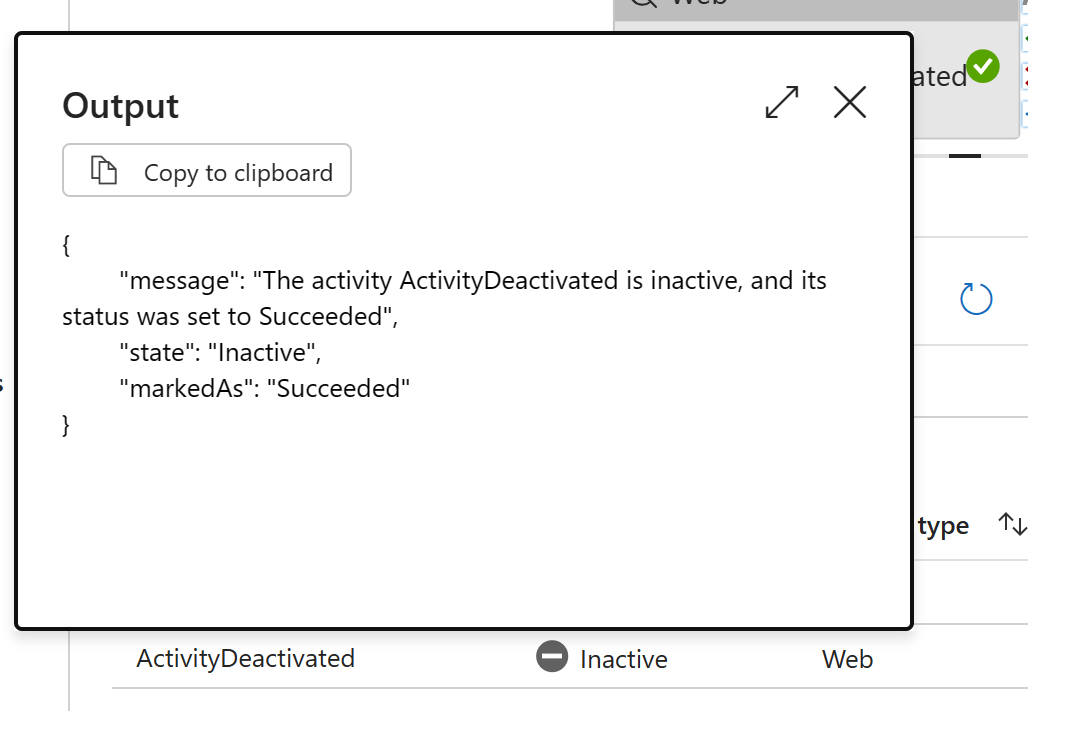
During debug run and pipeline run, the activity won't actually execute. Instead, it runs a place holder line item, with the reserved status Inactive
The branching option is controlled by Mark activity as option. In other words:
- If you mark the activity as Succeeded, the UponSuccess or UponCompletion branch runs
- If you mark the activity as Failed, the UponFailure or UponCompletion branch runs
- If you mark the activity as Skipped, the UponSkip branch runs
Best practices for deactivation
Deactivation is a powerful tool for pipeline developers. It allows developers to "comment out" part of the code, without permanently deleting the activities. It shines in following scenarios:
- When developing a pipeline, developer can add place holder inactive activities before filling all the required fields. For instance, I need a Copy activity from SQL Server to Data warehouse, but I haven't set up all the connections yet. So I use an inactive copy activity as the place holder for iterative development process.
- After deployment, developer can comment out certain activities that are constantly causing troubles to avoid costly retries. For instance, my on-premises SQL server is having network connection issues, and I know my copy activities fail for certain. I may want to deactivate the copy activity, to avoid retry requests from flooding the brittle system.
Note
An inactive activity never actually runs. This means the activity won't have an error field, or its typical output fields. Any references to missing fields may throw errors downstream.