Note
Access to this page requires authorization. You can try signing in or changing directories.
Access to this page requires authorization. You can try changing directories.
This article shows you how to quickly provision an Azure SQL Database (free tier) using the MSSQL extension in Visual Studio Code.
This experience provides free tier provisioning only that you can't customize. You can't change compute, storage, or pricing options.
To configure advanced settings or use paid tiers, deploy your database through the Azure portal.
The MSSQL extension for Visual Studio Code integrates with Azure so you can provision Azure SQL databases and connect to them without leaving the editor. A guided wizard on the Deployments page authenticates with your Azure account and creates a fully managed Azure SQL database in minutes. The provisioning experience starts with the free tier, so you can create and connect to a cloud database at no cost.
Tip
Azure SQL Database provisioning is currently in preview and might change based on feedback. Join the community at GitHub Discussions to share ideas or report issues.
Features
Azure integration in the MSSQL extension offers the following capabilities:
- Provision Azure SQL databases directly from Visual Studio Code, starting with the free tier at no cost.
- Authenticate with your Azure account using Microsoft Entra ID with persistent sign-in.
- Configure subscription, resource group, server, and database on a single page in a guided wizard.
- Choose what happens when the free monthly limit is reached: autopause until the next calendar month, or continue at standard serverless rates.
- Autoconnect to the new database the moment provisioning completes, with the connection added to your saved profiles.
Prerequisites
Before you provision an Azure SQL database from Visual Studio Code, make sure you meet the following requirements:
- Install the MSSQL extension for Visual Studio Code. For installation steps, see the MSSQL extension for Visual Studio Code.
- Have an active Azure account. If you don't have one, create a free Azure account.
- Have permissions to create resources in the target Azure subscription and resource group.
Provision an Azure SQL database
You can provision a new Azure SQL database from the MSSQL extension's Deployments page.
In the MSSQL extension Activity Bar, select the Deployments view.
Select Create an Azure SQL Database.
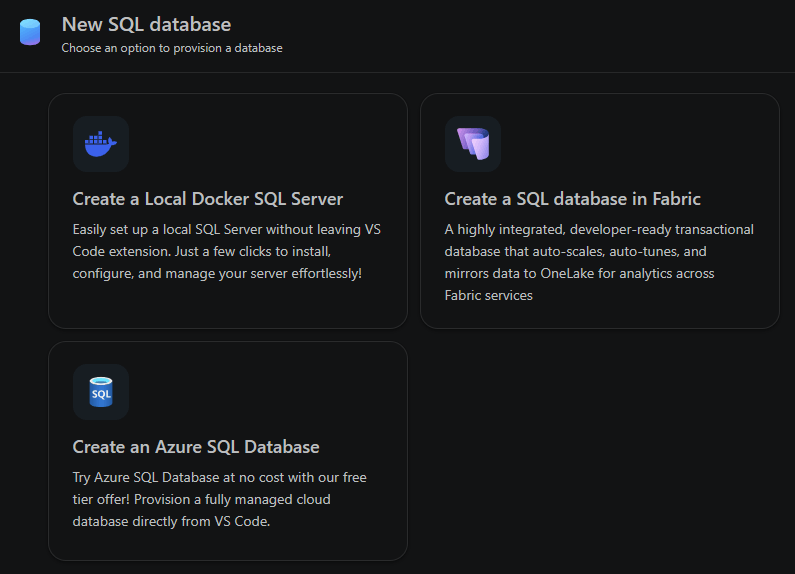
Sign in with your Azure account when prompted.
Configure the database on a single page:
- Subscription: Select the Azure subscription that owns the new database.
- Resource group: Select an existing resource group or create a new one.
- Server: Select an existing Azure SQL logical server or create a new one. New servers prompt for an admin sign-in and password.
- Database name: Enter a name for the new database.
- Optional Settings: Add a profile name, connection group, data source, or tags.
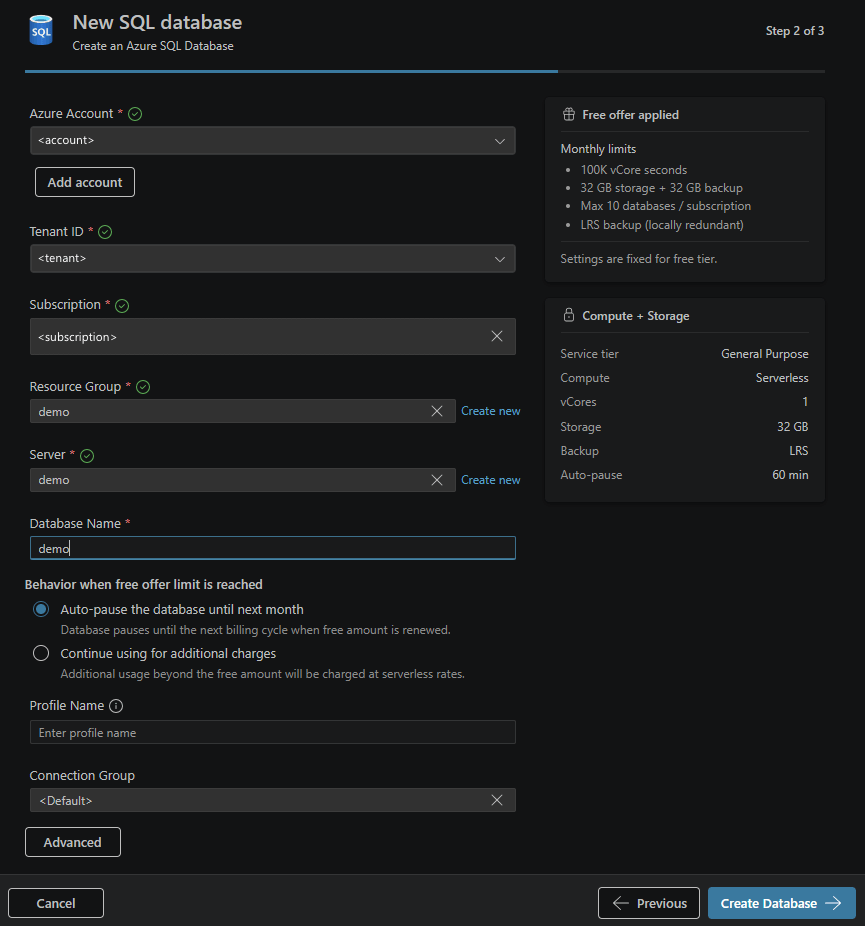
For the free tier, choose what happens when the monthly limit is reached:
- Auto-pause the database until the next calendar month.
- Continue at standard serverless rates.
Select Create Database. The extension creates the database and adds the connection to your saved profiles. The new connection autoconnects when provisioning completes.
After provisioning
After provisioning and connecting your Azure SQL database, continue your workflow in Visual Studio Code:
- Open the Schema Designer to design and evolve your data model. With GitHub Copilot integration in Schema Designer, you can describe your schema in natural language and let GitHub Copilot generate tables and relationships.
- Use Data API builder to generate REST, GraphQL, and Model Context Protocol (MCP) endpoints from your schema. It works with the same Azure SQL connection.
- Use SQL Notebooks or the standard query editor to build queries and explore data.
Together, these experiences give you an end-to-end path from a provisioned Azure SQL database to a working back end, all inside Visual Studio Code.
Limitations
- Only Azure SQL Database is currently supported. Azure SQL Managed Instance and SQL Server on Azure Virtual Machines aren't supported.
- The free tier follows standard Azure SQL Database free offer limits. Once you reach the monthly limit, your chosen behavior (autopause or continue) applies.
- You need Microsoft Entra ID authentication for provisioning.
Feedback and support
If you have ideas, feedback, or want to engage with the community, join the discussion at https://aka.ms/vscode-mssql-discussions. To report a bug, visit https://aka.ms/vscode-mssql-bug. To request a new feature, go to https://aka.ms/vscode-mssql-feature-request.
Related content
- Connect to a database with the MSSQL extension for Visual Studio Code
- Quickstart: Run your first query with the MSSQL extension for Visual Studio Code
- Schema Designer
- GitHub Copilot integration in Schema Designer
- Data API builder
- SQL Notebooks
- What is the MSSQL extension for Visual Studio Code?
- Deploy Azure SQL Database for free