Note
Access to this page requires authorization. You can try signing in or changing directories.
Access to this page requires authorization. You can try changing directories.
Windows Firewall is a Microsoft Windows application that filters information coming to your system from the internet and blocks potentially harmful programs. Both client and server operating systems generate Windows Firewall logs. These logs provide valuable information about network traffic, including dropped packets and successful connections. You can parse Windows Firewall log files by using methods like Windows Event Forwarding (WEF) or forwarding logs to a SIEM product like Azure Sentinel.
For details about creating the DCR, see Collect data from VM client with Azure Monitor. This article provides additional details for the Windows Firewall data source type.
Prerequisites
In addition to the prerequisites in Collect data from virtual machine client with Azure Monitor, you need to install the Security and Audit solution to create the WindowsFirewall table in your Log Analytics workspace.
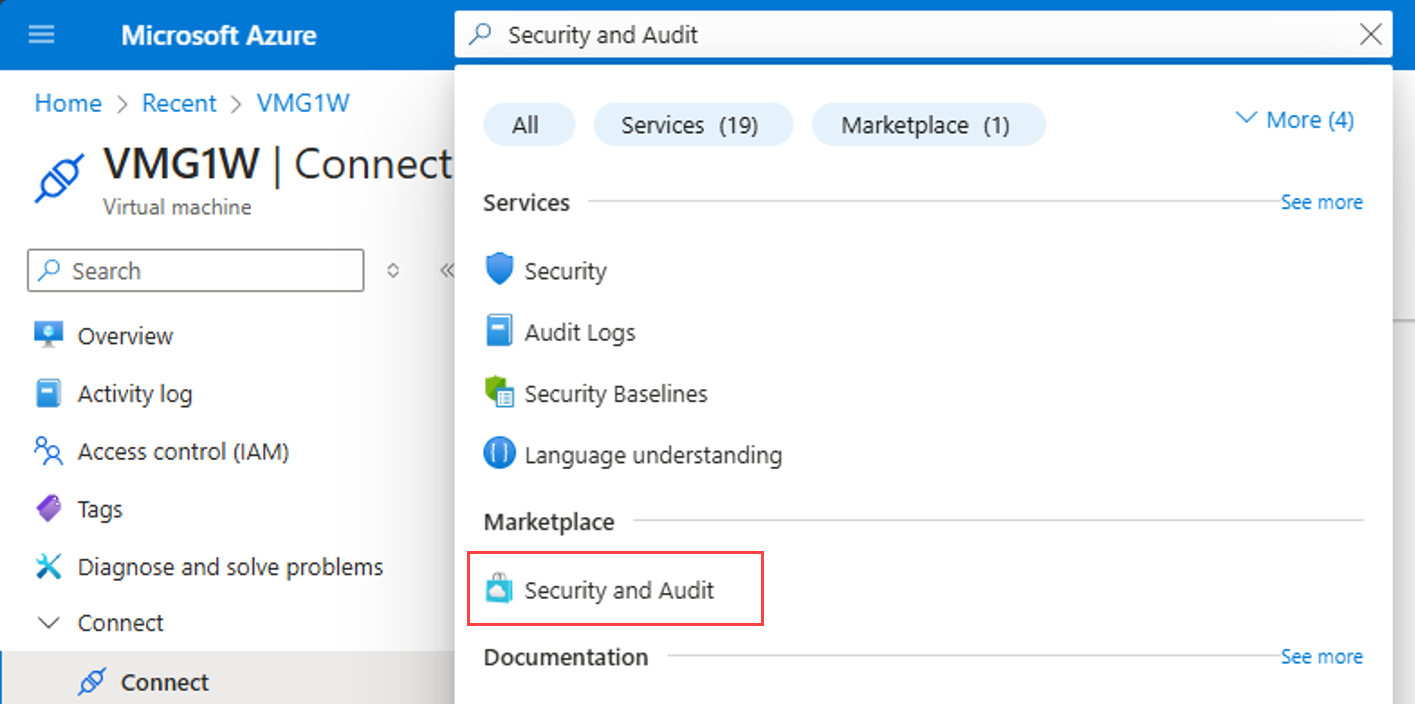
In the Azure portal, search for Security and Audit and select the solution from the Marketplace. When prompted, specify the Resource group and Log Analytics Workspace where you send the firewall log data.
Configure firewall logs data source
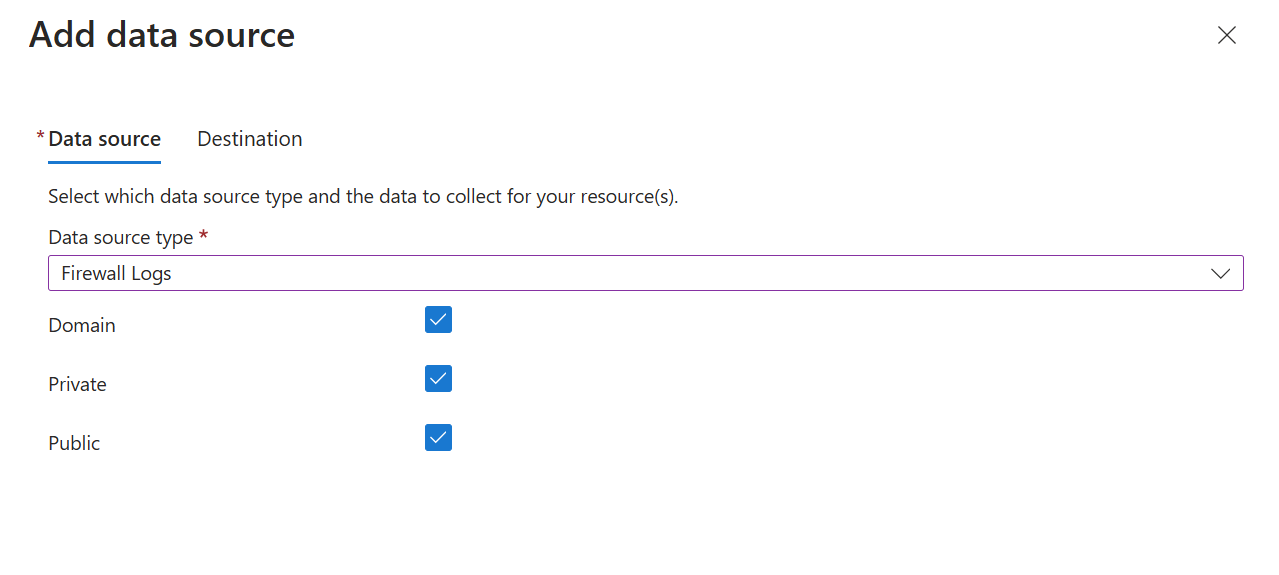
Create the DCR by using the process in Collect data from virtual machine client with Azure Monitor. On the Collect and deliver tab of the DCR, select Firewall Logs from the Data source type dropdown. Select each of the network profiles that you want to collect.
Add destinations
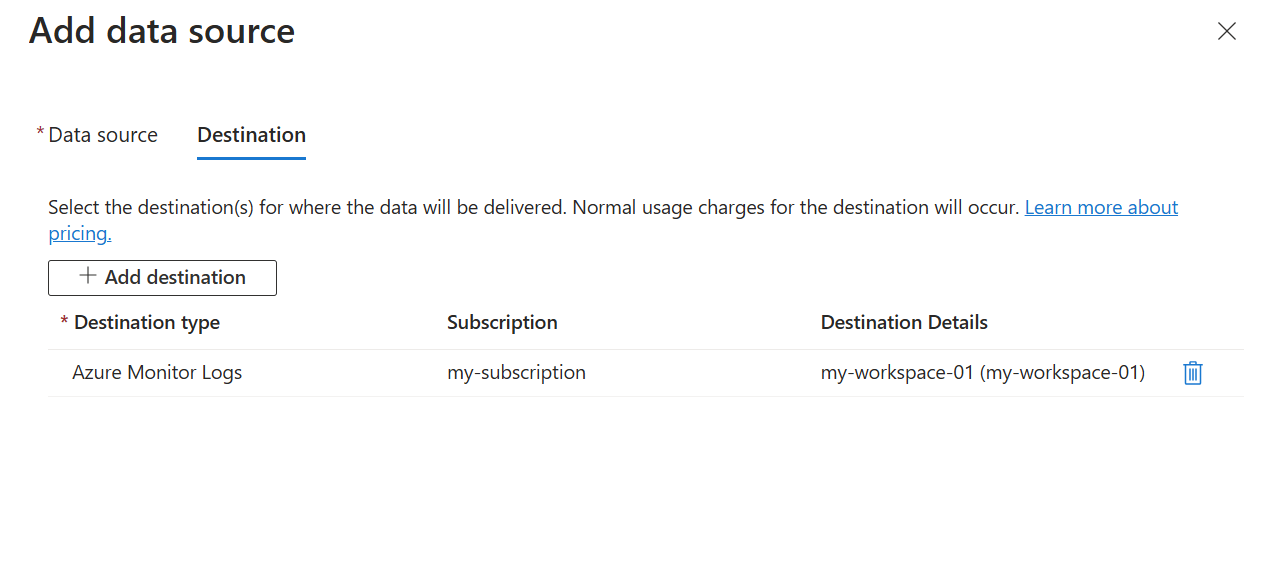
You can only send firewall logs to a Log Analytics workspace where they're stored in the WindowsFirewall table. Add a destination of type Azure Monitor Logs and select a Log Analytics workspace. You can only add a single workspace to a DCR for a firewall log data source. If you need multiple destinations, create multiple DCRs. Be aware though that this configuration sends duplicate data to each workspace, which results in extra cost.
Verify data collection
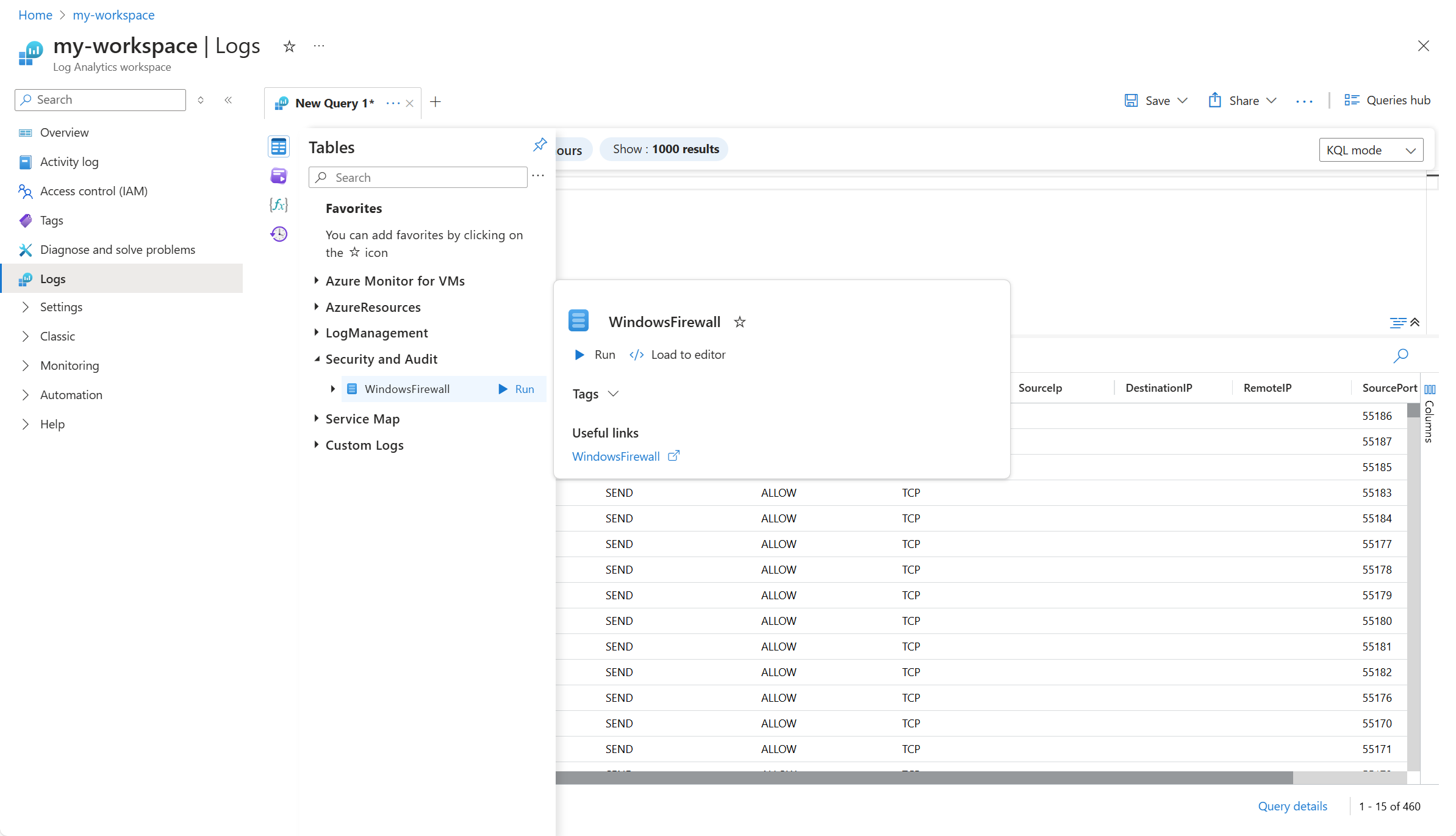
To verify that data is being collected, check for records in the WindowsFirewall table. From the virtual machine or from the Log Analytics workspace in the Azure portal, select Logs and then select the Tables button. Under the Security and Audit category, select Run next to WindowsFirewall. If this section or the table doesn't appear in the list, check Troubleshoot for steps to resolve the issue.
Troubleshoot
Use the following steps to troubleshoot the collection of firewall logs.
Verify that Windows Firewall is enabled
Follow these steps on the Windows machine:
- Select Start, and then open Settings.
- Under Update & Security, select Windows Security, and then select Firewall & network protection.
- Select a network profile: domain, private, or public.
- Verify that the Microsoft Defender Firewall setting is switched to On.
Verify that firewall logs are created
Check the timestamps of the log files and open the latest file to see that the latest timestamps are present in the log files. The default location for firewall log files is C:\windows\system32\logfiles\firewall\pfirewall.log.
To verify and modify the logging settings, follow these steps on the Windows machine:
From the Firewall & network protection page, select Advanced settings.
Select Monitoring and check the Logging Settings for each profile.
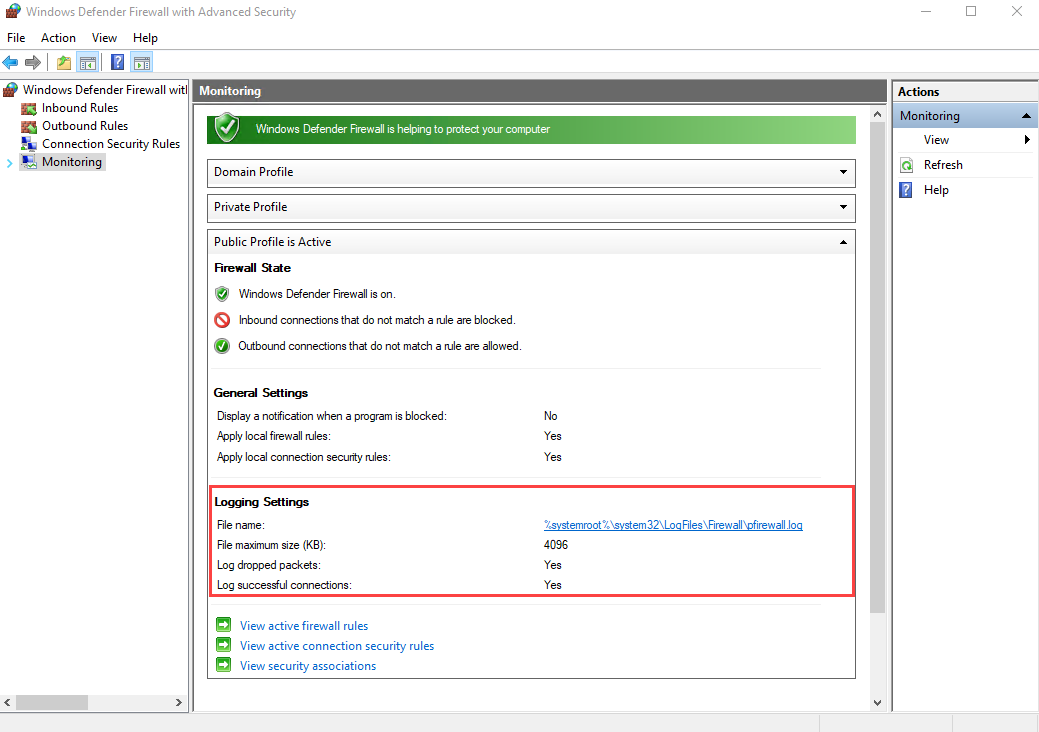
To change the logging settings, right-click Windows Defender Firewall in the left pane and select Properties. Select Customize next to Logging and modify any settings for each profile.
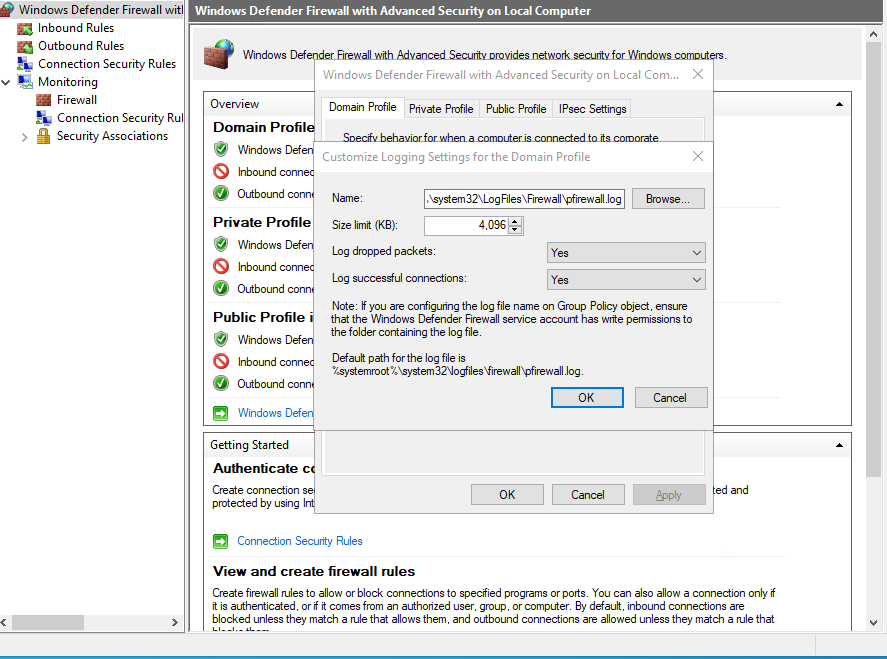
To enable logging for all profiles, use the following command line:
netsh advfirewall set allprofiles logging allowedconnections enable
netsh advfirewall set allprofiles logging droppedconnections enable
Run Azure Monitor Agent troubleshooter
To test your configuration and share logs with Microsoft, use the Azure Monitor Agent Troubleshooter.
Next steps
Learn more about: