Note
Access to this page requires authorization. You can try signing in or changing directories.
Access to this page requires authorization. You can try changing directories.
When a server is deleted, its Azure Database for PostgreSQL flexible server backup is retained for five days by the service. That backup can only be accessed and restored from the Azure subscription where the server originally resided.
The following recommended steps can be taken to recover a deleted Azure Database for PostgreSQL flexible server within five days from the time it was deleted. The recommended steps only work if the backup for the server is still available and not deleted from the system. While restoring a deleted server often succeeds, it isn't always guaranteed, as restoring a deleted server depends on several other factors.
Prerequisites
To restore a deleted Azure Database for PostgreSQL flexible server, you need the following:
- Access to the Azure subscription that hosted the server before it was deleted.
- Location where the server existed.
- Use 2025-08-01 version of the Servers - Create or Update REST API.
Steps to restore a deleted server
Using the Azure portal:
Search for the Monitor service. In the resource menu, select Activity log.
In the activity log page, set Subscription to the subscription that hosted your server, and select Add filter to set Operation to Delete PostgreSQL server (Microsoft.DBforPostgreSQL/flexibleServers/delete).
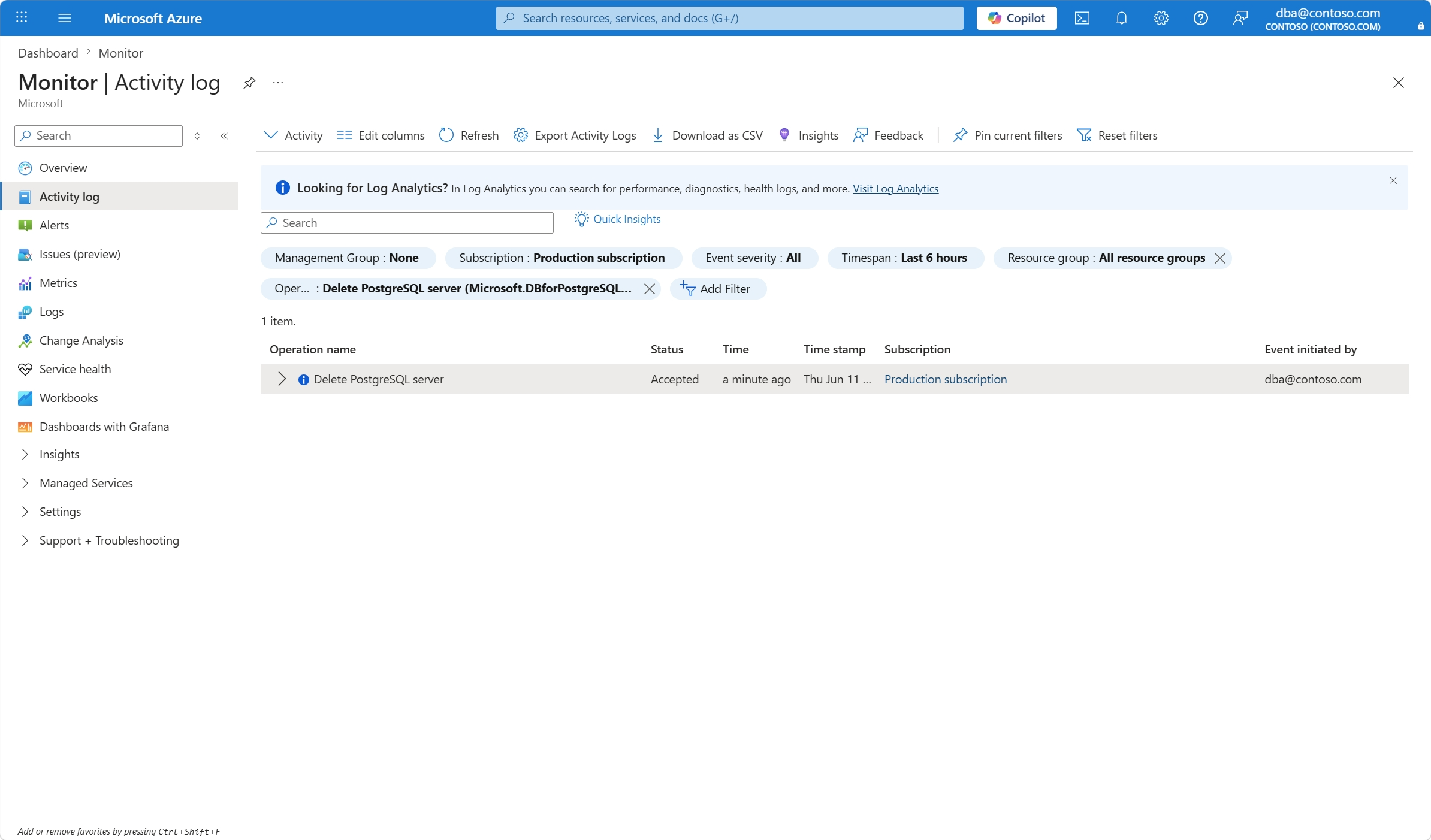
Select the Delete PostgreSQL Server event, then select the JSON tab. Scroll until you find the
resourceIdandsubmissionTimestampattributes in the JSON output.resourceIdis in the following format:/subscriptions/ffffffff-ffff-ffff-ffff-ffffffffffff/resourceGroups/example-resource-group/providers/Microsoft.DBforPostgreSQL/flexibleServers/example-deleted-server.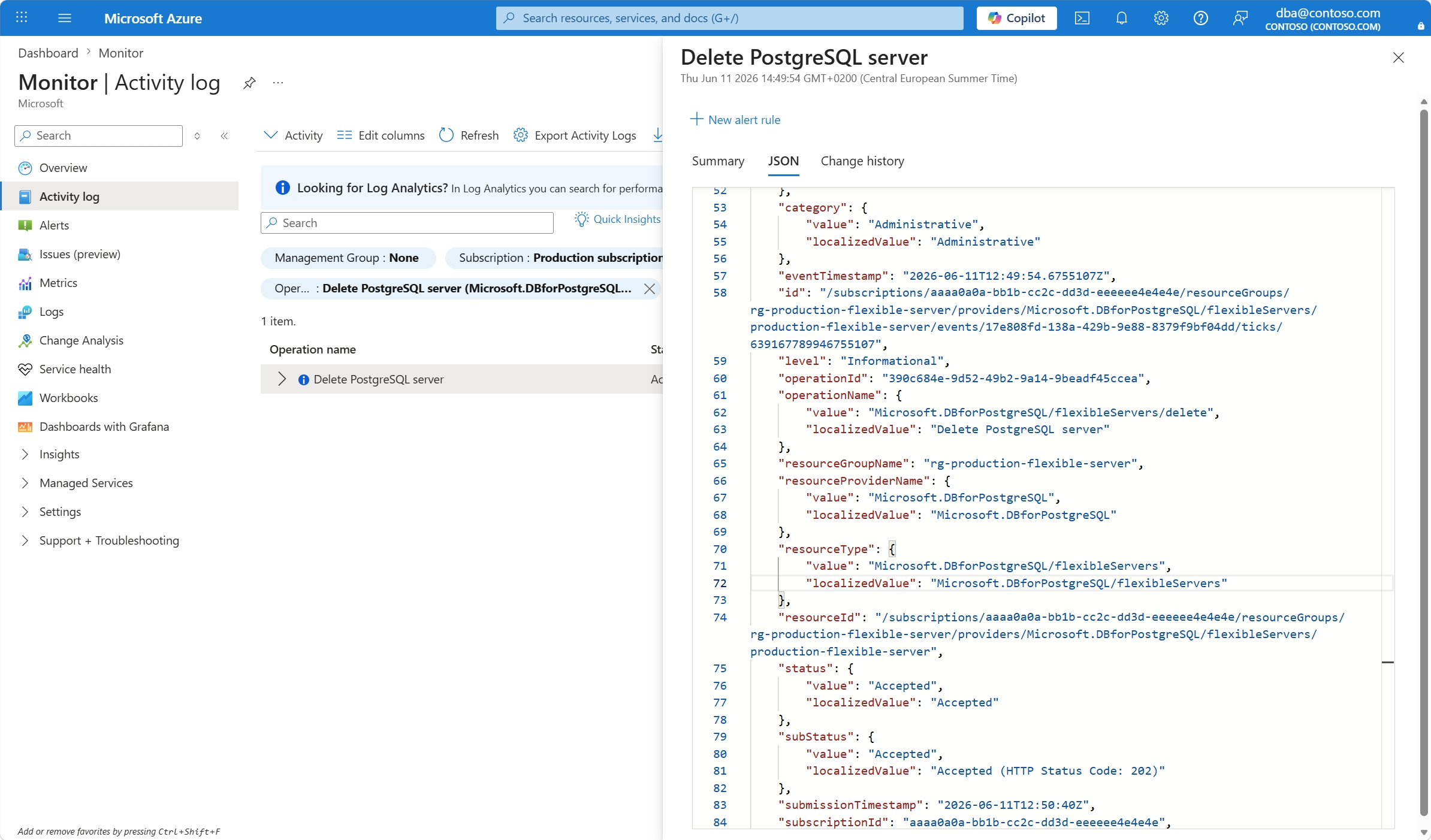
Browse to the Azure Database for PostgreSQL flexible server Create Server REST API Page and select the Try It button. Sign in with your Azure account.
Provide the values of resourceGroupName (previously created resource group on which you want the restored server to be created), serverName (name of the newly restored server, which doesn't have to match the name of the originally deleted server), subscriptionId (must match the subscription on which the deleted server existed, which you can fetch from the assigned to the
resourceIdattribute in the JSON inspected before.In the Body section, paste the following JSON and replace the value of
<original-deleted-server-location>with the location on which the deleted server existed (for example, CanadaCentral, CentralUS, EastUS, etc.),<value-copied-from-submissionTimestamp>with the value retrieved fromsubmissionTimestampin the JSON inspected on the Activity log event, and<value-copied-from-resourceId>with the value retrieved fromresourceIdin that same JSON.
  {
    "location": "<original-deleted-server-location>",
    "properties":
    {
      "createMode": "ReviveDropped",
      "pointInTimeUTC": "<value-copied-from-submissionTimestamp>",
      "sourceServerResourceId": "<value-copied-from-resourceId>"
    }
  }
Ensure that you're changing three parameters (location, pointInTimeUTC, sourceServerResourceId) as per your restore requirements.
{
  "location": "CanadaCentral",
  "properties": {
    "createMode": "ReviveDropped",
    "pointInTimeUTC": "2026-06-09T06:08:02Z",
    "sourceServerResourceId": "/subscriptions/ffffffff-ffff-ffff-ffff-ffffffffffff/resourceGroups/example-restored-resource-group/providers/Microsoft.DBforPostgreSQL/flexibleServers/example-deleted-server"
  }
}
Important
There's a time limit of five days after the server was deleted. After five days, an error is expected since the backup can't be found.
If you see Response Code 201 or 202, the restore request is successfully submitted.
The server creation can take time depending on the database size and compute resources provisioned on the original server. The restore status can be monitored from Activity log if you filter by:
- Subscription: Subscription on which you're restoring the deleted server.
- Resource Type: Azure Database for PostgreSQL flexible servers (Microsoft.DBforPostgreSQL/flexibleServers).
- Operation: Update PostgreSQL Server Create.
Restore a deleted virtual network enabled server
Restoring a deleted virtual network enabled server involves specifying other network properties such as the resource identifiers of the delegated subnet, and the private DNS zone. Follow the steps below to restore your server with the necessary network configurations.
{
  "location": "EastUS",
  "properties": {
    "createMode": "ReviveDropped",
    "pointInTimeUTC": "2026-06-09T06:08:02Z",
    "sourceServerResourceId": "/subscriptions/ffffffff-ffff-ffff-ffff-ffffffffffff/resourceGroups/example-restored-resource-group/providers/Microsoft.DBforPostgreSQL/flexibleServers/example-deleted-server",
    "network": {
      "delegatedSubnetResourceId": "/subscriptions/ffffffff-ffff-ffff-ffff-ffffffffffff/resourceGroups/example-restored-resource-group/providers/Microsoft.Network/virtualNetworks/example-virtual-network/subnets/example-subnet",
      "privateDnsZoneArmResourceId": "/subscriptions/ffffffff-ffff-ffff-ffff-ffffffffffff/resourceGroups/example-restored-resource-group/providers/Microsoft.Network/privateDnsZones/example-private-dns-zone"
    }
  }
}
Common errors
If you use the incorrect API version, you might experience restore failures or timeouts. Use version 2025-08-01 to avoid such issues.
To avoid potential DNS errors, we recommend using a different name when initiating the restore process, as some restore operations might fail with the same name.