Note
Access to this page requires authorization. You can try signing in or changing directories.
Access to this page requires authorization. You can try changing directories.
AKS desktop includes an AI-powered troubleshooting assistant that provides natural language diagnostics for your AKS workloads. By securely connecting to your cluster, the assistant can analyze logs, events, and metrics to identify issues and recommend resolutions in plain language. This allows developers and operators to quickly understand and fix problems without needing deep Kubernetes expertise. This article walks you through how to enable and use the AI troubleshooting assistant in AKS desktop.
Important
AKS preview features are available on a self-service, opt-in basis. Previews are provided "as is" and "as available," and they're excluded from the service-level agreements and limited warranty. AKS previews are partially covered by customer support on a best-effort basis. As such, these features aren't meant for production use. For more information, see the following support articles:
What is the AI troubleshooting assistant?
The AKS desktop troubleshooting assistant is built into AKS desktop and provides a guided experience for diagnosing issues in your cluster. With the assistant, you can:
- Select a project, namespace, or workload to investigate.
- Run scoped diagnostics that analyze logs, events, and metrics.
- Receive AI-generated summaries with clear reasoning and evidence.
- Preview recommended actions and apply them with confidence.
- Use your own language models or connect to Azure managed options.
- Work alongside existing dashboards in AKS desktop for a cohesive troubleshooting experience.
Warning
This plugin is in early development and isn't ready for production use. Using it might incur costs from your AI provider.
How does the AI troubleshooting assistant work?
You have two options for enabling the AI troubleshooting assistant in AKS desktop:
- Use the Azure AKS Agentic CLI Agent (recommended for AKS): This is an AI-powered tool that helps diagnose, troubleshoot, and optimize AKS clusters using natural language queries. It provides root cause analysis by connecting to your AKS cluster (using your permissions) and remediation suggestions. This is backed by an LLM of your choice.
- Use the AKS desktop Agent: AKS desktop acts as an Agent itself, providing context to your model of your choice.
Which option should I choose?
Asking a standalone LLM a question is similar to asking an expert for advice based only on what you tell them. In contrast, the AKS Agentic CLI integrates the HolmesGPT agentic framework with the AKS Model Context Protocol (MCP) server. Combined, they know which tools, troubleshooting techniques, and other MCP servers to use, enabling the agent to securely access live cluster state, logs, metrics, and Azure resource data to perform iterative, context-aware investigations within Role-Based Access Control (RBAC) boundaries rather than relying solely on static user-provided input.
By default, the AKS Agentic CLI connects to a hosted LLM endpoint using a customer‑provided API key, but organizations with strict data residency or compliance requirements might instead choose to deploy a model within their own environment.
In the following sections, we provide end-to-end steps for setting up both options, but we recommend the AKS Agentic CLI for the best experience with AKS desktop.
Enable the AI troubleshooting assistant in AKS desktop
- Go to Settings > Plugins, and make sure the AI Assistant plugin is enabled.
- Select AI Assistant in the list of plugins.
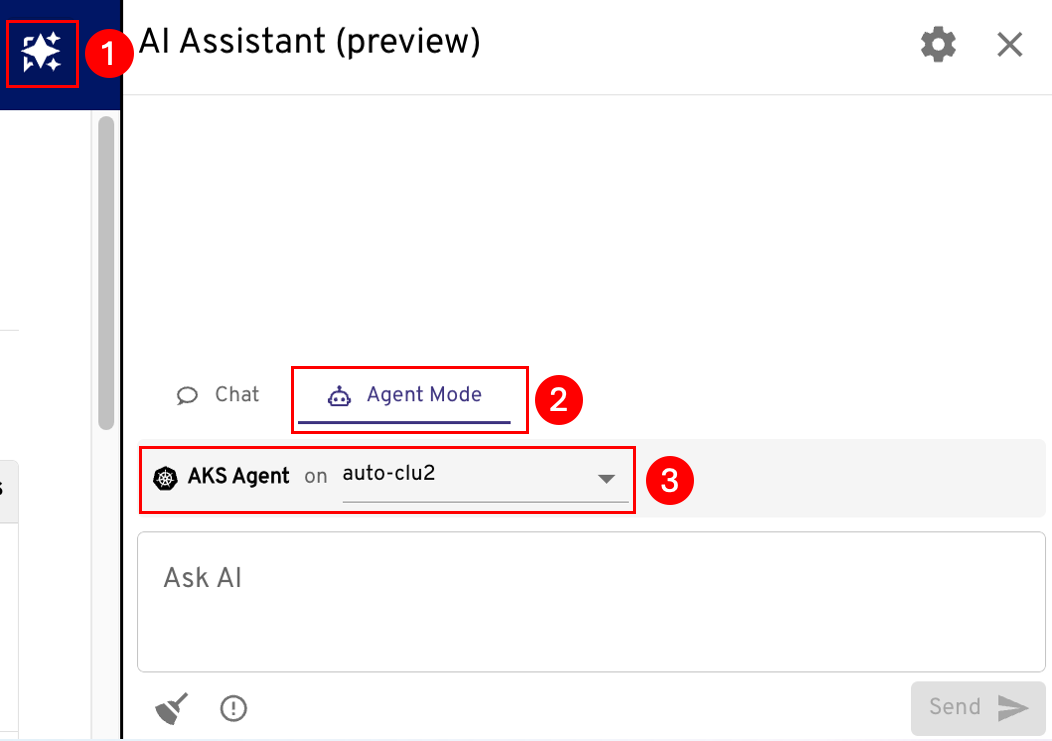
- Toggle Preview to the enabled state. After this, the AI Assistant icon appears in the top right.
Configure a provider for the AI troubleshooting assistant
Go to Settings > Plugins > AI Assistant > Add provider.

Choose your provider option:
- Use the Azure AKS Agentic CLI Agent (recommended for AKS): Install the Agentic CLI Agent on your cluster, configure it to connect to a model, and ensure the cluster running the Agentic CLI Agent is a registered cluster in AKS desktop (you should see it in your cluster list).
- Use an existing model: Configure the provider so that AKS desktop can act as an agent and send cluster context to your existing model.
Enable Kubernetes API requests for the assistant
The AI tool Kubernetes Requests setting allows the AI Assistant to make live Kubernetes API requests against your cluster. When enabled, the assistant can query resource state, pod logs, events, and metrics to provide context-aware analysis. If disabled, the assistant can only reason from information you manually provide in the chat.
- Go to Settings > Plugins > AI Assistant.
- Enable the AI tool Kubernetes Requests toggle.
Set the AI Assistant to use the AKS Agentic CLI Agent
Open the AI Assistant.
Select Agent.
Select the cluster where the Agentic CLI Agent is running.
Investigate degraded resources
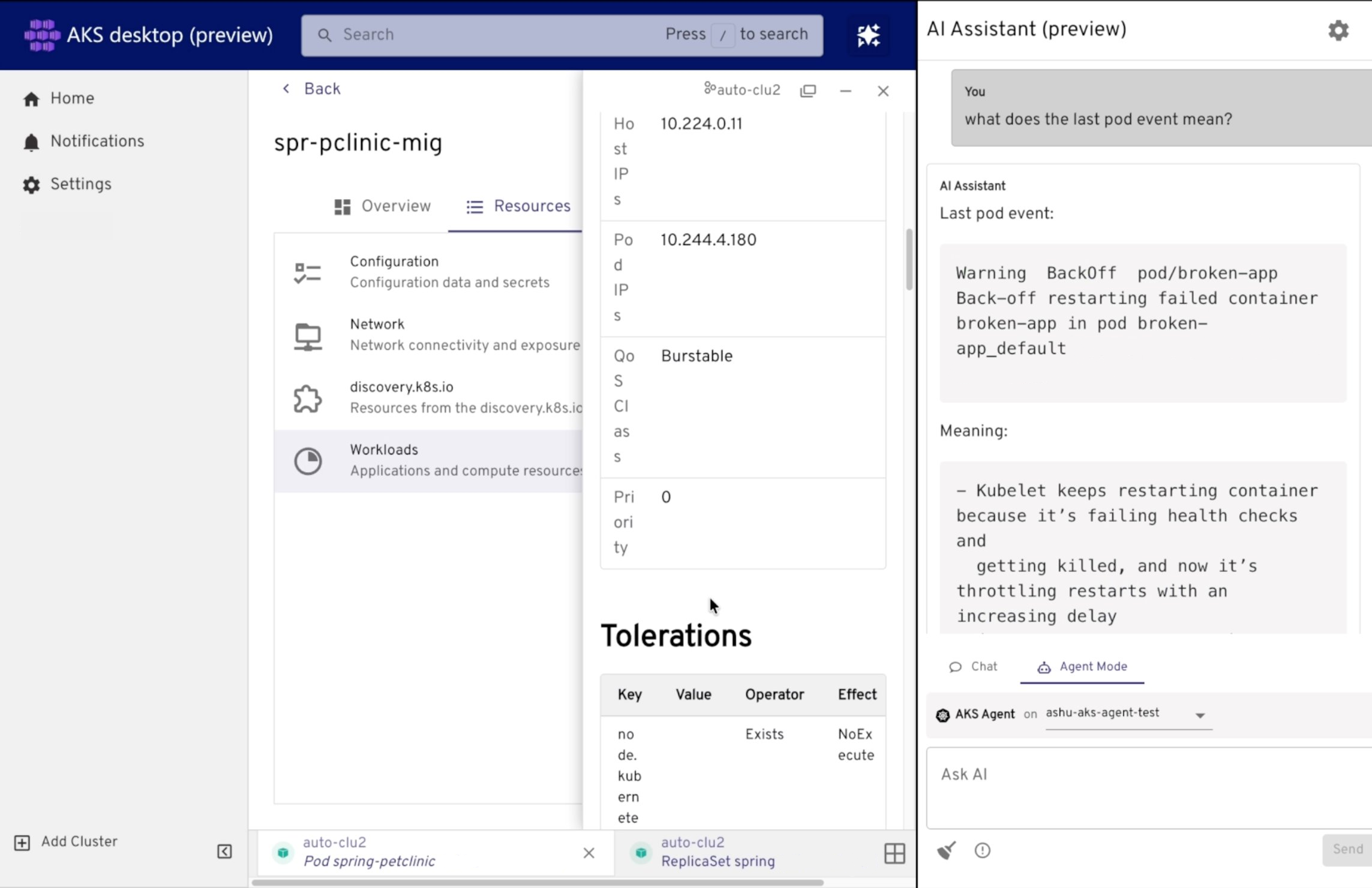
The assistant is context-aware. When you see errors or warnings highlighted in the interface, select the resource and ask the assistant for an explanation and recommended resolution.
Go to the cluster resource (for example a service) or go to the AKS desktop Project and select the workload.
Select the Kubernetes resource that's degraded or showing errors in the event log.
Select Agent and start chatting.