Note
Access to this page requires authorization. You can try signing in or changing directories.
Access to this page requires authorization. You can try changing directories.
Azure NetApp Files enables you to re-establish a replication relationship between two volumes if you previously deleted it. This condition occurs if the source volume becomes unavailable and you're replicating a source volume to two destination volumes with cross-zone-region replication. While reversing the replication direction, the second replication relationship can't continue to exist and needs to be deleted. After the source volume is available again, and the reverse resync completes, you can return to normal operation and re-establish the relationship from the destination volume.
If the destination volume remains operational and no snapshots are deleted or lost, the replication reestablish operation uses the last common snapshot. The operation incrementally synchronizes the destination volume based on the last known good snapshot. In this condition, a baseline transfer isn't required.
Considerations
The re-establish replication operation requires the following conditions:
- A common replication snapshot exists on both the source and destination volumes. Typically, this snapshot is previously replicated from the source volume.
- The destination volume is in a clean replication state, meaning that the last replication update completed successfully.
- If backups exist on the destination volume, the re-establish operation can't proceed. In this case, delete the destination backups before attempting to re-establish the replication relationship.
- If no common replication snapshot exists between the source and destination volumes, the replication relationship can't be re-established. To resume replication, delete the existing destination replication volume and create a new replication relationship, which initiates a new baseline transfer.
Re-establish the relationship
- From the Volumes menu under Storage service, select the volume that was formerly the destination volume in the replication relationship you want to re-establish. Then select the Replication tab.
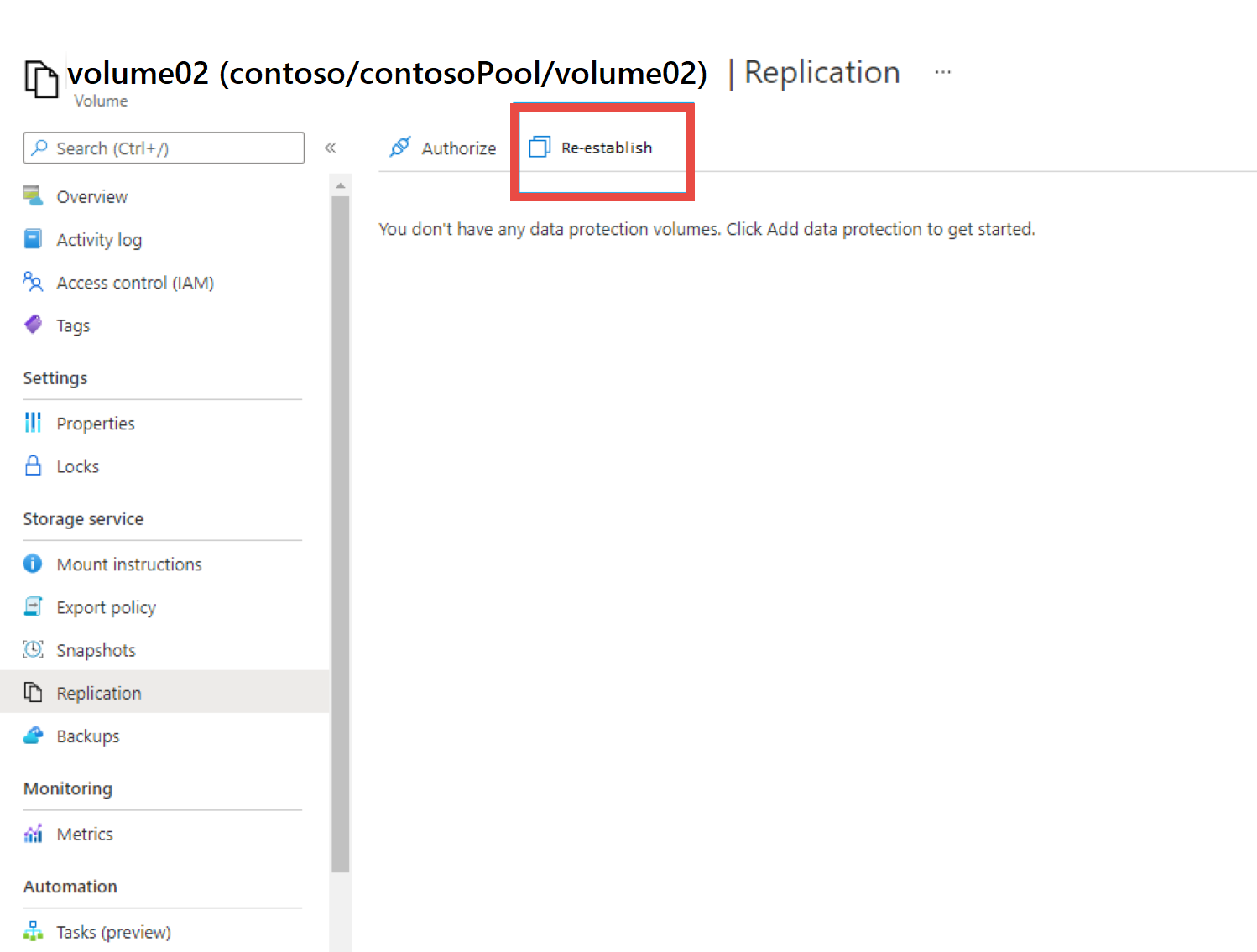
- In the Replication tab, select the Re-establish button.
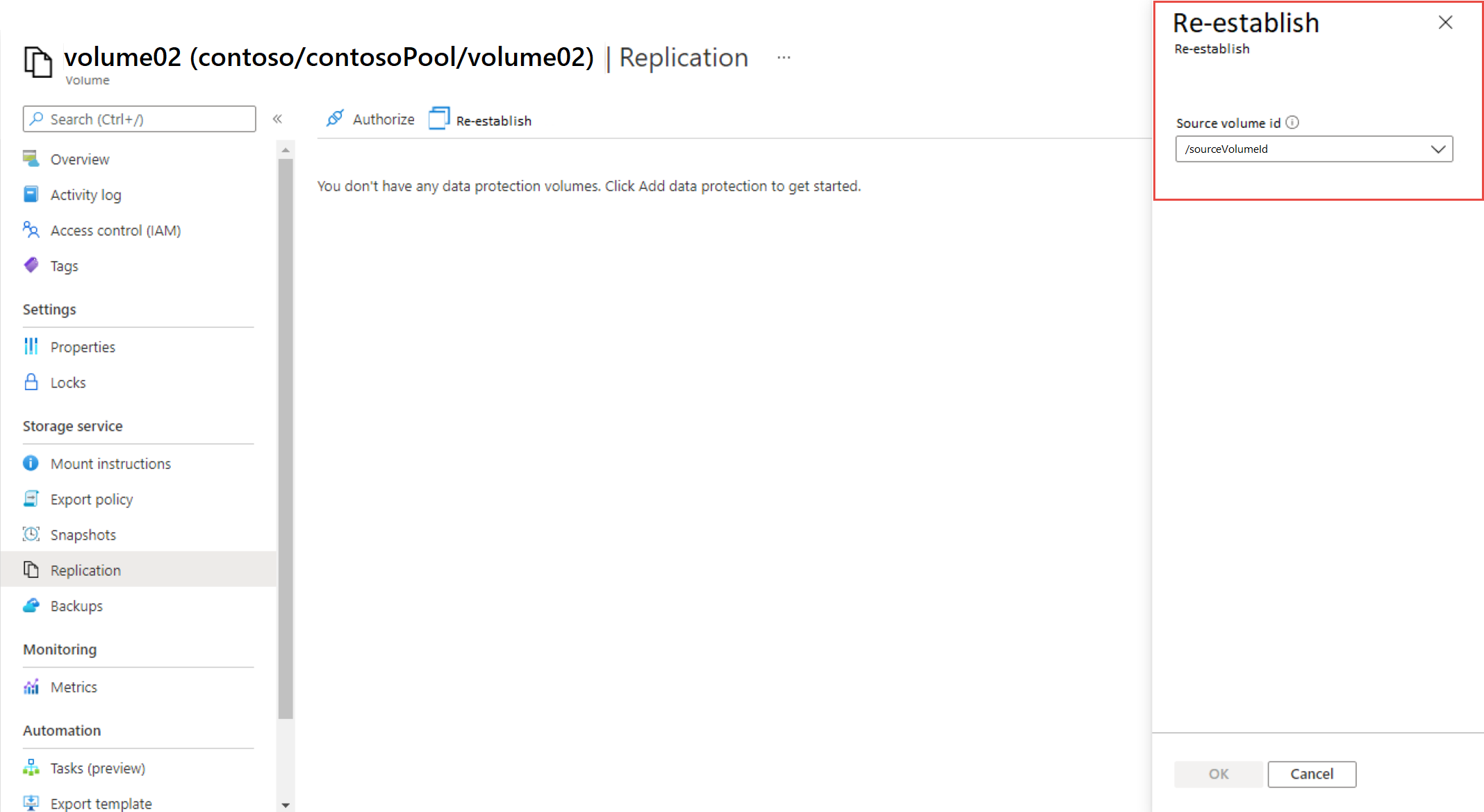
- A dropdown list appears with a selection of all volumes that formerly had either a source or destination replication relationship with the selected volume. From the dropdown menu, select the volume you want to reestablish a relationship with. Select OK to reestablish the relationship.