Note
Access to this page requires authorization. You can try signing in or changing directories.
Access to this page requires authorization. You can try changing directories.
This page provides general tips and best practices to help Databricks Assistant provide better responses.
To customize the Assistant to your preferences, provide instructions. To expand the Assistant's capabilities, create agent skills and connect it to MCP servers.
Be specific
The structure and detail that Databricks Assistant provides varies from time to time, even for the same prompt. Try to provide the Assistant as much guidance as you can to help it return the information you want in the desired format, level of detail, and so on. Consider doing the following:
- Specify the level of detail you're looking for. For example, "Explain this code in a couple sentences" or "Explain this code line-by-line."
- Specify which library you want the Assistant to use. For example, "Create a visualization using Matplotlib" or "Create a visualization using Seaborn."
- Specify the structure of the response you want. For example, "Provide instructions in numbered steps" or "Provide instructions with the steps as bullet points with brief explanations."
- Be specific in your prompts. Databricks Assistant knows about your table and column schema and metadata, so you can use natural language to ask your question. For example, "List active and retired NFL quarterbacks' passing completion rate, for those who had over 500 attempts in a season." Databricks Assistant answers using data from columns such as
s.player_idands.attempts.
Databricks Assistant uses context to provide better answers
You can provide the Assistant with specific context, such as tables, pipelines, notebooks, queries, and files. In the Assistant chat pane, click  Add context to manually select the resource you want to provide it. You can also reference context by typing
 @<resource-name> in the chat prompt. Each selected context is listed at the top of the prompt box and persists in the chat.
In addition to the context you manually provide, Databricks Assistant has access to table and column schemas and metadata. This allows you to use natural language and generate more accurate queries. For example, if a table has a column called State, you can ask Databricks Assistant to generate a list of users who live in Michigan.
Databricks Assistant uses the following context:
- Code or queries in the current notebook cell or Databricks SQL editor tab.
- Table and Column names and descriptions.
- Previous prompt questions.
- Favorite and active tables.
- For the diagnose error feature, the stack trace from the error output.
Because Databricks Assistant uses your conversation history to provide better and more accurate answers, you can ask Databricks Assistant to alter the output of a previous response without having to rewrite the entire prompt. Use Assistant's chat history to iteratively clean, explore, filter, and slice DataFrames in the Assistant pane.
Help the Assistant work with datasets
The Assistant can access context about the tables you're working with. Here are some things you can do to help it respond better when working with datasets:
When searching for a table, use the prompt "Find tables" or the command
/findTablesfor better responses. For example, "Find tables related to NFL games."Use
@<table-name>to reference a specific table in a prompt. You can also manually select the table by clicking Add context in the chat. The Assistant will tailor its responses to use that table.When selecting columns from a DataFrame, you can get more accurate results by providing a starting query. For example, provide a statement like
SELECT * FROM <table_name>. This allows Databricks Assistant to get the column names and not have to guess.If you need to use column data type conversions to run an operation, you might need to provide details. For example: "Convert this code from pandas to PySpark, including the code needed to convert the pandas DataFrame to a PySpark DataFrame and changing the data type of column churn from boolean to integer."
Document tables and columns in Unity Catalog. See Add AI-generated comments to Unity Catalog objects. This gives the Assistant more context on the data. Use table or column comments in Catalog Explorer to add a line of sample data. For example, suppose your height column is in the format
feet-inches. To help Assistant interpret the data, add a comment such as "The height column is in string format and is separated by a hyphen. Example: '6-2'." For information about table and column comments, see Add comments to data and AI assets.
Edit and run code in Databricks Assistant chat pane
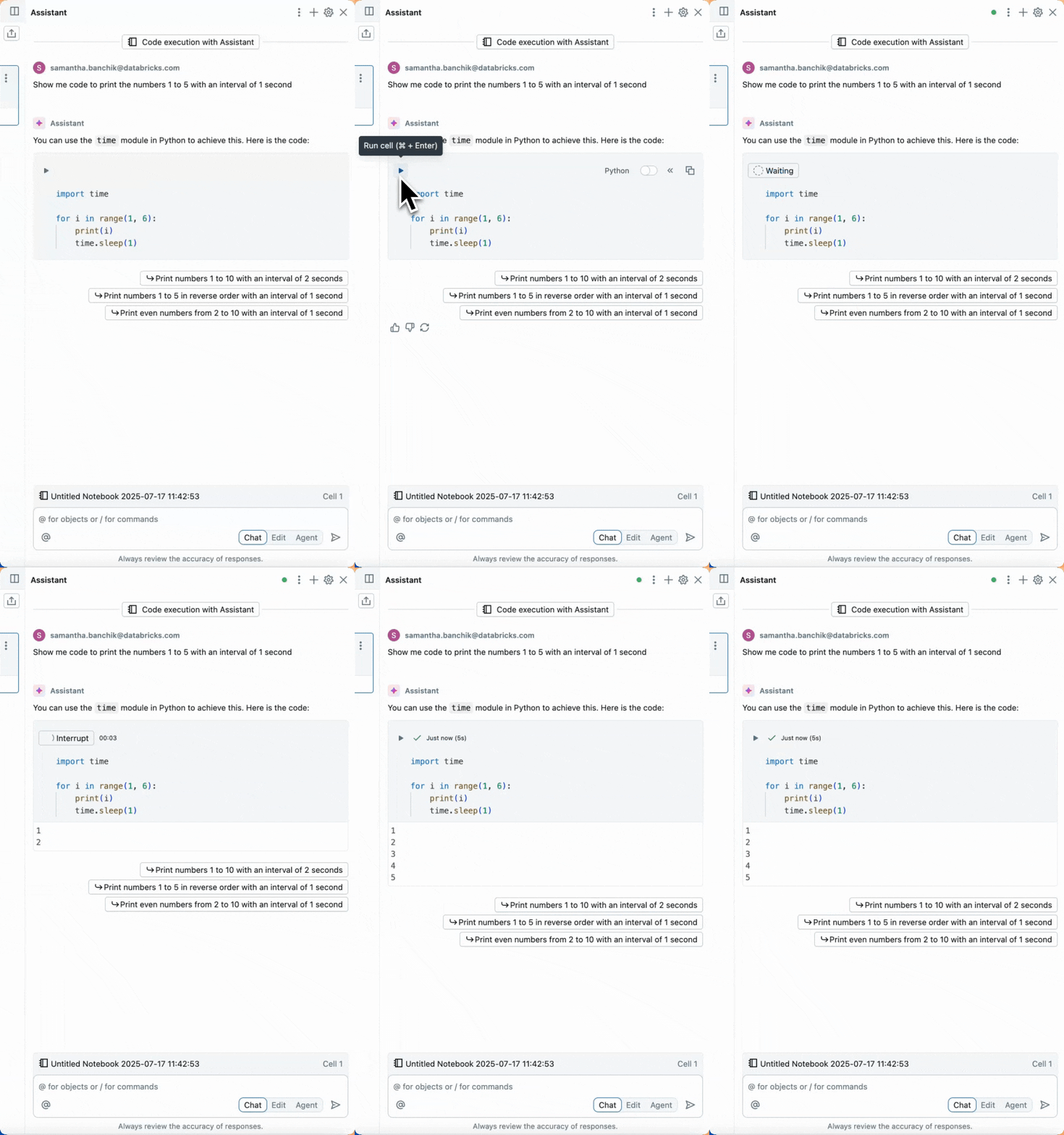
Run code in the Assistant pane to validate it or use it as a scratchpad. To run code, click  in the upper-left corner of the code box in the Assistant pane.
The tabs below show examples for Python and SQL code:
Python
SQL
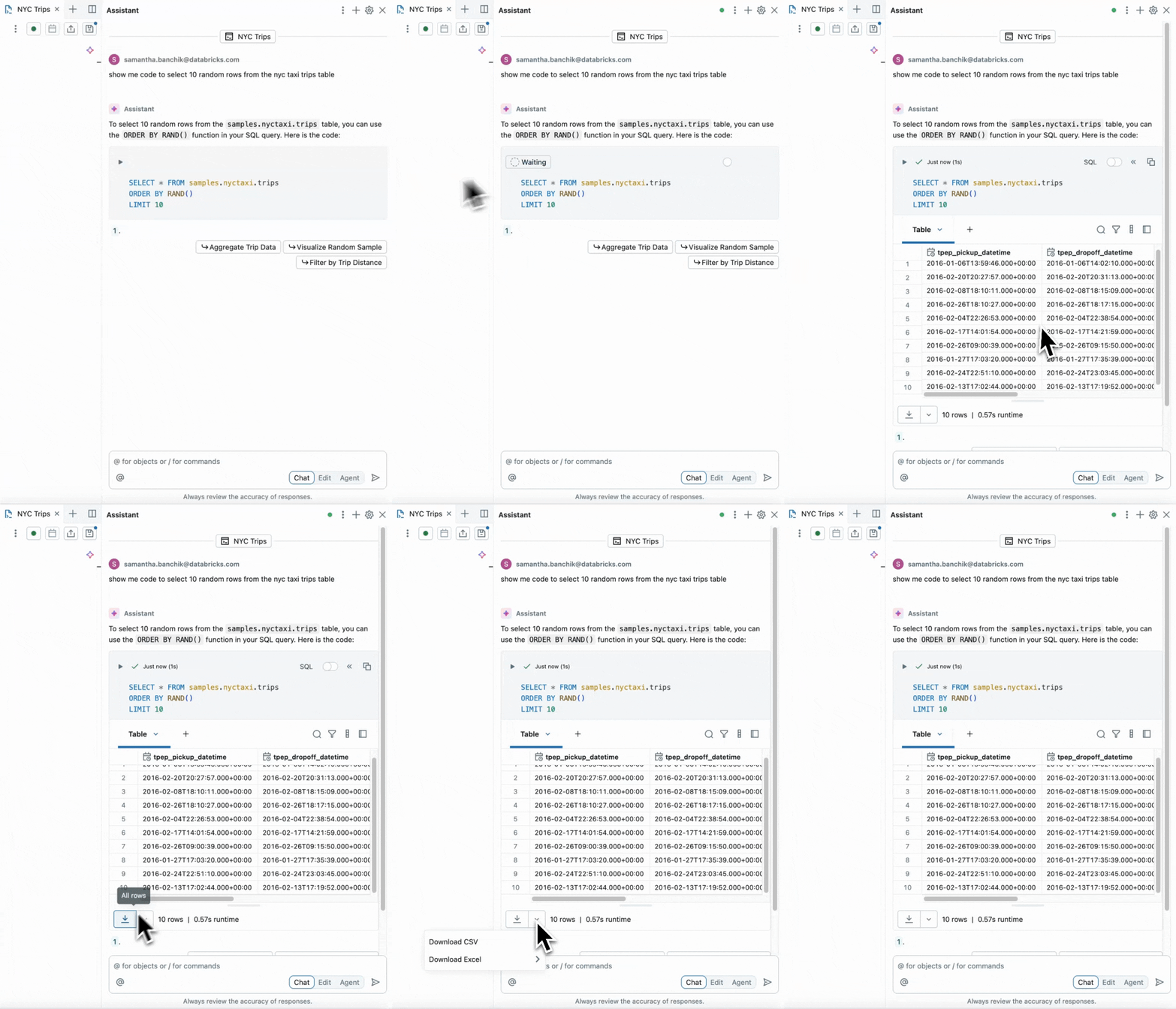
When you run code in the Assistant pane, output is displayed and the variables become usable in the notebook.
You can also edit the code that Databricks Assistant generates directly in the Assistant chat box before moving the code to the notebook.
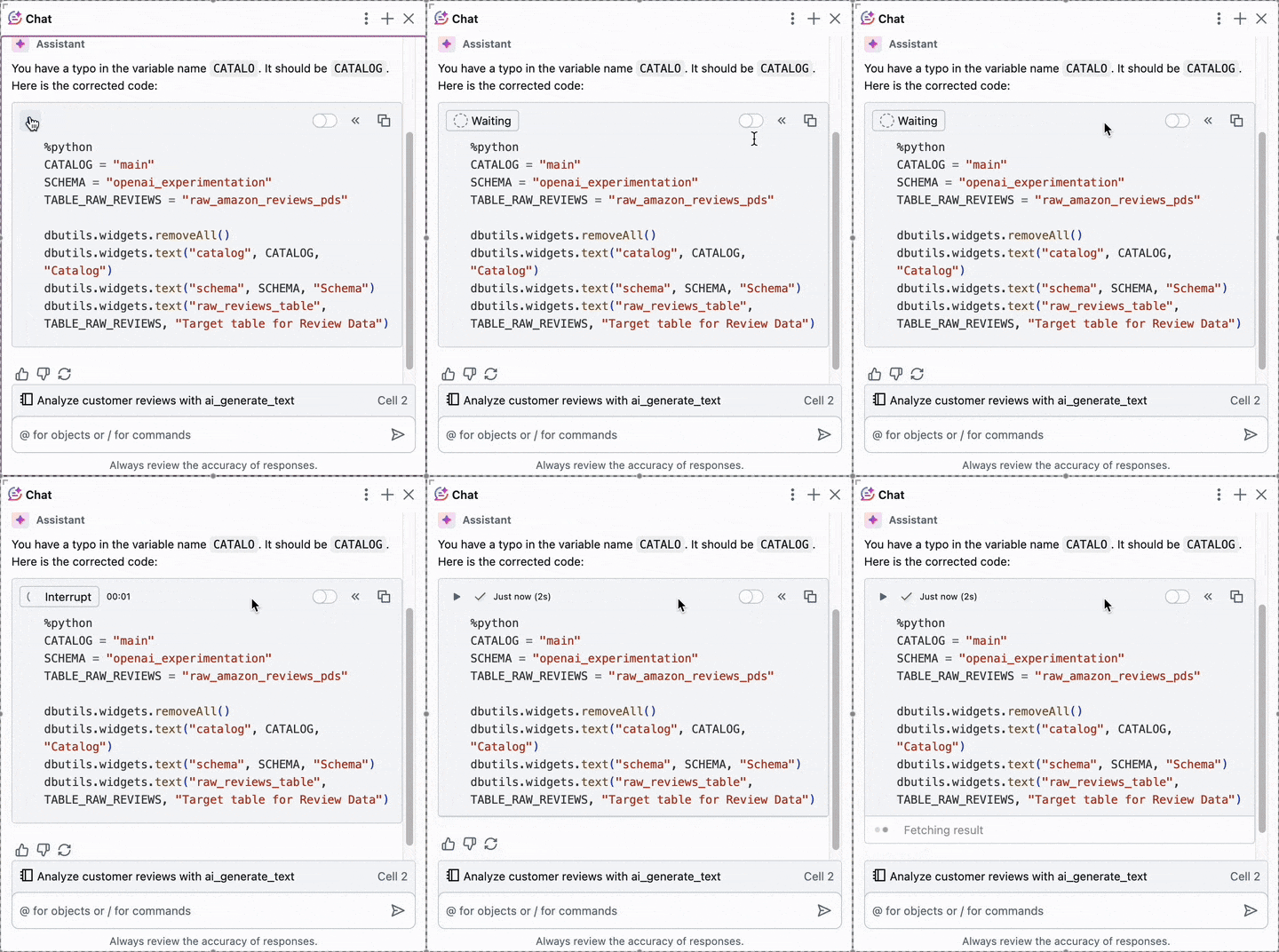
Use Shift + Enter to add a new line in the chat text box
Use Shift + Enter to add a new line in the Assistant chat text box. This makes it easy to format and organize your messages to Databricks Assistant.
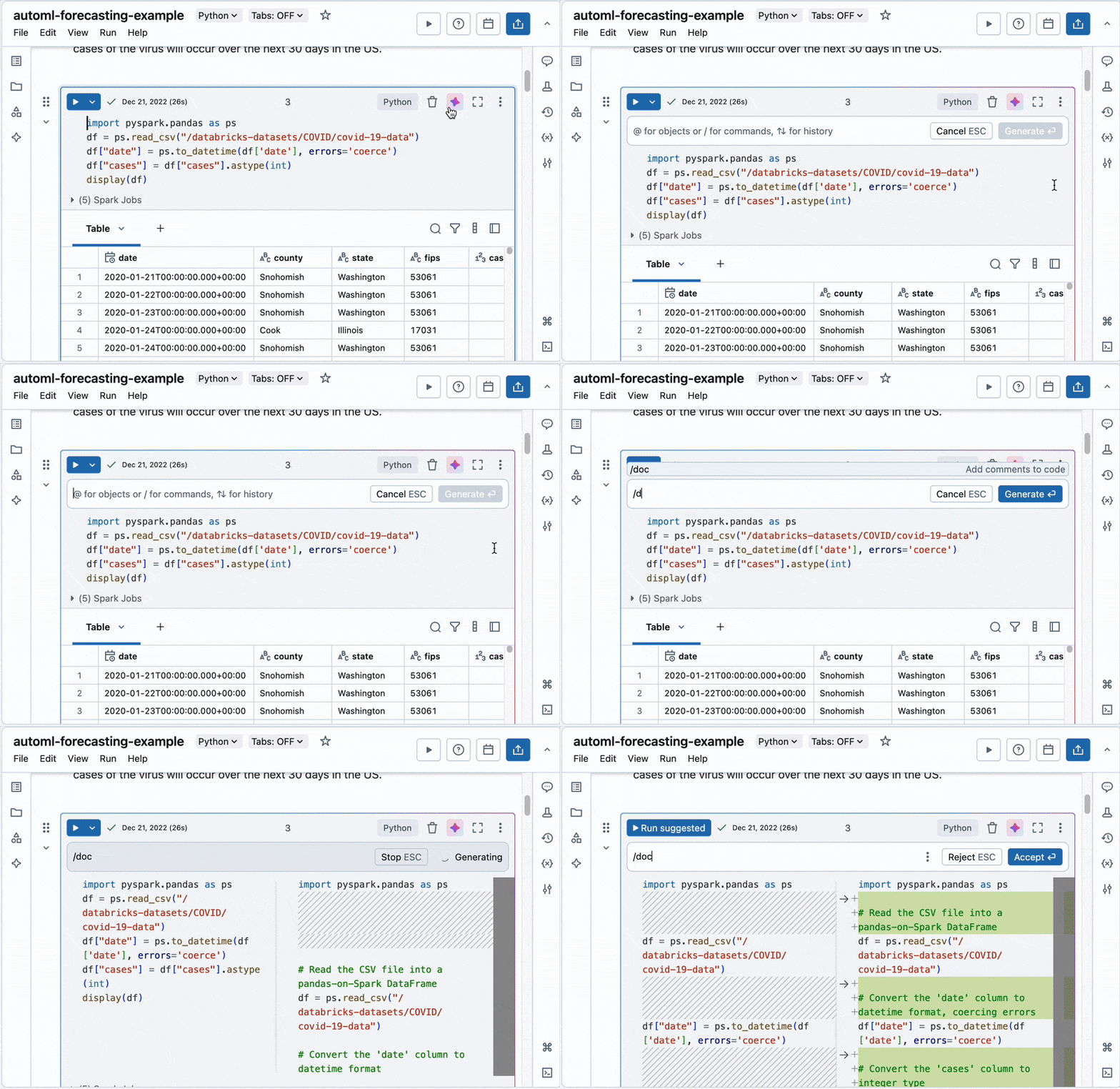
Use cell actions in a notebook
Cell actions include shortcuts to common tasks, such as documenting (commenting), fixing, and explaining code.
Additional resources
- To customize the Assistant to your preferences, provide instructions.
- To expand the Assistant's custom capabilities, create agent skills.
- To give the Assistant access to external tools and data sources, connect it to MCP servers.
- Databricks Assistant Tips and Tricks for Data Analysts
- Databricks Assistant Tips and Tricks for Data Engineers