Note
Access to this page requires authorization. You can try signing in or changing directories.
Access to this page requires authorization. You can try changing directories.
When you create an Azure Batch pool using Virtual Machine Configuration, you can encrypt compute nodes in the pool with a platform-managed key by specifying the disk encryption configuration.
This article explains how to create a Batch pool with disk encryption enabled.
Important
Azure Disk Encryption (ADE) for Azure Batch pools retires on September 15, 2028. Before that date, migrate pool configurations that rely on ADE for temporary-disk encryption to encryption at host. The retirement doesn't affect the default server-side encryption of managed disks.
Why use a pool with disk encryption configuration?
With a Batch pool, you can access and store data on the OS and temporary disks of the compute node. Encrypting the server-side disk with a platform-managed key will safeguard this data with low overhead and convenience.
Batch will apply one of these disk encryption technologies on compute nodes, based on pool configuration and regional supportability.
- Managed disk encryption at rest with platform-managed keys
- Encryption at host using a platform-managed Key
- Azure Disk Encryption for Batch pools, which retires on September 15, 2028
The disk encryption targets don't directly select an encryption technology. You specify the target disks that you want to encrypt, and Batch selects an applicable technology based on the pool configuration. You can explicitly request encryption at host in the virtual machine security profile. The following image depicts how Batch makes the selection.
Important
If you create your pool with a Linux custom image, you can enable disk encryption only if your pool uses a VM size that supports encryption at host.
For a user subscription pool, register the Microsoft.Compute/EncryptionAtHost feature in the subscription that contains the pool resources, and explicitly set securityProfile.encryptionAtHost to true. For more information, see Prerequisites for encryption at host.
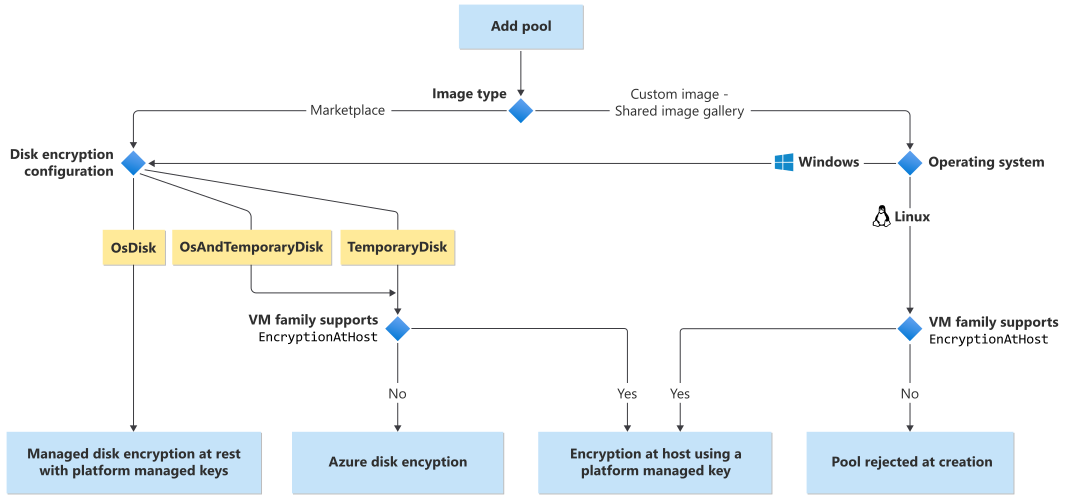
Some disk encryption configurations require that the VM family of the pool supports encryption at host. See End-to-end encryption using encryption at host to determine which VM families support encryption at host.
Note
Temporary-disk encryption on VM sizes that don't support encryption at host requires Azure Disk Encryption (ADE). ADE isn't supported on Basic, A-series, v6-series, v7-series (and later) VM sizes, or on VMs with less than 2 GB of memory. If you enable temporary-disk encryption on one of these unsupported sizes, Batch rejects pool creation with an AzureDiskEncryptionNotSupportedOnVMSize error. To use temporary-disk encryption without ADE, choose a VM size and subscription that support encryption at host. For a Batch service pool, don't explicitly disable encryption at host. For a user subscription pool, explicitly set securityProfile.encryptionAtHost to true.
Azure Disk Encryption retirement
Azure Disk Encryption (ADE) for Batch pools retires on September 15, 2028. After the retirement date, Batch pools don't support ADE. Pool configurations that continue to depend on ADE can experience disruptions when Batch provisions or replaces compute nodes.
Complete the migration before the retirement date if your pool configuration requests temporary-disk encryption and can select ADE. Use encryption at host as the replacement. Encryption at host encrypts the temporary disk, ephemeral OS disks, and the caches of OS and data disks at the VM host.
The ADE retirement doesn't affect managed disk encryption at rest with platform-managed keys, which is enabled by default for Azure managed disks.
Determine whether your pool requires action
The Batch pool properties show the disk encryption targets that you requested, but they don't identify the encryption technology that Batch selected for the nodes. Use the following table to assess whether a pool configuration can depend on ADE.
| Pool configuration | ADE dependency | Action |
|---|---|---|
diskEncryptionConfiguration isn't set, or TemporaryDisk isn't included in its targets |
The configuration doesn't depend on ADE for temporary-disk encryption. | No action is required for this retirement. |
Batch service pool allocation mode, TemporaryDisk is requested, the VM size supports encryption at host, and encryption at host isn't explicitly disabled |
Batch selects encryption at host. | No migration is required. Continue to use a VM size that supports encryption at host. |
Batch service pool allocation mode, TemporaryDisk is requested, and the VM size doesn't support encryption at host |
The configuration can depend on ADE. | Migrate to a VM size that supports encryption at host. |
User subscription pool allocation mode, TemporaryDisk is requested, and securityProfile.encryptionAtHost isn't set to true |
The configuration can depend on ADE. Batch doesn't automatically enable encryption at host for user subscription pools. | Register the encryption-at-host feature in the pool subscription and explicitly enable encryption at host. |
securityProfile.encryptionAtHost is explicitly set to false and TemporaryDisk is requested |
The configuration can depend on ADE. | Use a supported VM size and set encryptionAtHost to true. |
To determine whether a VM size supports encryption at host, see Supported VM sizes.
Configure new pools
For new pools that require temporary-disk encryption, select a VM size that supports encryption at host. Don't explicitly disable encryption at host.
For user subscription pools, also register the Microsoft.Compute/EncryptionAtHost feature in the subscription that contains the pool resources and set securityProfile.encryptionAtHost to true.
Migrate an existing pool to encryption at host
You can update an existing pool without deleting the Batch pool. The update replaces the underlying compute deployment when you scale the pool out again.
- Stop scheduling new work on the pool, and wait for running tasks to finish or move them to another pool.
- Resize both the dedicated and Spot or low-priority target node counts to zero.
- Wait until the pool allocation state is Steady and the current node counts are zero.
- Use the Batch Management Plane Pool - Update API version
2024-07-01or later to:- Select a VM size that supports encryption at host, if the current size doesn't support it.
- Set
deploymentConfiguration.virtualMachineConfiguration.securityProfile.encryptionAtHosttotrue. - Preserve the required disk encryption targets and the other virtual machine configuration properties.
- Resize the pool to the required target node counts. Batch creates a new underlying compute deployment by using the updated configuration.
For example, the relevant part of a Management Plane PATCH request is:
{
  "properties": {
    "vmSize": "<encryption-at-host-supported-vm-size>",
    "deploymentConfiguration": {
      "virtualMachineConfiguration": {
        "imageReference": {
          "publisher": "<publisher>",
          "offer": "<offer>",
          "sku": "<sku>",
          "version": "<version>"
        },
        "nodeAgentSkuId": "<node-agent-sku-id>",
        "diskEncryptionConfiguration": {
          "targets": [
            "OsDisk",
            "TemporaryDisk"
          ]
        },
        "securityProfile": {
          "encryptionAtHost": true
        }
      }
    }
  }
}
Caution
Include the existing virtual machine configuration properties that the pool must retain, such as its image reference, node agent SKU, OS disk settings, container configuration, extensions, and data disks. Before you update a production pool, retrieve its current configuration and construct the request with all required values.
For more information about zero-node updates and update behavior, see Update Batch pool properties.
Azure portal
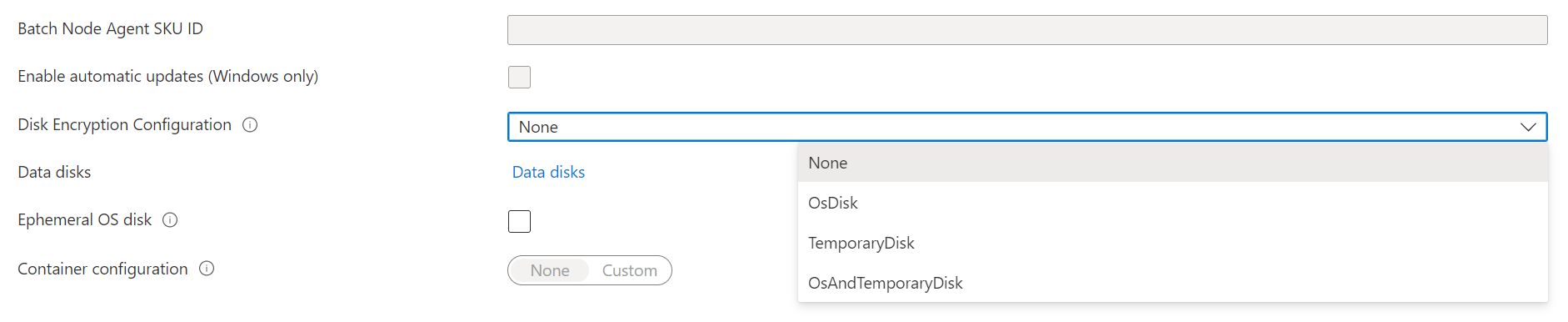
When creating a Batch pool in the Azure portal, select either OsDisk, TemporaryDisk or OsAndTemporaryDisk under Disk Encryption Configuration.
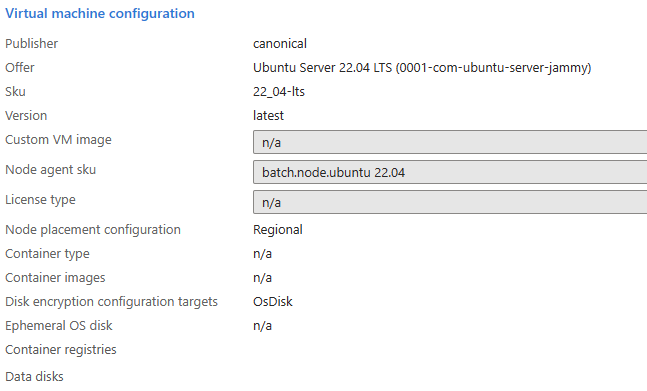
After the pool is created, you can see the disk encryption configuration targets in the pool's Properties section.
Examples
The following examples show how to encrypt the OS and temporary disks on a Batch pool using the Azure.ResourceManager.Batch SDK, the Batch REST API, and the Azure CLI.
Azure.ResourceManager.Batch SDK
using Azure;
using Azure.Identity;
using Azure.ResourceManager;
using Azure.ResourceManager.Batch;
using Azure.ResourceManager.Batch.Models;

//...

public async Task SetDiskEncryption()
{
    ArmClient client = new ArmClient(new DefaultAzureCredential());

    ResourceIdentifier batchAccountResourceId =
        BatchAccountResource.CreateResourceIdentifier("subscriptionId", "resourceGroupName", "accountName");
    BatchAccountResource batchAccount = client.GetBatchAccountResource(batchAccountResourceId);

    BatchAccountPoolCollection poolCollection = batchAccount.GetBatchAccountPools();

    BatchAccountPoolData poolData = new BatchAccountPoolData()
    {
        VmSize = "standard_ds1_v2",
        DeploymentConfiguration = new BatchDeploymentConfiguration()
        {
            VmConfiguration = new BatchVmConfiguration(
                imageReference: new BatchImageReference()
                {
                    Publisher = "Canonical",
                    Offer = "UbuntuServer",
                    Sku = "22.04-LTS"
                },
                nodeAgentSkuId: "batch.node.ubuntu 22.04")
            {
                 DiskEncryptionConfiguration = new BatchDiskEncryptionConfiguration()
                 {
                     Targets = { BatchDiskEncryptionTarget.OSDisk, BatchDiskEncryptionTarget.TemporaryDisk }
                 }
            }
        }
    };

    ArmOperation<BatchAccountPoolResource> pool = await poolCollection.CreateOrUpdateAsync(
        WaitUntil.Completed, "diskencryptionPool", poolData);
}
Batch REST API
REST API URL:
POST {batchURL}/pools?api-version=2020-03-01.11.0
client-request-id: 00000000-0000-0000-0000-000000000000
Request body:
"pool": {
    "id": "pool2",
    "vmSize": "standard_a1",
    "virtualMachineConfiguration": {
        "imageReference": {
            "publisher": "Canonical",
            "offer": "UbuntuServer",
            "sku": "22.04-LTS"
        },
        "diskEncryptionConfiguration": {
            "targets": [
                "OsDisk",
                "TemporaryDisk"
            ]
        },
        "nodeAgentSKUId": "batch.node.ubuntu 22.04"
    },
    "resizeTimeout": "PT15M",
    "targetDedicatedNodes": 5,
    "targetLowPriorityNodes": 0,
    "taskSlotsPerNode": 3,
    "enableAutoScale": false,
    "enableInterNodeCommunication": false
}
Azure CLI
az batch pool create \
    --id diskencryptionPool \
    --vm-size Standard_DS1_V2 \
    --target-dedicated-nodes 2 \
    --image canonical:ubuntuserver:22.04-LTS \
    --node-agent-sku-id "batch.node.ubuntu 22.04" \
    --disk-encryption-targets OsDisk TemporaryDisk
Next steps
- Learn more about server-side encryption of Azure Disk Storage.
- For an in-depth overview of Batch, see Batch service workflow and resources.