Note
Access to this page requires authorization. You can try signing in or changing directories.
Access to this page requires authorization. You can try changing directories.
This article shows you how to enable AI Gateway for a Microsoft Foundry resource using the Foundry portal. AI Gateway uses Azure API Management behind the scenes to provide token limits, quotas, and governance for model deployments.
Prerequisites
Azure subscription (create one for free).
Permissions to create or reuse an Azure API Management (APIM) instance:
- To create an APIM instance: Contributor or Owner on the target resource group (or subscription).
- To manage an existing APIM instance: API Management Service Contributor (or Owner) on the APIM instance. For more information, see How to use role-based access control in Azure API Management.
Access to the Foundry portal (Admin console) for the target Foundry resource.
For example: Foundry Account Owner or Foundry Owner on the Foundry resource. For more information, see Role-based access control for Microsoft Foundry.
Important
The Foundry RBAC roles were recently renamed. Foundry User, Foundry Owner, Foundry Account Owner, and Foundry Project Manager were previously named Azure AI User, Azure AI Owner, Azure AI Account Owner, and Azure AI Project Manager. You might still see the previous names in some places while the rename rolls out. The role IDs and core permissions are unchanged by the rename.
Decision on whether to create a dedicated APIM instance or reuse an existing one.
Requirements for using an existing API Management instance
When you select Use existing APIM, only API Management instances that meet all of the following requirements are listed:
- The API Management instance is in the same Microsoft Entra tenant and the same subscription as the Foundry resource.
- You have at least the API Management Service Contributor role (or Owner) on the API Management instance.
- The API Management instance is in a subscription that you can access from the Foundry portal.
- The API Management instance must be created in one of the v2 tiers.
If none of your API Management instances appear in the list, verify that the instance meets the requirements above and that you have the required permissions.
Note
If your Foundry resource has public network access disabled, make sure that your API Management instance is also privately accessible to integrate with your private Foundry resource. In this case, use a Standard v2 or Premium v2 instance with a private endpoint, or a Premium v2 instance that's injected in a virtual network. For more information, see Azure API Management networking options.
Create an AI Gateway
Follow these steps in the Foundry portal to enable AI Gateway for a resource.
-
Sign in to Microsoft Foundry. Make sure the New Foundry toggle is on. These steps refer to Foundry (new).

Select Operate > Admin console.
Open the AI Gateway tab.
Select Add AI Gateway.
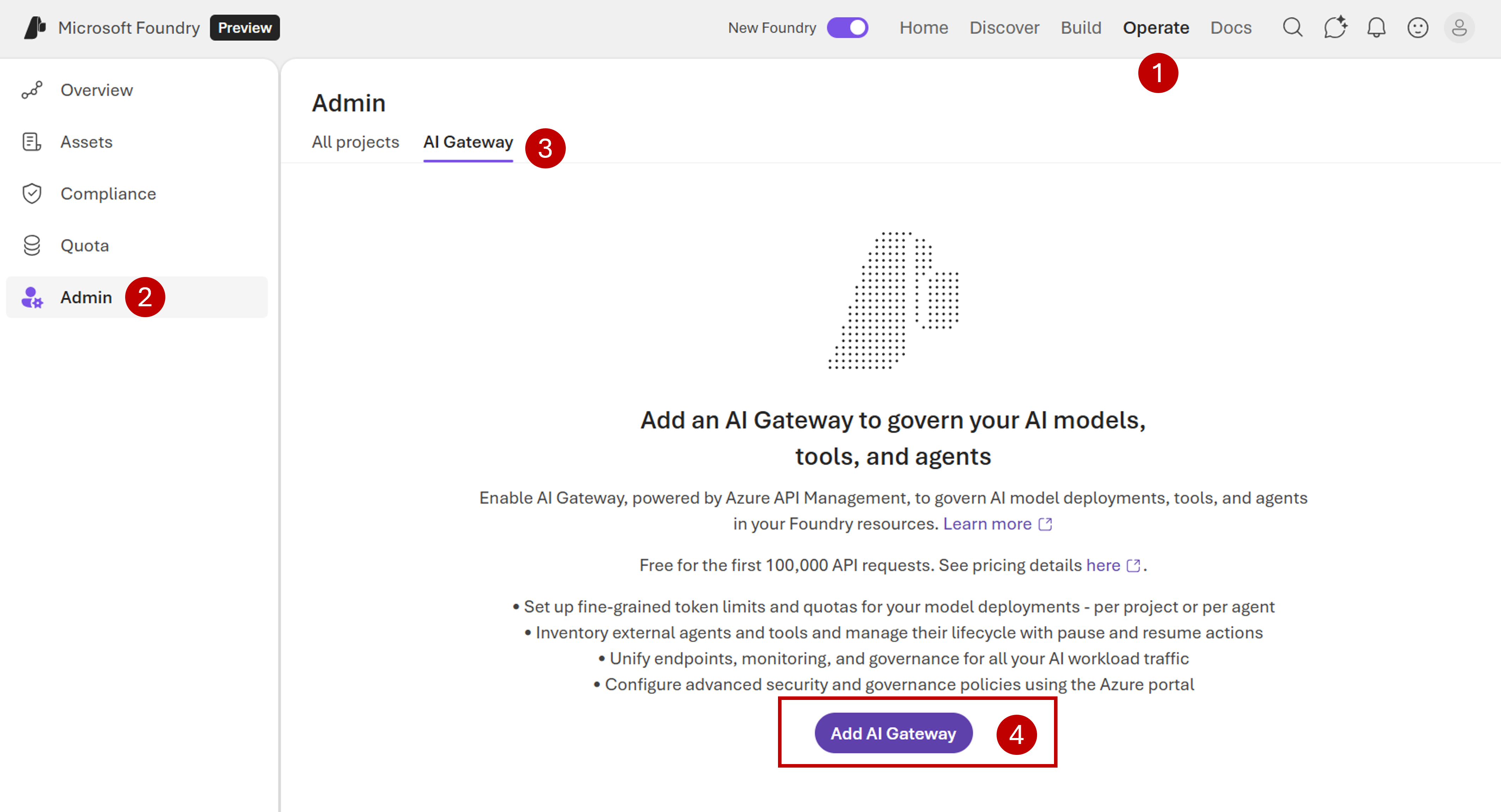
Select the Foundry resource you want to connect with the gateway.
Select Create new or Use existing APIM.
- Create new: Creates a Basic v2 SKU instance. Basic v2 is designed for development and testing with SLA support.
- Use existing: Select an instance that meets your organization's governance and networking requirements.
Tip
For production workloads or higher throughput requirements, consider using an existing APIM instance with a Standard v2 or Premium v2 tier. For more information, see Azure API Management pricing tiers.
Note
AI Gateway includes a free tier for Azure API Management. For current details about costs and free-tier eligibility, see API Management Pricing.
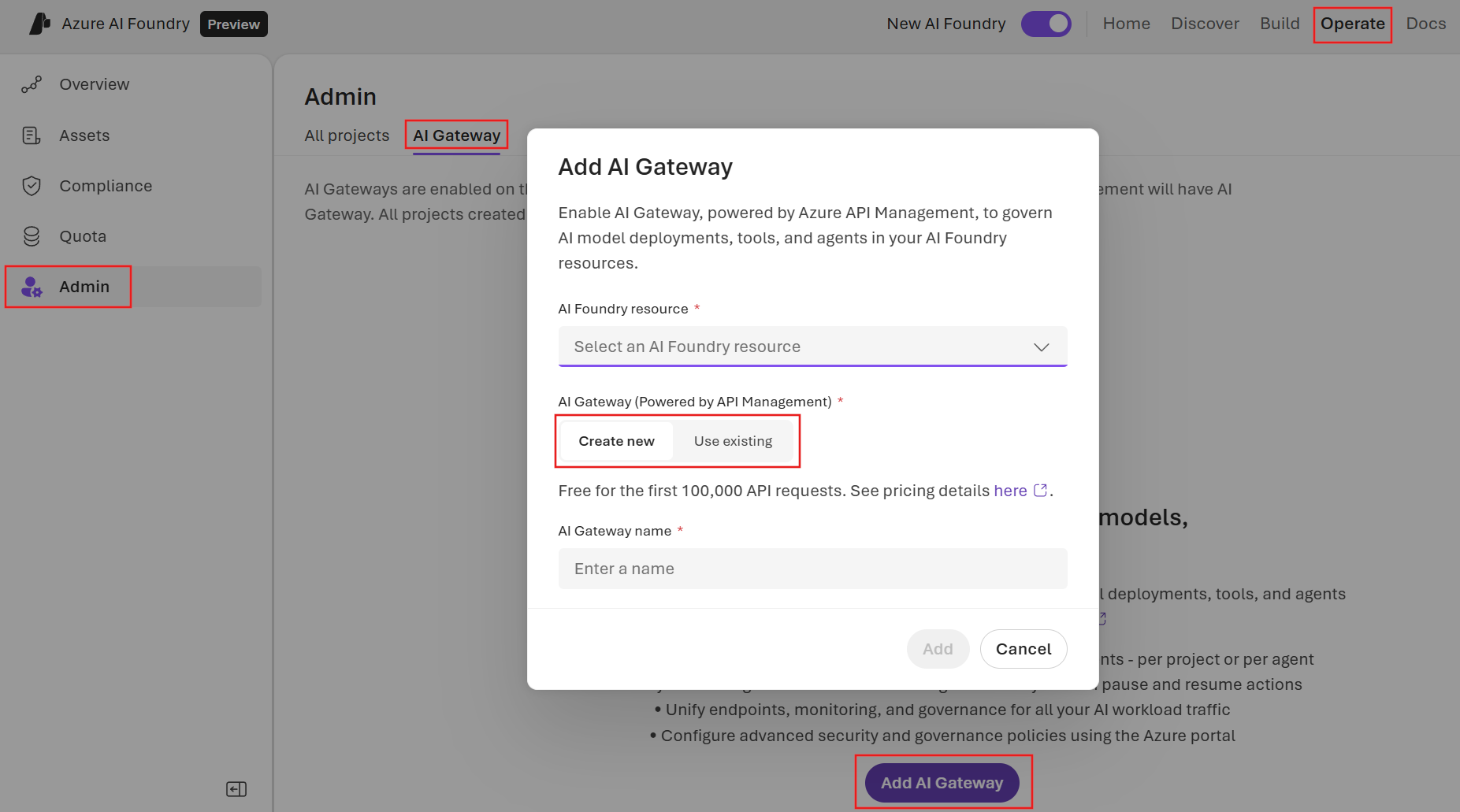
Name the gateway, and select Add to create or associate the APIM instance.
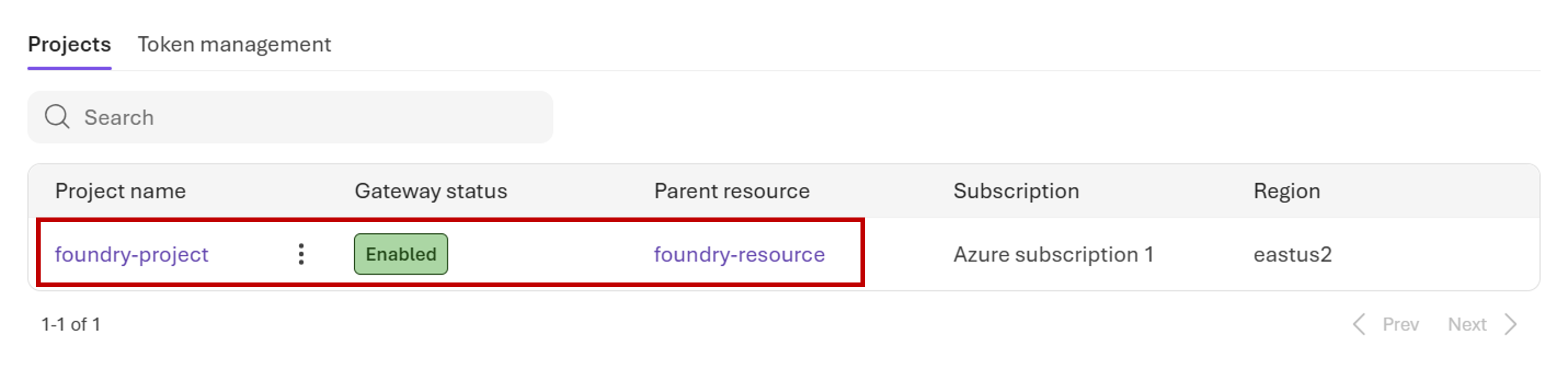
Verify the AI Gateway appears in the list with a status of Enabled. If the status shows Provisioning, wait a few minutes and refresh the page.
New projects created in the Foundry resource have AI Gateway enabled by default. Existing projects must be enabled manually.
To enable an existing project, select the AI Gateway name to view associated projects.
In the project list, locate the project you want to enable. The Gateway status column shows current status.
Select Add project to gateway. The Gateway status column updates to Enabled.
Verify the gateway is working
Confirm that traffic routes through AI Gateway:
In the Azure portal, open the API Management instance connected to your Foundry resource.
Select Monitoring > Metrics. In the Metric dropdown, select Requests. Make a test call to a model deployment in the enabled project, then verify that the request count increments.
To check detailed logs, select Monitoring > Logs and run a query against the GatewayLogs table. Look for entries with a
200response code and an API name that matches your AI Gateway.If you configured token limits, verify they apply by testing a request that exceeds the limit. The API Management instance returns a
429 Too Many Requestsresponse when the limit is exceeded.
AI Gateway architecture
AI Gateway sits between clients and Foundry building blocks, including models and tools. All requests flow through the APIM instance once associated. Limits apply at the project level, so each project can have its own TPM and quota settings.
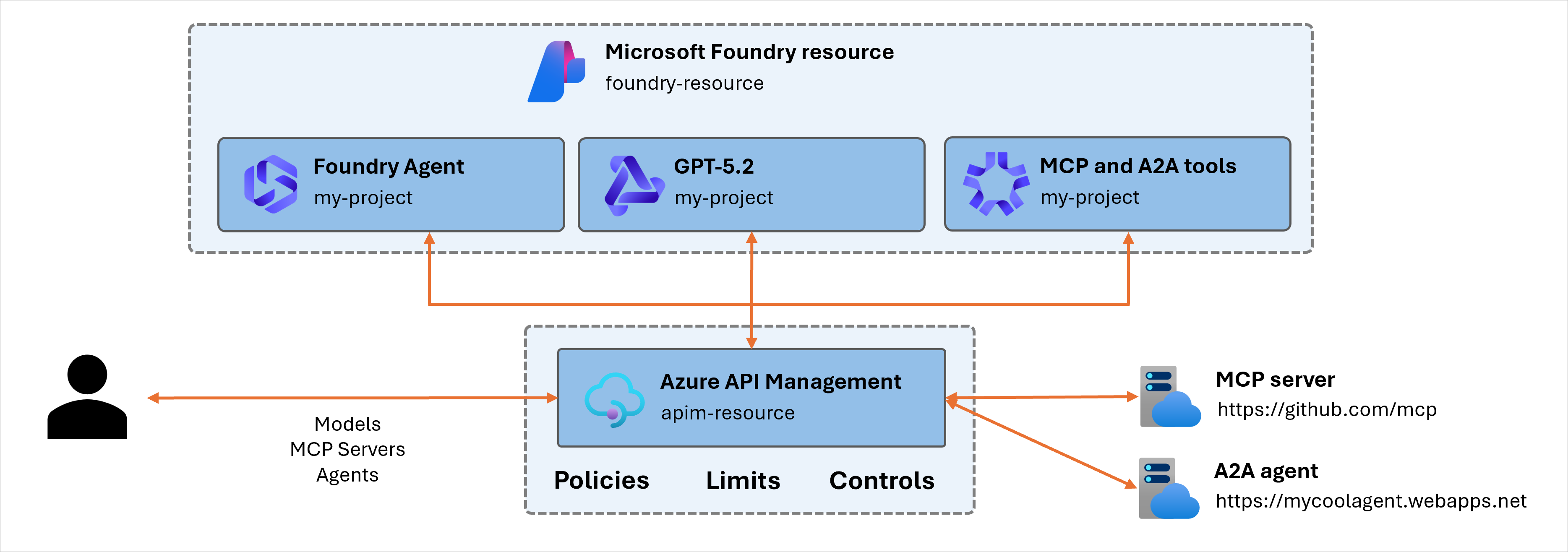
AI Gateway enables:
- Multi-team token containment (prevent one project from monopolizing capacity).
- Cost control by capping aggregate usage.
- Compliance boundaries for regulated workloads (enforce predictable usage ceilings).
- Registration of custom agents for governance.
Use AI Gateway with multiple projects
You enable AI Gateway at the Foundry resource level, and all projects in that resource share the same gateway and its underlying API Management instance. You don't assign a separate gateway to each project. Instead, you add individual projects to the gateway and give each one its own token limits and quotas:
- New projects created in the resource have AI Gateway enabled by default.
- Existing projects must be added manually. Select the AI Gateway name, locate the project, and select Add project to gateway.
- Set per-project token limits so that each project has an independent capacity ceiling on the shared gateway.
If you need projects to route through completely separate gateways (for example, separate API Management instances for strict isolation or different networking requirements), place those projects in separate Foundry resources and enable an AI Gateway on each resource. An API Management instance can be associated with only one AI Gateway.
Governance scenarios
Once you configure AI Gateway for your resource and project, you can:
- Configure token limits for models.
- Add custom agents to Control Plane.
- Govern MCP and A2A agent tools.
Troubleshooting
Note
The Foundry portal UI is updated frequently. Screenshots and step numbering in this article might differ slightly from what you see. If a step doesn't match, look for the equivalent option in the current UI.
| Issue | Cause | Resolution |
|---|---|---|
| AI Gateway doesn't appear after creation. | Provisioning is still in progress. | Wait a few minutes and refresh the page. Basic v2 instances typically provision within 5-10 minutes. |
| Project shows Gateway status as Disabled. | Existing projects aren't automatically enabled for AI Gateway. | Select the AI Gateway, locate the project, and select Add project to gateway. |
| Requests bypass the gateway. | The project wasn't enabled before requests were made, or the gateway isn't fully provisioned. | Verify the gateway status shows Enabled for both the resource and project. |
| Permission error when creating gateway. | Missing required RBAC role. | Verify you have Contributor or Owner on the resource group (to create) or API Management Service Contributor on an existing instance. |
| Existing API Management instance does not appear in the list when selecting Use existing APIM. | The API Management instance does not meet the eligibility requirements or the user does not have sufficient permissions. | Verify that the API Management instance is in the same tenant, uses a supported SKU, is not already associated with another AI Gateway, and that you have the API Management Service Contributor role (or Owner) on the instance. |
| Token limits don't apply to requests. | Limits aren't configured, or the project isn't using the gateway. | Verify the project is enabled for AI Gateway, then configure token limits in the Admin console. |
| 500 errors on model calls after gateway setup. | The auto-created APIM endpoints may not be fully provisioned, or the model deployment isn't correctly mapped through the gateway. | Wait several minutes for provisioning to complete. Verify the model deployment is accessible without the gateway first. Check the APIM Monitoring > Logs for detailed error information. If the issue persists, try removing and re-adding the project to the gateway. |
| Projects don't appear in the AI Gateway tab after association. | The project list may take time to refresh, or the project was created before the gateway was enabled. | Refresh the page or navigate away and return to the AI Gateway tab. If projects still don't appear, verify the gateway status shows Enabled at the resource level. For existing projects, you must manually add them to the gateway by selecting Add project to gateway. |
For tools-specific troubleshooting, see Tools governance with AI Gateway.
Disable or delete an AI Gateway
Disabling and deleting an AI Gateway are different operations:
- Disable stops routing a single project's traffic through the gateway. The gateway and its API Management instance keep running and stay available for other projects.
- Delete removes the gateway from the Foundry resource and, when you also delete the underlying API Management instance, fully removes the gateway and stops its charges.
Disable AI Gateway for a project
- Select Operate > Admin console, and then open the AI Gateway tab.
- Select the AI Gateway name to view its associated projects.
- Locate the project, and then select Remove project from gateway. The Gateway status column updates to Disabled.
Disabling a project leaves the gateway in place, so other projects continue to route through it.
Delete an AI Gateway
To completely delete an AI Gateway, you remove it from the Foundry resource and then delete the underlying API Management instance. Disabling a project alone doesn't delete the gateway or stop API Management charges.
- In the AI Gateway tab, disable the gateway for every project that's associated with it, as described in the previous section.
- Select the AI Gateway, and then select the option to delete it from the Foundry resource.
- In the Azure portal, open the resource group that contains the API Management instance.
- Delete the API Management instance that has the same name as the AI Gateway, unless another workload still uses it. Deleting the instance stops the associated charges and completes the removal.
Clean up resources
If you created a dedicated API Management instance for the AI Gateway and no longer need it, delete the AI Gateway and the API Management instance. Before you delete the instance, confirm that no other workloads depend on it.