Note
Access to this page requires authorization. You can try signing in or changing directories.
Access to this page requires authorization. You can try changing directories.
The Alerts queue shows a list of alerts that were flagged from devices in your network. By default, the queue displays alerts seen in the last seven days in a grouped view. The most recent alerts are shown at the top of the list.
Note
The alerts are significantly reduced with automated investigation and remediation. This practice allows security operations experts to focus on more sophisticated threats and other high value initiatives.
When an alert contains a supported entity for automated investigation, such as a file, in a device that has a supported operating system for it, automated investigation and remediation can start. For more information, see Overview of Automated investigations.
There are several options you can choose from to customize the alerts view.
On the top navigation you can:
- Customize columns to add or remove columns
- Apply filters
- Display the alerts for a particular duration like 1 Day, 3 Days, 1 Week, 30 Days, and 6 Months
- Export the alerts list to excel
- Manage Alerts
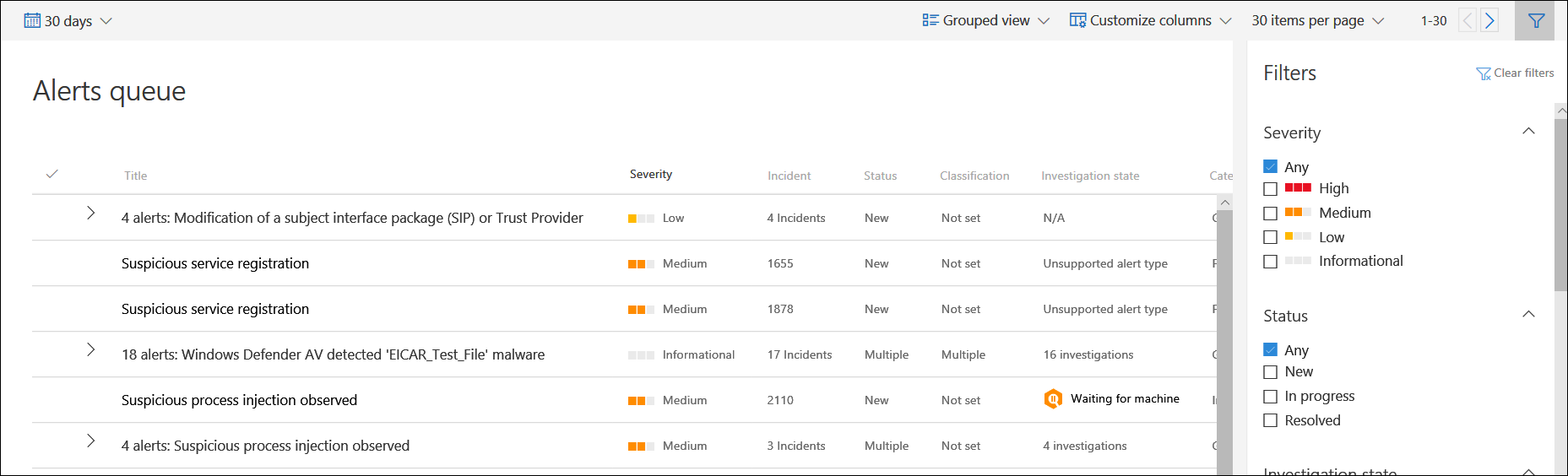
Sort and filter alerts
You can apply the following filters to limit the list of alerts and get a more focused view of the alerts.
Severity
| Alert severity | Description |
|---|---|
| High (Red) |
Alerts commonly seen associated with advanced persistent threats (APT). These alerts indicate a high risk because of the severity of damage they can inflict on devices. Some examples are: credential theft tools activities, ransomware activities not associated with any group, tampering with security sensors, or any malicious activities indicative of a human adversary. |
| Medium (Orange) |
Alerts from endpoint detection and response post-breach behaviors that might be a part of an advanced persistent threat (APT). These behaviors include observed behaviors typical of attack stages, anomalous registry change, and execution of suspicious files. Although some might be part of internal security testing, this severity requires investigation because it might also be a part of an advanced attack. |
| Low (Yellow) |
Alerts on threats associated with prevalent malware. For example, hack-tools, non-malware hack tools, such as running exploration commands and clearing logs, that often do not indicate an advanced threat targeting the organization. This level could also come from an isolated security tool testing by a user in your organization. |
| Informational (Gray) |
Alerts that might not be considered harmful to the network but can drive organizational security awareness on potential security issues. |
Understanding alert severity
Microsoft Defender Antivirus and Defender for Endpoint alert severities are different because they represent different scopes.
- The Microsoft Defender Antivirus threat severity represents the absolute severity of the detected threat (malware). It's assigned based on the potential risk to the individual device, if infected.
- The Defender for Endpoint alert severity represents the severity of the detected behavior, which is the actual risk to the device but more importantly the potential risk to the organization.
For example:
- The severity of a Defender for Endpoint alert about a Microsoft Defender Antivirus detected threat that was prevented and did not infect the device is categorized as Informational because there was no actual damage.
- Commercial malware that is detected while running but blocked and remediated by Microsoft Defender Antivirus generates a Low alert because it might have caused some damage to the individual device but poses no organizational threat.
- Malware that is detected while running and can pose a threat both to the individual device and to the organization might be ranked as Medium or High, regardless of whether it is eventually blocked.
- Suspicious behavioral alerts, which weren't blocked or remediated, are ranked Low, Medium, or High following the same organizational threat considerations.
Status
You can choose to filter the list of alerts based on their status.
Note
If you see an Unsupported alert type alert status, it means that automated investigation capabilities can't pick up that alert to run an automated investigation. You can investigate these alerts manually.
Categories
Microsoft redefined the alert categories to align to the enterprise attack tactics in the MITRE ATT&CK matrix. New category names apply to all new alerts. Existing alerts keep the previous category names.
Service sources
You can filter the alerts based on the following Service sources:
- Microsoft Defender for Identity
- Microsoft Defender for Cloud Apps
- Microsoft Defender for Endpoint
- Microsoft Defender XDR
- Microsoft Defender for Office 365
- App Governance
- Microsoft Entra ID Protection
Microsoft Endpoint Notification customers can now filter and see detections from the service by filtering by Microsoft Defender Experts nested under the Microsoft Defender for Endpoint service source.
Note
The Antivirus filter only appears if devices are using Microsoft Defender Antivirus as the default real-time protection antimalware product.
Tags
You can filter the alerts based on Tags assigned to alerts.
Policy
You can filter the alerts based on the following policies:
| Detection source | API value |
|---|---|
| Third-party sensors | ThirdPartySensors |
| Antivirus | WindowsDefenderAv |
| Automated investigation | AutomatedInvestigation |
| Custom detection | CustomDetection |
| Custom TI | CustomerTI |
| EDR | WindowsDefenderAtp |
| Microsoft Defender XDR | MTP |
| Microsoft Defender for Office 365 | OfficeATP |
| Microsoft Defender Experts | ThreatExperts |
| SmartScreen | WindowsDefenderSmartScreen |
Entities
You can filter the alerts based on Entity name or ID.
Automated investigation state
You can choose to filter the alerts based on their Automated investigation state.
Related content
- Manage Microsoft Defender for Endpoint alerts
- Investigate Microsoft Defender for Endpoint alerts
- Investigate a file associated with a Microsoft Defender for Endpoint alert
- Investigate devices in the Microsoft Defender for Endpoint Devices list
- Investigate an IP address associated with a Microsoft Defender for Endpoint alert
- Investigate a domain associated with a Microsoft Defender for Endpoint alert
- Investigate a user account in Microsoft Defender for Endpoint