Note
Access to this page requires authorization. You can try signing in or changing directories.
Access to this page requires authorization. You can try changing directories.
After a Microsoft Defender Antivirus scan completes, whether it's an on-demand scan or scheduled antivirus scan, the results are recorded and you can view the results. This article explains how to review scan results, including detected threats and their details, using the Microsoft Defender portal, Microsoft Intune, Configuration Manager, PowerShell, or Windows Management Instrumentation (WMI).
Prerequisites
Supported operating systems
The following operating systems are supported:
- Windows
Use Microsoft Defender to review scan results
To view the scan results using the Defender portal, follow these steps.
Sign in to Microsoft Defender portal
Go to Incidents & alerts > Alerts.
You can view the scanned results under Alerts.
Use Microsoft Intune to review scan results
Microsoft Intune is the recommended tool for configuring and distributing Defender for Endpoint features to devices. However, Intune is a separate product that isn't part of Defender for Endpoint, and it isn't included in all subscriptions. To use Intune, you need a subscription that includes it, or you can buy it separately as a standalone subscription or add-on. If you don't have Intune, you can use any of the other methods in this article. For more information, see Microsoft Intune licensing.
To view the scan results using Microsoft Intune admin center, see Antivirus agent status report (opens in a new tab in the Intune documentation).
Use Configuration Manager to review scan results
To view scan results in Configuration Manager, see How to monitor Endpoint Protection status.
Use PowerShell cmdlets to review scan results
To review recent threat detections recorded by Microsoft Defender Antivirus, run the following cmdlet. It returns each detection on the endpoint. If there are multiple detections of the same threat, each detection is listed separately, based on the time of each detection:
Get-MpThreatDetection
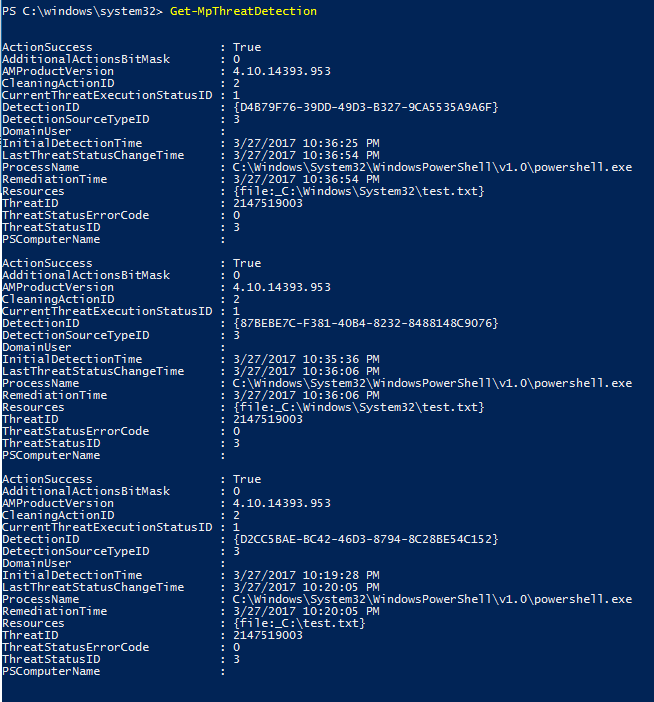
You can specify -ThreatID to limit the output to only show the detections for a specific threat.
To list threats currently known to Microsoft Defender Antivirus on the device, with multiple detections of the same threat combined into a single item, use the following cmdlet:
Get-MpThreat
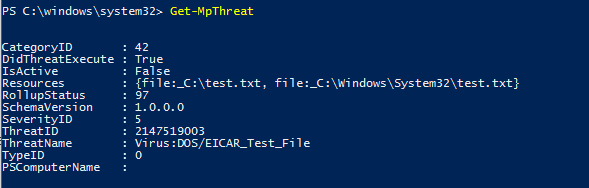
See Use PowerShell cmdlets to configure and run Microsoft Defender Antivirus and Defender Antivirus cmdlets for more information on how to use PowerShell with Microsoft Defender Antivirus.
Use Windows Management Instrumentation (WMI) to review scan results
Use the Get method of the MSFT_MpThreat and MSFT_MpThreatDetection classes.
Tip
If you're looking for Antivirus related information for other platforms, see:
- Set preferences for Microsoft Defender for Endpoint on macOS
- Microsoft Defender for Endpoint on Mac
- macOS Antivirus policy settings for Microsoft Defender Antivirus for Intune
- Set preferences for Microsoft Defender for Endpoint on Linux
- Microsoft Defender for Endpoint on Linux
- Configure Defender for Endpoint on Android features
- Configure Microsoft Defender for Endpoint on iOS features