Note
Access to this page requires authorization. You can try signing in or changing directories.
Access to this page requires authorization. You can try changing directories.
Prompt suggestions are commands that are presented to the users in the Microsoft Teams chat.
Prompt suggestions create an engaging and insightful user experience and help your bot to acquire and retain users by showing them the value of your bot through prompt conversations. You can use prompt suggestions to help your users initiate conversations with your bot and learn how to interact with it.
There are two types of prompt suggestions that you can use:
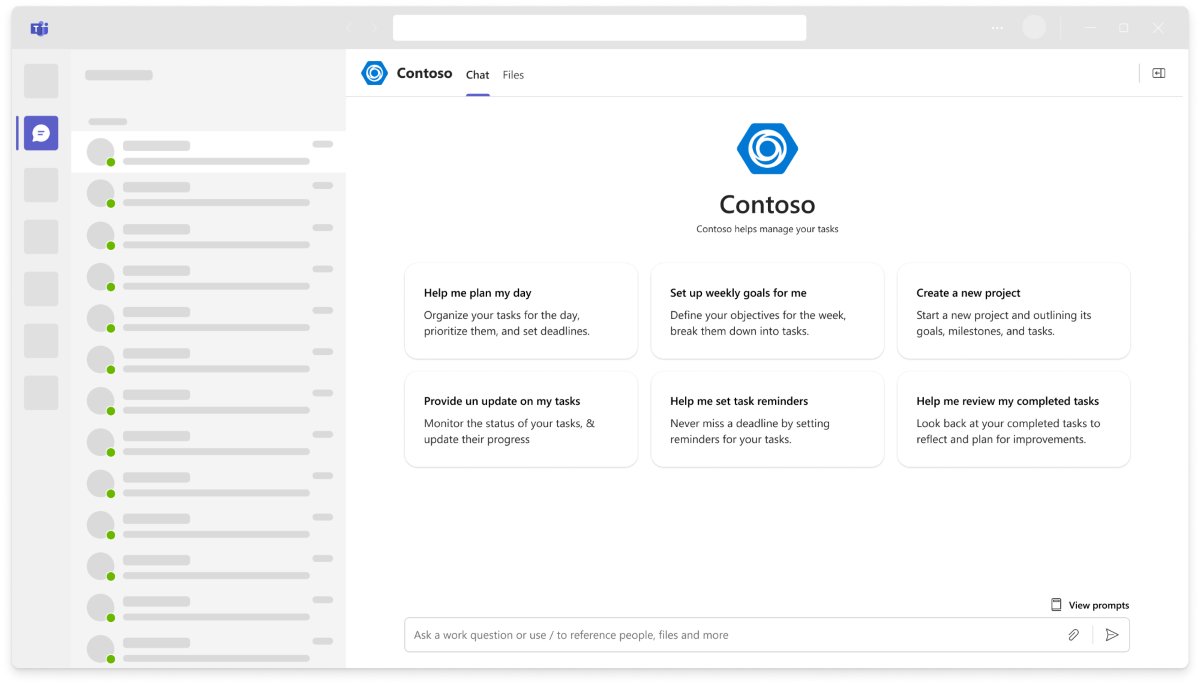
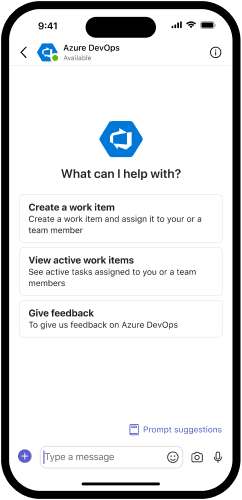
Prompt starters
Note
Your bot can either use a prompt starter or a welcome message. If your bot uses prompt starters, ensure that your bot doesn't send a welcome message.
Prompt starters are supported in one-on-one chats, group chats, and channels. To enable prompt starters, define the commands property in your bot's app manifest. Each command contains four fields: title, description, type, and prompt.
- The
titlefield is the text shown in the prompt starter. When selected, this text is populated into the compose box. - The
descriptionfield describes what the users accomplish. - The
typefield indicates whether the bot command is basic or prompt. Settypeto prompt and provide the text in the prompt field. When selected, the prompt text appears in the compose box instead of the title or description. - The
promptfield specifies the text that appears in the compose box for a prompt command. It supports up to 4,000 characters.
Note
If you're building an agent, you must set type to prompt and provide a valid prompt value. If the prompt field is empty, the app manifest fails validation during submission.
Define commands in app manifest
To create a prompt starter, add it directly in the app manifest file while developing your bot source code. To use this method, follow these points:
- The
commandproperty supports up to 10 commands. - You can either create prompt starters that work in all scopes or create different prompt starters for each scope.
Manifest example for prompt starters
The manifest example code for prompt starters is as follows:
{
  ⋮
  "bots":[
    {
      "botId":"[Microsoft App ID for your bot]",
      "scopes": [
        "personal"
      ],
      "commandLists":[
        {
          "scopes":[
            "personal"
          ],
          "commands":[
            {
              "title":"Help",
              "description":"Displays this help message",
            },
            {
              "title":"Search Flights",
              "description":"Search flights from Seattle to Phoenix May 2-5 departing after 3pm",
              "type": "prompt",
              "prompt": "Search flights from Seattle to Phoenix May 2-5 departing after 3pm. Please show me the best options."
            },
            {
              "title":"Search Hotels",
              "description":"Search hotels in Portland tonight",
              "type": "prompt",
              "prompt": "Search hotels in Portland for tonight. Please show me available options with good ratings."
            },
            {
              "title":"Best Time to Fly",
              "description":"Best time to fly to London for a 5 day trip this summer",
              "type": "prompt",
              "prompt": "What is the best time to fly to London for a 5 day trip? I'm looking for good weather and reasonable prices."
            }
          ]
        }
      ]
    }
  ],
  ...
}
Note
If you remove any commands from your manifest, you must redeploy your app to implement the changes. In general, any changes to the manifest require you to redeploy your app.
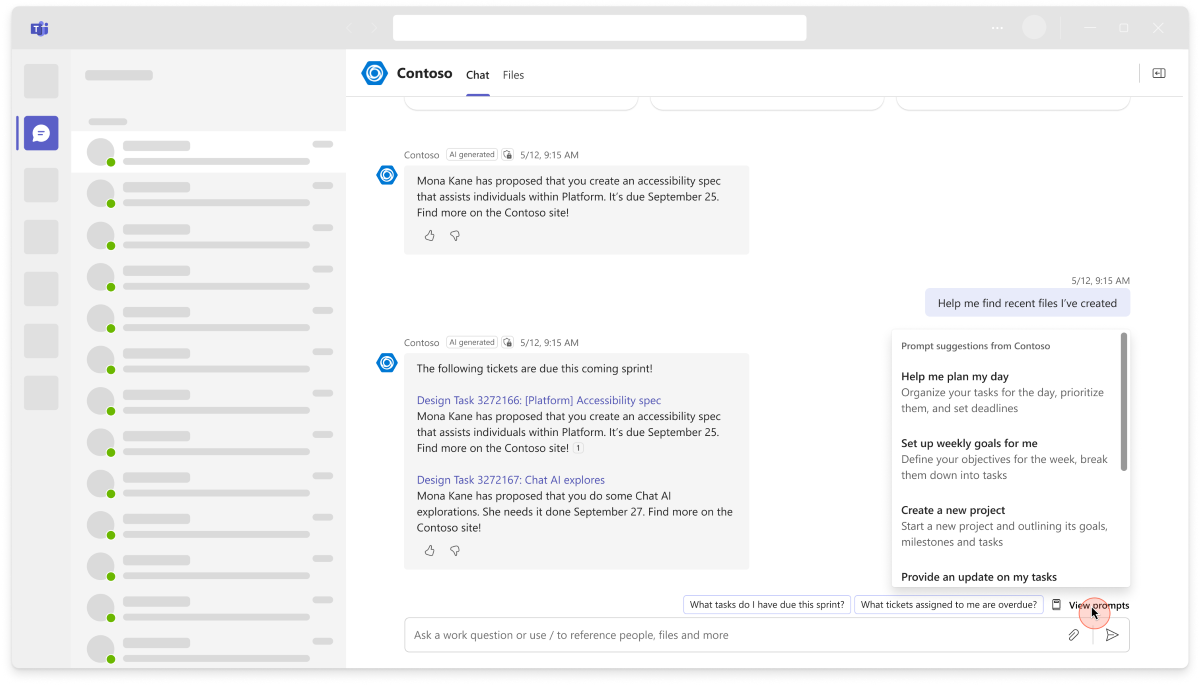
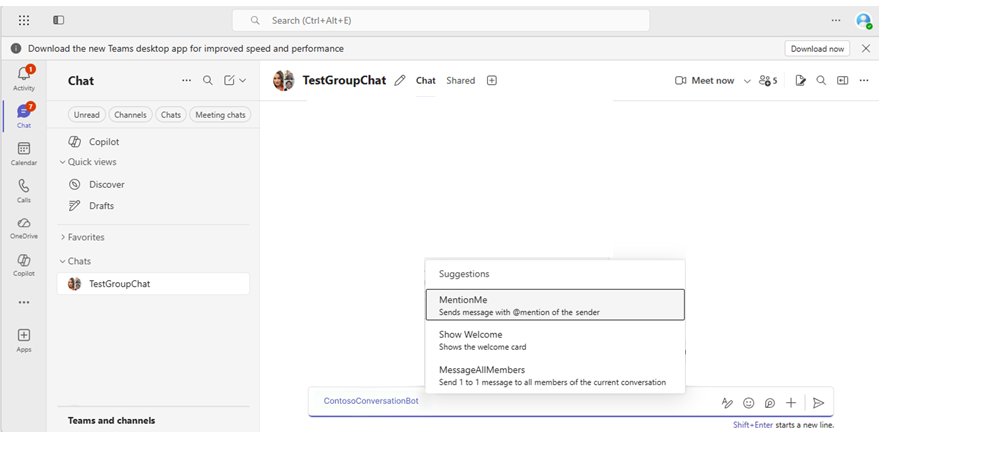
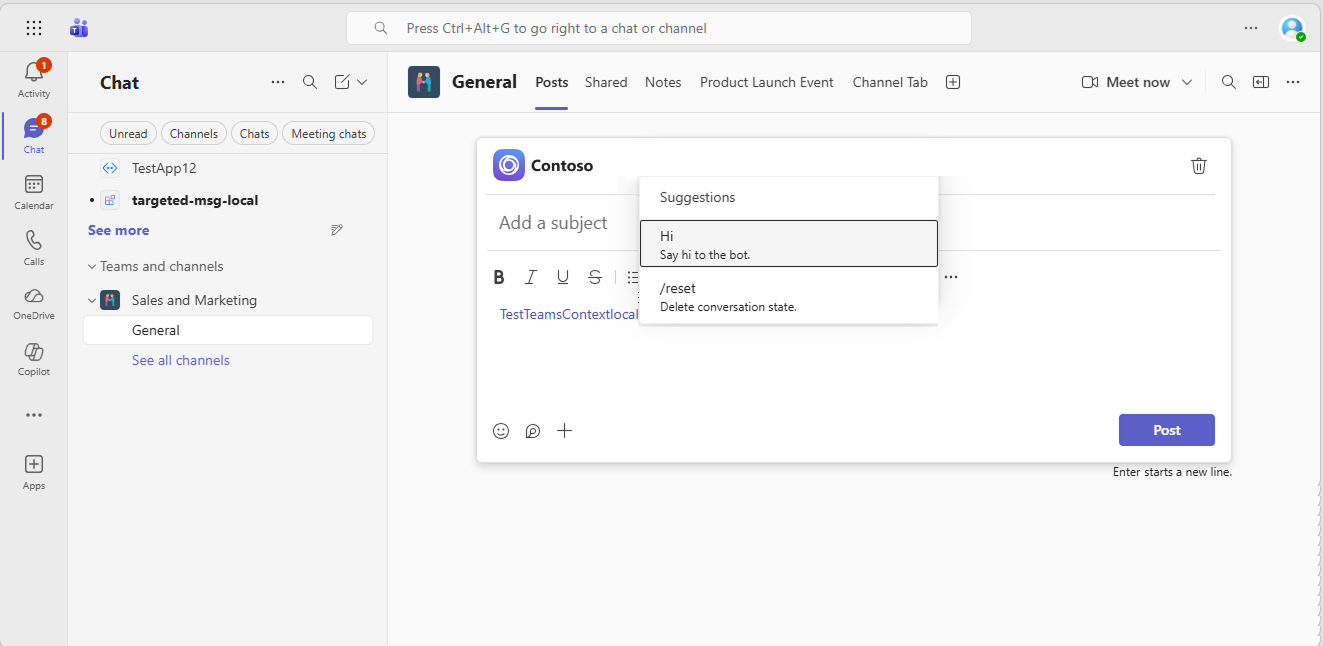
The following image illustrates an example of prompt suggestions:
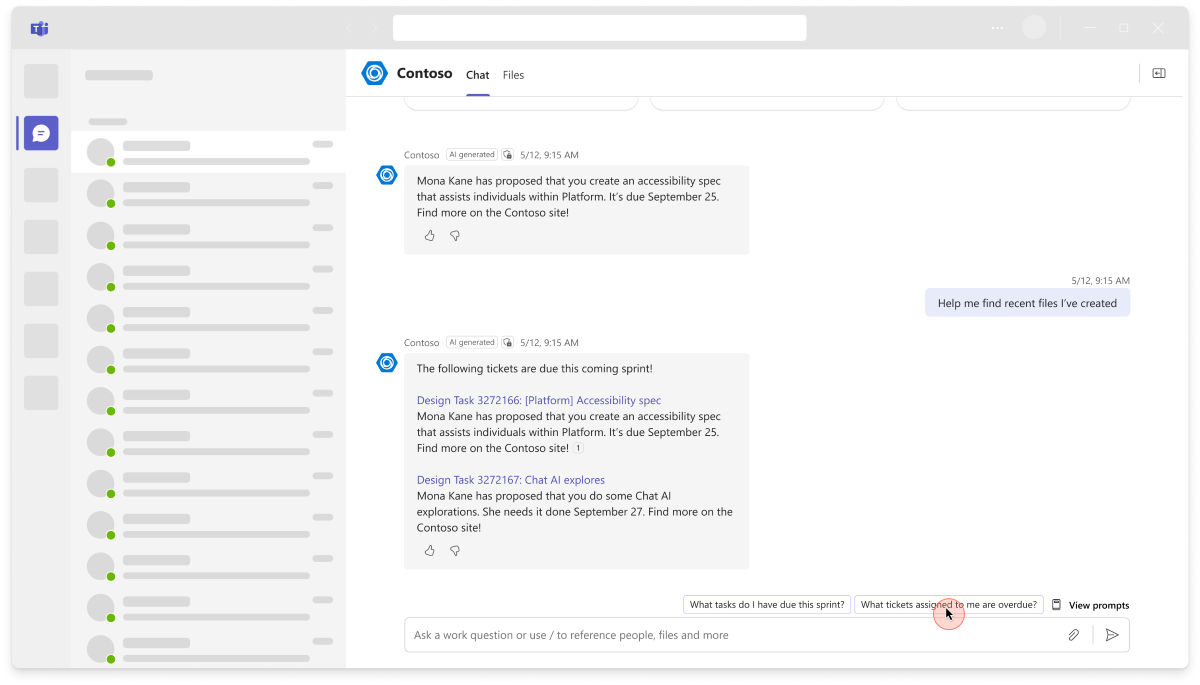
Prompt starters reappear in the View Prompts flyout above the compose box during a conversation. They enable users to review the prompts while interacting with your bot.
Suggested actions
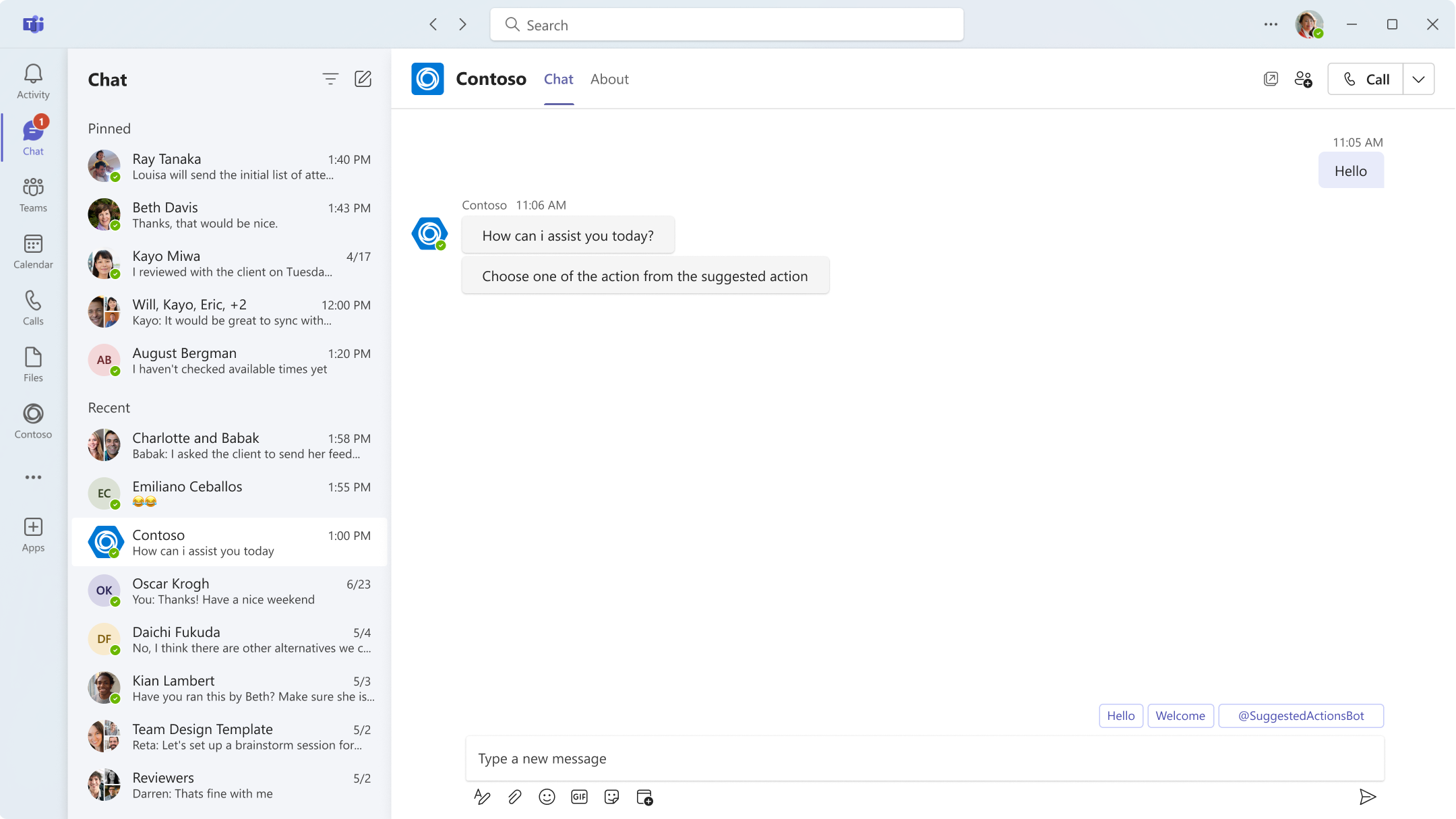
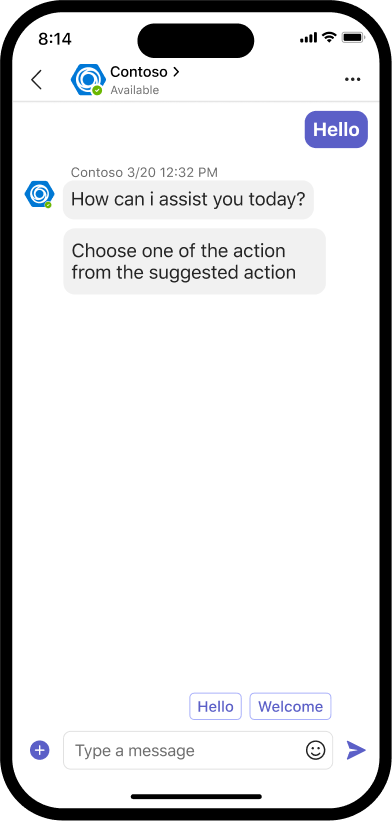
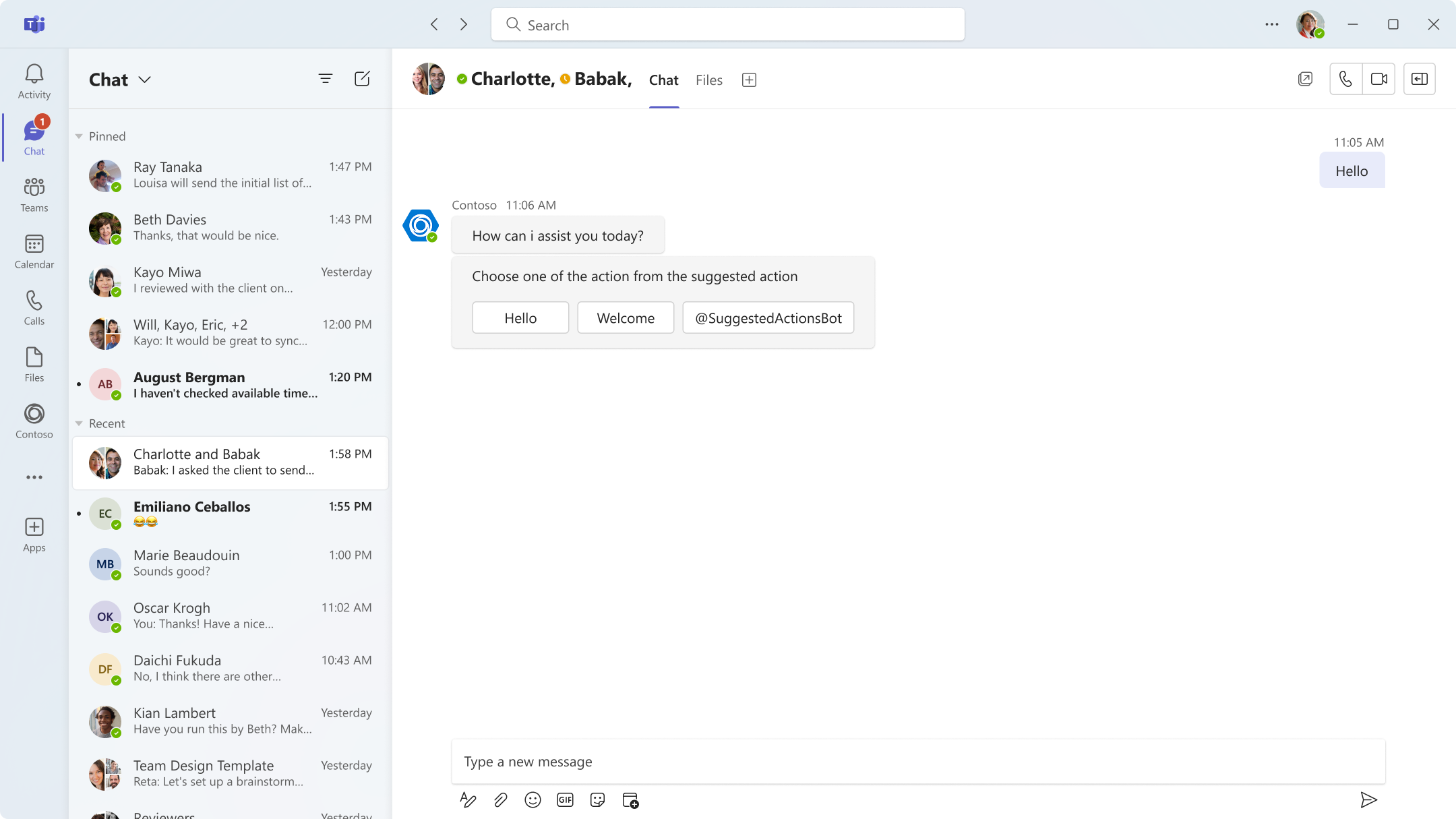
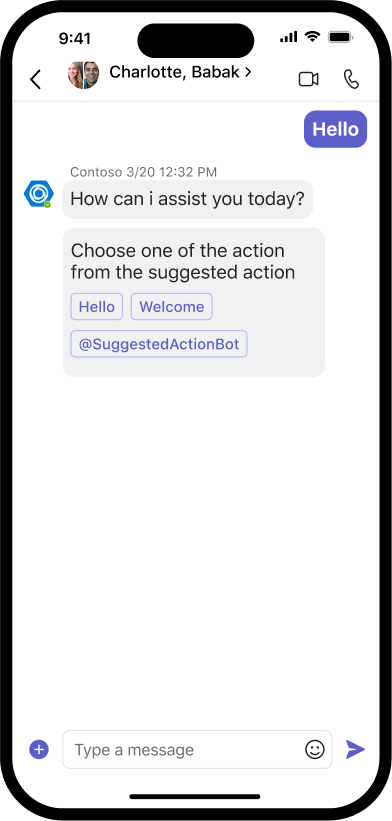
Suggested actions help users with ideas of what to ask next, based on the previous response or conversation. Your bot should offer context-specific suggestions to the user, rather than generic or fixed ones. You can use your bot’s large language model (LLM) to generate up to three suggestions along with its responses. Then, you can extract these suggestions and present them as options for the user to choose.
Important
The bot can parse up to three actions. Even if you include more than three actions, Teams displays only the first three.
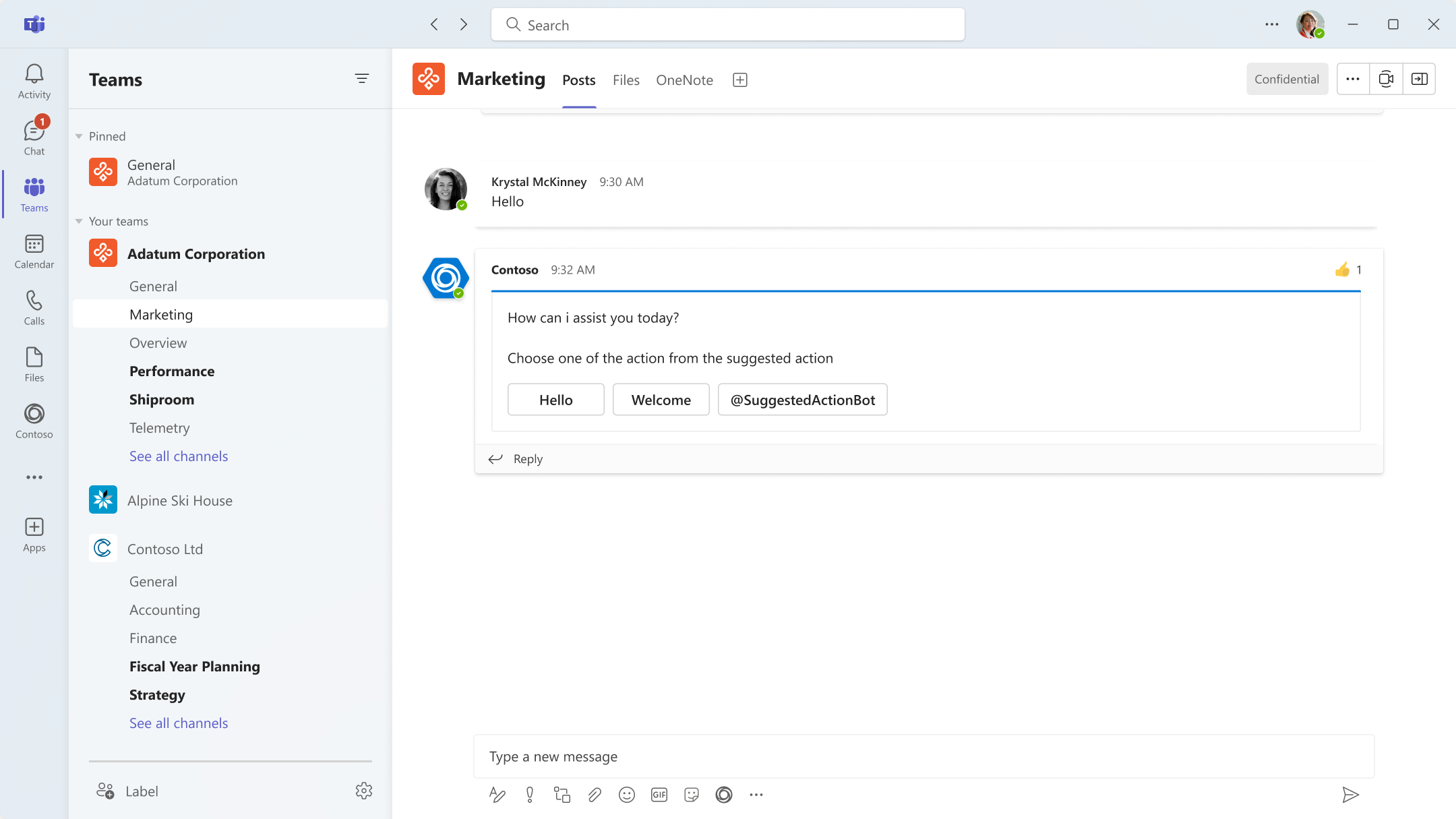
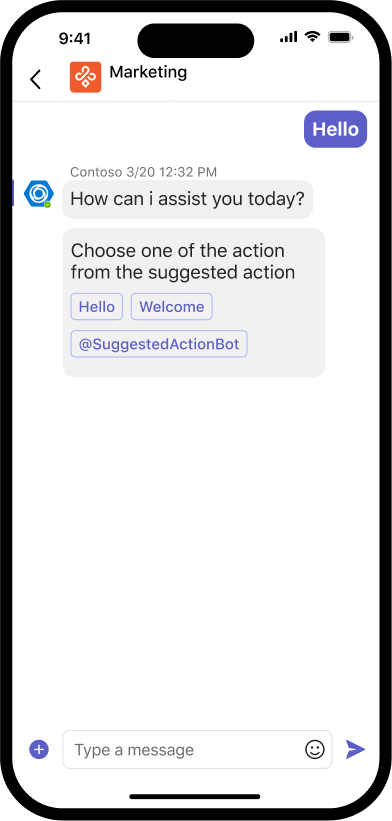
When a user selects a button, it remains visible and accessible on the rich cards. Suggested actions are supported in all scopes:
personal: In one-on-one chats, actions are shown as smart replies, so only the actions from the last message appear.teamandgroupChat: In group chats and channels, actions are always saved with the message.
Desktop:
Mobile:
Note
SuggestedActions aren't supported for chat bots with attachments for any conversation type.
Here are some examples that show how to implement and experience suggested actions using imBack and Action.Compose:
To add suggested actions to a message, specify a list of card action objects that represent the buttons to be displayed to the user for the suggestedActions property of the activity object.
The following is an example to implement suggested actions using imBack:
{
  "type": "message",
  "from": {
    "id": "12345678",
    "name": "sender's name"
  },
  "conversation": {
    "id": "abcd1234",
    "name": "conversation's name"
  },
  "recipient": {
    "id": "1234abcd",
    "name": "recipient's name"
  },
  "text": "What are the tasks for the day.",
  "inputHint": "expectingInput",
  "suggestedActions": {
    "actions": [
      {
        "type": "imBack",
        "title": "Create a new query identifying overdue tasks",
        "value": "Create a new query identifying overdue tasks"
      },
      {
        "type": "imBack",
        "title": "Create a new work item for this feature",
        "value": "Create a new work item for this feature"
            }
        ]
    },
  "replyToId": "5d5cdc723"
}
Collaborate with us on GitHub
The source for this content can be found on GitHub, where you can also create and review issues and pull requests. For more information, see our contributor guide.
Platform Docs