Note
Access to this page requires authorization. You can try signing in or changing directories.
Access to this page requires authorization. You can try changing directories.
Trust Indicators
Trust Indicators are visual labels (badges or icons) next to people’s names in Microsoft Teams that signal the person’s identity trust level. They're designed to help you immediately tell if someone in Teams is external to your organization, a guest in your organization, or an anonymous meeting participant, so you can avoid oversharing sensitive information with the wrong audience.
Only people outside your organization, except multitenant organization (MTO) users, have a Trust Indicator. Internal colleagues have no badge. Teams displays these indicators wherever people’s names appear, like in chat messages, participant lists, calls, search results, notifications, activity list, and profile cards.
Trust Indicators come in different sizes
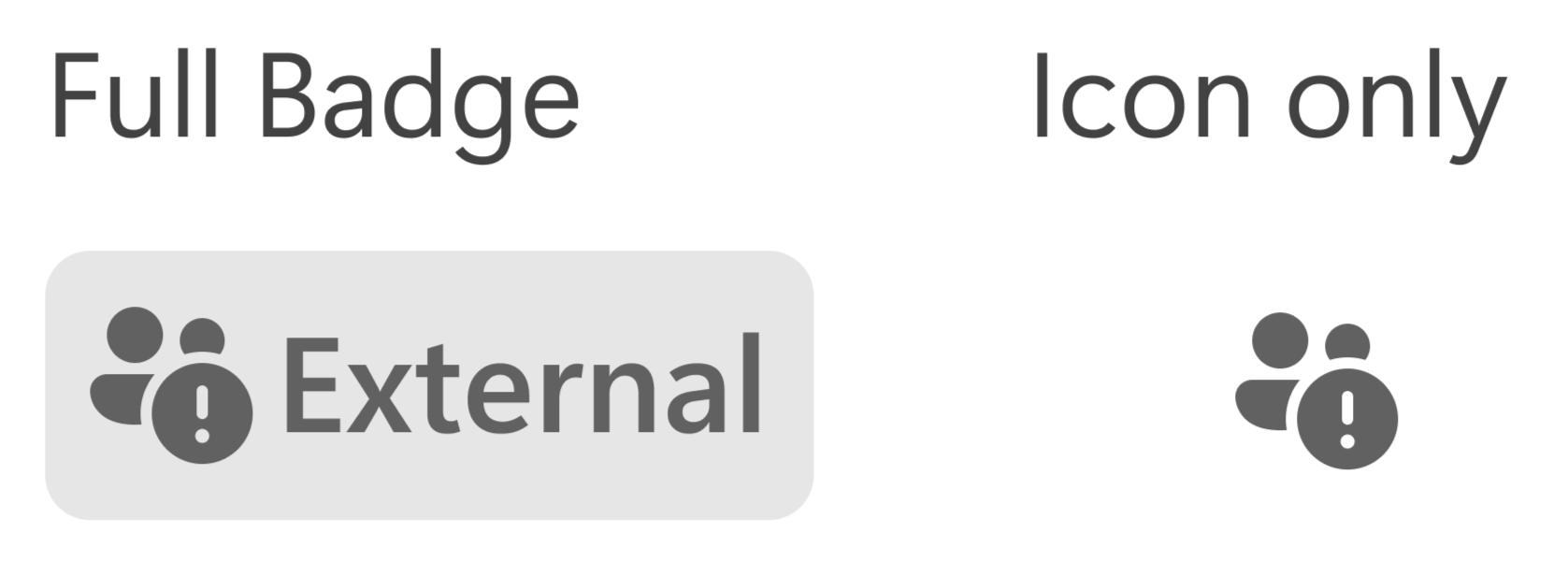
Trust Indicators in Teams are deliberately designed in multiple visual formats, so they remain effective yet unobtrusive across all experiences. There are two badge variants:
Full badge
Icon-only
These different variants ensure that the indicator can scale to different UI surfaces without losing meaning.

Types of Trust Indicators and When They Appear
Whenever you interact with someone from outside your organization, Teams displays one of several Trust Indicator badges or icons next to their name. The label on the badge tells you the user’s category, and the exact badge you see depends on how that person is related to you or your organization.
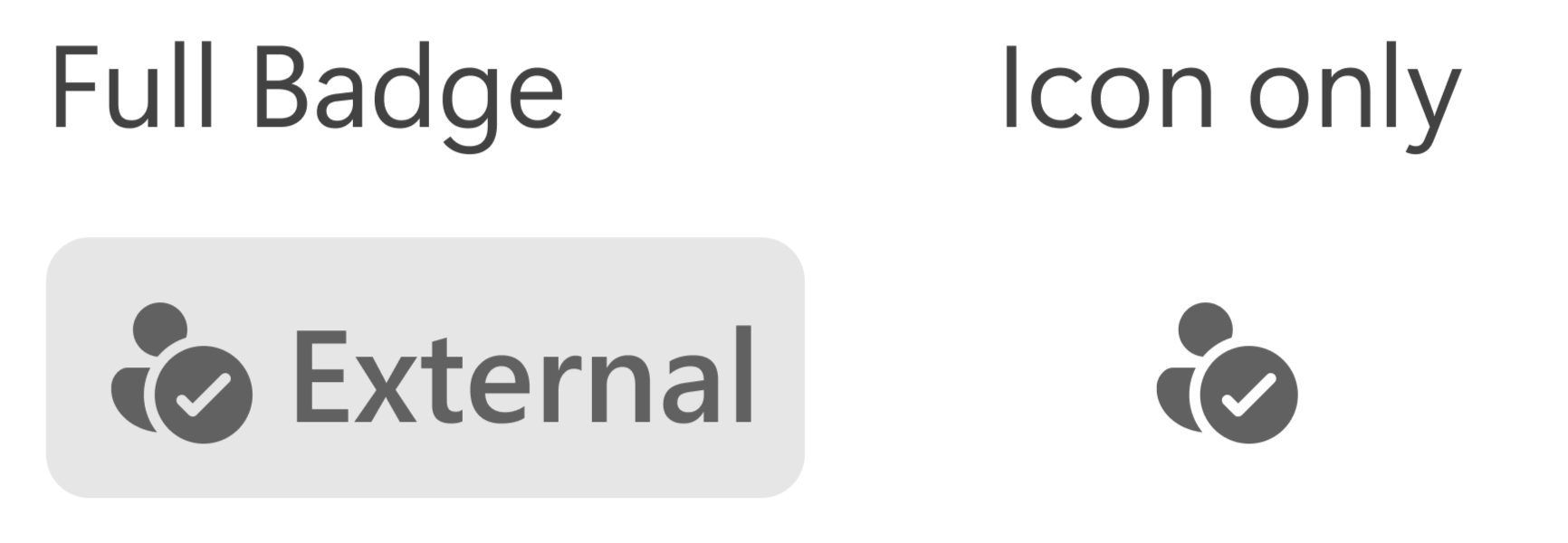
1. External-Familiar
Who are they: Someone outside your organization that you or your organization knows or trusts.
Represented by:
| Appears when the user is | Tooltip shown on hover or profile card |
|---|---|
| Part of an external organization that your organization trusts. Learn more about specifying trusted Microsoft 365 organizations. Note: For cross-cloud tenants, this label appears only if you have a cross-cloud trust arrangement with that tenant. | "[Name] is part of a trusted organization." |
| Member of a shared channel with your organization. Learn more about shared channels. Note 1: For cross-cloud tenants, this label appears only if you have a cross-cloud trust arrangement with that tenant. Note 2: If you have B2B direct connect with an organization for Shared Channels but they're not part of your organization's allow list, you will see them as External-Unfamiliar outside of Shared Channels. | "[Name] is part of a trusted organization." |
| From an organization, with a cross-cloud trust arrangement with yours. Learn more about cross-cloud meetings. | "[Name] is part of a trusted organization." |
| A phone number you added as a contact | "[Name] is not part of your organization but is someone you’ve added as a contact." |
| Using an ACS application trusted by your organization. Learn more about allowed ACS resources. | "This person is not part of your organization, but is using an application your organization trusts." |
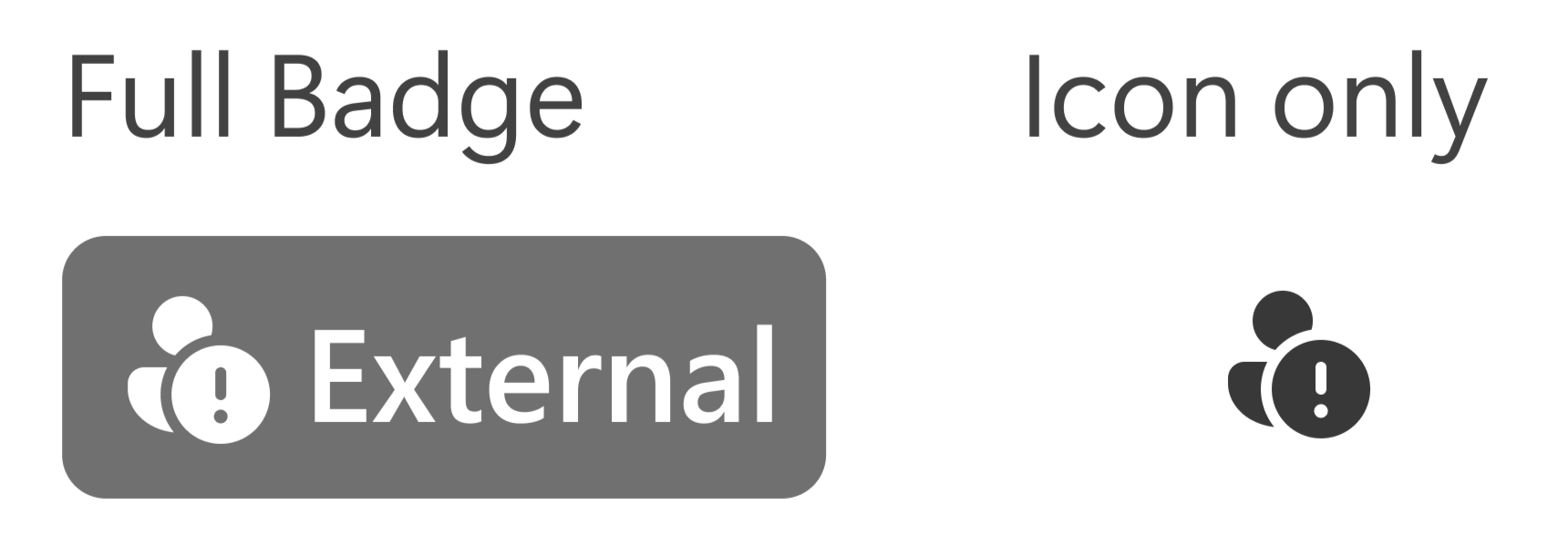
2. External-Unfamiliar
Who are they: Someone from outside your organization that you or your organization doesn’t explicitly trust or recognize.
Represented by:
| Appears when the user is | Tooltip shown on hover or profile card |
|---|---|
| Outside of your organization and your organization has allowed communication from all external domains. Learn more about external access settings. | "This person’s org hasn't yet been added to your org's trusted list." |
| From an organization that is not part of your organization's allow list. Learn more about external access settings. | "This person’s org hasn't yet been added to your org's trusted list." |
| From an organization that is not part of your organization's block list. Learn more about external access settings. | "This person’s org hasn't yet been added to your org's trusted list." |
| From an organization, that your organization blocks. Note: You can encounter such users only in meetings. Learn more about external access settings. | "This person’s org has either been blocked by yours, or their org has blocked yours." |
| From an organization, that blocked your organization. Note: You can encounter such users only in meetings. Learn more about external access settings. | "This person’s org has either been blocked by yours, or their org has blocked yours." |
| An unmanaged account (For example, a personal account). Learn more about collaborating with unmanaged accounts. | "This person isn't using Teams with an org-managed account." |
| A phone number that’s not in your contacts | "This person is not part of your organization." |
| An email-based user not on Teams | "This person is not part of your organization." |
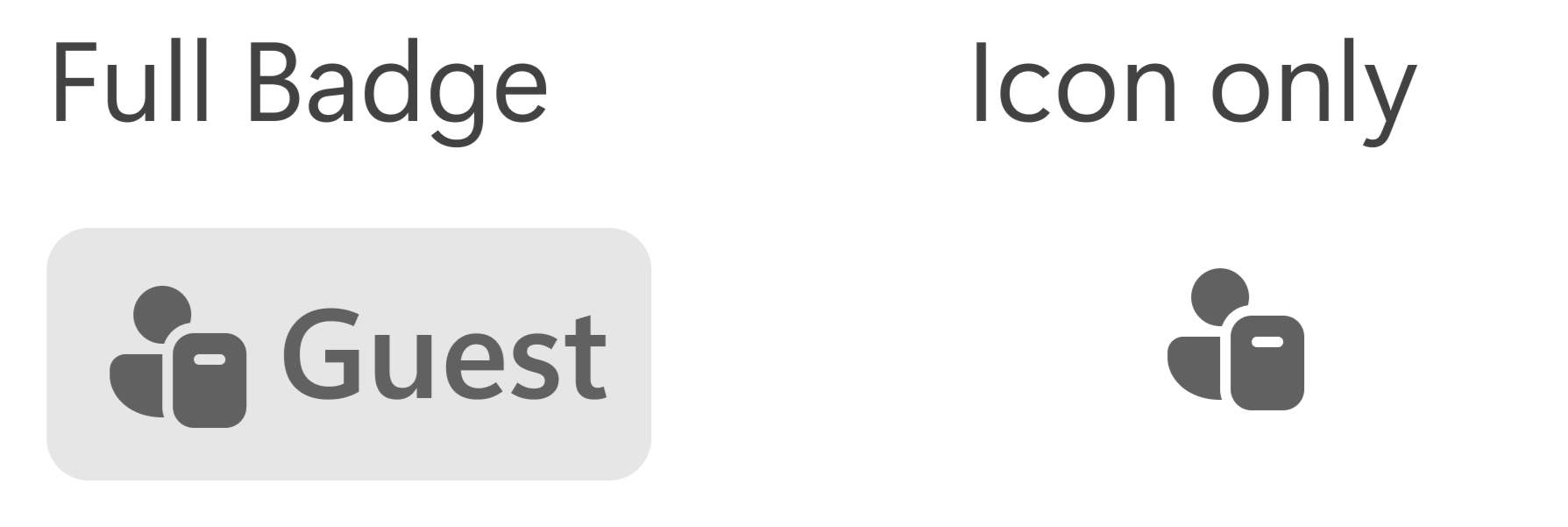
3. Guest
Who are they: A person from outside your organization, added as a Microsoft Entra B2B Guest in your organization.
Represented by:
| Appears when the user is | Tooltip shown on hover or profile card |
|---|---|
| When the person is added as a Microsoft Entra B2B guest in your organization. Learn more about Microsoft Entra B2B guest access. | "[Name] has been added as a guest in your organization." |
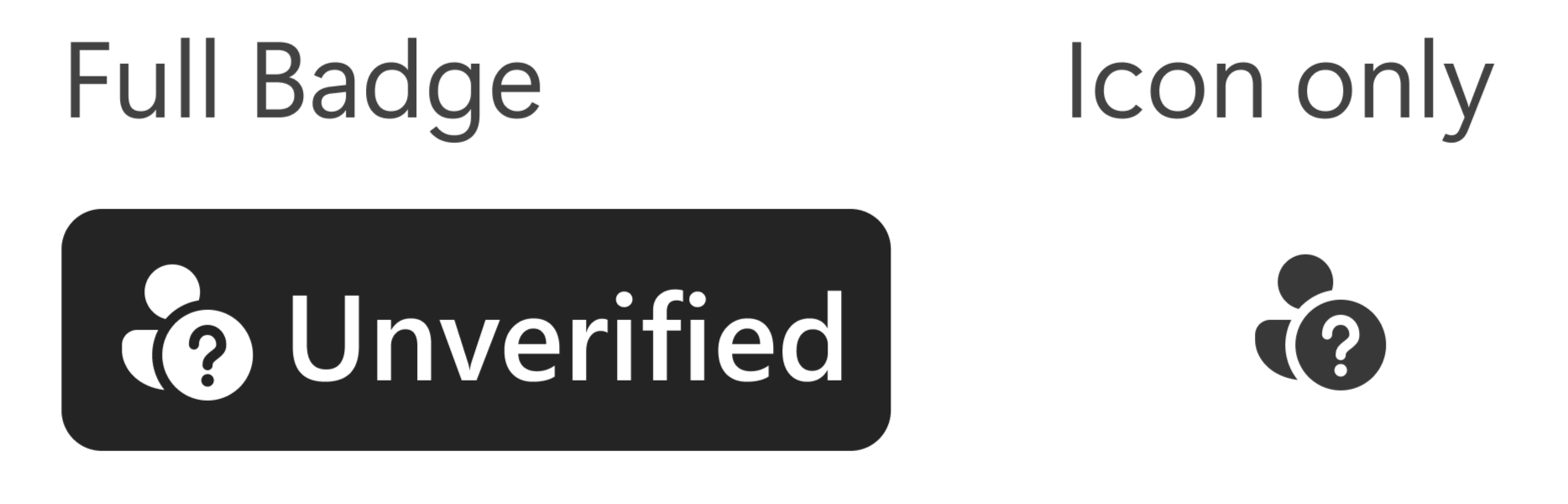
4. Unverified
Who are they: An anonymous user that Teams can’t verify.
Represented by:
| Appears when the user is | Tooltip shown on hover or profile card |
|---|---|
| Someone who joins a meeting anonymously without signing in or verifying their email address. Learn more about joining a meeting anonymously. | "This person doesn’t have a Teams account. We can’t verify their identity." |
| Using an ACS application not explicitly trusted by your organization. Learn more about allowed ACS resources. | "This person is not part of your organization. We can't verify their identity." |
5. Group Indicator
Who are they: A group level indicator for meeting chats, group chats, or channels that include someone from outside your organization.
Represented by:
| Appears when | Tooltip shown on hover or profile card |
|---|---|
| Shown when a Group Chat or a Meeting Chat you're a part of has any one of the following present in it: External-Familiar, External-Unfamiliar, Unverified, Email Verified | "This group has members that are not part of your organization." |
6. Email Verified
Who are they: A person who verified ownership of an email address.
Represented by:

| Appears when | Tooltip shown on hover or profile card |
|---|---|
| An external participant verifies their email address (for example, via a one-time passcode) before joining a meeting. Learn more about verifying with an email code. | "This person has verified their email address before joining this meeting." |
7. Multitenant Organization (MTO) Label
Who are they: Someone from an organization closely linked with yours (with a special trust relationship).
Note: MTO users by default don't get any label unless the admin sets the label.
| Appears when | Tooltip shown on hover or profile card |
|---|---|
| Your organization has a multitenant organization (MTO) partnership with another organization, and the person is from that partner organization. Learn more about multitenant organization (MTO). | "[MTO Name]" |
Supporting banners with the compose box
Beyond the Trust Indicator badges themselves, Teams introduces an alert banner with the message compose box in any chat, meeting, or channel that includes external participants. This banner acts as an extra safeguard, surfacing at the moment you’re writing a message to remind you of your audience.
