Note
Access to this page requires authorization. You can try signing in or changing directories.
Access to this page requires authorization. You can try changing directories.
Important
Apps using the Phi Silica APIs might encounter issues with Limited Access Feature support (see LimitedAccessFeatures).
At this time, we recommend using experimental releases as they do not require LAF tokens.
Requirements
Hardware
Windows AI APIs support different hardware depending on the API. See the supported hardware table for a full overview.
| API | Supported hardware |
|---|---|
| Phi Silica | Copilot+ PC (NPU) or a Windows 11 device with a supported GPU (NVIDIA RTX 30 series and newer with 6+ GB vRAM; AMD GPU support coming soon) |
| Text Recognition (OCR) | Copilot+ PC (NPU) |
| Speech Recognition | Copilot+ PC (NPU) or a device meeting recommended CPU specifications |
| Video Super Resolution | Copilot+ PC (NPU) or a device meeting recommended CPU specifications |
| Imaging APIs | Copilot+ PC (NPU) |
For NPU-accelerated features, see Copilot+ PCs developer guide for a list of recommended devices.
Software
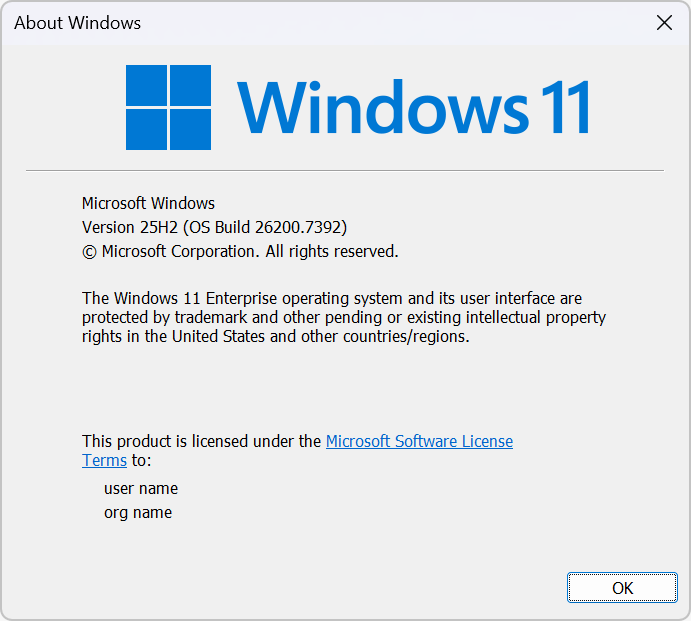
Windows 11, version 25H2 (build 10.0.26200.7309) or later must be installed on the Copilot+ PC. This can be verified by opening the Start menu, typing "winver", and pressing Enter (a dialog box with the OS details, similar to the following, should appear).
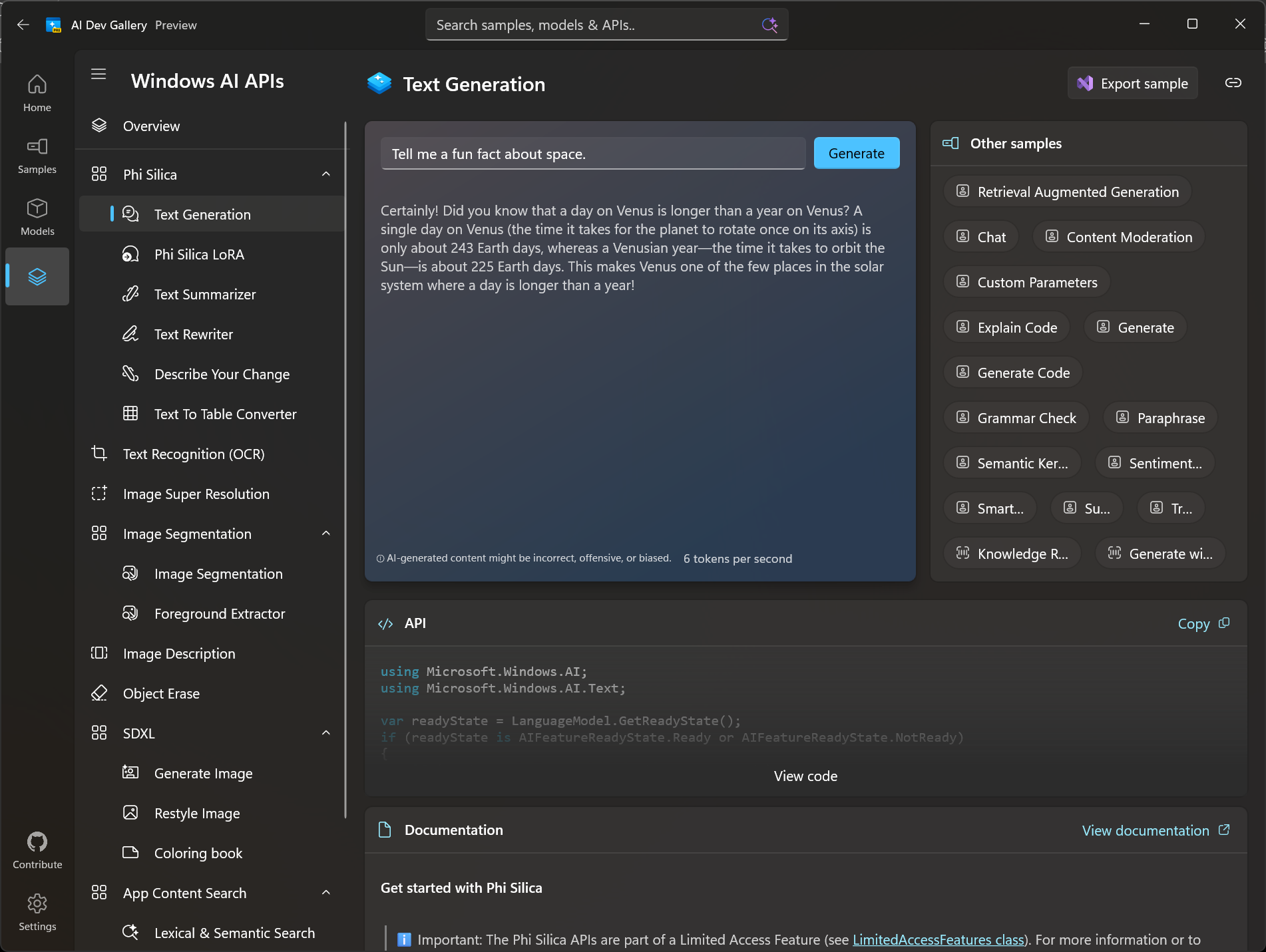
Ensure that you can use Phi Silica features:
- Download and install the AI Dev Gallery app from Microsoft Store.
- Run the app.
- Select AI APIs from the left pane.
- Click on Phi Silica > Text Generation.
- Confirm that Phi Silica responds to a prompt (the sample app starts with a default prompt).
Other recommendations
Enable Developer Mode in Settings > System > For developers > Developer Mode.
Install Visual Studio with the workloads and components required for developing with WinUI and the Windows App SDK. For more details, see Required workloads and components.
Debugging
If Phi Silica does not appear to be working on your system, there are a few things you can do.
Verify that you have all required models installed by going to Settings > System > AI Components, which shows the AI models available on the system. If the required model is not listed, go to Settings > Windows Update and click "Check for updates" (a restart might be required).
Verify that your app is using a valid Windows App SDK minimum version.
- Stable channel: 1.8.0 (1.8.250907003) or later
- Experimental channel (required for Phi Silica on GPU): 2.2.2-experimental9 (June 2026 Experimental) or later
Check Settings > Updates to ensure Windows updates aren't paused.
Collect traces through the Windows Feedback Hub app and share them with the Windows team to review.
- Open the Feedback Hub app (Windows key + F).
- Sign in with your preferred account.
- Enter bug details in section 1 (prefix the bug title with "[Windows AI APIs]").
- In section 2, click Problem, select Developer Platform from the first drop down, and then select Windows AI Foundry from the second drop down.
- Section 3 will display any existing feedback that is similar to yours. If existing feedback is not found, select New feedback and click Next.
- In section 4 you can:
- Click Recreate my problem, then click Start recording, run AI Dev Gallery, reproduce the issue, stop recording.
- Include additional info and attachments (such as images). Provide as much detail as possible, including reproduction steps and error messages.
- Submit the feedback.
GPU troubleshooting (Phi Silica)
Phi Silica on GPU requires Developer Mode to be enabled (Settings > System > For developers > Developer Mode).
Running Phi Silica on GPU requires the latest driver installed directly from the GPU manufacturer (NVIDIA GeForce 615.21 beta). AMD GPU support is coming soon. Default drivers from Windows Update or OEM installations may not be sufficient. Note that OEM drivers or Windows Update may overwrite previously installed GPU drivers — if Phi Silica stops working after an update, reinstall the latest driver directly from the GPU manufacturer.
Phi Silica GPU support currently requires NVIDIA GPUs (RTX 30 series and newer with 6+ GB vRAM). AMD GPU support is coming soon. If EnsureReadyAsync fails on a GPU device, verify your GPU driver version meets the minimum requirements.
CPU troubleshooting (Video Super Resolution, Speech Recognition)
These features run on any CPU but perform best on devices that meet the recommended specifications: at least 4 physical cores, a 3 GHz or higher base clock, and 32 MB or more of L3 cache. If you see slow performance, stutters, or reduced quality, check the host CPU against these recommendations. For a runtime check that returns true when the device meets the recommended specs, see the MeetsRecommendedCpuSpecs C# sample in the Video Super Resolution docs.
The VSR model ships with the Windows App SDK and is not separately downloadable; if VSR fails to initialize, check the VSR documentation for supported resolution and format constraints rather than model state.
Other guidance
Apps that use Windows AI APIs need to be granted package identity at runtime. For details, see Advantages and disadvantages of packaging your app. If you are seeing an UnauthorizedAccessException error (or having other access issues), ensure that your app is packaged and the systemAIModels capability was added to your manifest file (see Get started building an app with Windows AI APIs).
Limited Access Feature (LAF) requirements:
- Verify that you've requested and received a LAF token from Microsoft
- The following status values indicate that LAF has failed.
Self-contained apps cannot run from the Downloads folder (or from anywhere under the
C:\Usersfolder). For more details, see Advantages and disadvantages of packaging your app and Windows App SDK deployment overview.The Windows App SDK experimental channel includes APIs and features in early stages of development. All APIs in the experimental channel are subject to extensive revisions and breaking changes and may be removed from subsequent releases at any time. Experimental features are not supported for use in production environments and apps that use them cannot be published to the Microsoft Store.
Provide feedback on these APIs and their functionality by creating a new Issue in the Windows App SDK GitHub repo (include Phi Silica in the title) or by responding to an existing issue.