Note
Access to this page requires authorization. You can try signing in or changing directories.
Access to this page requires authorization. You can try changing directories.
Important
This feature is part of the Frontier preview program. Frontier connects you directly with Microsoft's latest AI innovations. Frontier previews are subject to the existing preview terms of your customer agreements. As these features are still in development, their availability and capabilities might change over time.
This article describes how to use Microsoft Fabric Copy job to copy Business Analytics data to a destination data store. You can run a Copy job once or on a recurring schedule, without writing code or building pipelines.
Copy job is a no-code, fully managed data movement experience in Microsoft Fabric. With the Viva Insights connector as the source, you can copy Business Analytics reports and exportable datasets, such as Microsoft 365 Copilot, GitHub Copilot, Agent, and consumption data, to the data stores that your organization already uses. Supported destinations include Azure SQL Database, Azure Data Lake Storage Gen2, Snowflake and more. See the full list.
The connector for Copy job supports the following capabilities:
Report and dataset selection: Select one or more Business Analytics reports or exportable datasets, and preview the data before you copy it.
Table and column mapping: Copy job can create the destination tables for you. You can rename tables and columns, and change column data types.
Scheduling: Run a Copy job on demand or on a recurring schedule.
Monitoring: View run status, rows read and written, and run history for each Copy job.
Prerequisites
A Microsoft Fabric workspace with Fabric capacity, and permission to create items in the workspace.
Any role in Business Analytics, assigned to the work account that you use to create the Viva Insights connection in Fabric.
The Partition ID and Query ID for each Business Analytics dataset that you want to copy.
A destination data store, and credentials with permission to write to it.
Get the Partition ID and Query ID
Copy job uses two identifiers from Business Analytics: the Partition ID and the Query ID. Both appear in the Connect data pane for each export, and you enter both when you create the Viva Insights connection in Fabric. Get both values before you create the Copy job.
In Business Analytics, in the left navigation, select Export.
If you don't have an export for the data that you want to copy yet, select Export data on that dataset's card, for example M365 Copilot, Agent, GitHub Copilot, or Consumption, and create an export.
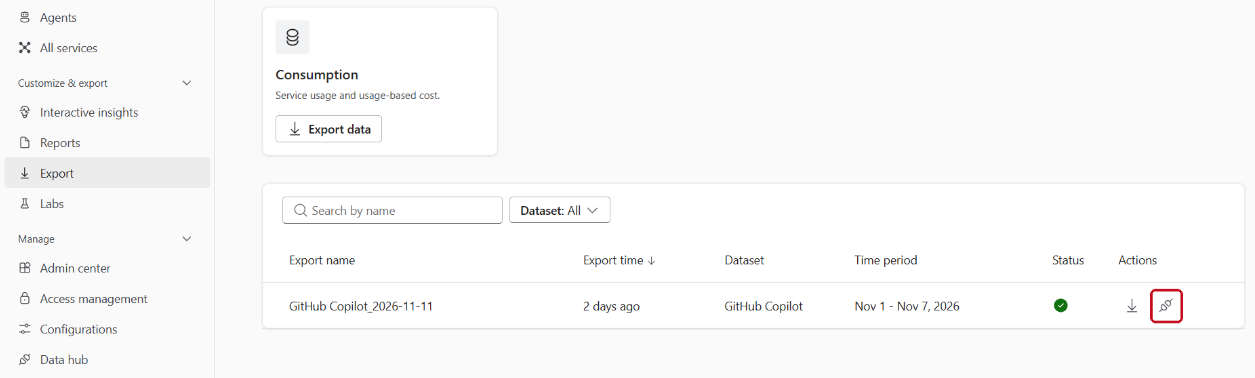
In the list of exports, find the dataset that you want to copy. In the Actions column, select the Connect data icon.
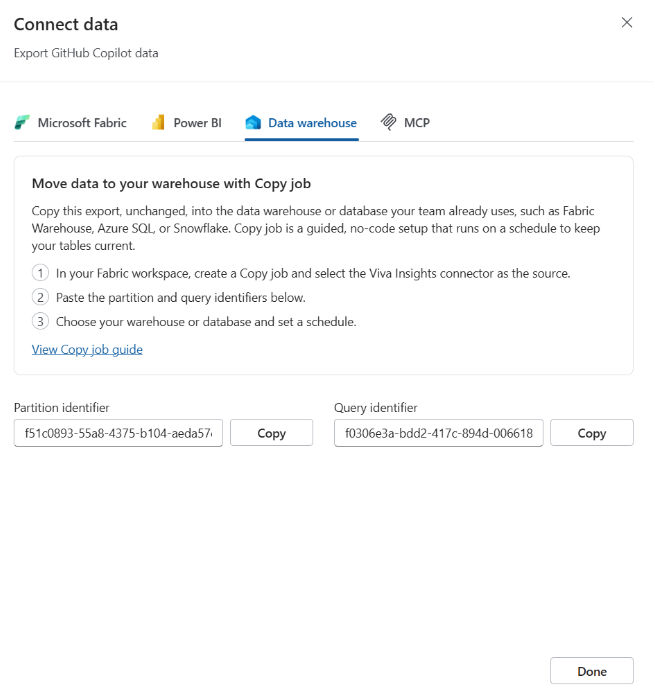
In the Connect data pane, select the Data warehouse tab. Copy the Partition identifier and the Query identifier, and keep them for the Copy job steps that follow.
Important
Each Query ID corresponds to one dataset. Repeat steps 2 through 4 for each dataset that you want to copy.
Create a Copy job
Complete the following steps to create a Copy job that copies Business Analytics data to a destination.
1. Create a Copy job item
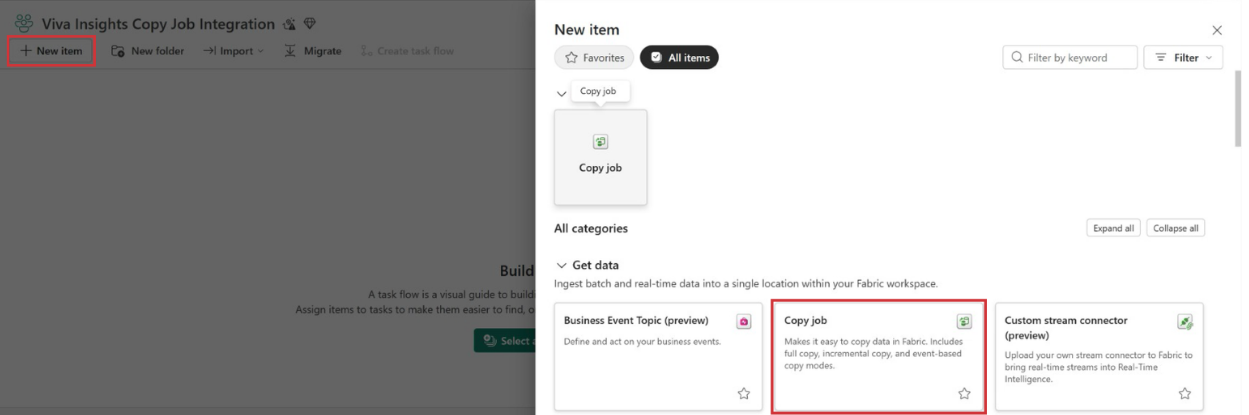
In Microsoft Fabric, go to your workspace. Select + New item, and then select Copy job. Enter a name for the Copy job, and then select Create.
2. Select Viva Insights as the data source
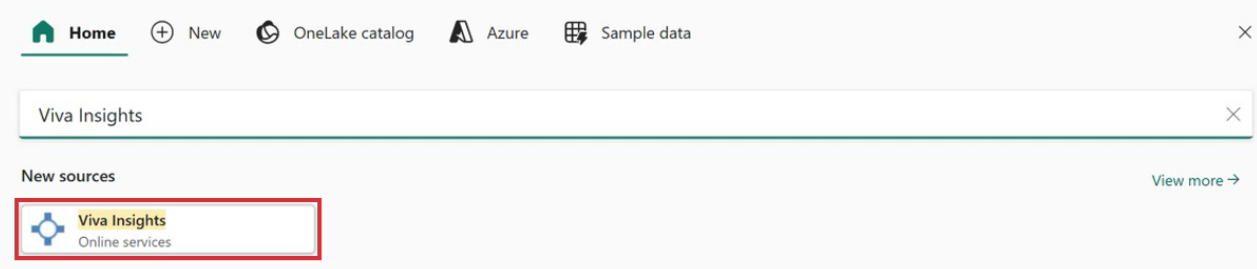
On the Choose data source page, under New sources, select Viva Insights. Alternatively, search for "Viva Insights."
3. Enter the Partition ID and Query ID
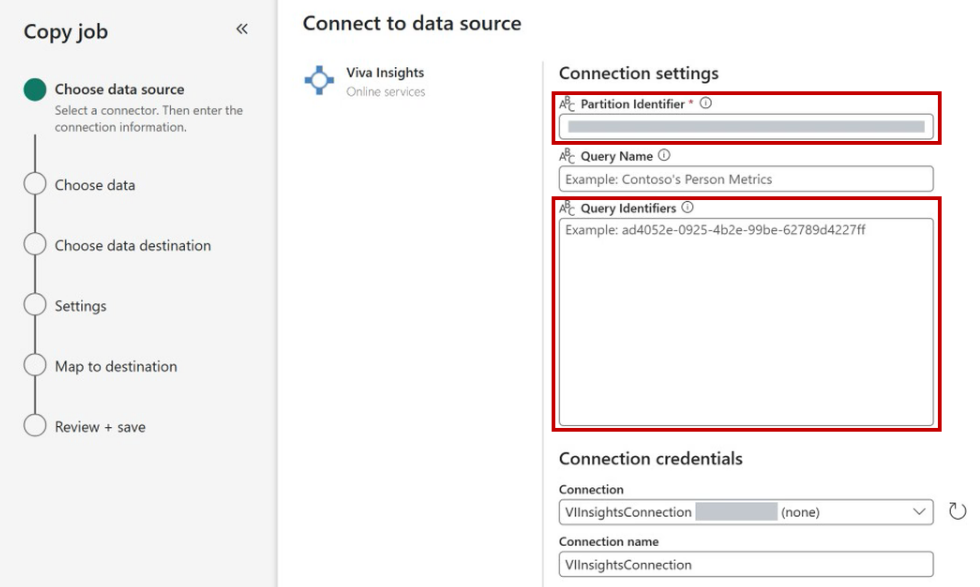
To create a connection, enter the Partition ID in the Partition Identifier box and the Query ID in the Query Identifiers box. To copy more than one dataset, enter each Query ID on its own line. Set Authentication kind to Organizational Account, and then sign in with your work account. Then select Next.
4. Select the data to copy
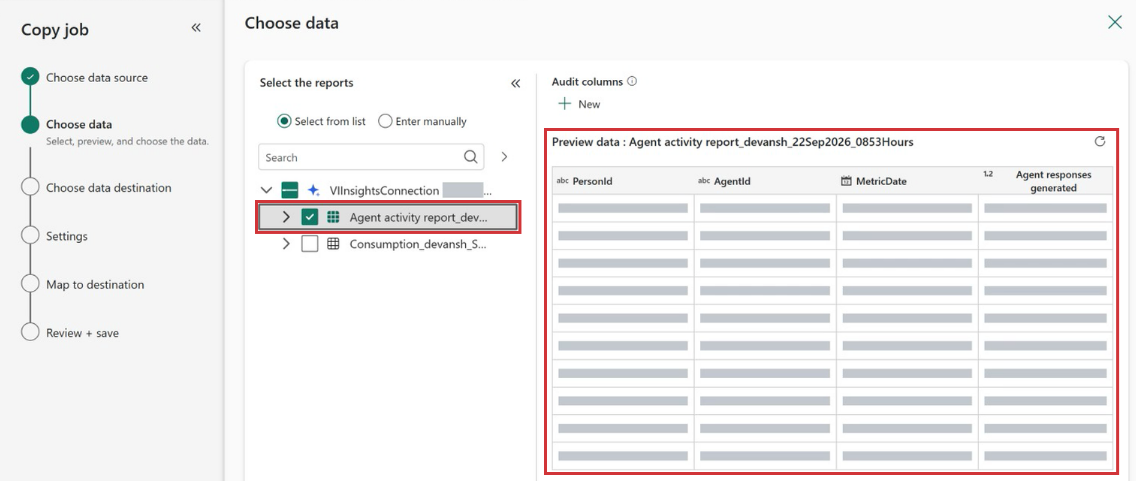
On the Choose data page, under Select the reports, choose Select from list. Expand your Viva Insights connection, and then select the reports or datasets to copy. To preview one, select it. The preview appears in the right pane.
To copy a specific exportable dataset table instead, choose Enter manually, and then enter the table name. Some reports and datasets produce more than one table. For their table names, see Queries with multi-table outputs. When you're done, select Next.
5. Select a data destination
On the Choose data destination page, select your preferred destination data store. Select an existing connection, or create a new connection to the destination. Then select Next.
6. Select a copy mode
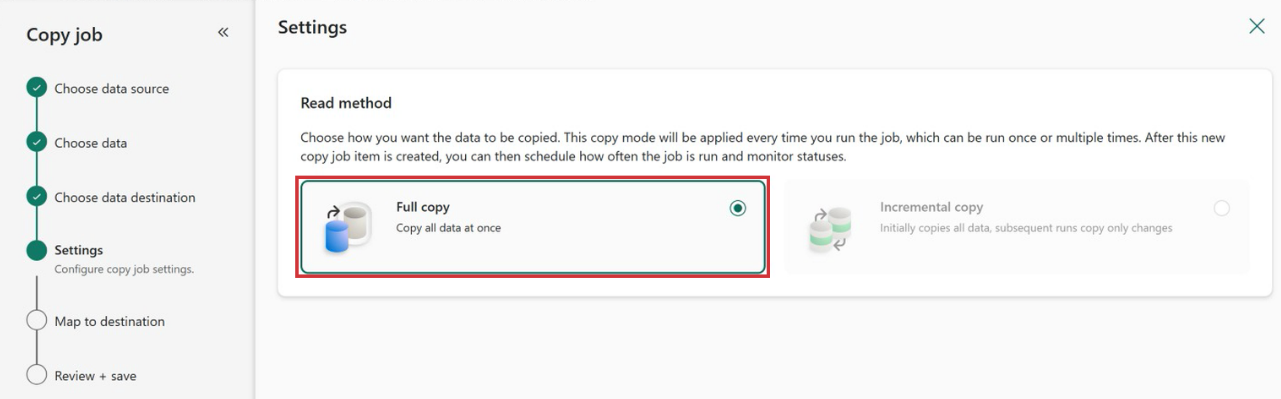
On the Settings page, under Read method, select Full copy then select Next.
7. Configure destination mapping
On the Map to destination page, review how each source report or dataset maps to a destination table. By default, Copy job uses the source table names, column names, and data types. Optionally, make the following changes, and then select Next:
To change how data is written to the destination, select Edit update method. The default method, Append, adds new rows to the destination table.
To rename a destination table, edit the name in the Destination column.
To rename columns or change data types, select Edit column mapping.
8. Review and save the Copy job
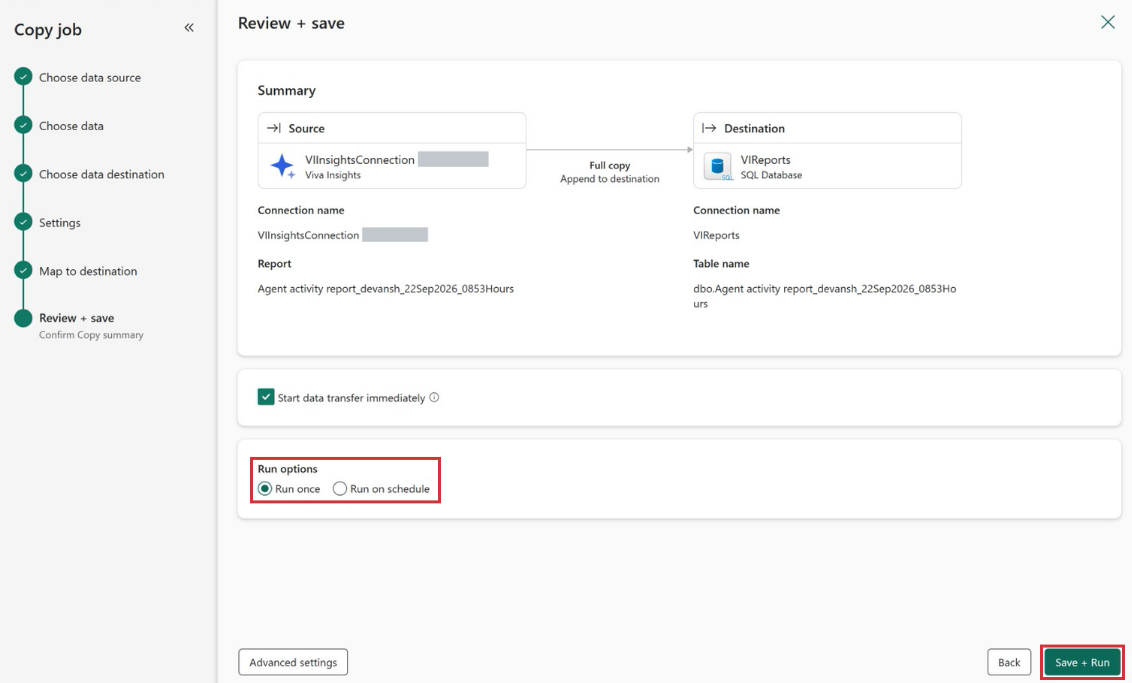
On the Review + save page, verify the source, destination, and number of tables. Then configure when the Copy job runs:
To start the first run as soon as the Copy job is saved, select Start data transfer immediately.
Under Run option, select Run once, or select Run on schedule and specify the recurrence.
Monitor a Copy job
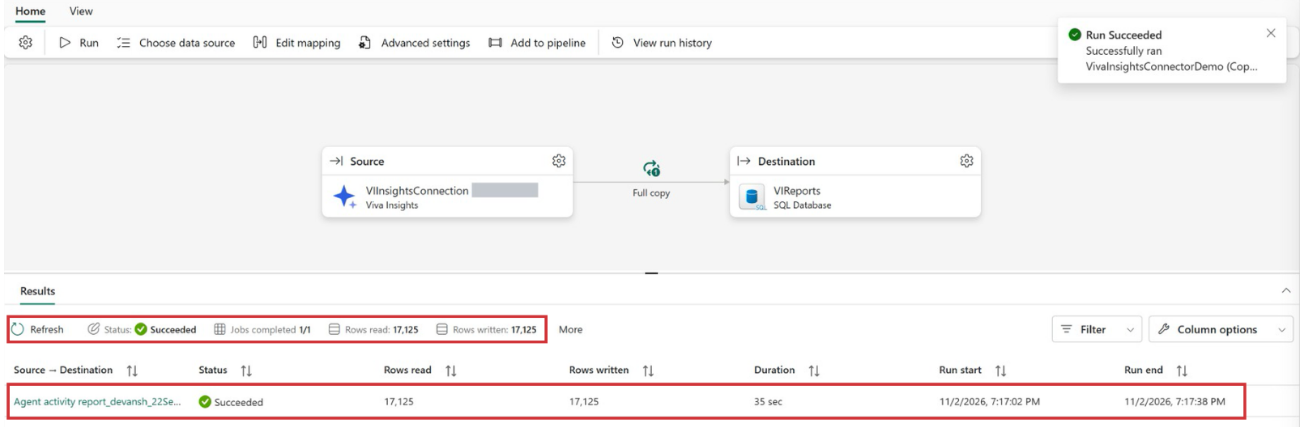
After a run starts, the Copy job panel displays the run status, rows read, rows written, and throughput for the Copy job and for each table. To view previous runs, select View run history. To view all Copy job runs across workspaces, go to the Monitoring hub in Fabric.
To run the Copy job outside its schedule, select Run. To add reports or datasets, or to change the schedule, edit the Copy job.
Schedule recommendations
An export in Business Analytics can run once or on a schedule. To keep the data in your destination up to date, set both the export and the Copy job to run on a schedule. Business Analytics datasets refresh daily or weekly, depending on the dataset, so schedule the Copy job to run after each refresh: once a day for daily datasets, and once a week for weekly datasets.
Troubleshooting
| Issue | Resolution |
|---|---|
| Viva Insights isn't listed as a data source. | Your tenant might not be enabled for the Frontier preview. |
| A report or dataset isn't listed on the Choose data page. | Verify that an export exists for it in Business Analytics, and that the work account you used for the Viva Insights connection has access to it. To copy a specific table, choose Enter manually and enter the table name. |
| Data in the destination isn't current. | Schedule the Copy job to run after the Business Analytics dataset refreshes. Daily datasets refresh once a day, and weekly datasets refresh once a week. |
| The destination contains duplicate rows. | When you use full copy with the Append update method, each run appends a complete copy of the data. On the Map to destination page, select Edit update method and choose a different method. |