Note
Access to this page requires authorization. You can try signing in or changing directories.
Access to this page requires authorization. You can try changing directories.
Important
This feature is part of the Frontier preview program. Frontier connects you directly with Microsoft's latest AI innovations. Frontier previews are subject to the existing preview terms of your customer agreements. As these features are still in development, their availability and capabilities might change over time.
Access management in Business Analytics brings role assignment and permissions into one place. Global administrators, AI administrators, and Viva Insights administrators can use the Access management page to control which capabilities people can use in the app and whose data they can see, without switching between Viva Feature Access Management (VFAM) settings in the Microsoft 365 admin center and in-product manager settings.
How access works
Access in Business Analytics is built from three components: permission sets, partitions, and access policies.
A permission set defines what users can do in the app, such as view dashboards and reports, export data, view identifiable data, customize reports, and publish reports.
A partition defines whose data users can see. It's a scoped slice of your organization's employee population, together with the organizational attributes and datasets that are available within it.
An access policy combines exactly one permission set and exactly one partition, and assigns that combination to users.
A permission set or a partition on its own doesn't give anyone access. Users receive access only when they're assigned to an access policy. The capabilities in the policy's permission set apply only within the data boundary of the policy's partition, and they apply uniformly to all datasets included in that partition.
For example, suppose you want a group of budget owners in your sales organization to export and view identifiable data, but only for their own population. You can create a Budget owner permission set with export and identification turned on, create a Sales partition that includes only sales employees, and then create an access policy that pairs the two and assigns it to the budget owners.
Permission sets versus partitions
| Properties | Permission set | Partition |
|---|---|---|
| Question it answers | What can users do? | Whose data can users see? |
| What it contains | Capability settings, such as export, identification, report customization, and report publishing | An employee population defined by filters, plus the organizational attributes and datasets available for that population |
| System-defined default | Chief Officer, Group Manager, and Analyst | Global |
| Can you edit the default? | Yes. You can edit the capability settings of system-defined permission sets. | No. The Global partition is read-only and can't be deleted. |
| Can you create your own? | Yes | Yes |
| How it's used | Selected in an access policy | Selected in an access policy |
Who can manage access
The following admin roles can view and manage access policies, permission sets, and partitions in Business Analytics:
Global administrator
AI administrator
Viva Insights administrator
System-defined defaults
Every tenant starts with the following system-defined items. They're labeled System-defined in the app and can't be deleted.
Global partition: Includes your organization's full eligible employee population, all required organizational attributes, and supported datasets.
Three permission sets: Chief Officer, Group Manager, and Analyst. Each one carries the capabilities that are typical for that role. For example, the Analyst permission set includes access to advanced analysis, which the Chief Officer and Group Manager permission sets don't include.
Three access policies: Chief Officer, Group Manager, and Analyst. Each system-defined policy pairs the permission set of the same name with the Global partition.
Existing role assignments continue to work. Users who currently hold the Chief Officer, Group Manager, or Analyst role are automatically transitioned to the corresponding system-defined access policy, so you don't need to take action to keep their current access.
Some users are assigned automatically. Users that Business Analytics identifies as chief officers automatically receive the Chief Officer policy, and users who are identified through the group manager assignment flow as well as analysts automatically receive the Group Manager policy. If a user no longer qualifies for an automatic assignment, only that automatic assignment is removed. Any access that the user has through another assignment remains in effect.
How a user's access is determined
A user can receive access from more than one source, such as a system-defined policy, a custom policy, or membership in a security group that's assigned to a policy. When this happens, the user's effective access is the combination of all of their valid assignments. A capability that's turned on by any assignment is available to the user, and one assignment never removes access that another assignment grants.
Delegation follows the leader's access. Within a partition, a delegate never receives more access than the leader, and when the leader's access in that partition changes, the delegate's access stays in sync automatically.
How to manage access
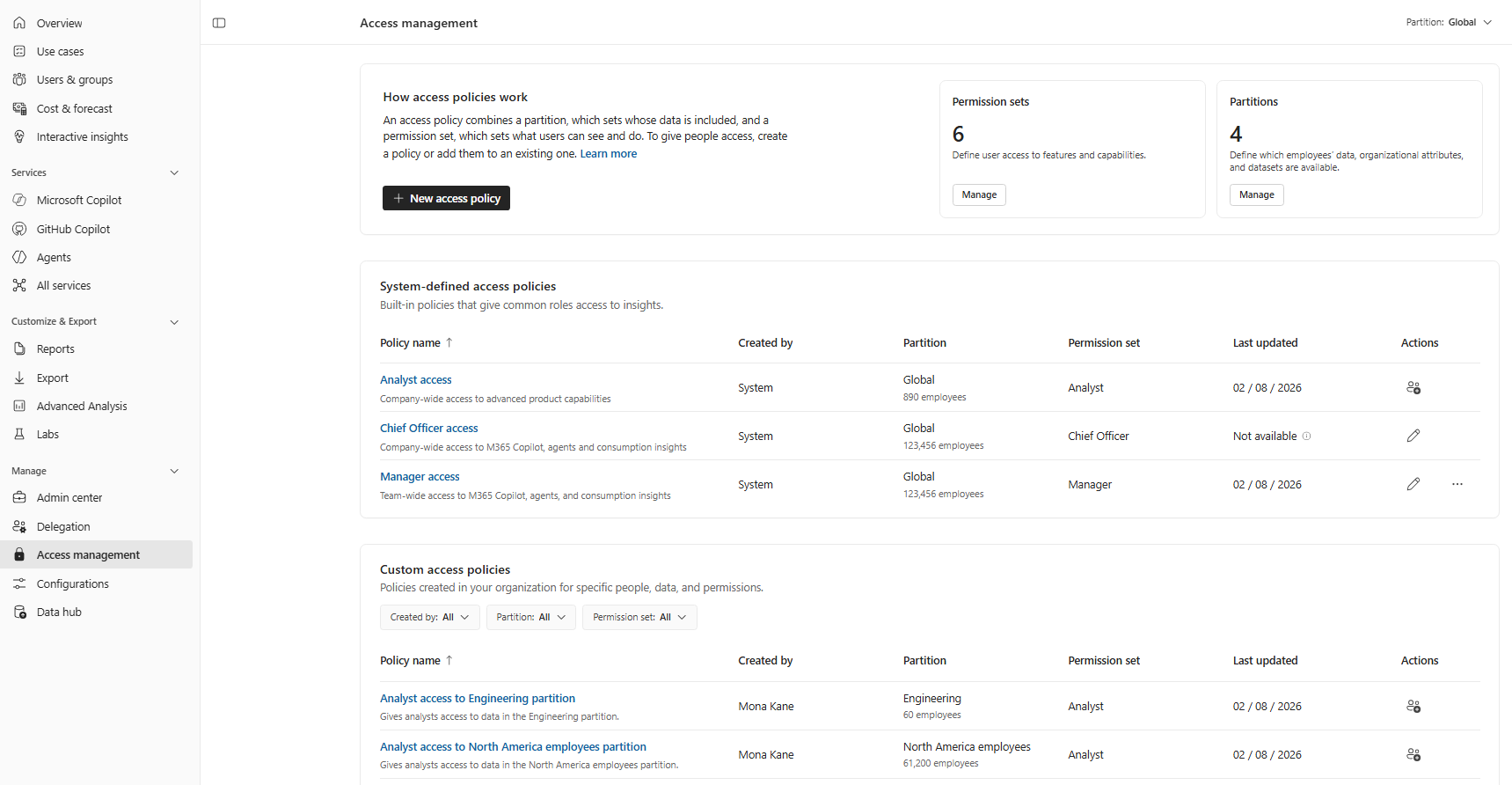
In Business Analytics, on the left, under Manage, select Access management.
On the Access management home page, review the summary of your access setup.
The home page provides entry points for managing access policies, permission sets, and partitions. Each entry point shows the total number of items and how many are system-defined compared to custom. The page also lists all active access policies in a table that shows each policy's name, permission set, partition, the users and groups assigned to it, and the actions you can take.
Create an access policy
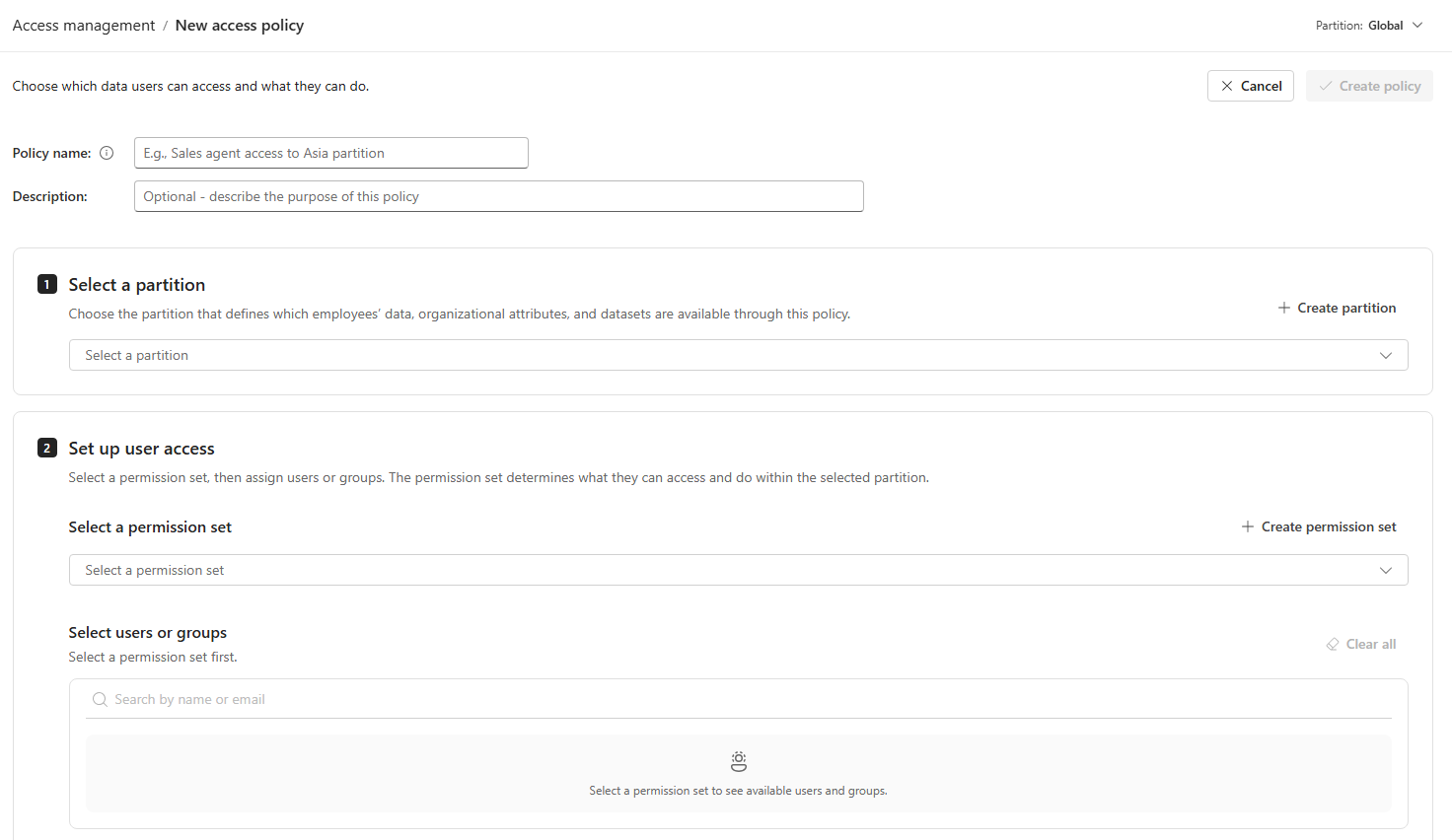
Creating an access policy takes four steps. The app shows your progress through the steps, and you can't move to the next step until the current step is complete. You can select Back to return to a previous step or Discard to cancel without saving.
Before you start, make sure that the permission set and partition you want to use already exist. If they don't, create them first. For more information, see Manage permission sets and Manage partitions later in this article.
On the Access management home page, at the top, select New access policy.
Policy details: Enter a name for the policy and, optionally, a description. The name must be unique. Names aren't case-sensitive, so "Budget owner" and "budget owner" count as the same name.
Permission set: Select one permission set. The list includes both system-defined and custom permission sets, identifies each one's type, and summarizes the capabilities it turns on.
Partition: Select one partition. The list separates system-defined and custom partitions and shows each partition's scope and estimated employee population.
Add users: Choose who receives the policy. You can combine the following options:
Individual users: Search for and select people in your organization.
Security groups: Search for and select Microsoft Entra security groups.
Review your selections, and then create the policy.
Policy creation is all or nothing. If any part of the policy or its assignments can't be saved, the app doesn't save a partial policy and shows an error that explains what went wrong.
How to manage access policies
System-defined access policies
You can't rename, delete, or change the permission set or partition of a system-defined policy. You can add users to these policies.
To change what users in a system-defined policy can do, edit the underlying system-defined permission set. For example, chief officers can view and export company-wide Cost insights after you turn on that access for them. On the Access management home page, select Edit for the Chief Officer access policy. This gives chief officers and their delegates access to all of the spend and billing measures for usage-based billing services.
Custom access policies
To edit a custom policy:
On the Access management home page, find the policy in the table.
Under Actions, select Edit.
Make your changes to the policy's permission set, partition, or assigned users.
Review the confirmation, which shows the number of users who are affected and what's changing, and then confirm your changes.
How to manage permission sets
A permission set is a reusable template of capabilities. After you create a permission set, you can use it in as many access policies as you need.
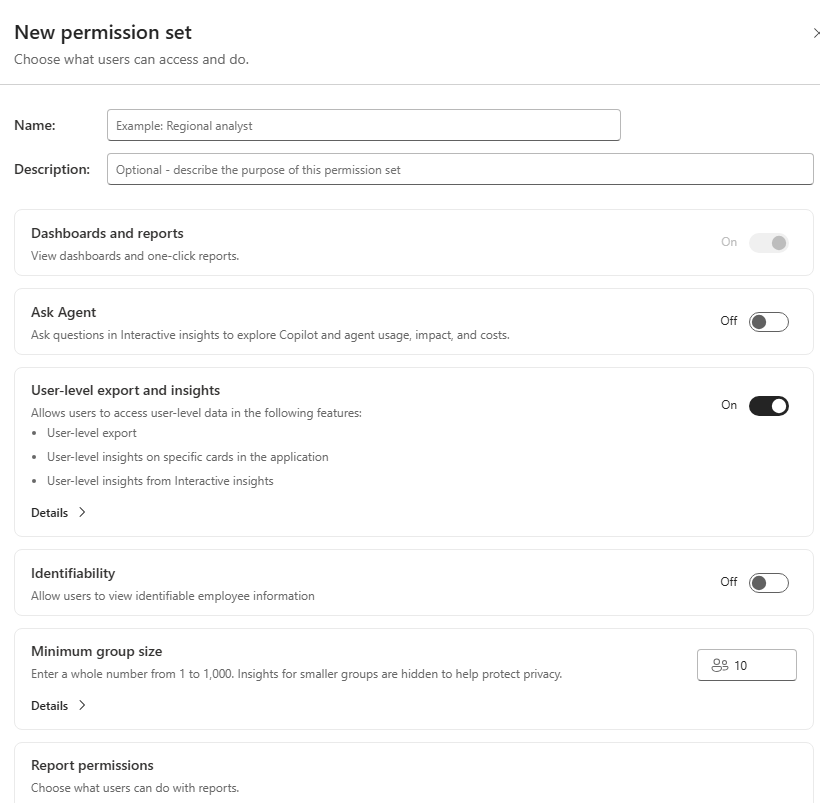
Permission set settings
| Setting | What it controls |
|---|---|
| Dashboard and insights access | Which dashboards and insights users can open, such as Cost insights |
| Export | Whether users can export data from the app |
| Identification | Whether users can view identifiable data, such as individual names, where your policies allow it. When identification is off, users see de-identified data instead. |
| Report customization | Whether users can customize reports, such as filters, metrics, and views |
| Report publishing | Whether users can publish reports so that others in your organization can view them |
| Advanced Analysis | Whether users can access advanced analysis experiences. This capability is included in the Analyst permission set. |
When a capability is turned off for a user, the related option in the app is unavailable to them. For example, if export is turned off, the export option is grayed out.
Minimum group size isn't part of a permission set. You continue to manage minimum group size at the tenant level in your privacy settings, and existing values are preserved.
Create a permission set
On the Access management home page, under Permission sets, select Manage.
Select New permission set.
Enter a unique name and, optionally, a description. The create option stays unavailable until the name is valid, and a duplicate name shows an error.
Turn on the capabilities that users with this permission set need.
Save the permission set.
Edit a permission set
You can edit the description and capability settings of both system-defined and custom permission sets.
Open the permission set you want to change.
Update the description or capability settings. The edit view opens with the current values, and Save is available only after you make a valid change.
Select Save.
Changes to a permission set apply to every access policy that uses it and to every user assigned to those policies.
How to manage partitions
Partitions in Business Analytics work the same way that partitions work in Viva Insights, and you now manage them from Access management.
The Global partition
The Global partition includes your full eligible employee population, all required organizational attributes, and supported datasets. It's system defined, so you can view its population and data, but you can't edit or delete it. You can clone it to create a custom partition.
Create a partition
On the Access management page, under Partitions, select Manage.
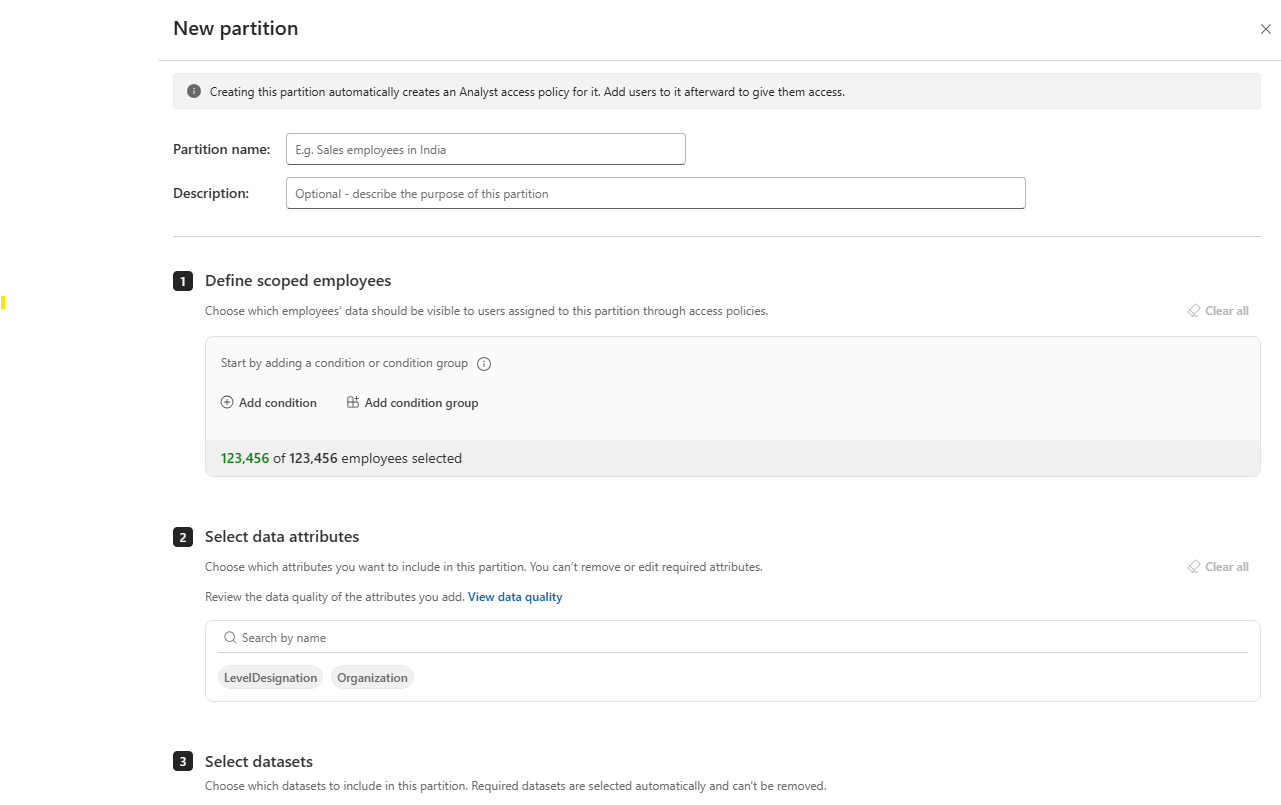
Select New partition.
Enter a name and, optionally, a description.
Define which employees are included by building filters based on organizational attributes. For example, you can include all employees in India at level 65 and above. You can combine filters, and the app shows the number of employees your filters select.
Choose which organizational attributes are available in the partition.
Choose which datasets are available in the partition. Required datasets, such as the Copilot dataset, can't be removed, and the app explains why they're locked.
Review and create the partition.