Note
Access to this page requires authorization. You can try signing in or changing directories.
Access to this page requires authorization. You can try changing directories.
Important
This feature is part of the Frontier preview program. Frontier connects you directly with Microsoft's latest AI innovations. Frontier previews are subject to the existing preview terms of your customer agreements. As these features are still in development, their availability and capabilities might change over time.
Applies to: Viva Insights Administrators, Microsoft 365 Global Administrators, Chief officers
Use the Configurations page in Business Analytics to configure metric calculators and privacy controls, and to review your organization's manager hierarchy. The settings are tenant-wide unless otherwise noted.
To open the page in Business Analytics, on the left under Manage, select Configurations. The page includes these tabs:
Metric calculators
Privacy
Manager hierarchy
Configure metric calculators
Metric calculators let your organization adjust selected assumptions that Microsoft uses to calculate assisted hours and AI value. Use the calculators when your organization has its own research, benchmarks, or compensation assumptions and wants the metrics to better reflect your own operating context.
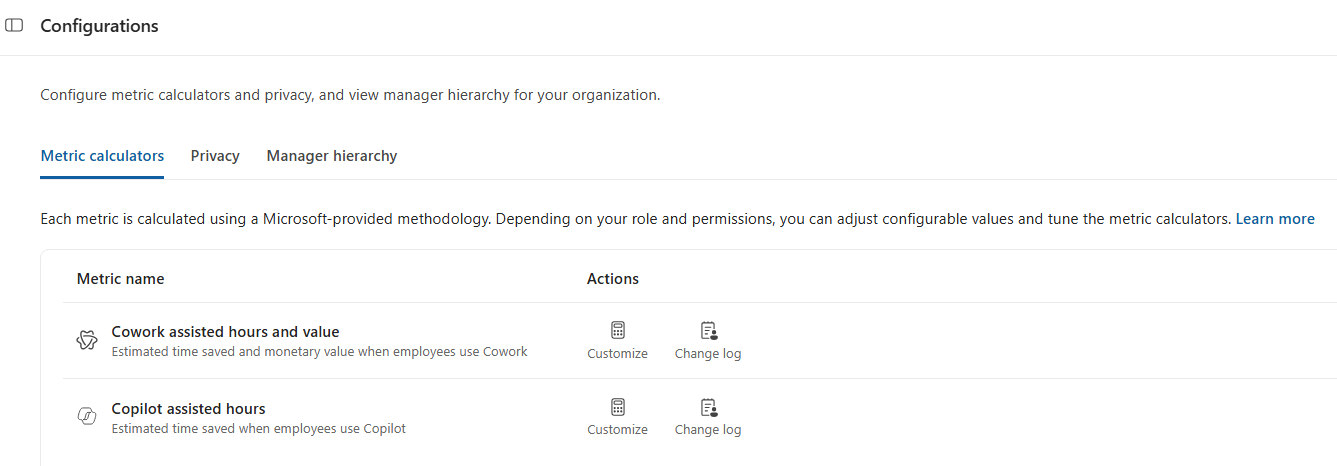
The Metric calculators tab includes calculators for:
Cowork assisted hours and value — Configure assumptions for specific agent use cases
Copilot assisted hours — Configure assumptions for Microsoft 365 Copilot capabilities
Important
Viva Insights admins can configure Cowork value metrics. Only users who have both Viva Insights admins and Chief officer roles, or who are global admins, can configure Copilot value metrics.
Only users with the required roles can edit a calculator. Other users can review the calculator change log.
How configuration changes are applied
Calculator configurations apply at the tenant level. After an authorized admin saves a configuration, the updated values are reflected in Agent 365 Business Analytics metrics. The changes also apply to dependent metrics and historical trends. For example, changing an assisted-hours input also changes assisted-value metrics that use those hours.
Changes appear after the affected data, query, or report refreshes. Previously completed queries and existing Interactive insights sessions aren't recalculated; rerun or refresh them to use the updated configuration.
How to configure Cowork assisted hours and value
Cowork assisted hours use this general calculation:
Cowork assisted hours = Use case frequency × Completion rate × Cowork contribution x Time per successful use case
On the right, the editable Time per successful use case value represents the expected time for a specific use case. Because the calculator contains many granular use cases, use search and the category column to locate the use case that you want to change.
To configure Cowork assisted hours:
On the Metric calculators tab, find Cowork assisted hours and value, and then select Edit calculator.
In the Hours calculator tab search for a use case, or browse the categories and use cases in the table.
In Time per successful use case, enter the value that your organization wants to use for the selected use case.
Repeat the previous step for any other use cases that you want to update.
Select Save changes, and then confirm the update.
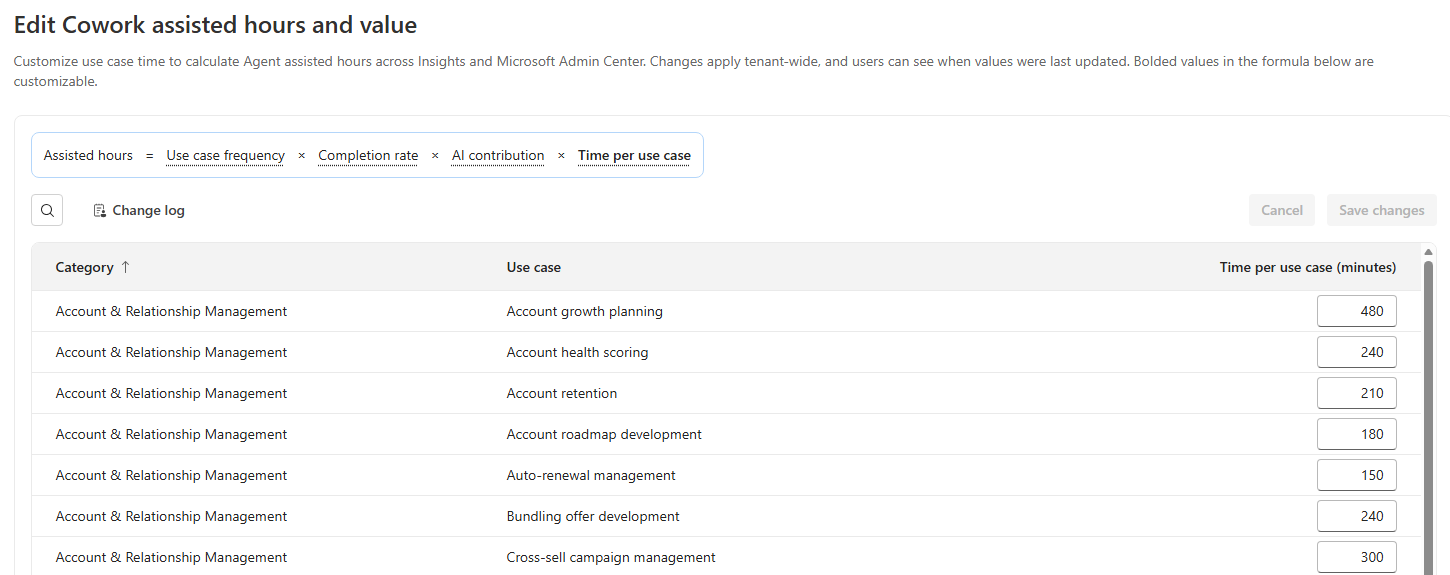
A use-case change contributes to rollups for the applicable category, subcategory, agent, and overall Cowork assisted hours metric.
To configure Cowork AI value:
Open the calculator, and then select Value calculator.
Select the currency and enter the average hourly rate that your organization wants to use.
If the calculator provides use-case-specific value inputs, update the applicable rows.
Select Save changes, and then confirm the update.
If you would like to revert a value to Microsoft defaults, you can do so for a specific use case, or for all of them. To revert a specific use case's value to the Microsoft default, select the reset icon next to an edited value. To revert all use case values to the Microsoft default, select Reset all to the default. All value resets are considered calculator edits and must be saved to be applied.
Turn Cowork value metrics on or off
Administrators can control whether AI value metrics for Cowork are displayed to users in their organization. This setting applies across the tenant and is turned off by default. The setting is separate from the calculator configuration settings. It controls whether AI value metrics are displayed in supported Agent 365 Business Analytics experiences, rather than changing the assumptions used to calculate assisted hours or AI value.
To configure value metrics:
In Business Analytics, go to Configurations > Metric calculators.
Under Cowork assisted hours and value, select Edit calculator.
Select the Value calculator tab.
On the right, use the Value metrics toggle to turn AI value metrics on or off for your organization.
The toggle has two settings:
Value metrics are on: Users can view AI value metrics in supported dashboards and switch between assisted hours and AI value where available.
Value metrics are off: AI value metrics aren't displayed in supported dashboards. Users can continue to view assisted hours metrics where available. Controls for viewing assisted value are disabled.
Note
Turning off value metrics controls the visibility of AI value information in supported experiences. It doesn't disable the assisted hours metrics that remain available in those experiences.
How to configure Copilot assisted hours
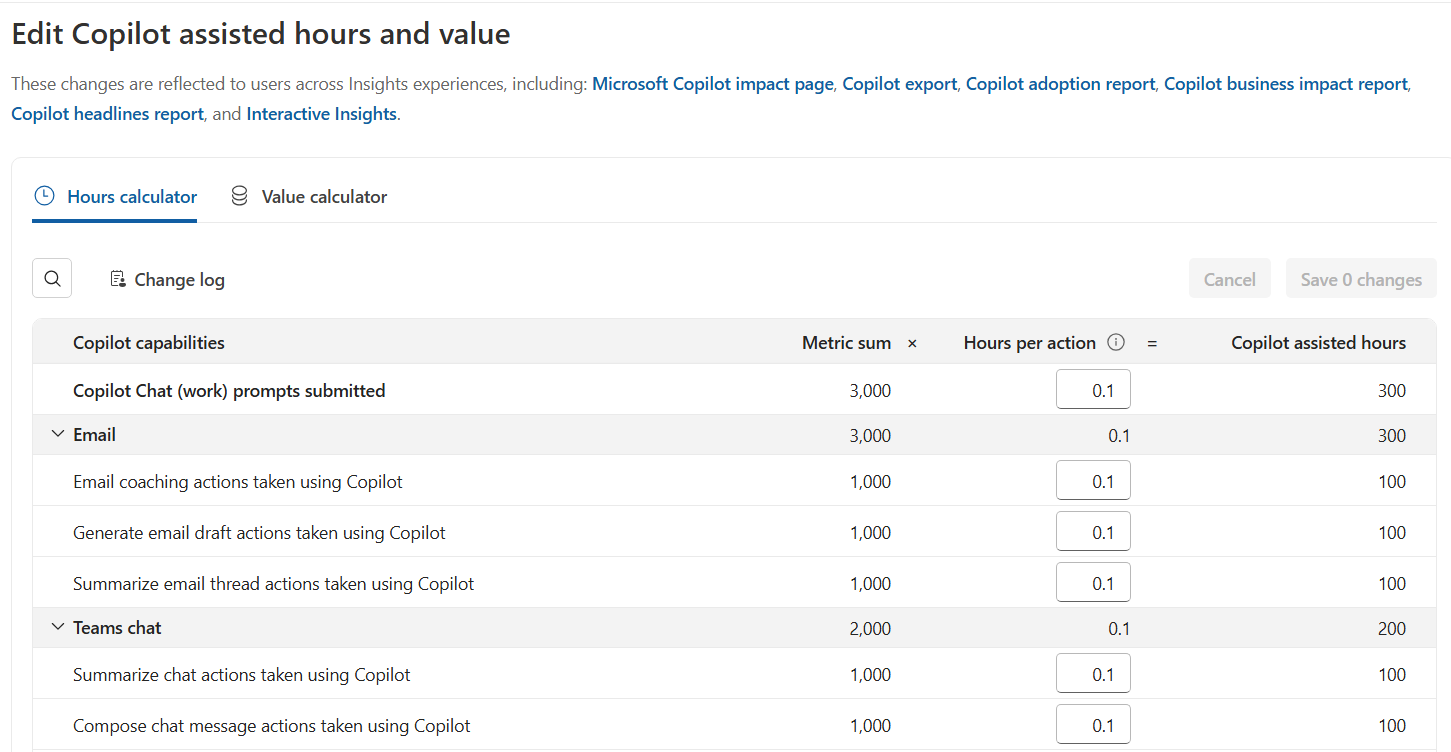
Copilot assisted hours use activity counts and configurable time assumptions. For most capabilities, the calculator applies this calculation:
Metric sum × Hours per action = Copilot assisted hours
Some capabilities, such as meeting hours summarized or recapped by Copilot, are calculated directly and don't have an editable hours-per-action value.
To configure Copilot assisted hours:
On the Metric calculators tab, find Copilot assisted hours, and then select Edit calculator.
On the Hours calculator tab, expand a capability, such as Email, Teams chat, or Documents, to review its actions.
Enter an Hours per action value for each action that you want to change. The calculator updates the preview before you save.
At the bottom, review Total Copilot assisted hours.
To apply an overall conservative adjustment, enter a Calibration factor (percentage between 0 and 100). The factor is applied to the total to produce Final Copilot assisted hours.
Select Save changes, and then confirm the update.
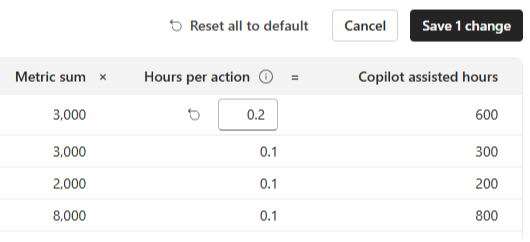
If you would like to revert a value to Microsoft defaults, you can do so for a specific Copilot capability, or for all customizable values. To revert a specific capability's value to the Microsoft default, select the reset icon next to an edited value. To revert all capabilities' values to the Microsoft default, select Reset all the default. All value resets are considered calculator edits and must be saved to be applied.
To configure Copilot AI value:
Open the Copilot calculator, and then at the top select Value calculator.
Select the currency and enter the average hourly rate that your organization wants to use.
Review the resulting assisted-value calculation.
Select Save changes, and then confirm the update.
How to review or audit calculator changes
Use the change log to understand when a calculator configuration changed.
On the Metric calculators tab, locate the metric, and then select Change log. You can also open Change log from an individual calculator.
Select Hours calculator or Value calculator to view the corresponding history.
Review who modified the configuration and when it was modified.
On the right, select View details to compare the original and new configuration values, such as hours per action, calibration factor, or average hourly rate.
The change log records changes to customizable calculator inputs rather than changes to derived metric totals.
Configure Privacy settings
Use the Privacy tab to control how data is scoped, aggregated, classified, suppressed, and included in Advanced Analysis. Changes made here apply to Business Analytics on the web and in Teams, and to Advanced Analysis in Viva Insights.
After you update one or more settings, select Save changes at the top of the page. Some changes don't appear until the next data refresh and can take up to one week.
Partitions
Partitions are workspaces limited to specific employee data, organizational attributes, and datasets.
Select Enable automatic global partition access for new analysts to give newly added analysts access to the global partition automatically. If you leave this setting off, an admin must assign each new analyst to a partition. Existing analysts and other roles aren't affected.
Select Enable Internal Benchmarks across partitions to let users in partitions view role-based internal benchmark averages from the global partition.
Manager hierarchy attributes
Turn on Manager hierarchy attributes to create attributes that identify the managers above each employee, based on your tenant's manager data. Analysts can use these attributes in queries.
Minimum group size
Minimum group size is the minimum number of people that must be in a group before aggregated insights are shown. Enter a value of at least 5.
This threshold helps protect privacy in aggregated insights, including group insights in Advanced Analysis and insights for organization leaders. It doesn't apply to user-level insights that aren't aggregated.
Admins can manage minimum group size at the tenant level within privacy settings. Existing values will be preserved and won't be deleted, changed or reset.
Suppress email subject lines and meeting titles
Choose how Viva Insights handles potentially sensitive email subject lines and meeting titles in future queries:
Suppress all email subject lines and meeting titles — Hide every email subject line and meeting title
Don't suppress any email subject lines or meeting titles — Allow all subject lines and titles to appear
Only suppress email subject lines and meeting titles that have these keywords — Hide subject lines and titles that contain the keywords you specify
Changes apply to future queries and don't alter queries that analysts have already run.
Reclassify external domains
Use Reclassify external domains to classify selected external domains as internal. This option can be useful after an acquisition or merger, or when your organization wants collaboration with a subsidiary's domain to be treated as internal.
Search for and select each external domain that you want to reclassify. The change takes effect after the next data refresh and can take up to one week.
Suppress domains
Use Suppress domains to suppress sensitive content from email or meeting records that include people in specified domains. Enter the domain that you want to suppress.
Changes apply to future queries and don't alter queries that analysts have already run.
End-user opt-out
Turn on End-user opt-out to let users choose whether their Business Analytics metrics are included in row-level Advanced Analysis outputs in Viva Insights.
Opt-out doesn't remove users from aggregated insights, meeting-query results, or row-level Copilot usage data. Users manage their preference under Settings > Privacy in the Viva Insights app. When a user changes the preference, the update takes effect after one day.
Review the Manager hierarchy
Use the Manager hierarchy tab to look up a manager and review the reporting structure and licensing information associated with that manager. This tool can help you validate organizational data and troubleshoot a manager's access to team or organization insights.
To review a manager's hierarchy:
Select Manager hierarchy.
Under Search for specific manager, enter the manager's full email address.
Select the matching manager.
Review the manager's licensing status, team size, licensed team size, and direct and indirect reports.
To review the complete reporting list outside the app, select Download CSV of team members, if this option is available.
Reports are listed for the manager whose email address you enter. Team size includes the manager and all employees who report to that manager directly or indirectly through the organizational reporting hierarchy.