Note
Access to this page requires authorization. You can try signing in or changing directories.
Access to this page requires authorization. You can try changing directories.
Important
This feature is part of the Frontier preview program. Frontier connects you directly with Microsoft's latest AI innovations. Frontier previews are subject to the existing preview terms of your customer agreements. As these features are still in development, their availability and capabilities might change over time.
Delegation in Agent 365 Business Analytics lets eligible leaders give other people access to dashboards and reports on their behalf. For example, a leader can add a delegate who helps review Copilot adoption, agent activity, or other organizational insights.
Delegated access is based on the leader's access within the currently selected partition. A delegate can view only the data and capabilities that the leader is eligible to delegate and can't receive more access than the leader. Personal insights aren't shared through delegation.
You can manage delegation from the Delegation page or add delegates while viewing an individual dashboard. After someone is added, the delegate uses the View as menu at the top of the page to view the dashboards and reports made available by the leader.
Prerequisites
To add and manage delegates, the following requirements apply:
You must have a role that is eligible for delegation.
Delegation must be enabled for your organization.
You must be working in the partition in which you want to delegate access. Delegation is managed separately for each partition.
The person you want to add must be in your organization.
You must have access to the dashboards, reports, and capabilities you want the delegate to use.
Learn more about Viva Feature Access Management.
The following role types are eligible for delegation:
Chief officer roles: Delegation is enabled by default.
Group Manager roles: Delegation is enabled by default.
Custom roles: Delegation is disabled by default and must be enabled for the applicable role.
Important
Delegated access doesn't create a separate role assignment for the delegate. The delegate acts on behalf of the leader and receives only the access that the leader is eligible to delegate. A delegate can't delegate that access to another person.
How delegated access works
Delegation applies to the currently selected partition.
In the Global partition, eligible leaders can assign one of the following access scopes:
Group access: Gives the delegate access to supported dashboards and reports that contain group-level data.
Company access: Gives the delegate access to supported dashboards and reports that contain company-level data. Company access doesn't include the Consumption Dashboard.
Combined access: Gives the delegate company-level access to supported dashboards and reports, plus group-level access to the Consumption Dashboard.
In a custom partition, the delegate receives the access associated with the leader's eligible role in that partition. The leader selects the delegate, but doesn't select a separate Group, Company, or Combined access scope.
Delegation in one partition doesn't grant access in another partition. To give the same person access in more than one partition, add the person as a delegate separately from each applicable partition.
A delegate's access remains aligned with the leader's access. Changes to the leader's eligible access in a partition also apply to the delegate. If access is removed from the leader, the corresponding delegated access is also removed.
How to use the Delegation page
Use the Delegation page to view and manage the people who can access dashboards and reports on your behalf.
In the Business Analytics app, at the top, select the partition in which you want to manage delegation.
On the left, under Manage, select Delegation. The Delegation page appears only for leaders who are eligible to use delegation.
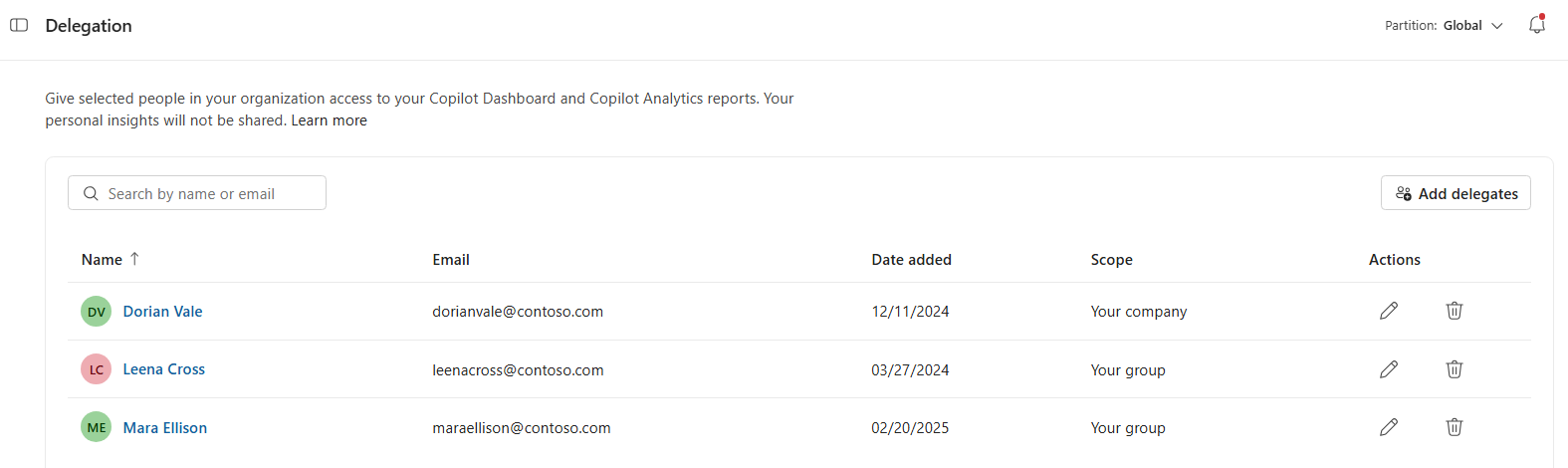
The Delegation page lists your current delegates and includes the following information:
Name: The delegate's name.
Email: The delegate's email address.
Date added: The date on which the delegate was added.
Scope: The delegate's assigned access, such as Your group or Your company.
Actions: Options to edit or remove the delegate.
How to add delegates
To add one or more delegates:
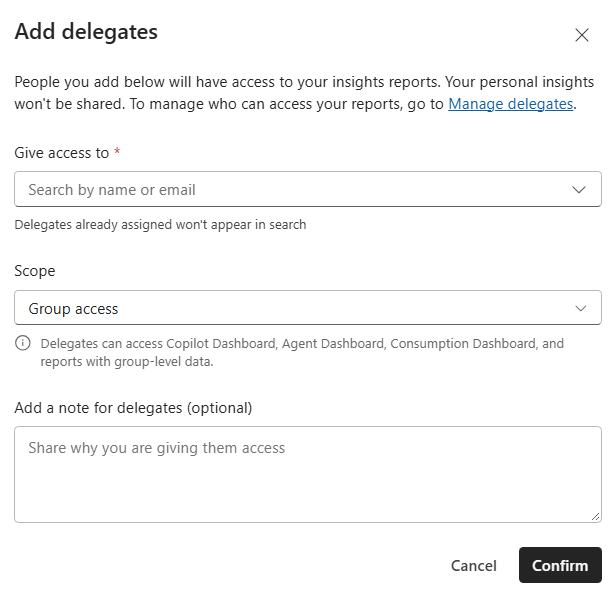
On the Delegation page, on the right, select Add delegates.
Under Give access to, search for and select the people you want to add. People who are already assigned as your delegates don't appear in the search results. 3. If you're working in the Global partition, select an access option under Scope:
Group access
Company access
Combined access
If you're working in the Custom Partition,
Under Give access to, search for and select the people you want to add. People who are already assigned as your delegates don't appear in the search results.
Each option describes which dashboards and data levels are included in it.
If you're working in a custom partition, you don't select a separate access scope. The delegate receives the access associated with your eligible role in the selected partition.
Optionally, enter a note explaining why you're giving the individuals access.
Select Confirm.
The same access selection applies to everyone added in the same operation. To give people different access scopes, add them separately.
How to edit a delegate's access
You can change the access assigned to an existing delegate in the Global partition.
On the Delegation page, find the delegate.
Under Actions, select the Edit (pencil) icon.
Under Scope, select the access you want to assign.
Review the access associated with the selection.
Select Save changes.
Changes to delegated access apply only within the currently selected partition.
How to remove a delegate
To revoke a person's delegated access:
On the Delegation page, find the delegate.
Under Actions, select the Delete (trash can) icon.
In the confirmation box, select Remove.
After removal, the person can no longer view the applicable dashboards and reports on your behalf in that partition.
Removing a delegate from one partition doesn't remove a separate delegation relationship that was created in another partition.
How to add and manage delegates from a dashboard
You can add delegates without leaving the dashboard you're viewing.
Open a supported dashboard in the Business Analytics app.
Confirm that the correct partition is selected.
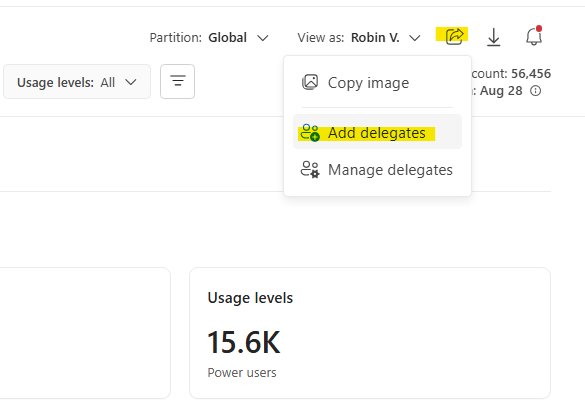
In the upper-right corner of the page, select Share.
Select Add delegates.
Search for and select the people you want to add.
If you're in the Global partition, select Group access, Company access, or Combined access.
Optionally, add a note for the delegates.
Select Confirm.
The access you assign isn't limited to the tab or dashboard page from which you open the setting. The selected scope determines which supported dashboards, reports, and data the delegate can access on your behalf.
How to manage delegates from a dashboard
To open the Delegation page from a supported dashboard:
Select Share in the upper-right corner of the dashboard.
Select Manage delegates.
From the Delegation page, you can add delegates, edit their access, or remove their access using the steps described above.
How to view insights as a leader
After being added as a delegate, use the app-level View as menu at the top to switch between your own view and the views of leaders who have delegated access to you.
At the top right of the Business Analytics app, select View as.
Select the leader whose dashboards and reports you want to view.
Navigate to an available dashboard or report.
The pages and data available depend on the access delegated by that leader in the current partition. If the selected leader hasn't delegated access to a page, the page isn't available for that delegated view.
To return to your own access, open View as and select your own name.
Delegation for reports
Adding a delegate doesn't automatically share every report that you create. To manage access to an individual report:
In the Business Analytics app, on the left, select Reports.
Open or locate the report.
Update the report's sharing settings.
Report sharing works together with delegation. A delegate must have both the appropriate delegated access and access to the report.