Note
Access to this page requires authorization. You can try signing in or changing directories.
Access to this page requires authorization. You can try changing directories.
You can use negative keywords or keyword phrases to help prevent your ad from being displayed when a search query or other input contains your keywords but is irrelevant to your landing page content.
For step-by-step instructions on adding negative keywords, see this article.
For example, if your ad sells shoes and you have specified wide shoes as a keyword, you can prevent your ad from being displayed in response to a search on women's shoes by using women's shoes as a negative keyword.
The following diagram is an example. On the left are several queries. Now we filter those queries through your negative keyword list. In this case we use just one negative keyword entry: women's shoes. The table shows the result of setting that keyword to either a negative phrase match or an exact match. Using negative phrase match for your negative keyword has a more significant impact on your potential ad displays, with only two of the original four queries being eligible to trigger a display.
Example
Keyword (broad match): wide shoes
Negative keyword: women's shoes
Search query Negative EXACT Negative PHRASE men's wide shoes 
women's wide shoes women's shoes 
wide women's shoes
= Ad eligible to display
= Ad will not display
Negative keyword match types
There are two negative keyword match types:
Negative phrase match
With negative phrase match, your ads won't be displayed if the search query contains the exact keywords in the same order, regardless of any additional words or characters present in the search query.
Negative exact match
With negative exact match, your ads won't be displayed if the search query contains the exact keywords in the same order, so long as no additional words or characters are present in the search query. Please note that your ads may still appear for search queries that include additional words or characters.
Adding negative keywords
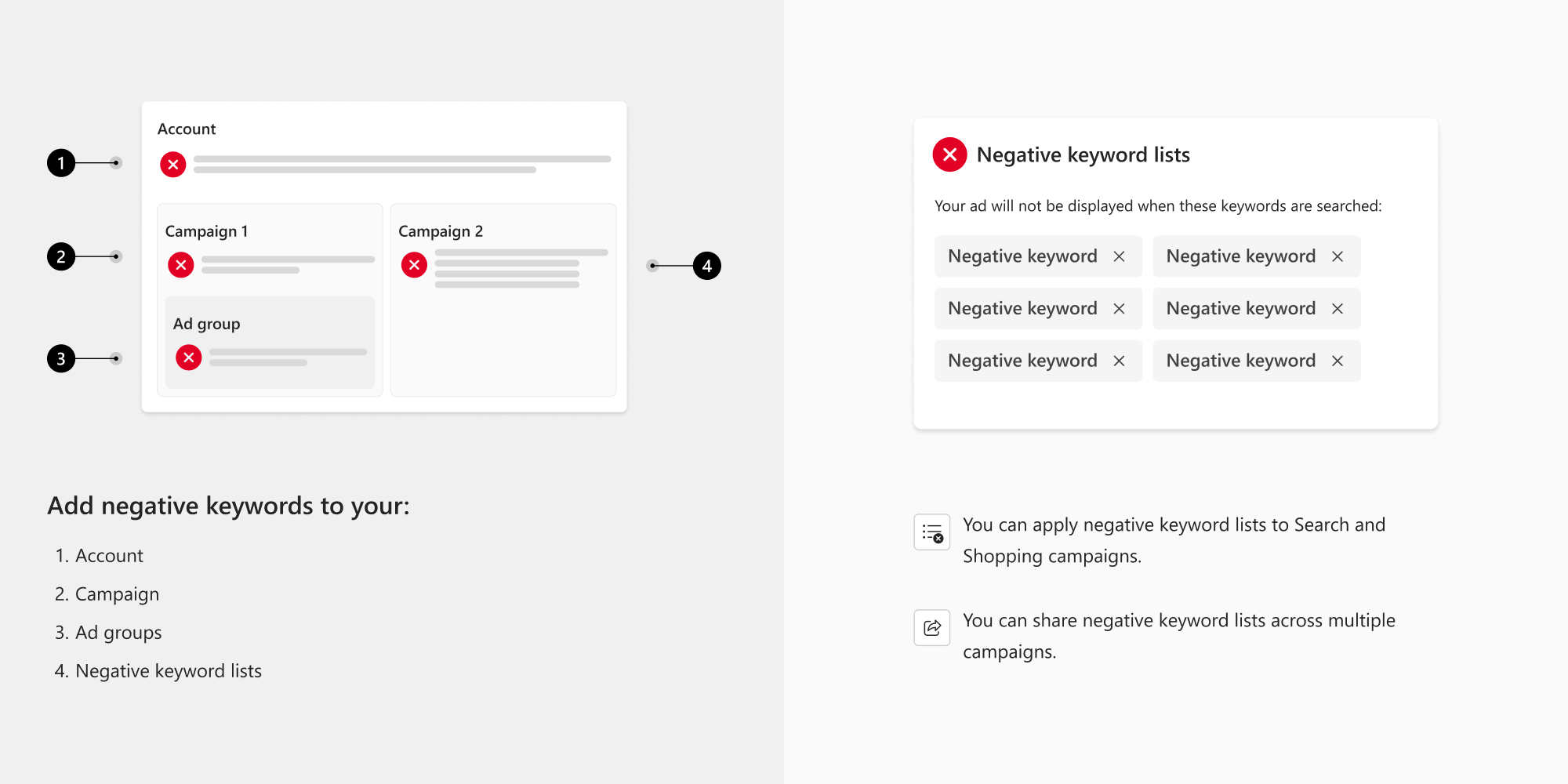
You can add negative keywords to:
- Accounts. An account-level negative keyword list is applied to Search, Shopping, and Performance Max campaigns associated with your account and supplements the keywords you add to individual campaigns and ad groups. This means that negative keywords added at the account level will be used in addition to any negative keywords you set at the campaign and ad group level. You can create one list at the account level that contains up to 1,000 negative keywords.
- Campaigns. Campaign-level keywords apply to all keywords in a campaign. Be aware that negative keywords assigned at the campaign level will also be applied at the ad group level (in addition to any ad group-specific negative keywords). Each campaign can contain thousands of negative keywords.
- Ad groups. These negative keywords will be applied to the ad group in addition to any negative keywords set up at the campaign level. Each ad group can contain thousands of negative keywords.
- A negative keyword list. With a shared negative keyword list, you can apply entire lists of negative keywords to multiple campaigns and make changes across campaigns by editing a single list.
Will my ad show up or not?
To answer this, think of the negative keyword process as two steps:
Step 1: Match keywords to the search query
If you bid on a keyword and you have a match (broad, phrase or exact) with the customer's search query or other input, it means your ads are eligible to be displayed and you move to step 2. If there is not a match, stop here. Your ads are not eligible to be displayed.
Step 2: Filter using negative keywords
Microsoft Advertising now takes a look at the search query or other input and compares it to your negative keywords. If there's a match (phrase or exact - depending on what you set up for your negative keywords), that particular keyword is filtered out and your ad will not be eligible for display.
About negative keyword variants
Only the precise negative keyword will be filtered out. Variants (such as plurals, synonyms, and common misspellings of the negative keyword) are not filtered out. To have variants, synonyms, and common misspellings filtered out as well, you will need to enter each one as a separate negative keyword.
We don't support all types of negative keyword variants. See the table below to learn more about how different negative keyword variants will be filtered.
Note
Apostrophes aren't supported in your negative keywords except for 's or 't. For example, women's shoes and don't are supported negative keyword variants.
Additionally, we don't support these symbols or characters in your negative keywords: , . / ; ' [ ] = - \ < > ? : " | + _ ~ ! @ # $ % ^ & * ( ) ` { } \n \t \r
Example
Keyword (broad match): wide shoes
Negative keyword: women's shoes
Negative keyword variant provided by advertiser Variant type How your negative keyword variant will be filtered women's shoes+ Symbol or character (+). See About negative keyword variants for more information about unsupported symbols and characters. women's shoes Women's shoes Capitalization women's shoes w-omens shoes Punctuation within keyword w omen's shoes women's shoess Misspelling women's shoess For more information, watch our video about negative keywords.
Note
- You can import negative keywords from an Excel file or a .csv file.
- Microsoft Advertising does not support keyword-level negative keywords. If you're using third-party or custom applications to add negative keywords, those applications might allow you to enter keyword-level negative keywords. However, Microsoft Advertising will not use them when filtering queries. It is therefore important that you avoid using keyword-level negative keywords and instead add those negative keywords to the ad group, campaign, or account levels.
- Want expert advice on your ads? Schedule a no-cost session with a personal Microsoft Advertising consultant