Note
Access to this page requires authorization. You can try signing in or changing directories.
Access to this page requires authorization. You can try changing directories.
You can automatically customize what shows in your ad based on what people search for by inserting dynamic text parameters {keyword}, {param1}, {param2}, and {param3} into different parts of the ad. This means your ads are updated on the fly to match what people are looking for. By making your ads more relevant, dynamic text can help improve your ads' (CTR) and , quality score, and ad placement on the page.
Note
Your default text cannot contain a dynamic text parameter.
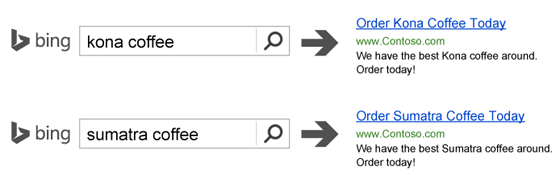
Here are some things you can do with dynamic text and the steps to do each one:
Insert keywords into your ads
The above example shows your keyword being inserted into an ad. Here’s how to do this:
- From the navigation menu on the left, hover over Campaigns and select Ads & extensions > Ads.
- Select Create ad.
- Below Title Part 1, Title Part 2, or Ad text, select dynamic text, and then select Placeholder {KeyWord}. You can add {KeyWord} to multiple places in your ad.
- Each {keyword} dynamic text parameter must include default text — as in "{keyword:DefaultTextGoesHere}". See below for examples and more information about default text
- Select Save.
Note
You can control how the keyword is capitalized when it appears in your ad.
Insert custom text, based on specific keywords, into your ads
In addition to dynamically inserting the keyword (the first example), you can also add some custom text for each keyword.
Say you have different discounts for different products:
Product Discount Desired ad Kona 50% Our Kona coffee is 50% off! Sumatra 25% Our Sumatra coffee is 25% off! You can display the desired text with just a single ad. To do this, you use the parameters: {param1}, {param2} or {param3}. Values for these parameters get assigned to specific keywords.
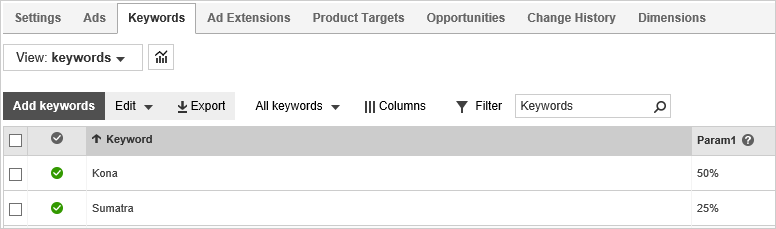
Combining this with the {keyword} variable, you would create your ad text like this:
"Our {keyword} coffee is {param1} off!"
- From the navigation menu on the left, hover over Campaigns and select Ads & extensions > Ads.
- Select Create ad.
- Below the Title Part 1, Title Part 2, or Ad text, select dynamic text, and then select Placeholder {param1}, Placeholder {param2}, and Placeholder {param3}. You can add them to multiple places in your ad.
- Add default text to the {param1}, {param2}, and {param3} dynamic text parameter. For example, {param1:default} Learn about default text
- Select Save.
- From the navigation menu on the left, hover over Campaigns and select Keywords > Keywords.
- Select Columns and then Modify columns to ensure that Param1, Param2, and/or Param3 are selected to display.
- Find the keyword where you want to add the dynamic text, then hover over the empty space in the appropriate Param column. A small pen icon will appear.
- Select the pen icon and enter the text for that parameter. Repeat for each keyword and each parameter as appropriate.
- Select Save.
One more thing: The importance of using default text
When implementing dynamic text in your ad copy you should provide a default string —for example, {Param1:default} — that the system will use if Param1 for a keyword is null or empty, or if including the Param1 substitution value will cause the expanded string to exceed the element’s limit; otherwise the ad will not serve. In some cases, if your default text is deemed more relevant than your substituted text the system can use that instead.
When you use any dynamic text, such as {param1} or {keyword}, make sure you don't end up with ads that exceed the character limits:
- Ad title: A total of 90 characters combined (excluding separators) across all 3 parts
- Ad text: A total of 180 characters combined across both parts
Ads with dynamic text longer than the character limits won't display. Using default text in your ad title (or the ad text) can keep your ad text within the allowable character limit.
You define defaults for dynamic text by typing a colon and the default text after the placeholder name: {param1:default}. The default text appears in your ad whenever the ad would otherwise exceed character limits.
If any default value appears in your ads in this way, then default values for all parameters are displayed in the ad. The ad will not use default text for one parameter while using substituted text for another.
Default text example
Let's say you create an ad that includes dynamic text in the ad title and ad text:

On the Keywords tab, you enter the following variables for these keywords:
| Keyword | {param1} |
|---|---|
| Sumatra | $9 |
| Decaffeinated Arabica | $15 |
If someone searches for "sumatra" and your keyword bid is high enough, your ads are displayed like this:

Please make sure that the ad title exceeds 30 characters after "Decaffeinated Arabica" is translated.
However, for a search on "decaffeinated arabica," your ad title part would exceed 30 characters, and your ad text would exceed 90 characters. But if you have set up default text, it would display as:

Note that the {param1} default value was used also. Remember, if default text is used anywhere in the ad (here it was used for {keyword}), it will be used for all parameters in the ad. Thus it was used for {param1} also.
Note
Want expert advice on your ads? Schedule a no-cost session with a personal Microsoft Advertising consultant