Note
Access to this page requires authorization. You can try signing in or changing directories.
Access to this page requires authorization. You can try changing directories.
Important
- This topic shows how to do a basic setup of the Microsoft Channel app for Shopify. Please refer to the Shopify help center for more information.
- Microsoft Advertising is not responsible for Shopify's processes or documentation, nor for changes made to Shopify's processes or documentation.
- Learn more about where the Microsoft Channel app for Shopify is available.
Microsoft Advertising and Shopify have partnered up to create a Microsoft Channel app for Shopify. Shopify is a multi-channel commerce platform that allows you to create and develop an online store, where you can sell, ship, and manage your products. The Microsoft Channel app on Shopify makes it possible for you to bring your Shopify product catalog online to Microsoft Merchant Center. Once you sync your products, they'll be eligible to serve as free listings; and you can also create Performance Max campaigns to promote your products further.
Get started
Install the Microsoft Channel app on Shopify
- Search for the Microsoft Channel app on Shopify.
- Follow the prompts to install the app.
Once installed, the Microsoft Channel will appear under Sales channels in the menu on the left.
Connect your Microsoft account to your Shopify account
- From the menu on the left, under Sales channels, select Microsoft Channel.
- Select Connect Microsoft account.
- Select Continue once you've read through Shopify's Privacy Policy.
- In the window that opens automatically, sign in to your Microsoft account or create a new Microsoft account.
- Once you're signed in, you'll see you're in a page titled “Set up Microsoft Advertising†in Shopify.
Configure your Microsoft Channel app in Shopify
In the “Set up Microsoft Advertising†page in Shopify, you'll see you're connected to the account you signed in to in the above steps. You'll need to ensure you meet the conditions of Shopify's Requirement Check List to continue.
Once you meet all of Shopify's conditions, you're ready to configure your Microsoft Channel.
In the Connect a Microsoft Advertising Account tile, either:
- Choose which existing Microsoft Advertising account you'd like to Connect to,
- Or select Create new and move through the account creation wizard.
In the Connect to a Microsoft Merchant Center Store tile, either:
- Choose the existing Microsoft Merchant Center store you want to Connect to,
- Or select Create new.
If you're creating a new store, in the store creation wizard, you'll specify the following:
- Store name (once you configure your store's name, you cannot change it)
- Language (only English is currently supported. More languages are coming soon)
- Country of sale
- Feed label
In the Your product feed settings, select Manage to edit Language or Country of Sale.
Select Complete setup.
Now your Microsoft Channel is configured and populated with synced products. Once your products are reviewed in 3-5 business days, they'll be eligible to serve as free listings. You may also create Performance Max campaigns in Microsoft Advertising to run paid promotions.
Get more info
Coupon redemption
Depending on where you're advertising from, you may receive coupons for Microsoft Advertising credit.
Reporting
View your reports in Microsoft Advertising.
UET for Shopify
Universal Event Tracking (UET) is the key that unlocks powerful Microsoft Advertising features, such as conversion tracking, audience targeting, and automated bidding bid strategies. The key comes in the form of the UET tag, which records what customers do on your website and sends that information to Microsoft Advertising. UET is a prerequisite for conversion tracking, remarketing in paid search, and automated bidding bid strategies. Learn more about UET.
By downloading the Microsoft Channel app for Shopify, your UET tag is automatically created and is added to every page of your website. There's nothing more for you to do!
"Buy Now" button
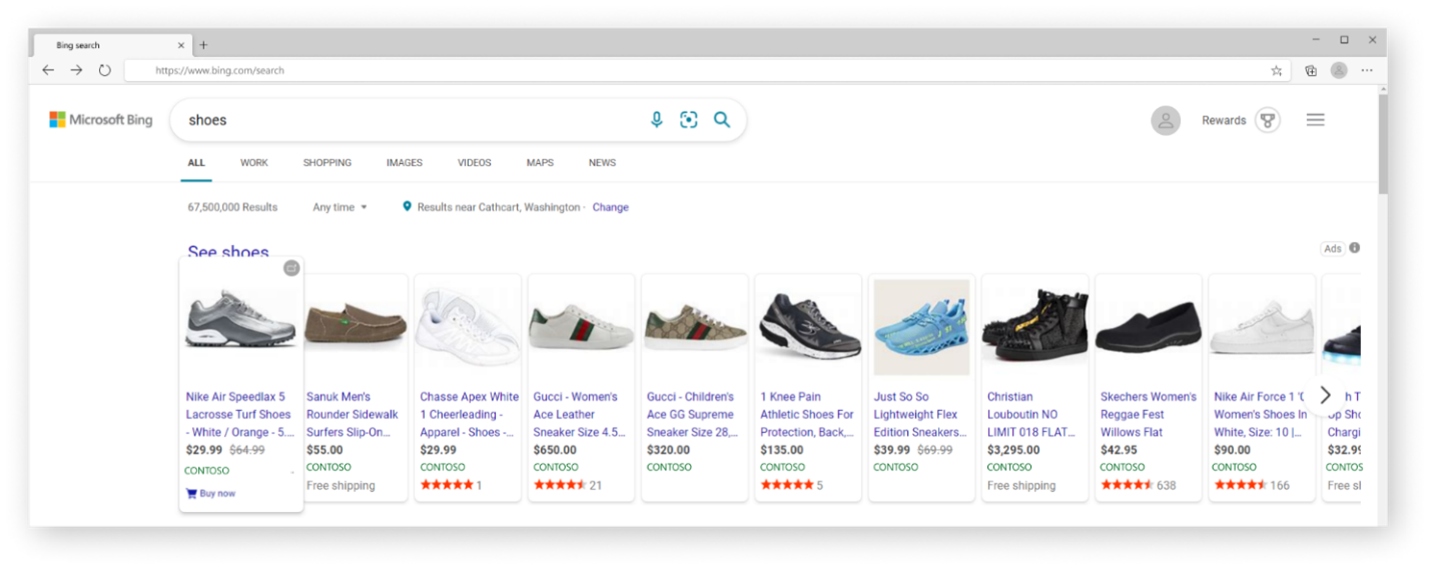
You can display a Buy Now button on both your free listings and paid Product ads. This button enables shoppers to quickly purchase the products they are interested in. When a shopper selects Buy Now, they are sent directly to the shopping cart page where they will see the product added to their cart.
There is no action needed on your part. The Buy Now button will start showing up on a small percentage of your ads to provide additional value for your customers. You can activate or deactivate the Buy Now button by navigating to Settings in Shopify.
Help articles from Shopify
Check out these additional help articles from Shopify: