Note
Access to this page requires authorization. You can try signing in or changing directories.
Access to this page requires authorization. You can try changing directories.
We've updated the Microsoft Advertising navigation experience to help you maximize efficiency while you're managing your accounts. Aside from looks, we updated the names of some sections. Get to know the new Microsoft Advertising navigation below:
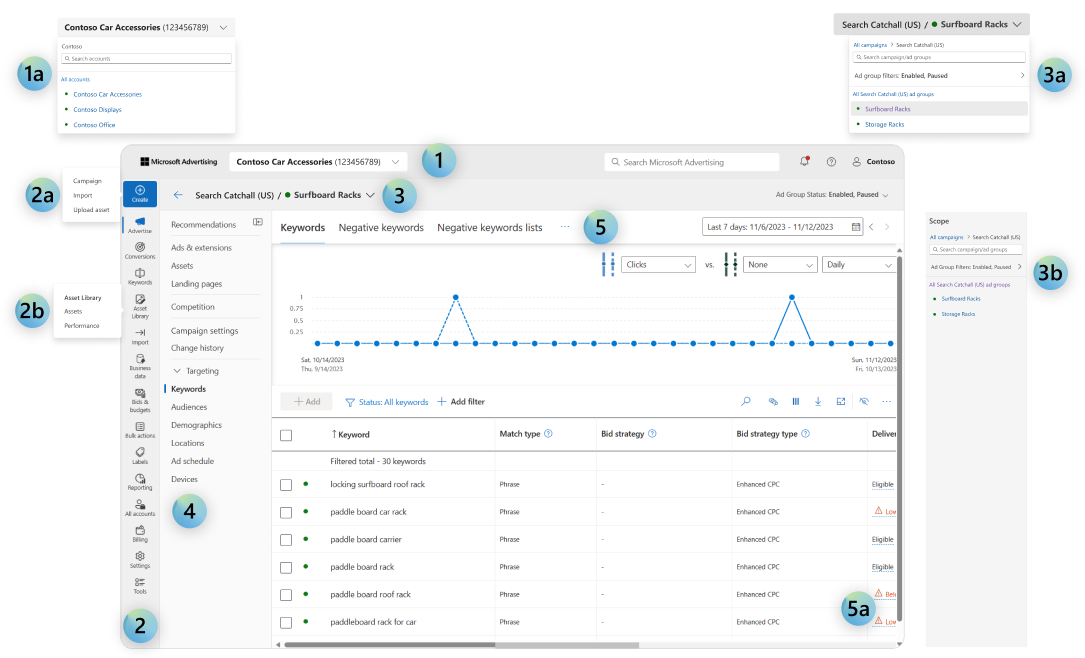
- Account dropdown menu
The account dropdown menu (1) allows you to navigate from one account to another. You can even search for an account name or account ID in the search bar (1a).To hide paused or inactive accounts, you can choose to uncheck the box Show inactive accounts.
- Navigation menu
The navigation menu is an easily accessible and customizable list of your most frequented areas in Microsoft Advertising.
To customize, select Tools and in the Tools window, pin whichever feature you frequent.
Note
- You can hover over the icons in the navigation menu (2a, 2b).
- Advertise contains your campaigns, ad groups, assets, and more.
- Campaign explorer
The campaign explorer is where you can search through your various campaigns. You can apply filters to search Enabled, Paused, and All types of campaigns and ad groups (3a, 3b).
Pages menu
Pages
Pages are where you manage your ads, check reporting, view performance, and more. You can interact with a variety of aspects of each page, including tabs, grids, and buttons. Some pages contain grids that delineate important information about your account, campaign, ad group, and/or keyword content (5a).
Customize view
Because the new Microsoft Advertising experience is designed for you to maximize your efficiency, you can customize certain items beyond the navigation menu (2).
To start customizing your view, from the navigation menu on the left, hover over Settings and select Customize view.
Here, there are four options:
- Where would you like your default advertising landing experience? This allows you to choose between Overview and Campaigns as your landing page when you open up Microsoft Advertising.
- Where would you like your default All accounts landing experience? This provides you the option to choose whether you want to land on Overview or Accounts summary when you select All accounts.
- Where would you like the scope to appear? This lets you to choose whether you want the campaign explorer (3) to appear on the Top only or On the top and the left.
- How would you like your campaign settings data views to appear? This enables you to choose whether you want items in your pages menu (4) to appear collapsed or expanded. If you choose Collapse targeting views, you select certain items to expand to a longer list of pages. If you select Show me all views, you'll always see a longer list of pages without any extra selections.