Note
Access to this page requires authorization. You can try signing in or changing directories.
Access to this page requires authorization. You can try changing directories.
The URL test tool allows you to test and troubleshoot your URL tracking setup. It generates test URLs using your final URL, final URL suffix, tracking template, auto tagging, and custom parameter settings. Its output can be used to validate:
- The landing page URL for sequential tracking clicks.
- The landing page and tracking URLs for parallel tracking clicks.
For each URL you test, we recommend evaluating:
Whether the expected parameters and values are added.
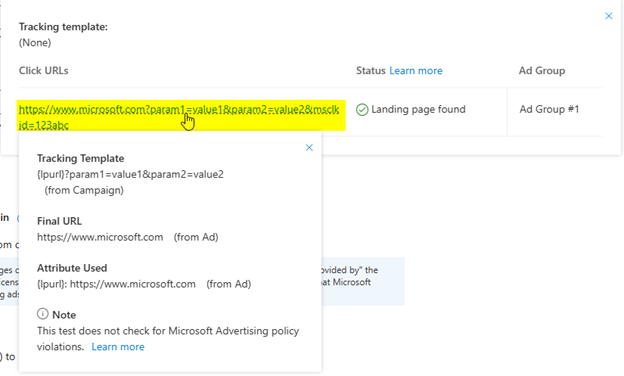
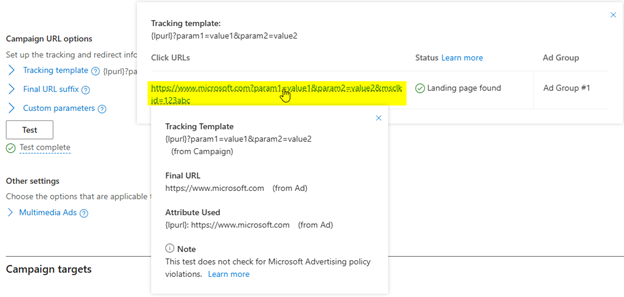
- If any parameter is missing or unexpected, you can click on the URL in the result to get more information on its construction. This is especially helpful to show which level of tracking template is in effect when you have multiple levels of inheritance.
Whether the test tool reports any issues loading the URL.
- If there is an error, we suggest manually loading the same URL in your browser to check whether it may have been the test tool crawler which was blocked.
Note
- The URL test tool does not support any feed-based campaigns. This means it can't return results for Shopping campaigns, professional services campaigns, lodging campaigns, etc. It also does not support Performance Max tracking information at the account level.
- The URL test tool uses a placeholder value 123abc for the msclkid.
How to use the URL test tool
You can run the URL test tool at the following levels:
Account level
Note
Performance Max tracking information isn't available at the account level.
From the navigation menu on the left, hover over Campaigns and select Settings > Account level options.
Go to the Account level options tab.
Select the Test button. Microsoft Advertising will sample up to 10 URLs from your account and test them.
Check the resulting message below the Test button for a brief description of the results.
Hover over the message to see the full test results.
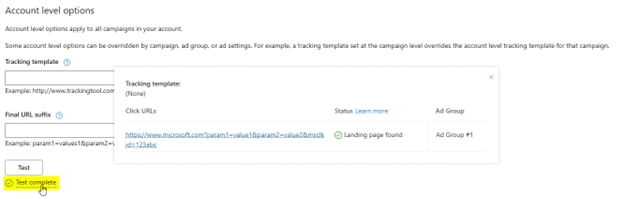
Select any URL to see how it is constructed.
Campaign level
Note
Campaign level testing is supported for any ad with a final URL and tracking template, except for Dynamic Search ads.
From the navigation menu on the left, select Campaigns.
Select a campaign name.
From the page menu on the left, select Settings.
Under Campaign URL options, select the Test button. Microsoft Advertising will sample 10 URLs from your campaign and test them.
Check the resulting message below the Test button for a brief description of the results.
Hover over the message to see the full test results.
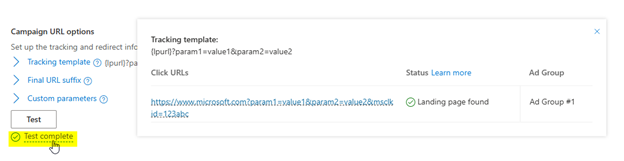
Select any URL to see how it is constructed.
Ad group level, for either ad group settings or the ad group table
You can test tracking templates at the ad group level either in an ad group's settings page or inline in the ad group table.
Ad group settings page
From the navigation menu on the left, hover over Campaigns and select Ad groups.
Select the name of the ad group whose tracking template you wish to test.
From the page menu on the left, select Settings.
Under Ad Group URL options, select the Test button.
Check the resulting message below the Test button for a brief description of the results.
Hover over the message to see the full test results.
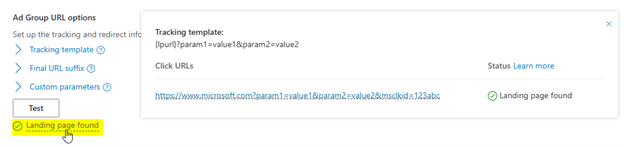
Select any URL to see how it is constructed.
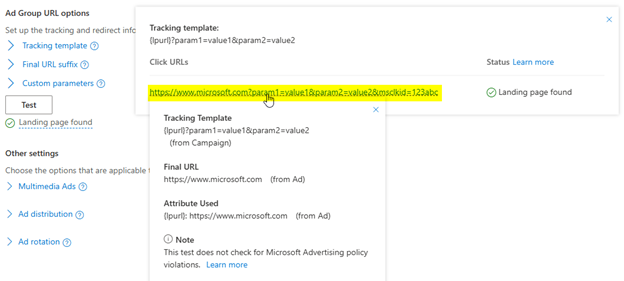
Ad group table
From the navigation menu on the left, hover over Campaigns and select Ad groups.
Make sure that the Tracking template column is visible. If it isn't:
- On the top of the table, select Columns > Modify columns.
- Select Attributes.
- Next to Tracking template, select Add.
- Select Apply.
Hover over the Tracking template column of the appropriate ad group and select the pencil icon.

Select the Test button.
Check the resulting message below the Tracking template box for a brief description of the results.
Hover over the message to see the full test results.
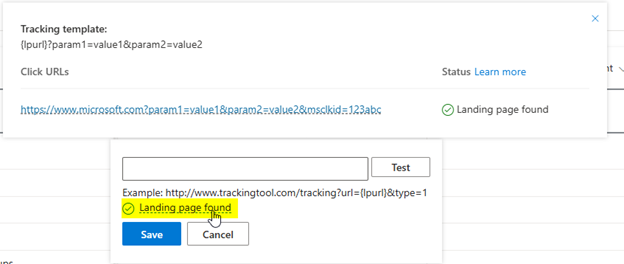
Select any URL to see how it is constructed.
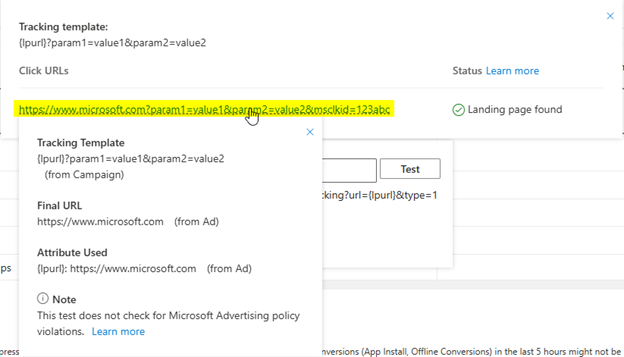
Ad level
Note
Ad level testing is supported for Responsive Search ads and Multimedia ads.
From the navigation menu on the left, hover over Campaigns and select Ads & extensions > Ads.
Select the pencil icon next to the ad to edit it.
Select the URL Options section to expand it.
Select the Test button.
Check the resulting message below the Test button for a brief description of the results.
Hover over the message to see the full test results.
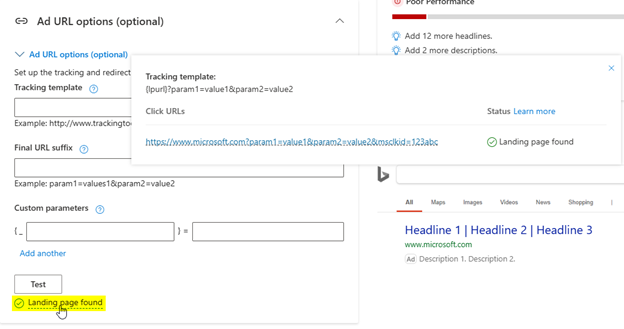
Select any URL to see how it is constructed.
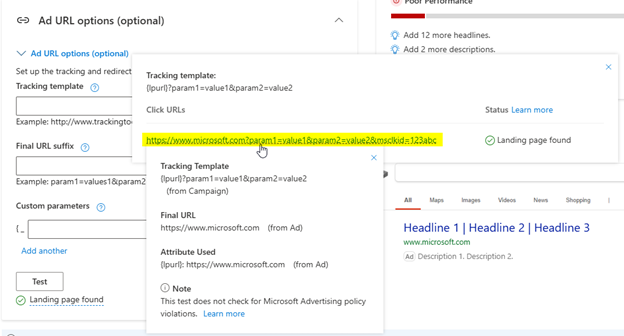
Keyword level
Note
The keyword level test only works for keywords that have a final URL. This isn't the case if you use the ad's final URL.
From the navigation menu on the left, hover over Campaigns and select Keywords > Keywords.
Make sure that the Tracking template column is visible. If it isn't:
- On the top of the table, select Columns > Modify columns.
- Select Attributes.
- Next to Tracking template, select Add.
- Select Apply.
Hover over the Tracking template column of the appropriate keyword and select the pencil icon.

Select the Test button.
Check the resulting message below the Tracking template box for a brief description of the results.
Hover over the message to see the full test results.
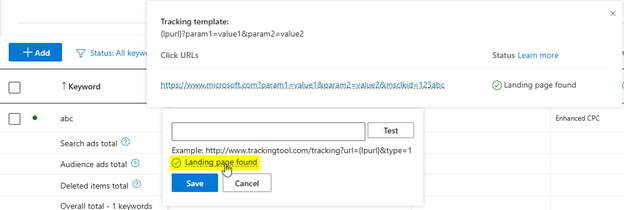
Select any URL to see how it is constructed.
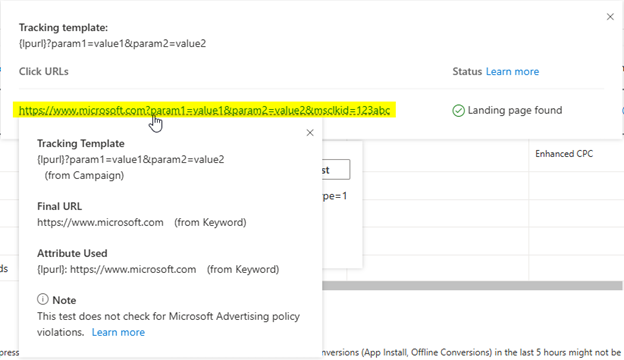
Sitelink extension level
From the navigation menu on the left, hover over Campaigns and select Ads & extensions.
Select the Extensions tab.
If not already selected, select Sitelink extensions from the dropdown menu.
Select the checkbox for the sitelink extension and select Edit > Edit an extension.
In the panel on the right, select Sitelink extension URL options to expand the section.
Select the Test button.
Check the resulting message below the Test button for a brief description of the results.
Hover over the message to see the full test results.
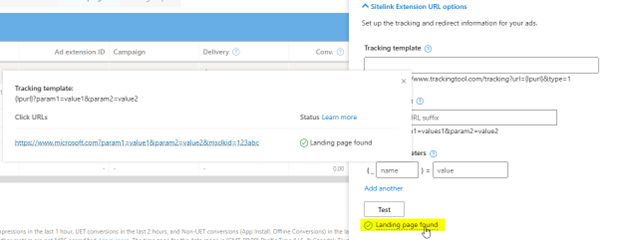
Select any URL to see how it is constructed.

What the test results show
Results message
The message indicates whether a problem was encountered with the landing page or parallel tracking URL and provides the landing page URL that the testing tool returned. See the next section for more information on results messages.
Click URL
The click URL is passed to your website server or third-party tracking system when the search user clicks the ad. The testing tool constructs the click URL by appending the tracking template parameters and their values to the final URL.
Tracking template
This is the tracking template that will be applied when the ad is served. We also show what entity level the template is coming from.
Final URL
This is the URL you entered when you created the ad.
Attributes
The listed URL and custom parameters and their values will be passed to your third-party tracking system when the ad is served.
What the results messages mean
Landing page results messages
Landing page found: You're all set. The testing tool successfully found your landing page.
Page not found: The testing tool found no results for this URL. Please make sure your tracking template, custom parameter(s), and final URL are correct.
Note
The testing tool can return a "Page not found" message if the website blocks the test tool crawler. We suggest manually loading the same URL in your web browser to confirm if it is reachable.
URL mismatch: There is a mismatch somewhere in your URL, which is not allowed. Your landing page and final URL must share the same domain, the URLs in your redirect chain must begin with your final URL, and the redirects after your final URL must stay on the same domain. Please review your URL and make sure it meets the requirements listed in the Microsoft Advertising URLs and landing page policies page.
Page unreachable: We couldn't reach the landing page. The request may have timed out. Please try again.
System error: We encountered an error while testing your landing page. Please try again.
Tracking URL results messages
- Tracking call successful: You're all set. The testing tool was able to successfully call the tracking URL created in the parallel tracking scenario.
- Tracking call unsuccessful: The testing tool was not able to successfully call the tracking URL created in the parallel tracking scenario. Make sure your tracking template and any custom parameters are correct.