Note
Access to this page requires authorization. You can try signing in or changing directories.
Access to this page requires authorization. You can try changing directories.
Note
- This article shows how to do a basic setup of UET tags using Shopify. Please refer to the Shopify Help Center for more information.
- Microsoft Advertising is not responsible for Shopify's processes or documentation, nor for changes made to Shopify's processes or documentation.
- By installing the Microsoft Advertising app for Shopify, UET tags are automatically created and added to every page of your website. Go to the Install an app page and follow the prompts to get your Microsoft Advertising app for Shopify set up.
If you created and manage your website with Shopify, you can add and manage your UET tag there.
Implementing UET using Shopify
From the navigation menu on the left, hover over Conversions and select UET tag.
Copy your UET tag ID.
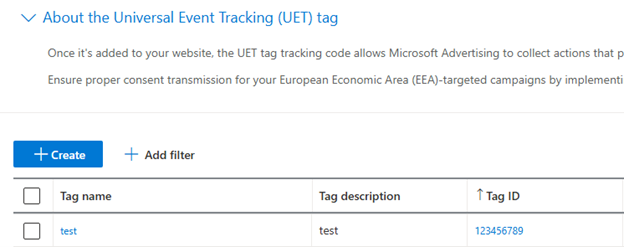
Sign in to your Shopify account.
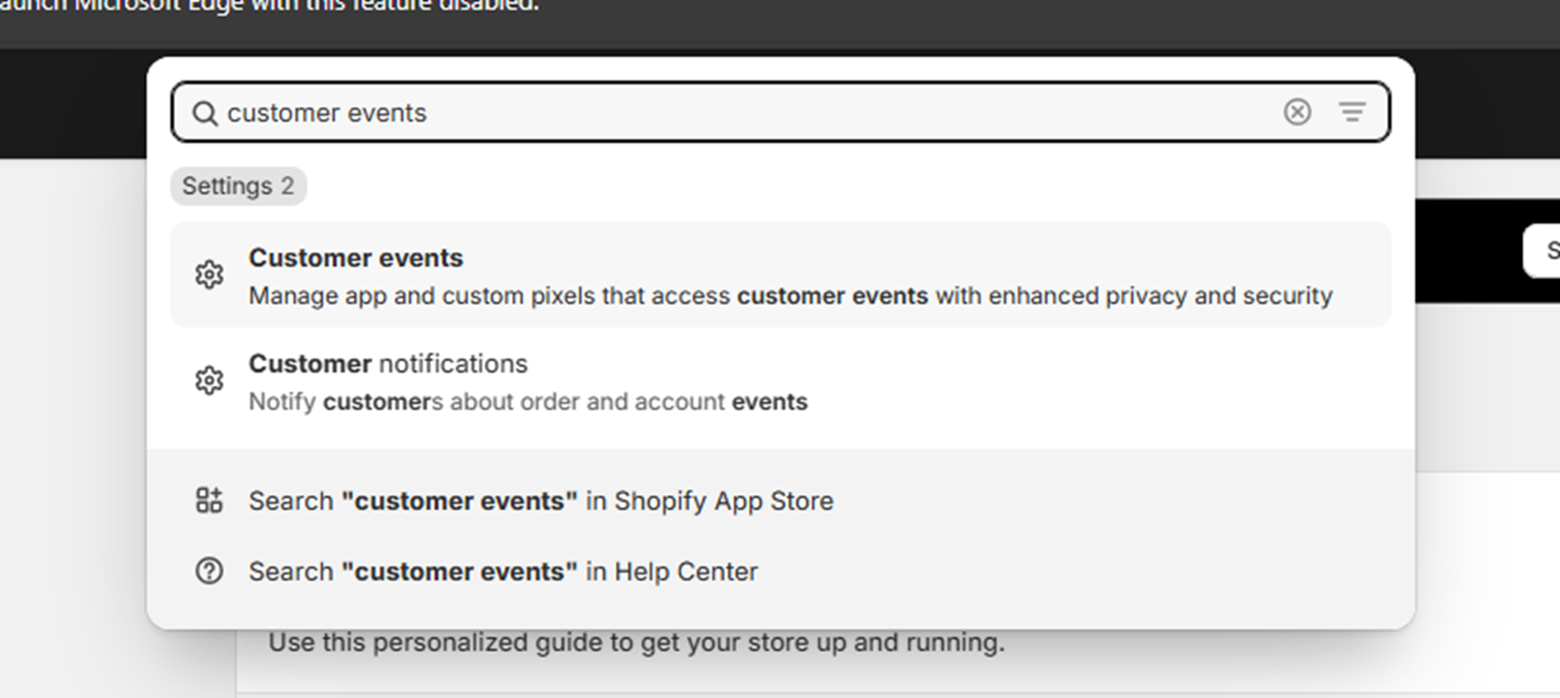
Type "customer events" into the search box and select Customer events.
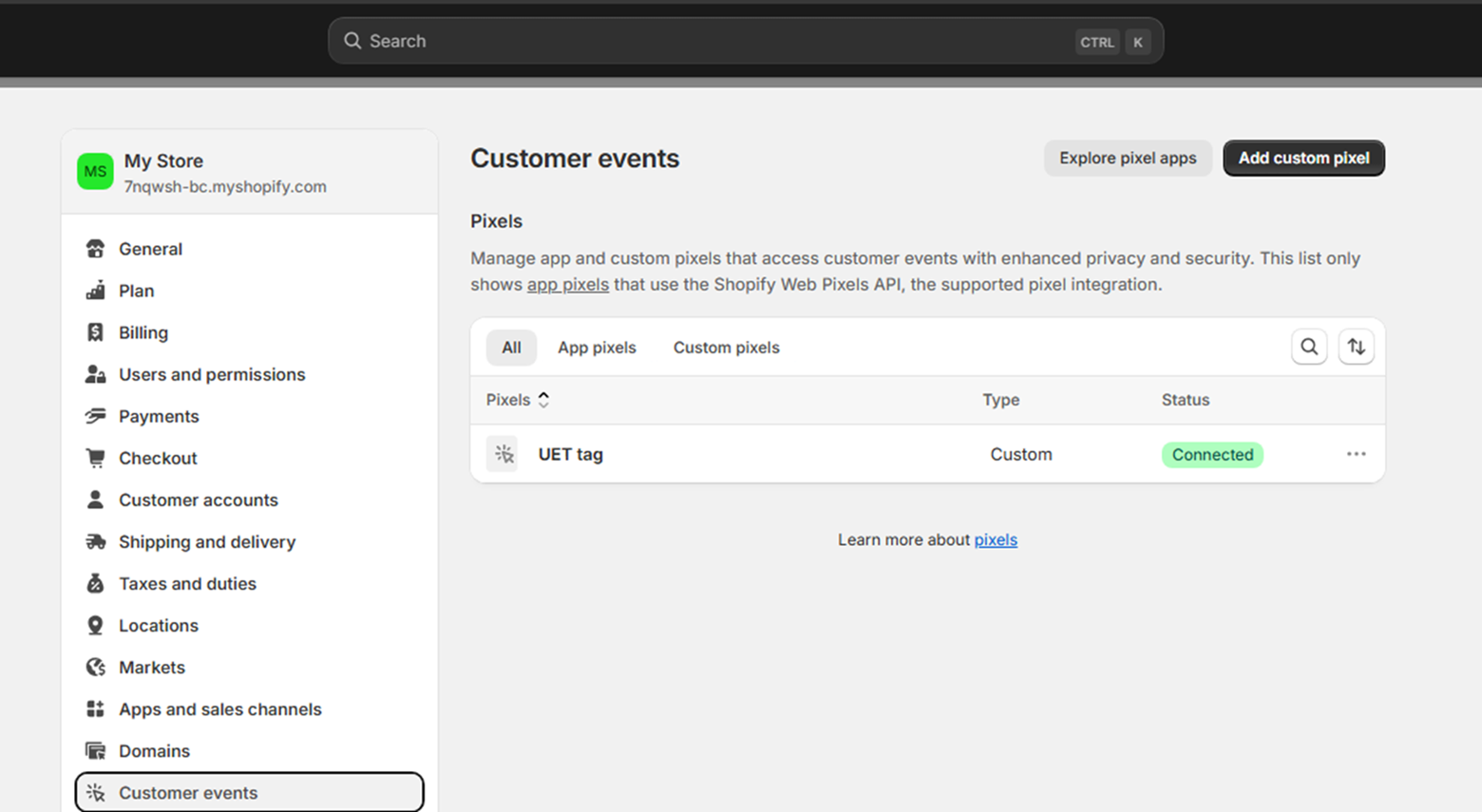
Select the Add custom pixel button.
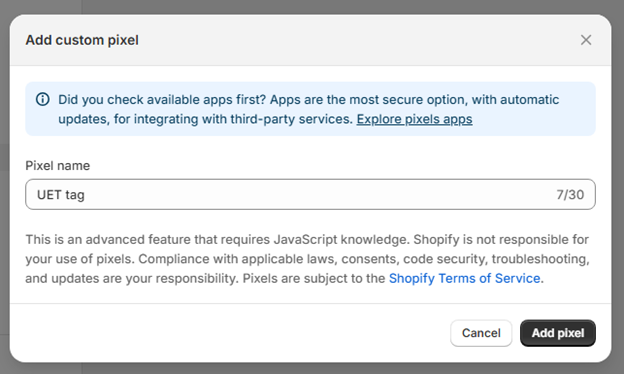
Configure the privacy settings.
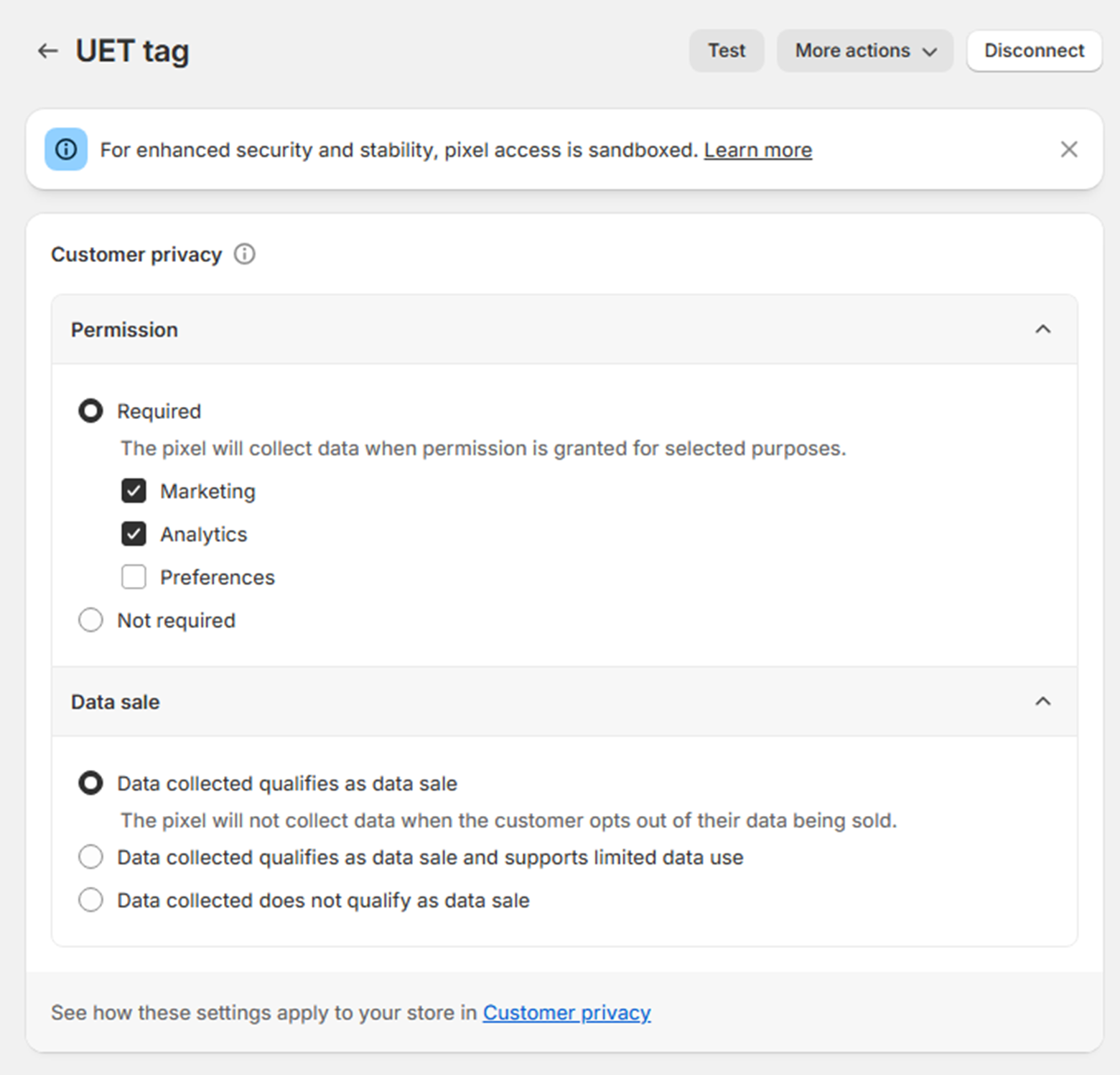
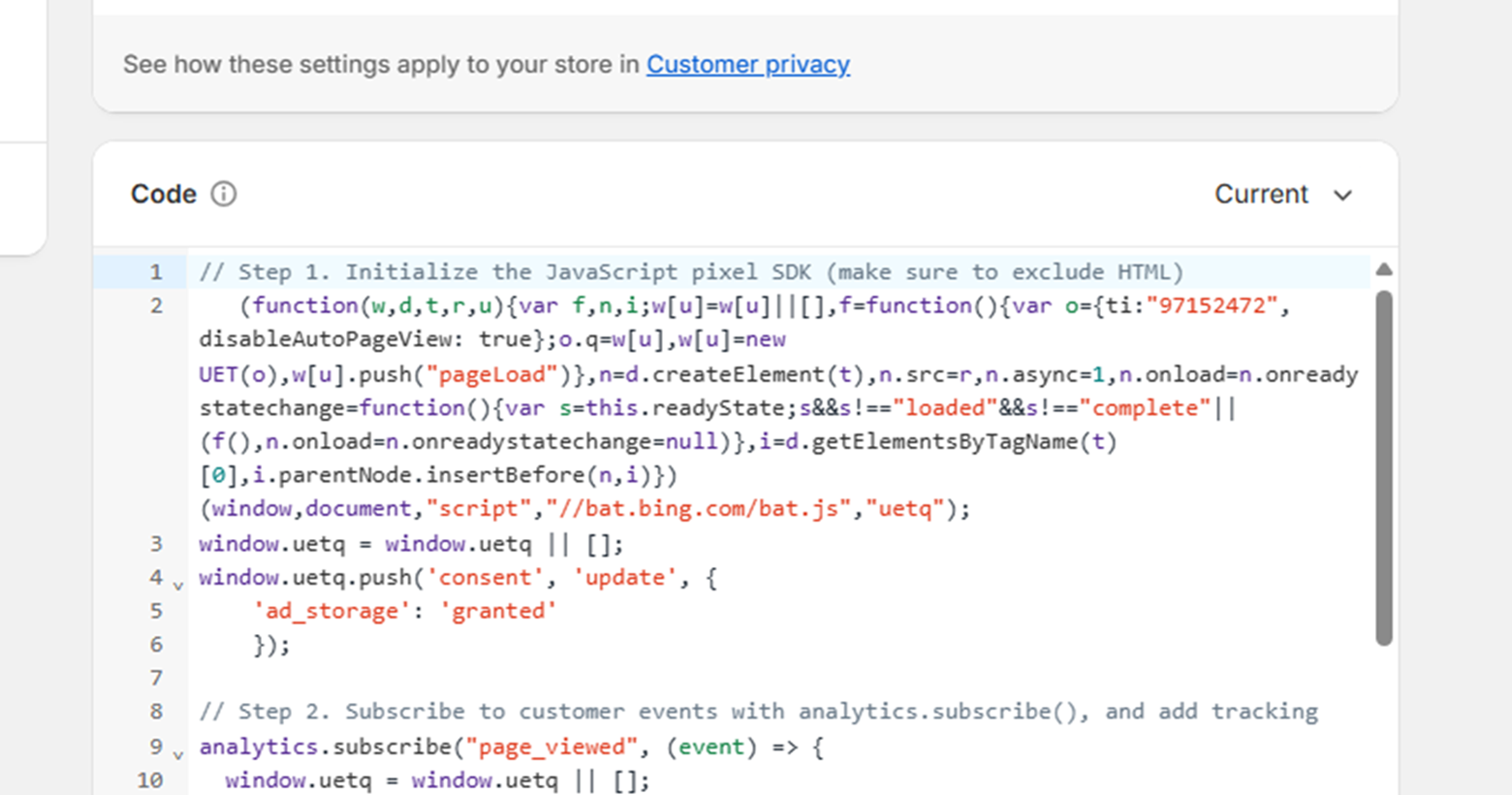
Add the following code to the Code section:
`// Step 1. Initialize the JavaScript pixel SDK (make sure to exclude HTML)
(function(w,d,t,r,u){
   var f,n,i;
   w[u]=w[u]||[];
   f=function(){
      var o={ti:"PUT_YOUR_UET_TAG_ID_HERE", disableAutoPageView: true, enableAutoSpaTracking: false};
      o.q=w[u],w[u]=new UET(o),w[u].push("pageLoad")
   },
   n=d.createElement(t),
   n.src=r,
   n.async=1,
   n.onload=n.onreadystatechange=function(){
      var s=this.readyState;
      s&&s!=="loaded"&&s!=="complete"||(f(),n.onload=n.onreadystatechange=null)
   },
   i=d.getElementsByTagName(t)[0],
   i.parentNode.insertBefore(n,i)
})(window,document,"script","//bat.bing.com/bat.js","uetq");

window.uetq = window.uetq || [];
window.uetq.push('consent', 'update', { 'ad_storage': 'granted' });

// Step 2. Subscribe to customer events with analytics.subscribe(), and add tracking
analytics.subscribe("page_viewed", (event) => {
   window.uetq = window.uetq || [];
   window.uetq.push('event', 'page_view', { 'page_location': event.context.window.location.href });
});

analytics.subscribe("all_standard_events", event => {
   let productIds = '';
   let revenueValue = 0;
   let currency = '';

   switch (event.name) {
      case "product_viewed":
         if (event.data?.productVariant) {
            productIds = String(event.data.productVariant.product.id);
            window.uetq = window.uetq || [];
            window.uetq.push('event', '', { 'ecomm_prodid': productIds, 'ecomm_pagetype': 'product' });
         }
         break;

      case "cart_viewed":
         if (event.data?.cart) {
            if (Array.isArray(event.data?.cart?.lines)) {
               const cartItemIds = event.data.cart.lines.map(line => String(line.merchandise.product.id));
               productIds = cartItemIds.join(',').slice(0, 50);
            }
            window.uetq = window.uetq || [];
            window.uetq.push('event', 'product_page', { 'ecomm_prodid': productIds, 'ecomm_pagetype': 'cart' });
         }
         break;

      case "product_added_to_cart":
         if (event.data?.cartLine) {
            productIds = String(event.data.cartLine.merchandise.product.id);
            window.uetq = window.uetq || [];
            window.uetq.push('event', 'add_to_cart', { 'ecomm_prodid': productIds, 'ecomm_pagetype': 'cart' });
         }
         break;

      case "checkout_completed":
         if (event.data?.checkout) {
            revenueValue = event.data.checkout.totalPrice?.amount;
            currency = event.data.checkout.totalPrice?.currencyCode;
            if (Array.isArray(event.data?.checkout?.lineItems)) {
               const lineItemIds = event.data.checkout.lineItems.map(item => String(item.variant.product.id));
               productIds = lineItemIds.join(',').slice(0, 50);
            }
            window.uetq = window.uetq || [];
            window.uetq.push('event', 'purchase', { 'ecomm_prodid': productIds, 'ecomm_pagetype': 'purchase', 'revenue_value': revenueValue, 'currency': currency });
         }
         break;
   }
});`
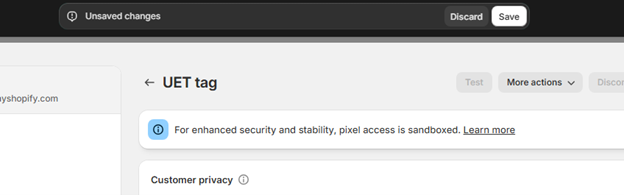
At the top of the page, select the Save button.
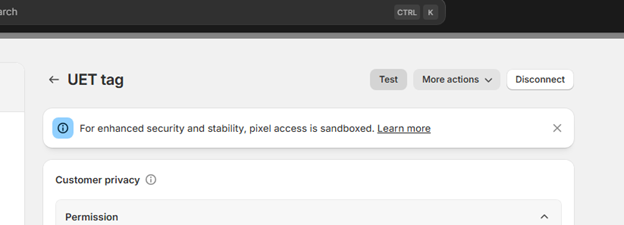
Select Test and go to various pages of your website to test the new tag.
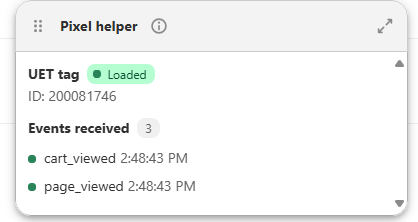
Important
If you use the UET tag helper for validation, please expect the warning "A UET event was fired from within an iframe." We use the Shopify web pixel API which utilizes an iframe solution. This is expected behavior. All events are collected correctly.
Supported events
Our integration supports various types of events. This data also can be used for dynamic remarketing.
- Page view
- Custom events
- Product page view (incl. Product ID)
- Add to cart (incl. Product ID)
- Cart view (incl. Product ID)
- Purchase (incl. Product ID, revenue, currency)
This integration also supports UET Consent Mode automatically.
Conversion goals to create
We suggest you create conversion goals for:
- Adding to cart (event action equals 'add_to_cart')
- Purchase (event action equals 'purchase')
You can optimize the performance of your campaigns with conversion goals.
Important
- The product ID in Shopify must match an ID in your MMC product feed.
- Shopify will automatically create product IDs for your products. You can configure Shopify to update your feed management solutions with Shopify product IDs which can then be imported into Microsoft Merchant Center.