Note
Access to this page requires authorization. You can try signing in or changing directories.
Access to this page requires authorization. You can try changing directories.
Adaptive Cards are a powerful way to shape how agents present information and interact with users. Rather than relying on plain text alone, agents can respond with structured, interactive cards that surface relevant content, collect input, and drive action — all within the flow of the conversation.
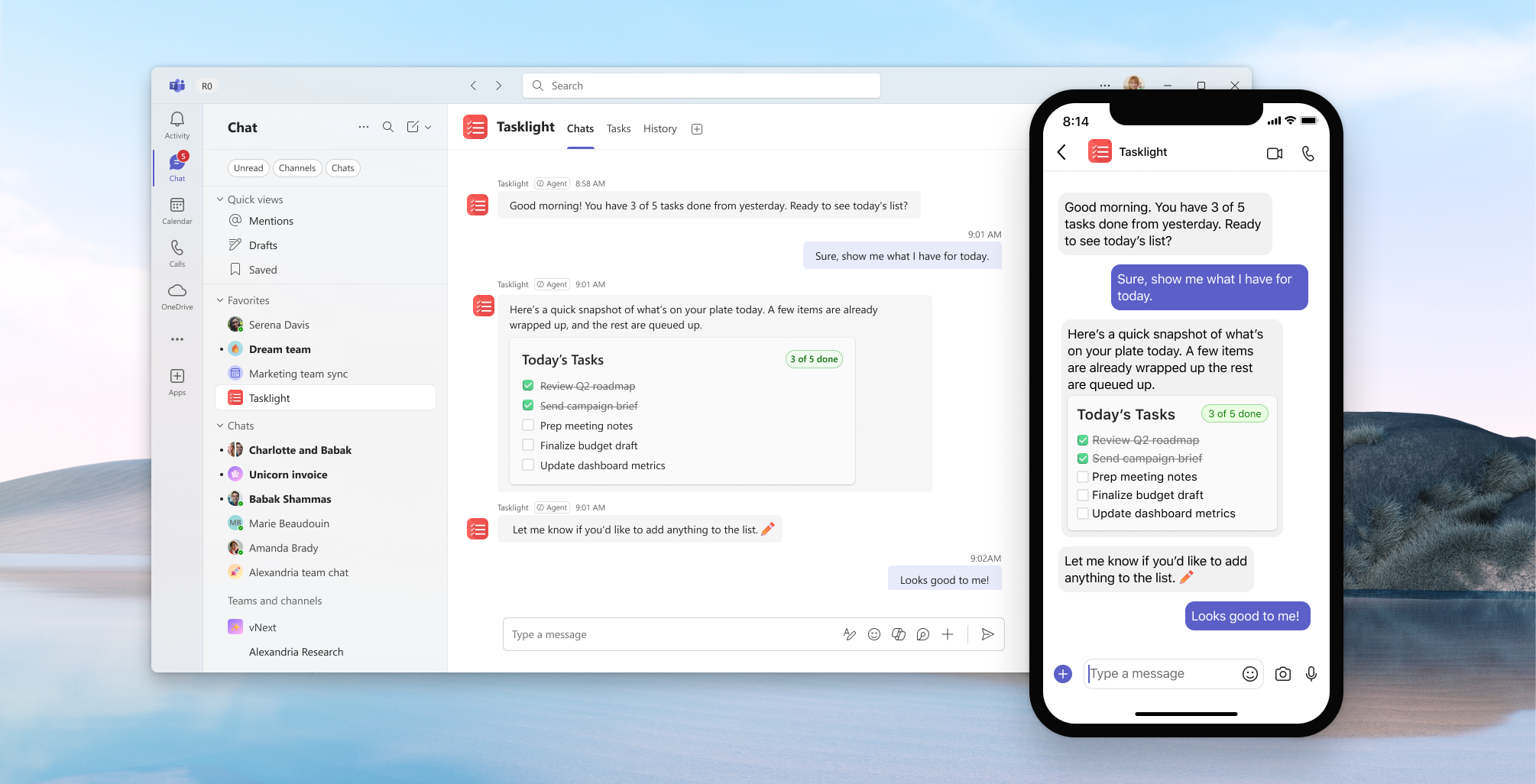
Cards can appear in two ways:
- Standalone — The card is the entire agent response, fully self-contained with everything the user needs to understand and act.
- Paired with a message — The card accompanies text before or after it, where the message provides context and the card handles structure, interaction, or action.
Built on a JSON-based format, Adaptive Cards render as native UI that automatically adapts to their host environment — including light and dark mode, screen size, and Microsoft 365 surfaces like Teams, Outlook, and Copilot Chat.
As a designer, cards are where your decisions have the most visible impact on the agent experience. The sections below cover card anatomy, design principles, and the resources you need to start building.
Why Adaptive Cards matter for agent design
When an agent responds, plain text can only go so far. Adaptive Cards give agents a richer, more capable presence in the conversation — one that feels intentional, structured, and designed rather than simply generated.
As a designer, cards are a primary tool for shaping how an agent presents itself and interacts with users.
Well-designed cards:
- Give agents a richer voice. Rather than returning a wall of text, cards let agents surface content in a way that matches the complexity of the information — charts for data, images for context, structured layouts for multi-part responses. The card shapes how useful and trustworthy the agent feels.
- Reduce conversational friction. Instead of asking follow-up questions one at a time, agents can use inputs, dropdowns, and choice sets to gather everything they need in a single step — keeping the interaction efficient and focused.
- Express brand and personality. Cards are where an agent's visual identity lives. Typography, iconography, layout rhythm, and the tone of action labels all contribute to whether the agent feels like a polished, trustworthy assistant or an afterthought.
- Give designers a seat at the table. In agent experiences, design and logic are separated by nature — the agent controls the data and decisions, but you control the layout, hierarchy, and interaction patterns. That separation is an opportunity. A well-designed card can make even a simple agent response feel considered and purposeful.
- Create consistency across surfaces. Cards render across Teams, Outlook, Microsoft 365 Copilot Chat, and other hosts using a shared visual language — so the agent feels coherent and recognizable wherever users encounter it.
Card anatomy
Adaptive Cards are highly customizable, but most agent cards share a set of common components. Understanding these elements helps you make intentional decisions about structure, hierarchy, and interaction.
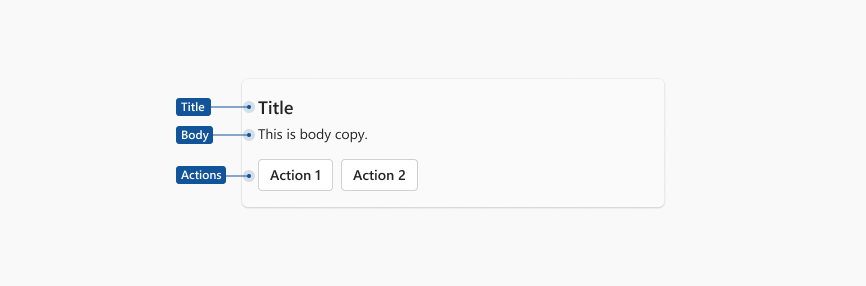
| Element | Purpose |
|---|---|
| Title | A concise heading that captures the essence of the card's content or intended action |
| Body | Supplementary detail and context — can include text, images, media, charts, and rich layout containers like columns |
| Actions | Interactive elements — buttons, links, and other controls — that help users engage with or act on the card's content. Keep actions minimal and focused on what's essential to task completion |
Note
For a full reference of available elements, layout containers, and input types, see the Adaptive Cards UI Kit and Design best practices. Detailed documentation for each element and input is available on https://adaptivecards.microsoft.com/.
A few principles to keep in mind:
- Lead with the most important information. Cards should facilitate insight and task completion quickly — direct users to a task module or the full application for more complex interactions.
- Create a visual hierarchy. Use font size, color, and placement so the most critical information is prominent and easily scannable.
- Allow for progressive disclosure. Lead with the most relevant content and let users uncover more as needed — consider truncated text with "Show more/Show less" options or collapsible sections.
- Keep actions essential. Prioritize actions that directly contribute to task completion — for example, Submit for input forms, Approve/Reject for workflows, or View details for summary cards.
Responsive design. Cards should be designed to adapt across all screen sizes and contexts. The Adaptive Cards framework supports four responsive breakpoints — Wide, Standard, Narrow, and Very Narrow — so you can tailor layouts to fit different contexts and card dimensions effectively. For guidance on designing across breakpoints, see Responsive layout.
For a deeper dive into anatomy, best practices, icons, and illustrations, see Design best practices on the Adaptive Cards site.
Examples
The following examples show the range of experiences you can create with Adaptive Cards in agent scenarios — from simple task lists to rich approval workflows and data visualizations. Each example represents a different layout pattern and use case.
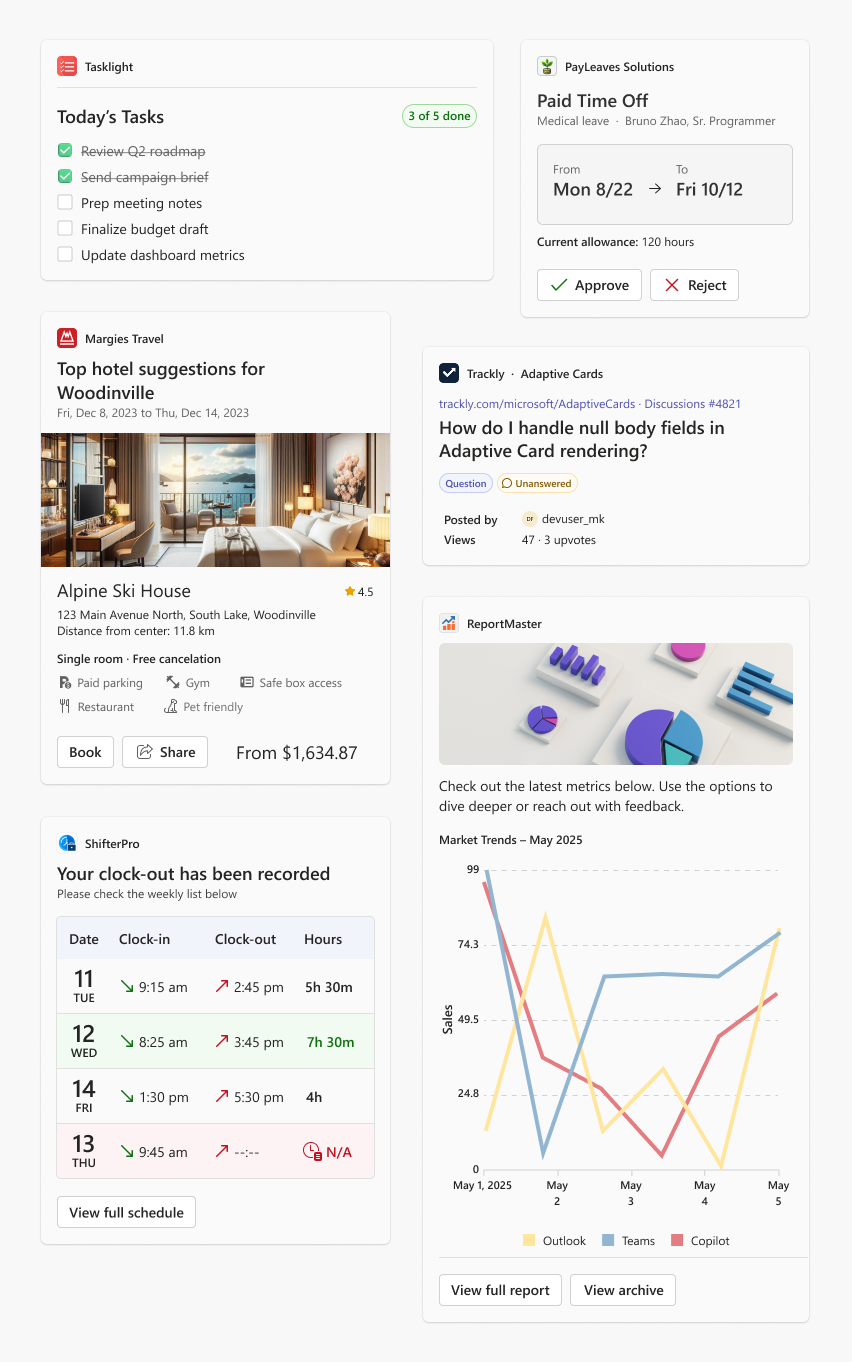
Looking for a starting point for your own designs? The Microsoft Teams UI Kit and Microsoft Teams Adaptive Card Samples repository include a variety of templates and components to build from.
Start building
The anatomy section above gives you a mental model of how cards are structured. When you're ready to go deeper — exploring layout patterns, components, styles, and real examples — use these resources:
Adaptive Cards Designer — A browser-based tool for prototyping and testing card layouts in real time without writing JSON manually.
The Designer includes starter card templates and the Adaptive Cards homepage features them too. Use them as inspiration or practical starting points for your own designs. Each template includes README instructions in the Microsoft Teams Adaptive Card Samples repository if you want to work directly with the JSON.
Note
Set the Target version to test against the schema version supported by your target host.
Microsoft Teams UI Kit (Figma Community) — The Teams UI Kit includes two dedicated Adaptive Cards pages:
- Adaptive Cards — Overview, best practices, starter cards, inspiration, and anatomy
- Card Design Toolkit — A complete design system for building Adaptive Cards in Teams. Modular, theme-aware components covering everything from simple notifications to complex responsive experiences — including all elements, inputs, styles, colors, and typography.
Adaptive Cards site — The authoritative reference for everything Adaptive Cards. Key destinations for designers are:
- Design best practices — Layout ideas, visual hierarchy, and what to think about when structuring a card
- Element reference — Every element and input type with examples and guidance
Schema and host compatibility
Adaptive Cards schema support varies by host. Design and test against the schema version supported by your target host. Cards that use unsupported schema elements might fail silently or render incorrectly in production.
To test against a specific schema version, set the Target version in the Adaptive Cards Designer before finalizing your card layout.
| Host | Supported schema version | Notes |
|---|---|---|
| Microsoft Teams (desktop & web) | 1.5 | Most common target for agent experiences |
| Microsoft Teams (mobile) | 1.5 | Test layouts at narrow widths; some elements render differently |
| Microsoft 365 Copilot Chat | 1.5 | Primary surface for M365 agent scenarios |
| Outlook Actionable Messages | 1.0 – 1.2 | Follows a separate schema track; verify against Outlook documentation |
| Bot Framework Web Chat | 1.6 | Action.Execute not supported |
| Dynamics 365 live chat | 1.5 | — |
Important
This table reflects schema support at the time of writing. Host compatibility can change with platform updates. Always verify against the official documentation for your target host before shipping.
Related content
- Adaptive Cards designer — Browser-based tool for prototyping and testing card layouts
- Microsoft Teams Adaptive Card Samples — Starter templates for Teams and Copilot experiences
- Microsoft Teams UI Kit — Adaptive Cards and Card Design Toolkit pages
- Adaptive Cards design best practices — Layout ideas, visual hierarchy, and card design guidance
- Responsive layout — Designing across breakpoints
- Adaptive cards in Copilot Studio — Schema support, ask and message node usage, and authoring resources