Note
Access to this page requires authorization. You can try signing in or changing directories.
Access to this page requires authorization. You can try changing directories.
The agent homepage is the main landing view for an agent. It's where users begin their interaction in a scoped environment. It typically surfaces the agent's name, icon, and attribution, and can include other elements based on its purpose—such as past interactions, dashboards, or media galleries—to provide context and quick access to relevant features.
Getting these foundational elements right is essential. They establish identity, set expectations, and signal trust before the first message is sent.
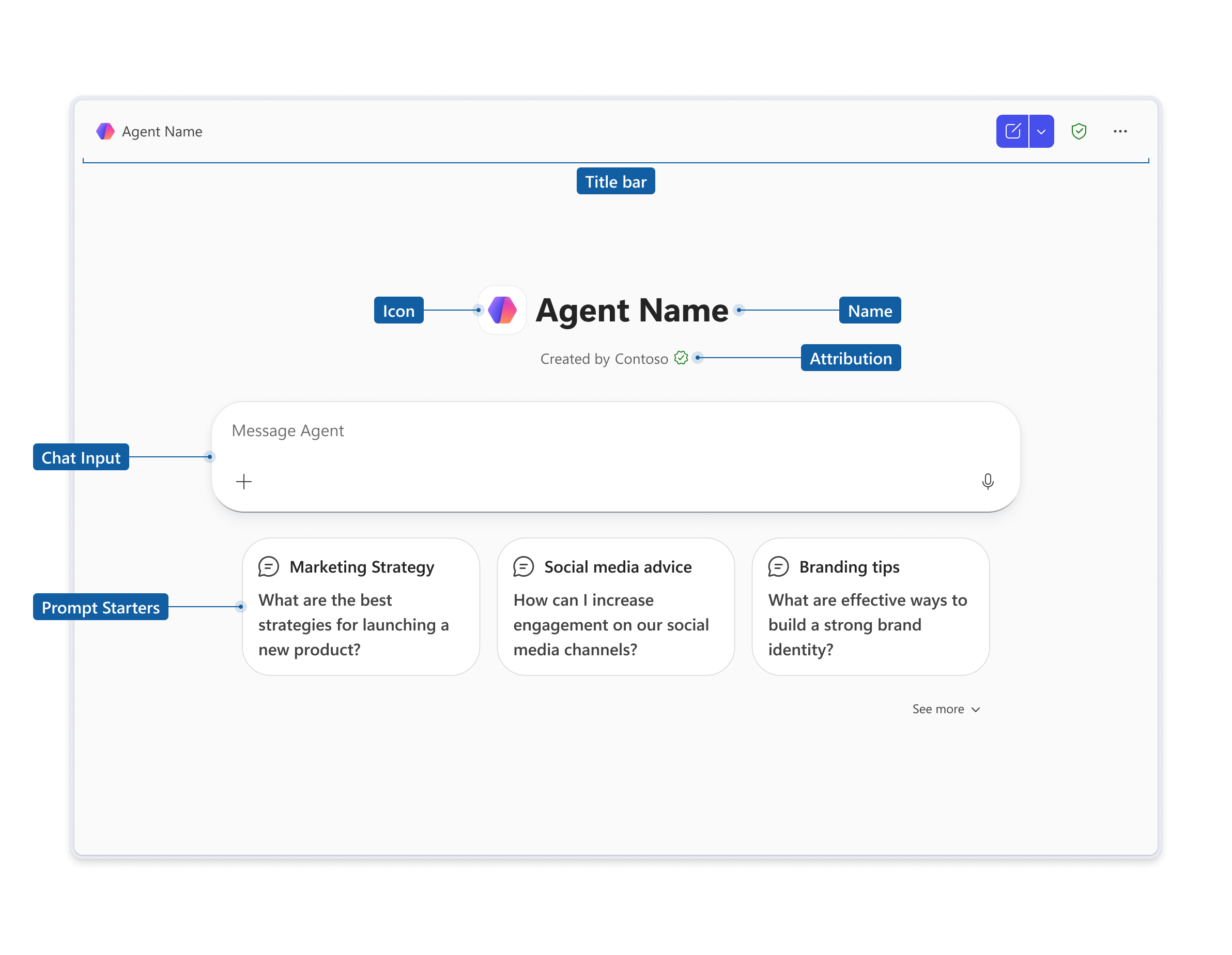
The agent homepage is composed of several distinct elements. Each element plays a specific role in helping users understand and engage with the agent.
| Element | Description |
|---|---|
| Title bar | Displays basic agent information, navigation, and basic options. |
| Icon | The branding element of the agent, enabling easier recognition by users. |
| Name | The unique identifier or title of the agent, helping users recognize its purpose or function. |
| Attribution | Displays the means or organization behind the agent, allowing users to verify its authenticity and reliability. |
| Chat input box | The primary means for users to interact with the agent, allowing them to enter queries or commands. The chat input box follows the same guidelines as native Microsoft 365 Chat, ensuring a consistent experience. |
| Prompt starters | Short, clickable suggestions that appear on the agent's welcome screen before a user types anything. They guide users on how to begin and what the agent can do. |
Icon
The icon is the first visual signal users associate with your agent. It should be clear, purposeful, and consistent with your brand.
Follow these guidelines when designing your agent icon:
- Use a simple, recognizable image that reflects the agent's purpose.
- Ensure the icon works at small sizes. It appears in compact UI surfaces like the title bar, chat picker, and agent store.
- Avoid text in the icon. Names are surfaced separately.
- Follow the Teams app icon guidelines for size, shape, and color requirements.
Note
Icons are part of your app package. Make sure your icon assets meet the Teams Store requirements before publishing. See validation guidelines for agents.
Name
The name is the unique identifier users see throughout the agent experience—in the title bar, agent picker, chat history, and agent store. It should immediately communicate the agent's purpose.
Follow these guidelines when naming your agent:
- Use a clear, concise name that reflects the agent's function or domain. For example: Contoso Ticket Manager or Sales Pipeline Agent.
- Avoid superlative claims such as "best," "amazing," or "#1."
- Avoid overly generic names that don't differentiate the agent from others.
- For declarative agents, the
namevalue inmanifest.json, the declarative agent JSON file, andname_for_humanin any plugin JSON files must be identical. - Don't use instructional phrases, URLs, emojis, or hidden characters in the name.
Important
The agent name in the UI must exactly match the name defined in the manifest. Inconsistencies can cause validation failures when publishing to the store.
Attribution
Attribution displays the publisher or organization behind the agent. It appears on the agent homepage and helps users verify the agent's source before they engage with it.
Clear attribution supports user trust. Users who can identify who built an agent—and hold that entity accountable—are more likely to engage confidently. This trust is especially important in enterprise environments where agents might handle sensitive workflows or data.
Ensure your attribution reflects your actual organization name as registered in Partner Center. Avoid misleading attribution that implies a Microsoft-built or first-party agent if the agent is independently published.
Prompt starters
Prompt starters are short, clickable suggestions that appear on the agent's welcome screen. They guide users toward meaningful interactions before they type anything.
Effective prompt starters:
- Reflect real use cases. Each starter should correspond to a task the agent can actually complete.
- Use plain, action-oriented language. Lead with a verb or a clear question. Avoid jargon.
- Cover a range of the agent's capabilities. Don't cluster all starters around one feature.
- Keep them brief. Each prompt starter must not exceed 128 characters.
First run user experience
When a user accesses your agent for the first time, the homepage displays the agent's icon, name, attribution, and prompt starters. No conversation history is present. This is the moment to make a strong first impression.
The first run experience should:
- Establish identity and purpose immediately. Users should know what the agent does within seconds of arriving.
- Lower the barrier to start. Prompt starters remove the blank-prompt problem by giving users concrete, trusted entry points.
- Set accurate expectations. The combination of name, attribution, and prompt starters should together communicate what the agent can and can't do.
For more guidance on designing first run experiences, see Human-centered design for agents.
Returning user experience
When a returning user opens the agent, the homepage surfaces additional context to help them pick up where they left off.
Chat picker
The chat picker, though not customizable, allows users to easily navigate through their chat session history with the agent. It appears in the returning user view as a navigable list of past conversations, enabling users to resume prior interactions without repeating context.
List
The list, though not customizable, is an optional component that surfaces recent or relevant items from the agent's domain directly on the homepage. It provides quick access to prior outputs, tracked items, or curated content without requiring a new prompt.
Homepage
For agents that go beyond a single chat input, you can extend the homepage with navigation and list views. These components make features easier to discover and enable richer, more familiar interactions—similar to a dashboard.
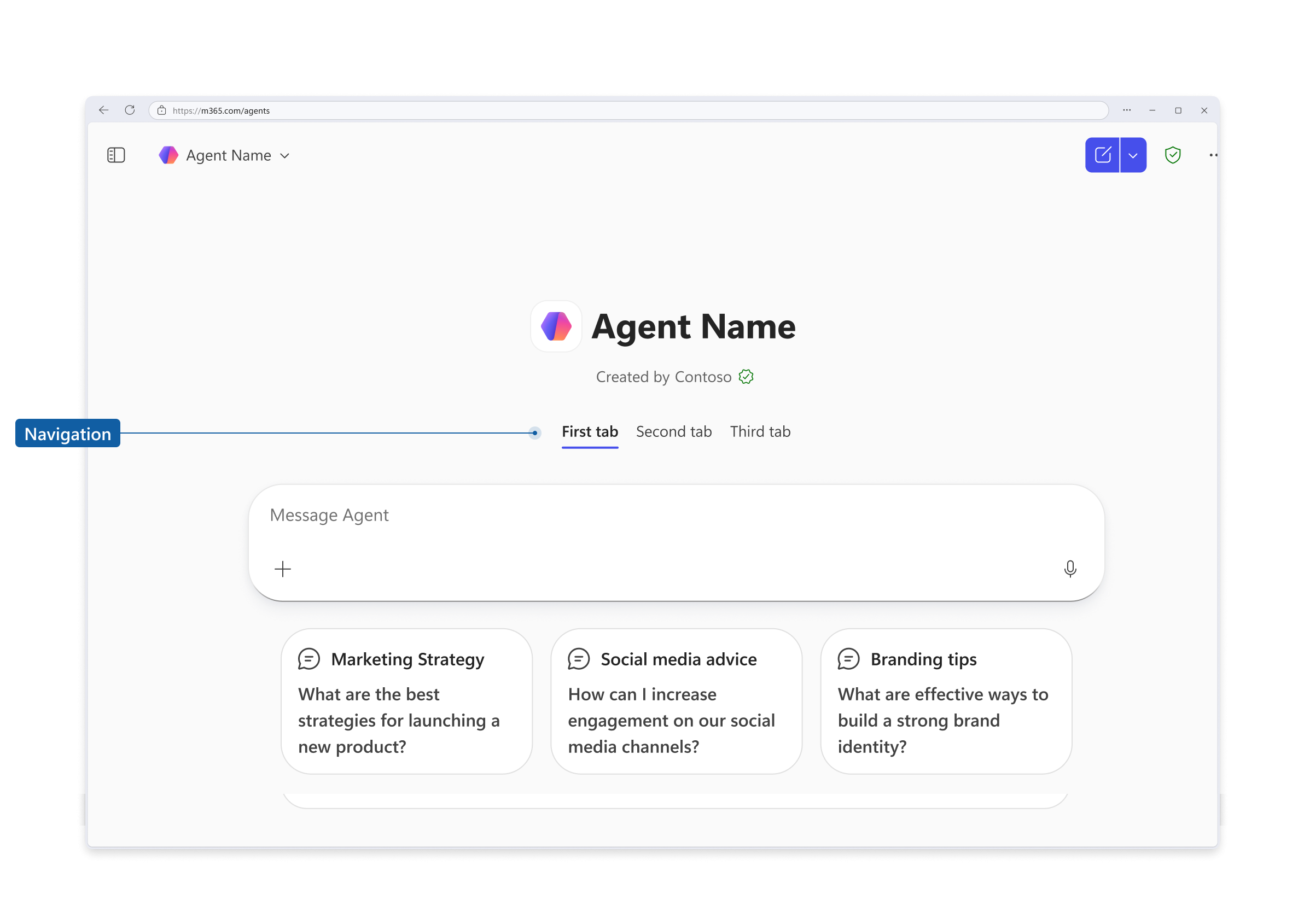
Navigation
Navigation enables agents to present multiple views or modes within a single homepage. For example, an agent might offer a Home tab and an Insights tab, so users can switch between a conversational interface and a data summary view.
Use navigation when your agent has meaningfully distinct surfaces that benefit from persistent, top-level access.
Related content
- Validation guidelines for agents — Store submission requirements for agent name, prompts, Adaptive Card responses, and more
- Teams app design fundamentals — Layout, icons, typography, color, and shape guidelines for Teams and Copilot apps