Microsoft 365 and Office | Word | For home | Windows
A family of Microsoft word processing software products for creating web, email, and print documents.

This browser is no longer supported.
Upgrade to Microsoft Edge to take advantage of the latest features, security updates, and technical support.
' cx='32' cy='32' r='32' /%3E%3Ctext x='50%25' y='55%25' dominant-baseline='middle' text-anchor='middle' fill='%23FFF' %3EA%3C/text%3E%3C/svg%3E)
I created a table with 2 sides, one side has a red background and the other is plain white. The table made formatting easier but the final version can not have visible borders so I took them out. It looks great as a Word-file (picture 1) but when I try to print it or I try to save it as a PDF-file you can see faint white border lines in the red colour (picture 2). Does anyone know how I can avoid this?
Thank you for your help.
A family of Microsoft word processing software products for creating web, email, and print documents.
Locked Question. This question was migrated from the Microsoft Support Community. You can vote on whether it's helpful, but you can't add comments or replies or follow the question.
Answer accepted by question author

Why everyone continues to suggest creating a PDF in order to resolve the issue doesn't make much sense - You've already stated that you've done that :-) Apparently nobody seems to understand that the problem is occurring in PDFs as well as hard copy... and if the lines are generated in the PDF, they will show up regardless of which program the PDF is printed from.
Most printers [PDF is a print process] 'see' the cell walls & interpret the use of no color as white (i.e., apply no ink here). That often results in the faint hairline issue you're experiencing. The solution is to make the cells blend together so the printer sees them as one large area of a specific color.
The issue is rather common, though, & there are at least 2 ways to resolve it.
Save your document as PDF file as Phillip mentioned and then open it up in Adobe Acrobat Reader DC, then print your work inside the App.
No, you have to save as PDF file there are two methods.
Method 1:
Method 2:
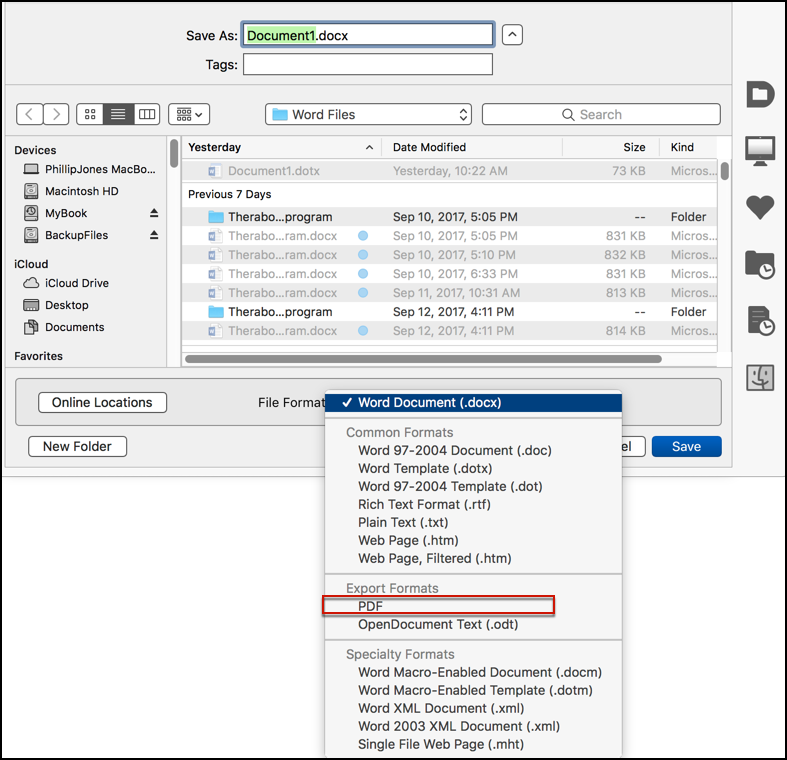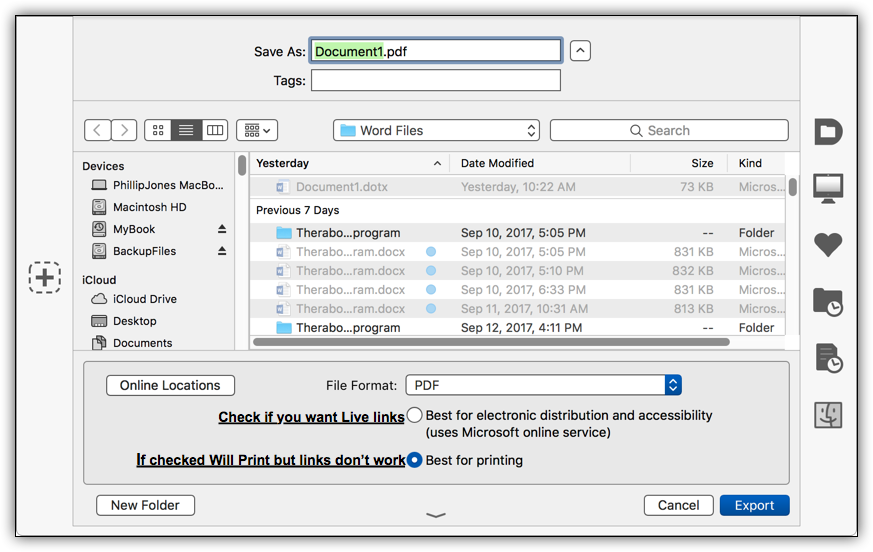 5. Choose the method depending upon the version of office you have.
_________
Disclaimer:
The questions, discussions, opinions, replies & answers I create, are solely mine and mine alone and do not reflect upon my position as a Community Moderator.
Hi William,
Thanks for the suggestion. I created the file in Word so it is a .docx file.
Can I still open it in adobe?
Hi Letitia,
Where did you open the PDF file and print?
Word is not a PDF application, please try using other application like Adobe to open it and print to check whether the borders disappear.
Regards,
William