Microsoft 365 and Office | Access | For home | Windows
A family of Microsoft relational database management systems designed for ease of use.

This browser is no longer supported.
Upgrade to Microsoft Edge to take advantage of the latest features, security updates, and technical support.
' cx='32' cy='32' r='32' /%3E%3Ctext x='50%25' y='55%25' dominant-baseline='middle' text-anchor='middle' fill='%23FFF' %3EA%3C/text%3E%3C/svg%3E)
I recently got Access 2016 to build a searchable plant database. This is a new concept for me, I’ve used spreadsheets a lot but never attempted a DB. As I am familiar with using many PC applications, I thought that it would be simple to go through the tutorial and pick it up fairly easily. The reality of it is that I cannot grasp the fundamentals at all – I’m completely at a loss.
Putting aside Forms (not needed), Searches and Reports for the moment, I just need to know how to construct the thing.
First of all, let me explain what I am trying to do.
I am creating a list of garden plants (maybe 4000) with basic information such as Latin name, and Common name in 2 fields, followed by up to 20 fields of information about that plant, e.g. Flower colour, Plant size, Growing position, etc., a detailed description of the plant and a photo. The DB would be searchable in 2 ways, one to identify a plant by entering its details via combo boxes, or to have a type of plant in mind (e.g. to buy) and using these attributes to find the various plants that match the entries. (The DB will be stand-alone without Internet connection). The user would see three consecutive pages, there will be a search button on the opening page, which would bring up the page to enter the requirements and a “report” page (or pages) to show what has been found.
I understand Tables with Records and Fields and can create a “flat file” with all the required text info in each of the other fields – from this I can search and produce a report of sorts. This is apparently is an inefficient way of building it, as the same text information may be repeated many times (for example, the Family Name “Asteraceae” may be included 300 times). It is, apparently, better to have a list of each attribute in a table of its own and link to from the basic table via a “relationship”.
Question 1… Is that a correct understanding?
Question 2… If so, which would be the best method for my DB?
I have attempted to use the Relationship method with a one record basic file, using the attribute number in the appropriate field to link to the data of the table with that name, (e.g. The Basic table field “Flower Colour” field is a 7, which is Red in the Flower Colour table).
When I create a report it says the flower colour is 7!
I haven’t quite got, it have I?
Question 3… how is this done?
Question 4… It seems that with 4000 records linking to 20 Field tables, there would have to be 80,000 Relationships made. Is this correct?
Can anyone get me straightened out on this? I live in rural France and most people within a 20 mile radius have never heard of Access, let alone know how to build a DB! HELP!!
Gerald Wallis
A family of Microsoft relational database management systems designed for ease of use.
Locked Question. This question was migrated from the Microsoft Support Community. You can vote on whether it's helpful, but you can't add comments or replies or follow the question.
Thanks a lot Rohn007, you've given me a lot to look at.
I started with Excel but was persuaded to use Access. I'll certainly look into that again using the info you've directed me to. I have to bear in mind, though, that people who use this need to know nothing about Excel or Access, they would just see pages with buttons to press (or a name to enter).
When I've got further, I'll send you an example of what I am doing - and the finished article, of course, very useful for gardeners.
Gerald
What arguments persuaded you that Access is "better" for your problem?
I'll repeat, that with only 4000 rows and data that sounds like it is "flat", all data can easily fit into a single row then Excel sounds like a "better" / easier solution. With that sort of data, taking the effort to create a "normalized" Access database will be much higher than a flat Excel table The learning curve will be much higher (MORE TIME). And, frankly, the result will probably be still a lousy database. I spent 3 years in school learning programming. A full year "Database" course, with instructor and other students I could talk to in real time and I only learned the basics of database creation. Later in my career I spent 6 years as a (Jr) Database Administrator.
For example. Are the people who are using this going to want to retrieve all of the species by family name only? Not likely.
Common name: you probably should have provision for multiple common names. This is where Excel requires a bit of a work around.
Would you like to be able to easily search by partial common names, ie all roses? which are then filtered by other criteria to narrow down specific rose?
Sizes are likely going to be ranges rather than single value. Can you boil that down to some standard sizes? (maybe not).
You need to think of these questions, BEFORE you start on the database. If you don't, there is a good chance your design won't provide for the desired option.
Here is a simple example of what I'm talking about
I could sort using the color drop down (or any other column) to make it easier to find those entries
Or I can use the slicer to filter for clay only:
Then I could also use the slicer to filter for color:
So, in this simple excel "database" if have only 1 black flower that likes clay ...
In Excel you can "join" separate "tables" of information using PowerQuery / PowerPivot, just like you can in Access, so you have to learn the same general concepts. But Excel avoids a lot of additional complications/requirements of Access ie "create table" "create Index" etc. I can provide links to articles about using Excel as DB if you are interested
Lets start with basics.
.
Why do you want to use Access to store and retrieve this data?
.
You only have 4000 entries, you could do that as easily in Excel, or even Word (table)
.
What you are asking about is called a "relational database". As others have pointed out what you want to do is called normalization. But really a database is more relevant for many more rows of data and more types of data.
.
Each "table" in a DB has one type of information. Where the data on the row does not repeat. If there is a repeat, especially if it is open ended, then a new table would be created and the data in that new table would be related via a "key" value.
.
If I understand your data you have information specific to 4000 plants.
I can see doing this sort of "database" in a single Excel Table with "Slicers". The slicers would provide a unique list of entries in the related column, you can select one or more.
Whether you go with Access or Excel, if you provide us with some sample data we can provide more specific examples of our ideas.
Here is some basic information about Excel Tables and Slicers.
! I’ll Have a Slicer That! 2014 08 12https://www.myonlinetraininghub.com/ill-have-a-slicer-that
Slicers were introduced in Excel 2010 and they’re an interactive control that enables you to filter data in PivotTables, PivotCharts, Excel Tables and CUBE functions. Now I know you can already filter using the PivotTable or Excel Table filter tools but Slicers are better for 2 reasons:
- They can control the filtering of multiple PivotTables/Charts (but only one Table)
- They look nicer and are more intuitive to use
ET MR PivotTables.docx .
! (Insert and) Use slicers to filter data (36sec)
Slicers provide buttons that you can click to filter table data, or PivotTable data. In addition to quick filtering, slicers also indicate the current filtering state, which makes it easy to understand what exactly is shown in a filtered PivotTable.
.
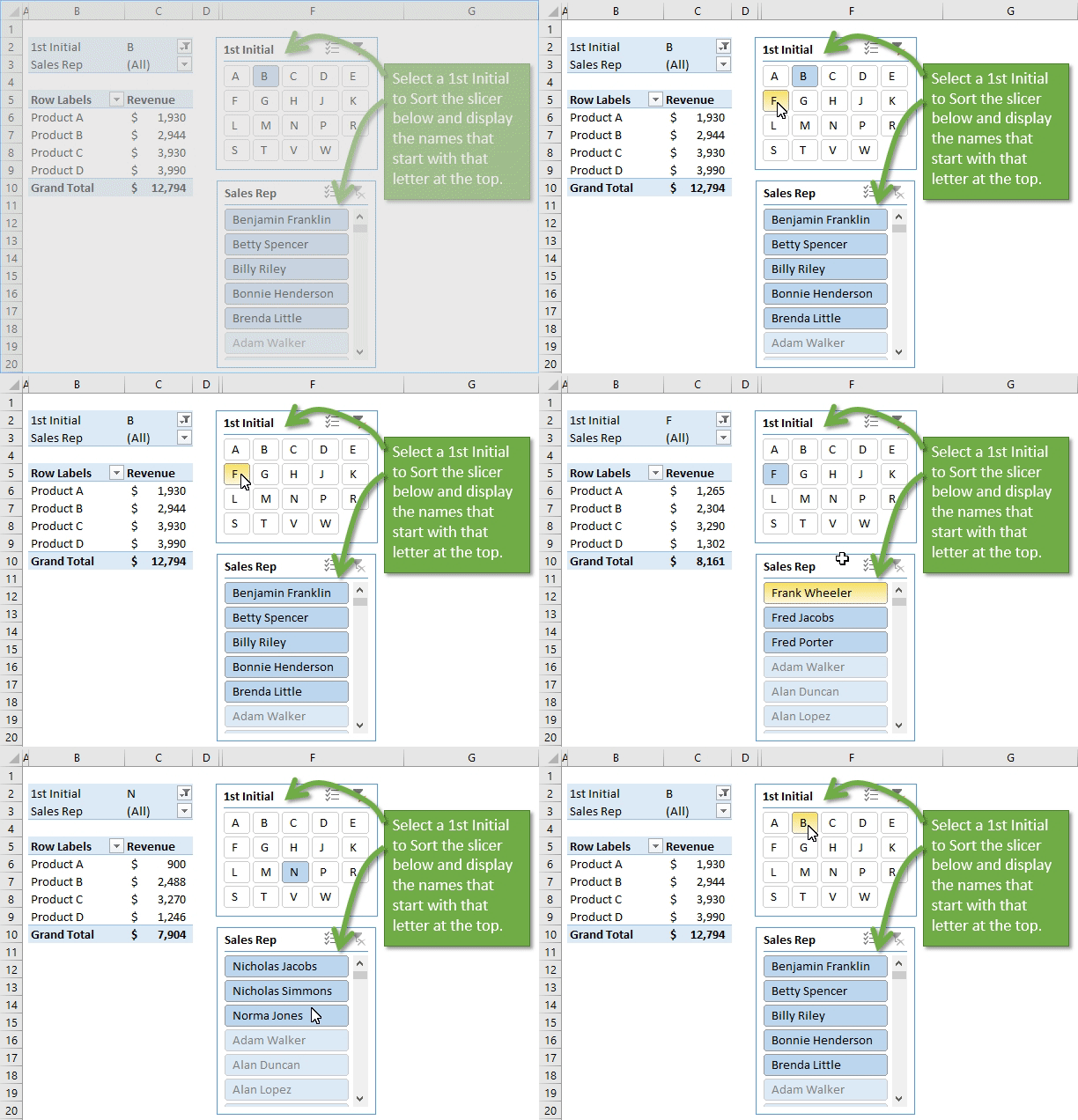
Filter or Sort a Slicer with Another Slicer 2016 02 23https://www.excelcampus.com/pivot-tables/how-to-sort-a-slicer-with-another-slicer/
Learn how to group text or number fields to create a slicer that can sort and filter another slicer. This technique is great for slicers that contain a lot of items and are difficult to navigate.
a slicer can be difficult to navigate through when it contains a lot of items. The user has to scroll horizontally through a long list to find the item they are looking for.
.
!00 **Create a Table in Excel 2010******http://www.dummies.com/how-to/content/how-to-create-a-table-in-excel-2010.seriesId-223718.html****You can create a table in Excel 2010 to help you manage and analyze related data. The purpose of an Excel table is not so much to calculate new values but rather to store lots of information in a consistent …
.
!02 Overview of Excel tables****https://support.office.com/en-us/article/overview-of-excel-tables-7ab0bb7d-3a9e-4b56-a3c9-6c94334e492c
To make managing and analyzing a group of related data easier, you can turn a range of cells into an Excel table (previously known as an Excel list).
.
!03 EZ guide to Excel Tables 2016 09 09
https://www.accountingweb.co.uk/tech/excel/ez-guide-to-excel-tables
Although at first glance Excel Tables may look to be just concerned with formatting, they do a great deal more than just apply different colours and borders to a block of cells. Perhaps the most important attribute of an Excel Table is its ability to automatically expand to include any adjacent rows and columns into which data is entered. This means that, unlike a 'normal' Excel range, a reference to a Table column can adjust automatically to include new rows.
Tables have lots of other useful features. For example:
. * Formulae and formats can be copied automatically to the other rows in the same column and will extend to new rows added to the Table
. * Filter and sort dropdowns are automatically added to the Table headings row
. * Tables can be given meaningful names which are used as part of the structured formula language available to create references to Table contents
. * Slicers can be attached to Tables (from Excel 2013 onwards) to allow Tables to be filtered in the same way as PivotTables
. * Tables can be used to quickly remove duplicates from a list
.
' cx='32' cy='32' r='32' /%3E%3Ctext x='50%25' y='55%25' dominant-baseline='middle' text-anchor='middle' fill='%23FFF' %3ES%3C/text%3E%3C/svg%3E)
Hi Gerald,
First, I want to comment on this; "I thought that it would be simple to go through the tutorial and pick it up fairly easily." Access is not like other applications. While you can open up app like Word and Excel and start using them immediately, there is a learning curve for Access. You first have to gain an understand of database design before you can do anything. There is plenty of documentation on how to design a relational database and on how to use the rules of Normalization. I suggest you send some time researching this before you start again.
I'll deal with your questions:
We are here to help you, but trying to teach you Normalization is beyond the scope of this medium. But, I actually think you have a basic grasp, albeit a very basic one. I think once you delve into it, it will become clearer. And if you have any more specific questions along the way we are here to help.
Rather than addressing all of your points directly, you might first like to take a look at DatabaseBasics.zip in my public databases folder at:
https://onedrive.live.com/?cid=44CC60D7FEA42912&id=44CC60D7FEA42912!169
Note that if you are using an earlier version of Access you might find that the colour of some form objects such as buttons shows incorrectly and you will need to amend the form design accordingly.
If you have difficulty opening the link, copy the link (NB, not the link location) and paste it into your browser's address bar.
As its name suggests, this little demo file aims to provide a simple introduction to developing a relational database in Access. Its first, and most important, section deals with how the reality which the database is modelling is represented by a set of related tables, with an explanation of the various relationship types used. It then goes on to deal with the user interface via forms, which you certainly will need! It then covers means of retrieving data from the database, again using forms, from which in some cases reports are opened.
As regards reports, these should be based on a query which joins the relevant tables on the keys. You can then, for instance, return the text column (field) from the FlowerColours table in the report, rather than the numeric foreign key value.
This answer has been deleted due to a violation of our Code of Conduct. The answer was manually reported or identified through automated detection before action was taken. Please refer to our Code of Conduct for more information.
Comments have been turned off. Learn more