Hi
Thanks for your quick response. And sorry for my misunderstanding.
I'm reading your reply carefully and we tried many methods and search, we try to use Find&Replace function to achieve this, but we find it's not available for strikethrough text. Then we searched a lot and find a way how to show the strikethrough text in Excel by vba but not for powerpoint.
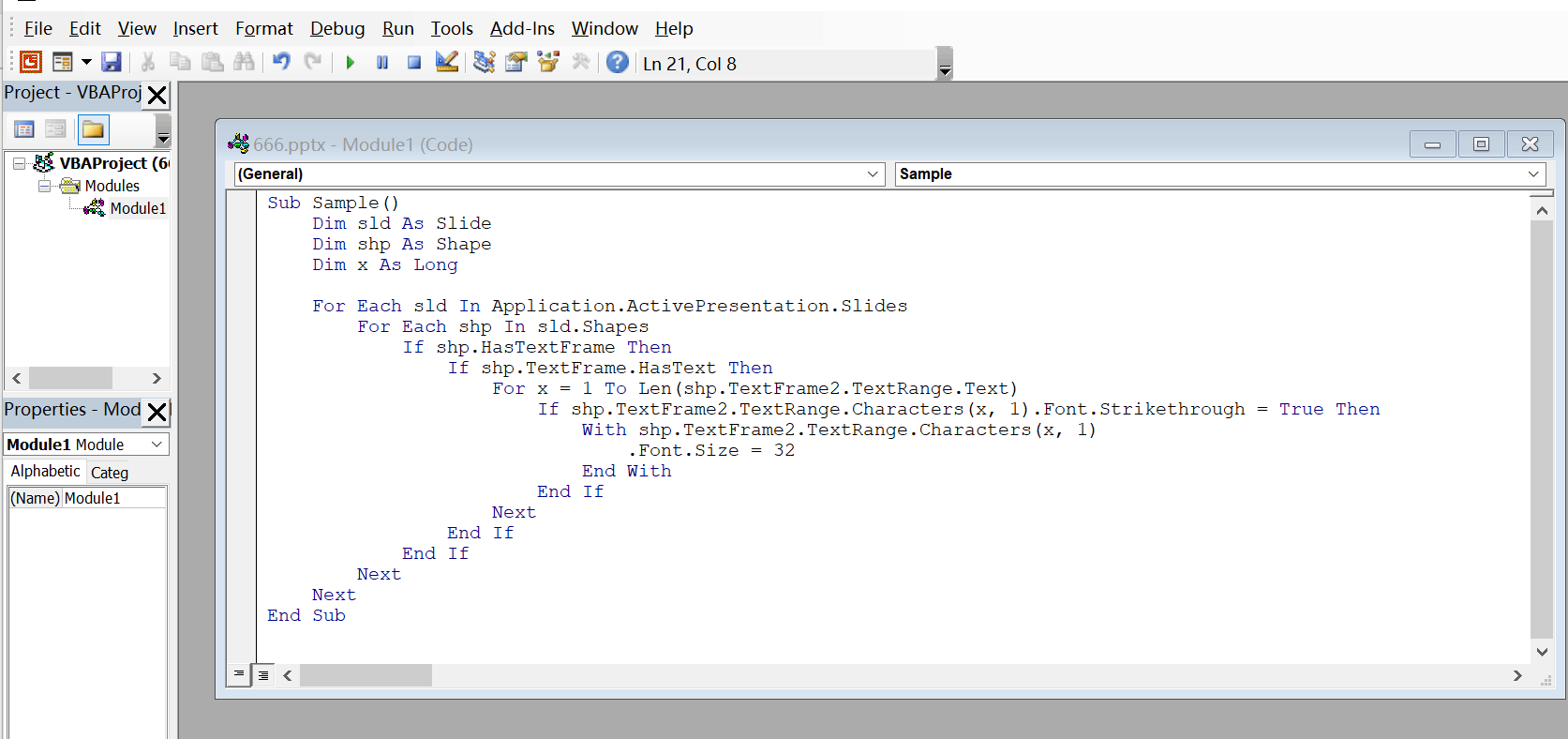
Finally, we find a similiar thread about the underline and we change some property of the code and did a test and surprise to find it's available in powerpoint to find the strikethrough text by the following code:
Sub Sample()
**Dim sld As Slide**

**Dim shp As Shape**

**Dim x As Long**

**For Each sld In Application.ActivePresentation.Slides**

    **For Each shp In sld.Shapes**

        **If shp.HasTextFrame Then**

            **If shp.TextFrame.HasText Then**

                **For x = 1 To Len(shp.TextFrame2.TextRange.Text)**

                    **If shp.TextFrame2.TextRange.Characters(x, 1).Font.Strikethrough = True Then**

                        **With shp.TextFrame2.TextRange.Characters(x, 1)**

                            **.Font.Size = 32**

                        **End With**

                    **End If**

                **Next**

            **End If**

        **End If**

    **Next**

**Next**
End Sub
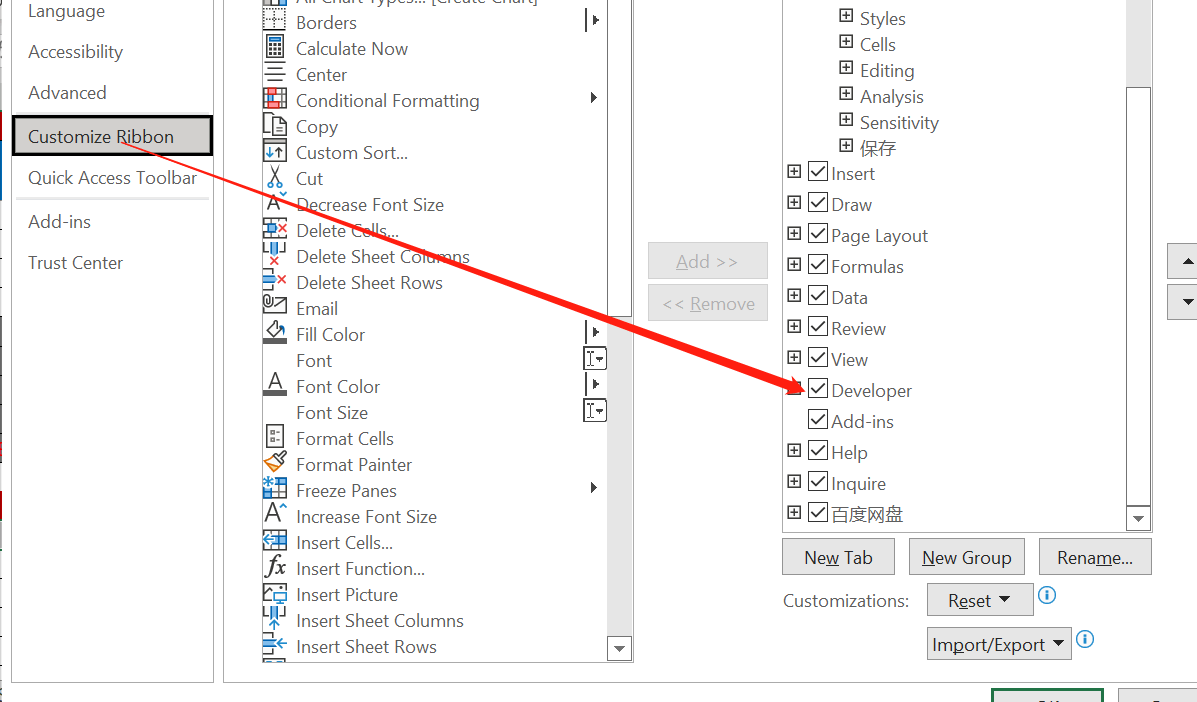
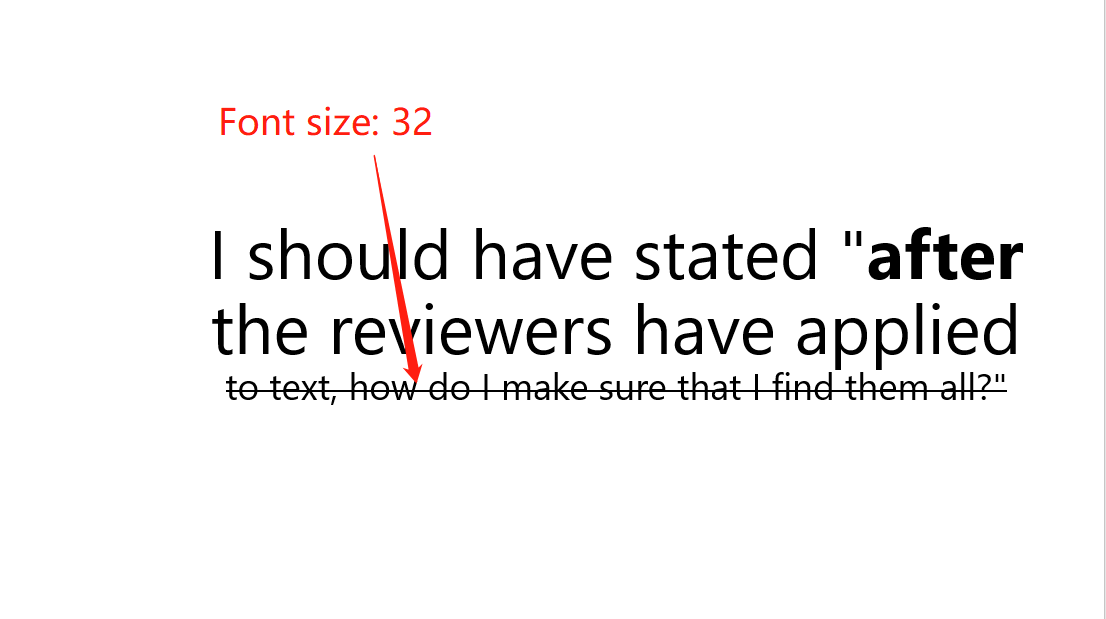
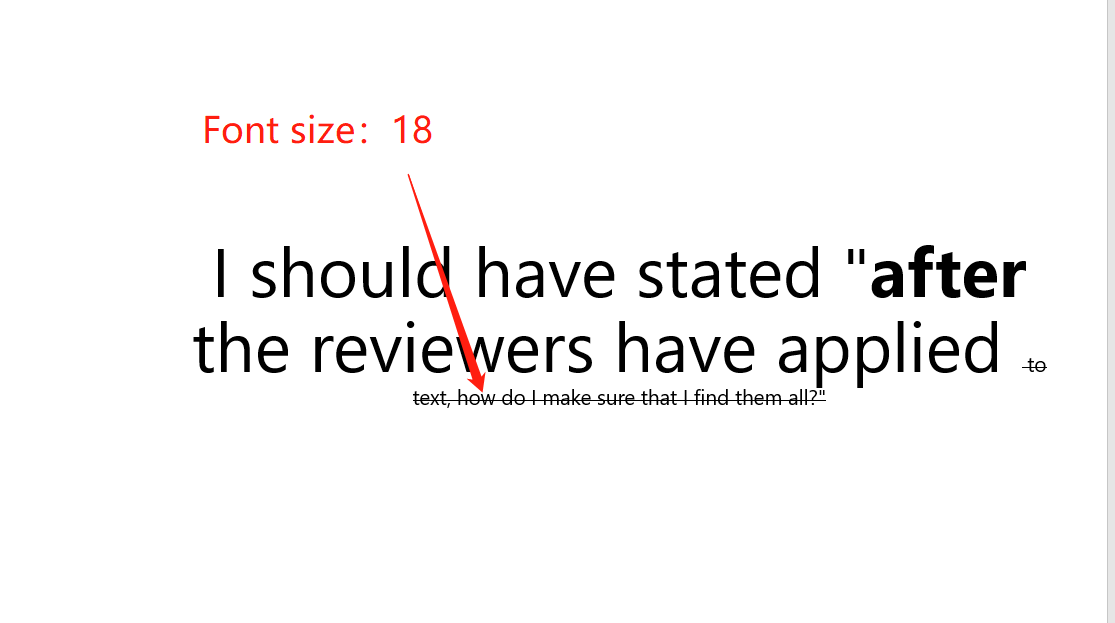
Open presentation>Developer(if you can't find the developer tab, go to File>Options>Customize Ribbon>check the developer option>Ok.)>Visual Basic>insert>Module>then paste the above code>Run>then you will find all the strikethrough text will highlight as 32 font(you also can change the Font size in code **** to 18 to make the strikethrough text show more smaller in your slide.
Hope the suggestion can help you. if you need any further assistance, please feel free to post back.
Best regards,
Stacey
' cx='32' cy='32' r='32' /%3E%3Ctext x='50%25' y='55%25' dominant-baseline='middle' text-anchor='middle' fill='%23FFF' %3EA%3C/text%3E%3C/svg%3E)

' cx='32' cy='32' r='32' /%3E%3Ctext x='50%25' y='55%25' dominant-baseline='middle' text-anchor='middle' fill='%23FFF' %3ESR%3C/text%3E%3C/svg%3E)