Share via

What are the steps to add different background for every slide in PowerPoint Template?

Anonymous
2022-09-01T06:58:51+00:00

I need different background for every slide using PowerPoint Template.

These backgrounds

  1. Speedup my visual check of monthly PowerPoint document.
  2. Highlight content of slide to be visually checked.
  3. Slides will be re-colored for transparency to allow visibility of backgrounds
  4. Location of content differ for each slide but consistent for each PowerPoint Document. Thanks ahead!

Example of Use Case shown below

Microsoft 365 and Office | PowerPoint | For business | Windows

Locked Question. This question was migrated from the Microsoft Support Community. You can vote on whether it's helpful, but you can't add comments or replies or follow the question.

0 comments No comments
Answer accepted by question author
  1. Anonymous
    2022-09-06T09:57:16+00:00

    Dear panes-rubrics.0l_icloud.com

    Thank you for your quick response.

    If you mean that you want to have a template can make each slides have different background when you create a new PowerPoint document. If my understanding is correct. First, you can follow the instructions in Create and save a PowerPoint template (microsoft.com) to create a PowerPoint template first.

    1. pen a blank presentation: File > New > Blank Presentation
    2. On the Design tab, select Slide Size > Custom Slide Size and choose the page orientation and dimensions you want.
    3. On the View tab, in the Master Views group, choose Slide Master.
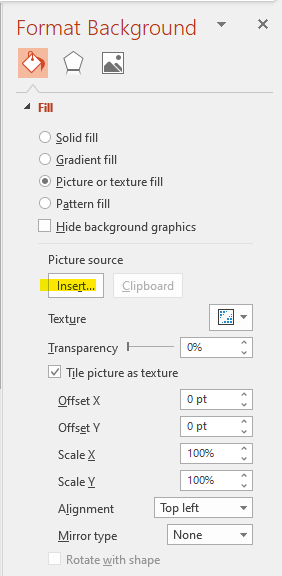
    4. Select Background styles>Format Background>then click Insert in Picture resource to select the background you want.
    5. After you finished the template, follow the detailed steps mentioned in the article to save it. On the File tab, click Save As (or Save a Copy, if you are using Microsoft 365)>Under Save, click Browse to open the Save As dialog box.... We kindly suggest you save the template in C:\Users<UserName>\AppData\Roaming\Microsoft\Templates
    6. Then apply the template to your presentation, you can refer to Start with a template (microsoft.com). If you can't find the template in Personal tab. Go to the new presentation you create>Design>click the Theme drop down list>Browse for themes
    7. Then find the template you created and saved location on your computer to apply.
    8. Then, in the new presentation, you can select the different background from the template for your new presentation as the screenshot below:
    9. The left is the new presentation slides, the right is the PowerPoint template

    If my understanding is correct, please come to back let us know and we'll continue to help you all the time!

    Really appreciate your patience and understanding.

    Sincerely,

    Stacey | Microsoft Community Moderator

    0 comments No comments

5 additional answers

Sort by: Most helpful
  1. Anonymous
    2022-09-23T02:09:16+00:00

    Thanks Stacey,

    Your suggestion is good but more labour than my post on Sept 2.

    My situation is typical of finance task: compare text in two versions of PowerPoint slides containing mix of sentences, tables, charts, pie charts.

    If export can extract all text, it would save tremendous effort instead of having seperate exports to text for each of following categories:

    1. sentences
    2. tables
    3. image

    Since I have yet found a simple way to extract text, I am considering compare pixels for each slide. Photo comparison apps I searched do not take batch input nor PDF input.

    Currently, as alternative to visual which is prone to human error, I am using combination of Word, Adobe Export to Spreadsheet, Adobe Export to Word and PowerPoint Compare to differentiate two versions of PowerPoint ....

    My challenge is to compare, ASAP, a new presentation (40 slides with financial data) with previous typically received within same day.

    My post on Sept 2 is tedious but take less time than yours.

    Thanks and Best Regards,

    Sunny

    APPENDIX of what I tried:

    Re: How to get pixel Compare for images in PDFs us... - Adobe Support Community - 13100712

    https://community.adobe.com/t5/acrobat-reader-discussions/how-to-export-spreadsheet-image-from-adobe-pdf-saved-by-powerpoint-365-business/m-p/13137918#M93548>

    How to compare two versions of a PowerPoint file | BrightCarbon

    https://proofed.co.uk/writing-tips/compare-powerpoint-presentations/?unapproved=535918&moderation-hash=82ee9e30b57353c6a575327648e2da0d#comment-535918

    0 comments No comments
  2. John Korchok 231.4K Reputation points Volunteer Moderator
    2022-09-02T15:51:56+00:00

    You can write a VBA macro to place a set of images from a folder into a slide presentation, 1 image per slide.

    0 comments No comments
  3. Anonymous
    2022-09-02T04:27:04+00:00

    Thanks, However, how to have a Template that applies different background to slides each time I open another PowerPoint document?

    For example:

    Slide Number Template PowerPoint received This Month
    1 Background Picture 1 Picture 1
    2 Background Picture 2 Picture 2
    3 Background Picture 3 Picture 3

    My current method is to time-consumingly manually

    1. select Source Slide
    2. copy all
    3. select Destination Slide
    4. Paste with Destination Theme
    5. Repeat above for next slide
    6. Save Destination which contains Source content but Destination Backgrounds
    0 comments No comments
  4. Anonymous
    2022-09-01T09:31:39+00:00

    Dear panes-rubrics.0l_icloud.com

    Good day! Thank you for posting in Microsoft Community. We are happy to help you.

    Based on your description, it seems that you want to know how to add different background for every slide in PowerPoint Template.

    If my understanding is correct, first, please create a PowerPoint template, the detailed instructions fro the process, you can refer to Create and save a PowerPoint template (microsoft.com)

    Then you can edit each slides in PowerPoint template to change the slide background , change the background picture and other things via follow the steps in Add a background picture to your slides (microsoft.com). But you should edit each slides manually, there no a direct way can to edit all slides at one time.

    For example, if you want to change the background picture, you can do the following steps:

    1. Select the slide you want to add a background picture to.
    2. Select Design > Format Background.
    3. In the Format Background pane, select Picture or texture fill.
    4. Select File. In the Insert Picture dialog box, choose the picture you want to use and then select Insert.
    5. Image
    6. You also can edit other options like color in the page.

    If this is not your scenario, please feel free to post back, we’re looking forward to your reply and will continue to help you all the time!  If there are any misunderstanding or unclear, you can post back in your free time.

    Your understanding and patience will be highly appreciated. I hope that you are keeping safe and well!

    Sincerely,

    Stacey | Microsoft Community Moderator

    0 comments No comments