Share via

PowerPoint Slide Master - Placeholder order numbers

Anonymous
2023-03-08T14:08:27+00:00

Hi there. I'm having trouble with a PPT Slide Master and placeholders on the slide. On most slides I have 3 core placeholders: Title, Subtitle, Section name. When I change layout from one master to another, I want these to stay consistent, but they're not.

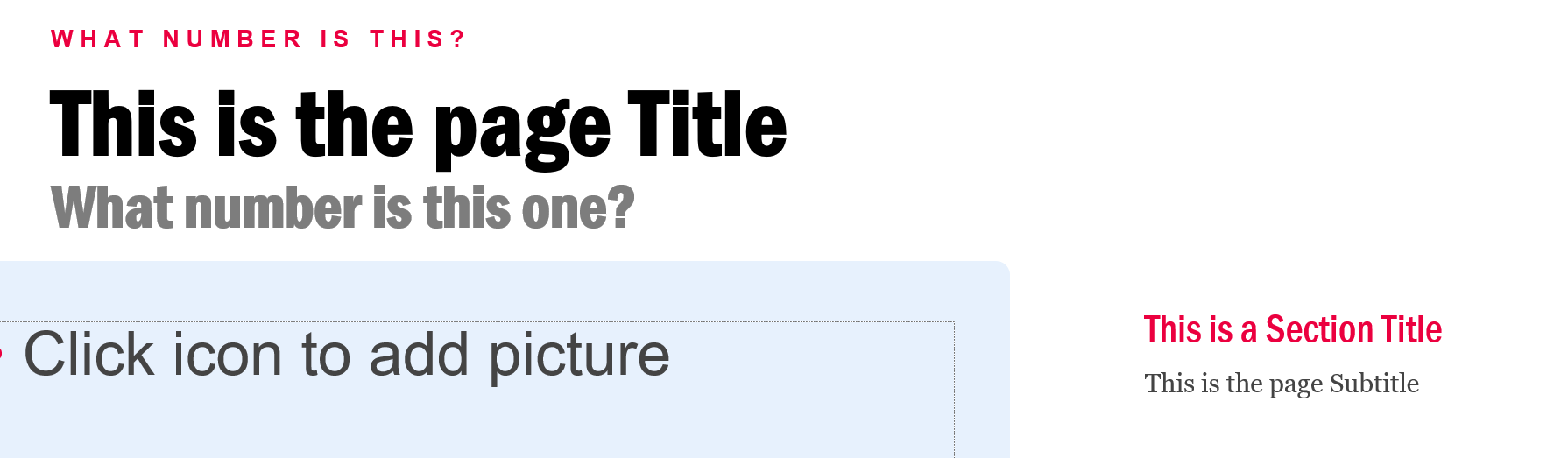
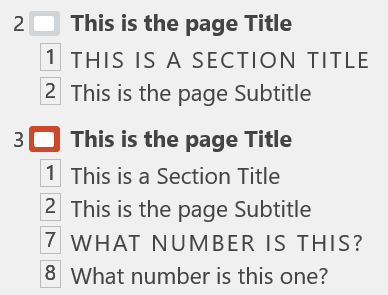
On some slide layouts, the subtitle beneath the title is Placeholder 2. In other cases it's Placeholder 8. This means that when I change the layout, I then need to copy the subtitle text from some random placeholder on the slide back into the subtitle location. You can see this clearly in Outline mode where it shows a number beside the copy in each placeholder.

Slide 2 (using outline below):

Slide 3 (after changing to a different layout):

  • Placeholder 1 & 2 are now in the body of the slide
  • Section name is now placeholder 7
  • Subtitle is now placeholder 8

You can see the placeholder numbers in Outline view.
Is there any way to set specific placeholder order numbers on a slide master so I can ensure that the section is always placeholder 1 and subtitle is always placeholder 2? I've scoured the internet and found only basic information on working with placeholders. Nothing about aligning placeholders between layouts.

Cheers,

M

Microsoft 365 and Office | PowerPoint | For business | Windows

Locked Question. This question was migrated from the Microsoft Support Community. You can vote on whether it's helpful, but you can't add comments or replies or follow the question.

0 comments No comments

8 answers

Sort by: Most helpful
  1. Anonymous
    2023-03-10T09:51:19+00:00

    And you'd have been 100% correct! Copying didn't help at all!

    The trouble is that it's a big, complex template and recreating each layout it would be a monster task so I was trying to find a way around having to do that. It looks great but for power users who do swap between layouts (rather than just taking a simple layout and messing with it manually), having the content jump around is a bit of a pain.

    So I think we're going to have to live with the inconvenience unless someone figures out a way to "reorder" the placeholders.

    Thanks!

    M

    Was this answer helpful?

    2 people found this answer helpful.
    0 comments No comments
  2. Anonymous
    2023-03-08T15:42:26+00:00

    Thanks Cliff. It seems odd to me that this hasn't come up somewhere else. I'd have expected it to be pretty standard for templates to have multiple layouts with some common elements in this way.

    Hopefully someone somewhere has figured it out!

    Was this answer helpful?

    1 person found this answer helpful.
    0 comments No comments
  3. Anonymous
    2023-03-09T11:14:04+00:00

    Thanks so much John. I wondered if it was something like that and could see that cutting/pasting placeholders in Slide Master view was changing the order when I reset the slide, but couldn't quite map my actions to the outcome. I'd hoped that this was the same order as found in the Selection Pane, but changing order there had no impact on the placeholder order.

    I have no expectation of placeholder alignment on custom placeholders between layouts, but if I can get the common placeholders aligned across the layouts so they don't jump around, that's a major win.

    I'll try reworking the slide layouts creating the placeholders in order.

    Cheers,

    M

    Was this answer helpful?

    0 comments No comments
  4. John Korchok 232.4K Reputation points Volunteer Moderator
    2023-03-08T18:50:22+00:00

    The names of placeholders do not affect the order in which content is placed in them.

    When layouts have different numbers of placeholders, it's tricky to avoid this issue entirely. You last screen shot shows a layout with 3 placeholders followed by one with 5. If a 5-placeholder layout is switched to 3, there are 2 extra content items that cannot be assigned to a placeholder. The content will be orphaned and often end up at the right or left side of the slide.

    Create placeholders in the order in which they are to be filled: top to bottom, left to right. Then content will pop to the appropriate placeholder. If the new layout has fewer placeholders, it will always be the last placeholder contents that will be orphaned, which is at least predictable.

    It also helps to use placeholders that have a function that is in accord with your design. In your example, you have a Section Title. These work best if you use the Footer placeholder for them, since then a user can select a section of slides and easily apply the same text to each slide in the section using the Insert>Header & Footer command. Footer placeholders never get confused with other placeholder types.

    Was this answer helpful?

    0 comments No comments
  5. Anonymous
    2023-03-08T15:33:14+00:00

    Dear M,

    Based on the different layout on the master slide, the placeholder number can't be kept. I'm afraid that there is no out-of-the-box way doing that.

    I'll leave the thread open and welcome other community members to share their suggestions and ideas.

    As our product developers are willing to hear the users' suggestions, I kindly suggest you submit your feedback on the Feedback platformto our product developers so that they can know your requirements and ideas for product improvements.

    Thanks for your understanding and have a nice day!

    Sincerely,

    Cliff | Microsoft Community Moderator

    Was this answer helpful?

    0 comments No comments